
Need to turn on mono audio in Windows 11 so that every sound plays through both speakers or both earbuds equally? The setting takes under a minute, works on every edition of Windows 11, and needs no administrator rights or restart. It is especially handy for anyone who hears better in one ear or shares a single earbud with a friend.
Key Takeaways
- The quickest route is Settings > System > Sound, then switch on the Mono audio toggle.
- A second path is Settings > Accessibility > Audio, which has the same toggle.
- The change applies right away to speakers, headphones, and Bluetooth devices, with no restart.
- Switching the toggle off restores normal stereo sound.
Step-by-Step Guide to Turn On Mono Audio in Windows 11
Method 1: Use the Sound Settings Page
- Press Windows + I to open the Settings app.
- Select System in the left sidebar.
- Click Sound.
- Scroll down to the Output section and find the Mono audio toggle.
- Switch Mono audio to On.
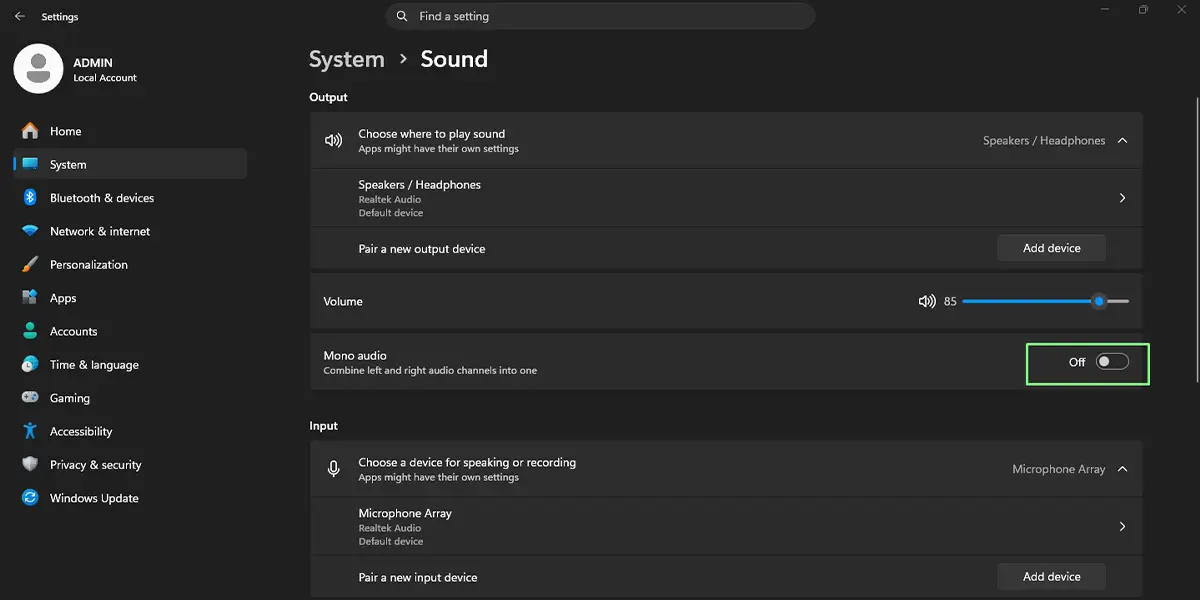
The toggle turns blue, and audio now plays as a single combined channel. Playing any video or song is the easiest way to check, since the same sound comes out of the left and right sides.
Tip: If the toggle is not visible right away, scroll slightly further down the page. On some screens it sits below the volume and device options.
Method 2: Use the Accessibility Settings
- Press Windows + U to jump straight to the Accessibility page in Settings. Alternatively, press Windows + I and select Accessibility.
- Click Audio under the Hearing section.
- Switch the Mono audio toggle to On.
The result is identical to Method 1, because both pages control the same setting. Turning it on in one place changes the toggle in the other.
When Mono Audio Helps Most
Mono audio is useful in several everyday situations. Someone with hearing loss in one ear can avoid missing sounds that are panned to the weaker side. Two people watching a video on a laptop with a shared pair of earbuds each hear the full mix instead of half of it. Older stereo recordings that place vocals hard on one side also sound more balanced once the channels are merged.
Tip: Mono audio applies to the whole PC, so it affects every app. Switch it off again before watching a movie or listening to music where a wide stereo sound matters.
How to Undo or Reverse This Change
- Press Windows + I to open Settings.
- Go to System > Sound, or go to Accessibility > Audio.
- Switch the Mono audio toggle to Off.
Stereo playback returns immediately, with left and right channels separated again.
Common Problems and Fixes
The Mono Audio Toggle Is Missing
An outdated Windows 11 build is the most likely cause. Open Settings > Windows Update, click Check for updates, install anything offered, and restart the computer. Then look again under System > Sound or Accessibility > Audio.
The Sound Still Seems Stereo After Switching It On
Confirm that the right output device is selected under System > Sound > Output. A Bluetooth headset or speaker that disconnected and reconnected may also need to be turned off and on again before the change is noticeable. Playing a clearly stereo track, such as one with sounds panned left and right, makes the difference easier to hear.
The Setting Turns Off After Restarting
This usually points to an audio driver problem. Open Settings > Windows Update > Advanced options > Optional updates and install any available driver update for the sound device. Then switch Mono audio on again and restart to test it.
There Is No Sound at All After Enabling It
Mono audio does not mute anything, so this points to a different output problem. Check that the volume is not muted and that the correct speakers or headphones are chosen under System > Sound > Output.
Frequently Asked Questions
Does mono audio work on Windows 11 Home?
Yes. The Mono audio toggle is available on Windows 11 Home, Pro, and Enterprise, so no specific edition is required.
Do I need administrator rights to turn on mono audio?
No. A standard user account can switch the toggle on or off from Settings.
Does the PC need a restart after enabling mono audio?
No. The change takes effect immediately, and audio that is already playing switches to mono right away.
Does mono audio work with Bluetooth headphones and wired earbuds?
Yes. The setting applies to the sound output of the whole PC, so it works with built-in speakers, wired headphones, and Bluetooth devices.
Is there a keyboard shortcut to turn mono audio on or off?
There is no dedicated shortcut for the toggle itself. Pressing Windows + U opens the Accessibility page, where Audio is one click away, which is the fastest keyboard-assisted route.
Does mono audio affect battery life or performance?
No noticeable effect is expected. Merging the left and right channels is a light task, so laptops on battery power should behave the same as before.
Why can the Mono audio option not be found in Settings?
The most common reason is an outdated Windows 11 build. Installing pending updates under Settings > Windows Update usually brings the toggle back to System > Sound and Accessibility > Audio.
Will mono audio change the volume of my sound?
The overall volume stays under normal volume control. Some stereo content may sound slightly different because the two channels are combined into one, but the volume slider works as usual.
