
Learning how to fix no sound in Windows 11 usually takes only a few minutes, because the cause is often a wrong output device, a muted slider, or a driver that needs a refresh. These steps work on every Windows 11 edition. Administrator rights are needed only for the driver and audio service methods.
Key Takeaways
- Start with Settings > System > Sound and confirm the correct speakers or headphones are selected under Output.
- Run the built-in sound troubleshooter from the same Sound page to fix common problems automatically.
- If sound is still missing, update or reinstall the audio driver in Device Manager.
- Restarting the Windows Audio service in Services clears most stuck audio problems without a full reboot.
How to Fix No Sound in Windows 11 Step by Step
Method 1: Use the Settings App
This is the quickest route, and it solves most cases where a Windows 11 PC suddenly goes silent after plugging in a headset, connecting a monitor, or pairing a Bluetooth speaker.
- Check that the speakers or headphones are plugged in firmly, and press the mute key on the keyboard if the laptop has one.
- Press Windows + I to open Settings.
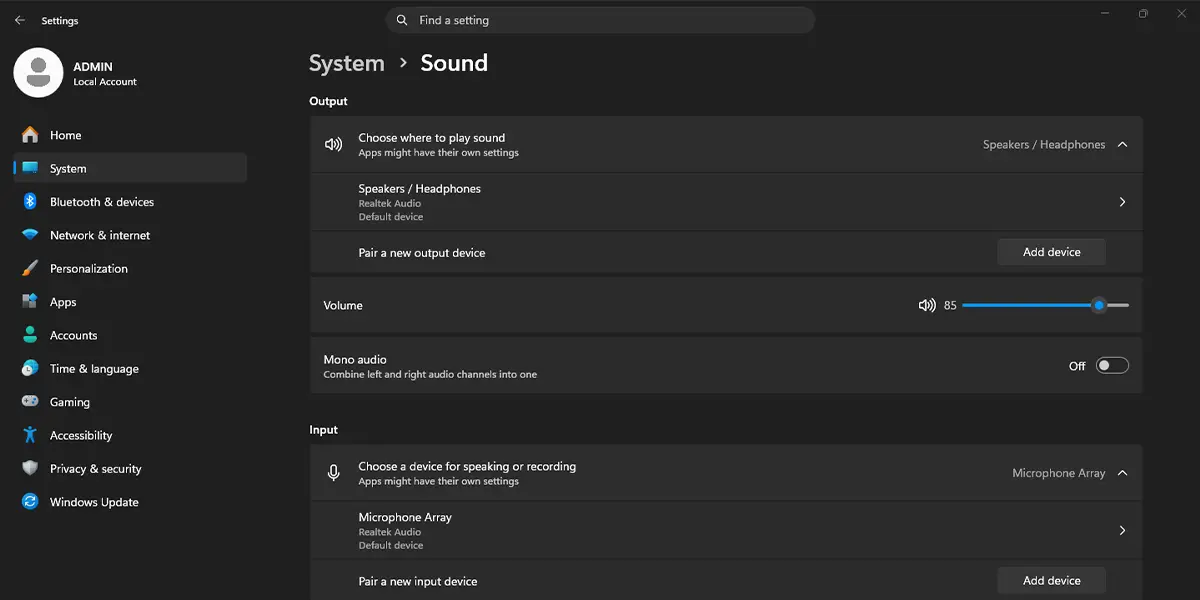
- Select System in the left pane, then click Sound.
- Under Output, select the device that is actually connected, such as the built-in speakers, wired headphones, or a monitor.
- Click the name of that device to open its properties.
- Drag the Volume slider above zero and make sure the device is not muted. A short sound or a moving slider confirms the change took effect.
- Go back to the Sound page and select Volume mixer to confirm that the app in question is not turned down to zero.
- Go back to the Sound page again, scroll to Troubleshoot common sound problems, and click Output devices.
- Pick the device that has no sound and follow the on-screen prompts. Windows applies any fix it finds, and sound from a video or song should return right away.
Tip: Press Windows + A to open Quick Settings, then click the small arrow beside the volume slider to switch between speakers, headphones, and Bluetooth devices much faster than going through Settings.
Method 2: Update or Reinstall the Audio Driver in Device Manager
When no device appears under Output, or the device is listed but stays silent, the audio driver is the usual suspect. Sign in with an administrator account before starting.
- Right-click the Start button and select Device Manager.
- Expand Sound, video and game controllers.
- Right-click the main audio device. If it shows a small down arrow, select Enable device and test the sound.
- If the device is already enabled, right-click it and select Update driver.
- Select Search automatically for drivers and let Windows finish.
- If Windows reports that the best driver is already installed, right-click the device again and select Uninstall device. Leave the option to remove the driver unticked.
- Click Uninstall to confirm, then restart the computer. Windows reinstalls the audio driver during startup, and sound normally comes back once the desktop loads.
Tip: A newer audio driver is sometimes waiting under Settings > Windows Update > Advanced options > Optional updates > Driver updates, especially on laptops after a major update.
Method 3: Restart the Windows Audio Service
Sometimes the audio service simply gets stuck, much like an app that needs to be closed and opened again. Restarting it needs administrator rights.
- Press Windows + R to open the Run box.
- Type services.msc and press Enter.
- Scroll down to Windows Audio in the list.
- Right-click Windows Audio and select Restart.
- Right-click Windows Audio Endpoint Builder and select Restart.
- Click Yes if Windows asks to restart related services.
- Check that the Status column shows Running for both services, then play a video to test the sound.
The same restart can be done from Terminal. Right-click the Start button, select Terminal (Admin), and run this command in the elevated window:
Restart-Service -Name Audiosrv -Force
Common Problems and Fixes
The Output List Is Empty or the Device Is Missing
Open Device Manager and look under Sound, video and game controllers and Audio inputs and outputs. Enable any disabled device, then update or reinstall the driver as shown in Method 2. On a work or school PC, an administrator may have restricted audio devices, so contact the IT team if the device keeps disappearing.
Sound Works in Some Apps but Not in Others
Open Settings > System > Sound > Volume mixer and raise the slider for the silent app. Some apps, such as video call tools and browsers, also have their own volume or mute button inside the app.
Sound Comes Out of the Wrong Device
This often happens after connecting Bluetooth headphones or an HDMI monitor. Go to Settings > System > Sound, select the correct device under Output, or disconnect the Bluetooth device that is grabbing the audio.
Sound Disappears After Sleep or Restart
Update the audio driver in Device Manager, then restart the Windows Audio service as shown in Method 3. If the problem began right after an update, open the device properties in Device Manager, select the Driver tab, and click Roll Back Driver when that button is available.
Frequently Asked Questions
Why does a Windows 11 PC suddenly have no sound?
The most common causes are the wrong output device being selected, a muted or lowered volume, a stuck Windows Audio service, or a driver that stopped working after an update.
Does this fix work on Windows 11 Home and Pro?
Yes. Every method in this guide is available on Windows 11 Home, Pro, and Enterprise.
Is administrator access required to fix no sound?
Not for Method 1. Updating or reinstalling a driver in Device Manager and restarting audio services in Services both need administrator rights.
Is a restart needed after reinstalling the audio driver?
Yes. After choosing Uninstall device, restart the computer so Windows can detect the hardware and install the driver again.
Why is there no sound through an HDMI cable or external monitor?
Windows may still be sending audio to the built-in speakers. Open Settings > System > Sound and select the monitor or HDMI device under Output.
Can a Bluetooth device cause no sound?
Yes. If a paired speaker or headset is connected but out of range or switched off, Windows can keep sending audio to it. Switch the output to the laptop speakers or turn off Bluetooth for that device.
What does Roll Back Driver do?
It returns the audio device to the previously installed driver. The button appears under the Driver tab in the device properties only when an earlier driver is available.
How can speaker hardware be ruled out?
Plug in a pair of wired headphones or try another speaker. If sound plays through the other device, the original speakers or their cable are likely the problem rather than Windows.
