
Knowing how to run the Audio Troubleshooter in Windows 11 saves a lot of guesswork when the speakers go silent, the headphones crackle, or a video plays with no sound. The tool works on Windows 11 version 24H2 and 25H2, on Home and Pro editions alike, and does not need administrator rights in most cases. A few fixes may ask for approval on a shared or work PC, and the whole process usually takes about a minute.
Key Takeaways
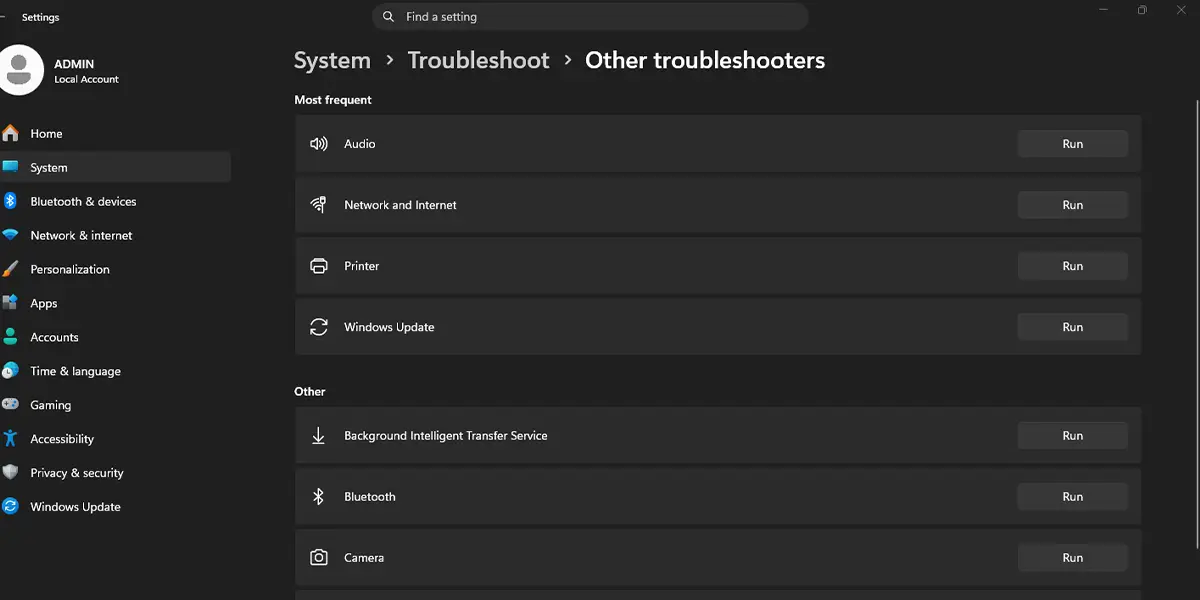
- The main path is Settings > System > Troubleshoot > Other troubleshooters, then click Run next to the audio entry.
- A faster route is to right-click the speaker icon in the taskbar and choose Troubleshoot sound problems.
- The troubleshooter asks which device has the problem, so pick the exact speakers or headphones that are not working.
- Test the sound again once the troubleshooter finishes, and restart the PC only if the tool suggests it.
How to Run the Audio Troubleshooter in Windows 11 Step by Step
Method 1: Use the Settings App
- Press Windows + I to open Settings.
- Click System in the left sidebar.
- Scroll down the right pane and click Troubleshoot.
- Click Other troubleshooters.
- Find the audio entry in the list. Depending on the build, it is labeled Audio or Playing Audio.
- Click Run next to it.
- Choose the device that has the problem, such as the laptop speakers, a headset, or an external monitor with built-in speakers, then click Next.
- Read the result and follow any prompt that appears. If the tool offers a fix, click Apply this fix or the equivalent button shown on screen.
A small window opens right after clicking Run, and it lists the playback devices it found. A short scan follows, and the tool then reports what it changed or what it could not find.
Tip: Press Windows + I and type troubleshoot in the search box at the top of Settings to jump to the Troubleshoot page faster.
Method 2: Use the Speaker Icon in the Taskbar
- Look at the right side of the taskbar, near the clock, for the speaker (volume) icon. If it is not visible, click the up arrow to show hidden icons.
- Right-click the speaker icon.
- Click Troubleshoot sound problems.
- Select the device that is not producing sound and click Next.
- Follow the on-screen results and apply any fix it suggests.
This route skips several clicks, which makes it handy when a meeting is about to start and the sound is dead.
Method 3: Use the Sound Page in Settings
- Press Windows + I to open Settings.
- Go to Settings > System > Sound.
- Scroll down to the Advanced section.
- Under Troubleshoot common sound problems, click Output devices for speakers and headphones.
- Pick the affected device and click Next, then follow the prompts.
Tip: The same section has an Input devices button. Use it when the problem is a microphone instead of speakers.
What to Expect After the Troubleshooter Finishes
Most people find that the tool ends in one of two ways. It either applies a fix, such as restarting an audio service or adjusting a setting, or it reports that no problem was found. After either result, play a video or a short song and check whether the sound returns.
The key is to test with the same device that was failing. If the troubleshooter asks for a restart, save any open work first and restart the PC before testing again.
Common Problems and Fixes
The Audio Troubleshooter Is Missing From the List
Open Settings > System > Troubleshoot > Other troubleshooters and scroll through the whole list, because the entry may be named Audio or Playing Audio. If it is still missing, the PC may be managed by work or school, and the organization can hide or block troubleshooters. In that case, the IT department is the right contact.
The Run Button Does Nothing or the Window Closes Immediately
Restart the computer and try again. If the problem continues, open Settings > Windows Update, click Check for updates, install anything pending, and run the troubleshooter once more.
The Device Is Not Listed During the Scan
Wired headphones should be plugged in firmly before the troubleshooter starts. Bluetooth headphones or speakers must already be connected to the PC, or they will not appear as a choice. Run the tool again after connecting the device.
The Troubleshooter Says No Problem Was Found but There Is Still No Sound
Go to Settings > System > Sound and check that the correct device is selected under Output. Also confirm that the volume is up and that the device is not muted. A muted laptop or a turned-down app volume looks exactly like a broken driver.
The Fix Works Until the Next Restart
Run the troubleshooter again after the restart and apply the fix a second time. If the sound keeps disappearing after every restart, install pending Windows updates from Settings > Windows Update, since a driver update often settles the issue.
Frequently Asked Questions
Does the Audio Troubleshooter work on Windows 11 Home?
Yes. The tool is built into every edition of Windows 11, including Home and Pro, so no extra download is needed.
Do I need administrator rights to run it?
Usually not. Most checks run with a standard account, although a fix may ask for administrator approval on a shared or work computer.
Is there a keyboard shortcut for the Audio Troubleshooter?
Windows 11 has no dedicated shortcut for it. The quickest keyboard route is Windows + R, then typing the command below and pressing Enter. It opens the Troubleshoot page directly and does not need an elevated window.
ms-settings:troubleshoot
Does the troubleshooter need a restart?
Not normally. A restart is only needed when the tool says so, or when the fix does not seem to take effect straight away.
Can it fix a microphone problem too?
Yes, but through a different entry. Use the Input devices button under Settings > System > Sound, or the recording audio entry under Other troubleshooters.
Will it delete files or remove drivers?
No personal files are touched. The tool may adjust audio settings or restart audio services, but it works only on sound-related items.
How long does the troubleshooter take to finish?
Most scans finish in a minute or two. The time depends on how many playback devices are connected to the PC.
Does it work for Bluetooth headphones and USB headsets?
Yes, as long as the device is connected before the tool starts. Once connected, it shows up in the list of devices to choose from.
