
Numbers stored as text in Excel look normal on screen, but they refuse to add up, sort correctly, or work in formulas. The usual signs are left-aligned values, a small green triangle in the corner of the cell, and a SUM that returns 0. This guide shows how to spot the cause and convert those values back into real numbers.
Key Takeaways
- Excel treats a value as text when the cell is formatted as Text, the number has an apostrophe in front, or the data was imported with hidden spaces.
- The fastest fix is the green triangle menu, which offers ‘Convert to Number’.
- For whole columns, Text to Columns or a Paste Special multiply trick converts everything at once.
- Changing the cell format to Number alone does not convert existing text, so the value must be re-entered or converted.
- Hidden spaces and non-breaking spaces need cleaning with TRIM or SUBSTITUTE before conversion works.
Step-by-Step Guide to Fix Numbers Stored as Text in Excel
Method 1: Use the Error Checking Button
- Step 1: Select the cells that show the small green triangle in the top-left corner.
- Step 2: Click the yellow warning icon (Error Checking button) that appears beside the selection.
- Step 3: Choose ‘Convert to Number’.
- Step 4: Check that the values are now right-aligned and that a SUM of the range returns the expected total.
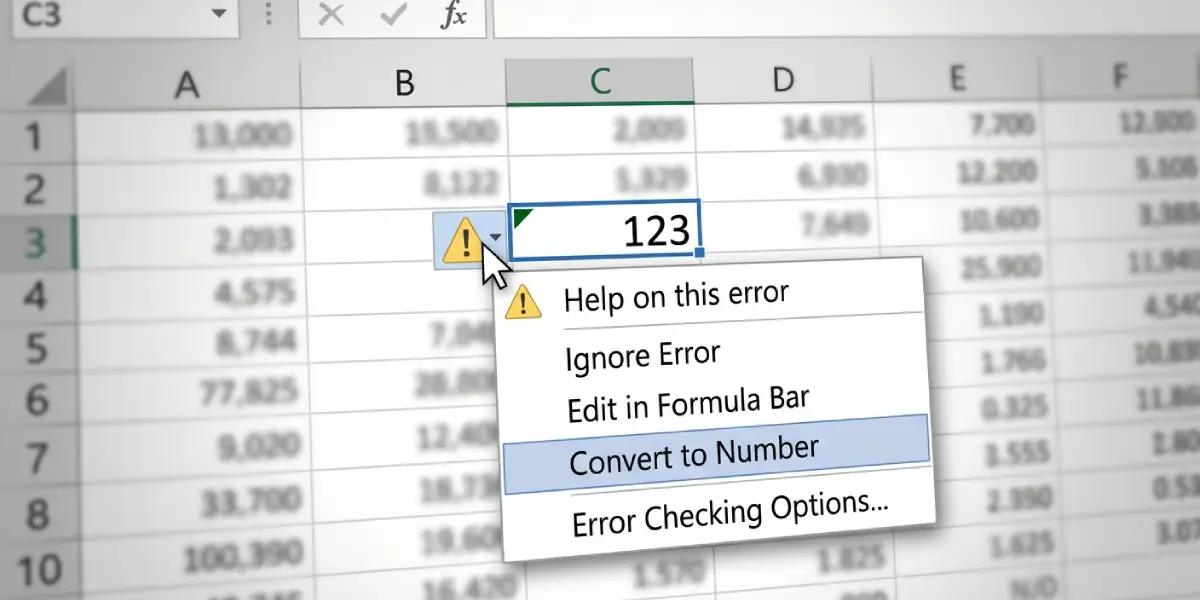
This works best when the data is a small block of cells with visible green triangles. Tip: Select the entire column first, because the Error Checking button then converts every flagged cell in one click.
Method 2: Use Text to Columns for a Whole Column
- Step 1: Select the column that holds the text numbers.
- Step 2: Go to the Data tab and click Text to Columns.
- Step 3: In the wizard, choose ‘Delimited’ and click Next.
- Step 4: Clear all delimiter check boxes and click Next.
- Step 5: Under Column data format, select ‘General’ and click Finish.
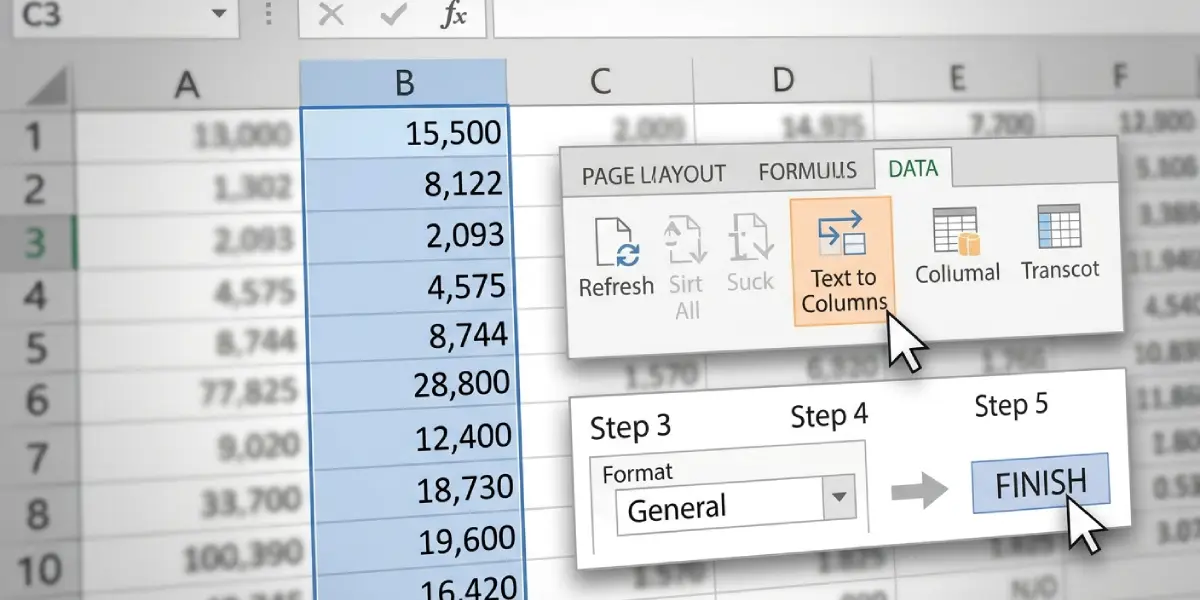
Excel re-reads each value and converts it to a true number. Most people find this the quickest option for imported reports with thousands of rows.
Method 3: Use Paste Special to Multiply by 1
- Step 1: Type 1 in any empty cell and copy that cell with Ctrl+C.
- Step 2: Select the cells that contain the text numbers.
- Step 3: Right-click, choose Paste Special, and select ‘Multiply’ under Operation.
- Step 4: Click OK, then delete the helper cell that holds the 1.
Multiplying by 1 changes nothing about the value, but it forces Excel to treat it as a number. If the cells were formatted as Text, switch the format to General on the Home tab afterward.
Method 4: Use the VALUE Function with Cleanup
- Step 1: In an empty column next to the data, enter =VALUE(TRIM(A2)) and adjust A2 to match the first text cell.
- Step 2: Press Enter and drag the fill handle down to cover the rest of the rows.
- Step 3: Copy the new column, then paste it over the original with Paste Special and ‘Values’.
- Step 4: Delete the helper column.
Use this when data comes from a website, database export, or another system, since those sources often add stray spaces. Tip: If TRIM does not remove the gap, the space is likely a non-breaking space, so use =VALUE(SUBSTITUTE(A2,CHAR(160),”)) instead.
Why Numbers Get Stored as Text
Knowing the cause helps prevent the problem from returning. Excel stores a value as text in a few predictable situations.
- The cell was formatted as Text before the number was typed or pasted.
- An apostrophe sits at the start of the entry, which Excel uses to force text.
- Data was imported from a CSV, PDF, web page, or accounting system with extra spaces or odd characters.
- Leading zeros were preserved on purpose, such as in ZIP codes or ID numbers.
Think of it like a label on a jar. Changing the label to ‘Sugar’ after the jar is already filled with salt does not change what is inside, and the same goes for switching the format to Number on cells that already hold text.
Common Problems and Fixes
The Green Triangle Does Not Appear
Error checking may be turned off. Go to File, Options, Formulas, and make sure ‘Enable background error checking’ and ‘Numbers formatted as text or preceded by an apostrophe’ are ticked.
The Numbers Stay Left-Aligned After Changing the Format to Number
Formatting only affects new entries. Press F2 then Enter on a cell to re-enter it, or use Text to Columns or Paste Special to convert the whole range.
Text to Columns or Multiply Returns a #VALUE! Error
A hidden character is in the way. Clean the values with TRIM, or with SUBSTITUTE and CHAR(160) for non-breaking spaces, before converting.
Negative Numbers Show a Minus Sign at the End
Some exports place the minus sign after the number, such as 250-. Text to Columns can handle this, since the Advanced button in the wizard has a ‘Trailing minus for negative numbers’ option.
Leading Zeros Disappear After Conversion
Real numbers cannot hold leading zeros. If zeros matter, as with postal codes, keep those cells as text, or apply a custom format such as 00000 to display them.
Frequently Asked Questions
How can I tell if a number is stored as text in Excel?
Text numbers are usually left-aligned, often show a green triangle in the cell corner, and a SUM over them returns 0 or ignores them. The status bar also shows only a Count rather than a Sum when they are selected.
Why does my SUM formula return 0 in Excel?
SUM skips text values. If the numbers are stored as text, the formula has nothing numeric to add, so the result is 0 until the values are converted.
What is the fastest way to convert text to numbers in Excel?
For flagged cells, select them and choose ‘Convert to Number’ from the Error Checking button. For a whole column, Text to Columns with the General format is typically the quickest.
Does changing the cell format to Number fix the problem?
Not by itself. The format applies to new entries, so existing text values must be re-entered or converted with one of the methods above.
Why is there an apostrophe at the start of my number?
The apostrophe tells Excel to treat the entry as text. It shows in the formula bar but not in the cell. Converting the cell to a number removes it.
How do I remove hidden spaces before converting?
Use TRIM to remove regular extra spaces. For non-breaking spaces from web data, use SUBSTITUTE with CHAR(160) to replace them with nothing, then convert the result.
Can I convert text to numbers without losing the original data?
Yes. Use a helper column with VALUE or a multiply-by-1 formula, check the results, and only then paste the values over the original column.
Why do imported CSV files often contain numbers stored as text?
Source systems may add spaces, currency symbols, or quotation marks around values, or the destination column may be formatted as Text. Excel then keeps the entries as text instead of converting them.
Will converting text to numbers affect dates?
Dates stored as text can also be converted, but the result may appear as a serial number. Apply a Date format from the Home tab afterward to display it correctly.
