
Learning how to use Presenter View in PowerPoint turns a nervous solo talk into a smooth, well-paced one. The audience sees only the full-screen slides, while the presenter gets a private control panel with notes, a timer, and a preview of the next slide. The whole setup takes about two minutes.
Key Takeaways
- Presenter View needs a second display set to Extend, though a single screen works for rehearsal.
- Turn it on with the ‘Use Presenter View’ checkbox on the Slide Show tab.
- Press Alt+F5 on Windows to start the show straight in Presenter View.
- Speaker notes, the timer, the pen, and the slide grid all live inside the Presenter View window.
- If the screens are swapped, ‘Display Settings’ fixes it in one click.
How to Use Presenter View in PowerPoint Step by Step
Think of Presenter View as a cockpit. The audience watches the view out of the window, while the dashboard stays in front of the presenter. These steps set up that dashboard.
- Step 1: Connect the projector, TV, or second monitor to the computer with an HDMI, DisplayPort, USB-C, or wireless connection.
- Step 2: Set the displays to Extend. On Windows, press the Windows key + P and choose ‘Extend’. On a Mac, open System Settings, go to Displays, and make sure mirroring is turned off for the external screen.
- Step 3: Open the presentation in PowerPoint and add speaker notes to each slide. Click ‘Notes’ at the bottom of the window to open the notes pane, then type the talking points under each slide.
- Step 4: Select the ‘Slide Show’ tab on the ribbon. In the ‘Monitor’ group, tick the ‘Use Presenter View’ checkbox. On a Mac, click the ‘Presenter View’ button on the same tab instead.
- Step 5: Open the ‘Monitor’ drop-down list in the same group and choose where the slides will appear. ‘Automatic’ is the safe pick for most setups, because PowerPoint sends the slides to the second screen and keeps the Presenter View on the main one.
- Step 6: Click ‘From Beginning’ to start at slide one, or ‘From Current Slide’ to start where the cursor is. The audience screen shows the slide show, and the laptop shows Presenter View.
- Step 7: Move through the talk by pressing the right arrow key, clicking the large current slide, or using the arrow buttons at the bottom of the Presenter View window. Press the left arrow key to go back one step.
- Step 8: Finish by pressing the Esc key, or by selecting ‘End Show’ at the top of the Presenter View window.
Tip: On Windows, pressing Alt+F5 starts the show directly in Presenter View, even when the checkbox on the ribbon was never ticked. That makes it a quick way to rehearse on a single screen.
What Appears in the Presenter View Window
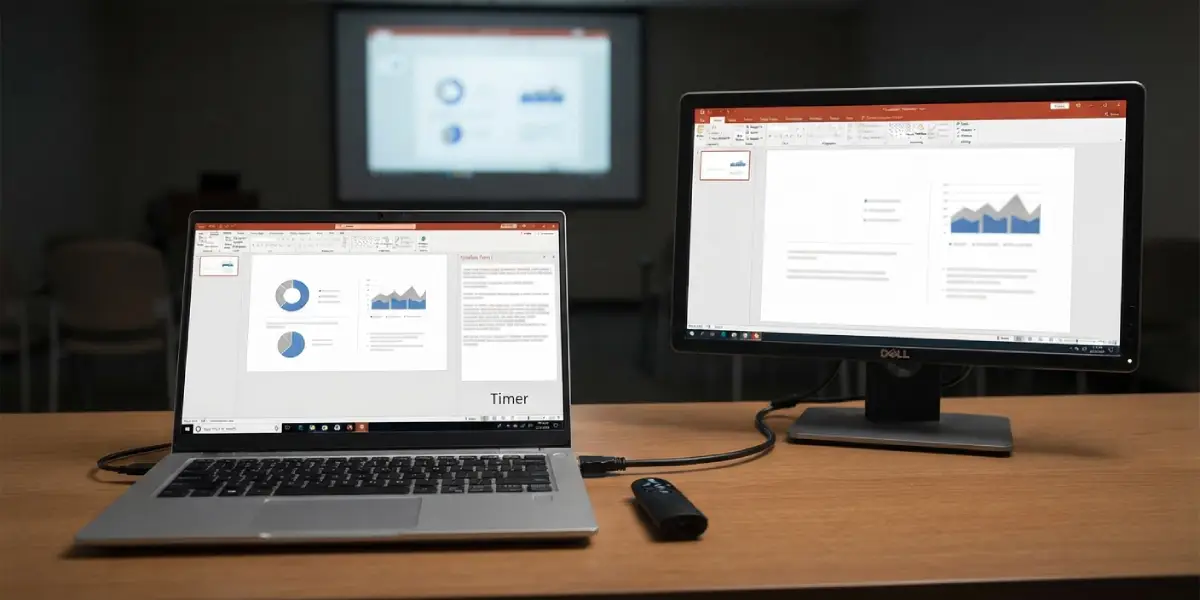
The layout is easy to read once each area is clear. The current slide sits on the left, the next slide or animation preview sits on the right, and the speaker notes run underneath. A timer at the top shows how long the talk has been running, with a reset button beside it.
How to Use the Tools Inside Presenter View
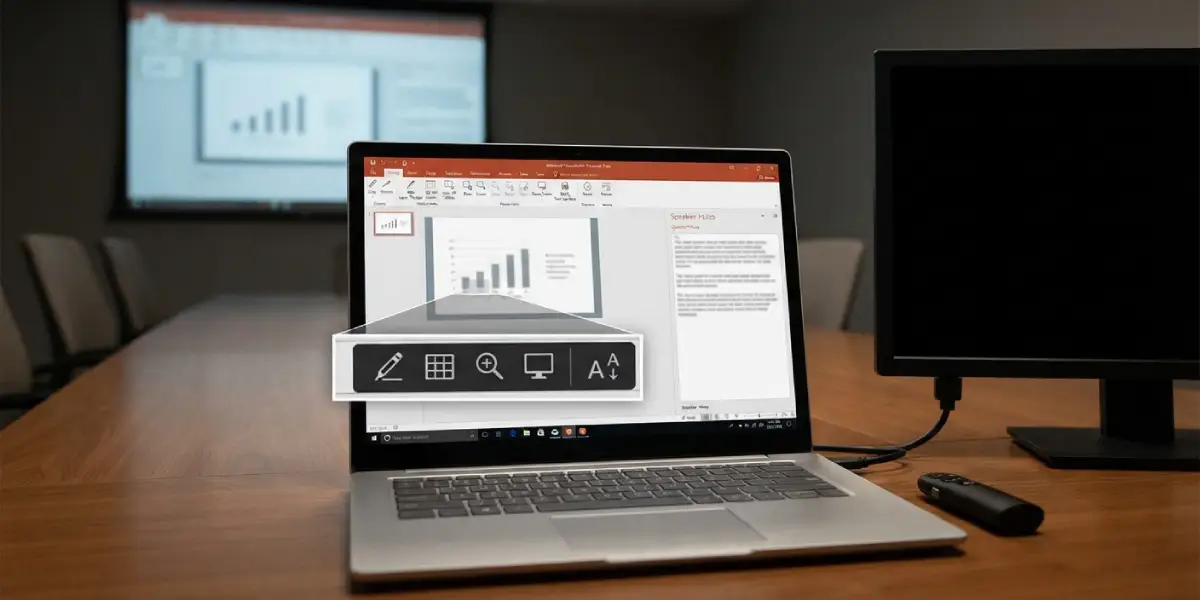
Under the current slide is a row of small buttons that do most of the live work.
- Pen and laser pointer tools: Click the pen icon to pick a pen, highlighter, or laser pointer. Drawing happens on the audience screen in real time.
- See all slides: Click the grid icon to view thumbnails of every slide, then click any thumbnail to jump straight to it.
- Zoom into the slide: Click the magnifier icon, then pick the area to enlarge. Useful for charts or small screenshots.
- Black or unblack slide show: Click this button to turn the audience screen black during a discussion, then click it again to bring the slide back.
- Notes text size: Use the two ‘A’ buttons beside the notes to make the text larger or smaller.
Tip: Typing a slide number and pressing Enter jumps directly to that slide. It works well during a question and answer session, when someone asks to revisit a specific point.
Common Problems and Fixes
The Audience Sees Presenter View Instead of the Slides
The two screens are swapped. In the Presenter View window, click ‘Display Settings’ at the top and choose ‘Swap Presenter View and Slide Show’. The change applies instantly.
Presenter View Shows on the Audience Screen and the Laptop
The displays are probably mirrored rather than extended. Press the Windows key + P and select ‘Extend’, then restart the slide show.
The Speaker Notes Panel Is Empty
Presenter View only displays notes that already exist. Exit the show, open the notes pane at the bottom of the normal view, and type the notes under each slide.
The Notes Are Too Small to Read
Click the larger ‘A’ button next to the notes panel in Presenter View until the text is comfortable at arm’s length.
The Slide Show Starts on the Wrong Monitor
Go back to the ‘Slide Show’ tab, open the ‘Monitor’ list, and select the correct display instead of ‘Automatic’. Then start the show again.
The Presenter View Checkbox Does Not Seem to Work
Make sure the second display is detected first. With only one screen connected, the show may open in the regular full-screen view. Press Alt+F5 on Windows to open Presenter View on the single screen.
Frequently Asked Questions
What is the keyboard shortcut to start Presenter View in PowerPoint?
On Windows, press Alt+F5 to start the slide show directly in Presenter View.
Can Presenter View be used with only one monitor?
Yes. On Windows, pressing Alt+F5 opens Presenter View on the single screen, which is handy for rehearsing the talk before connecting a projector.
Does the audience see the speaker notes in Presenter View?
No. Notes appear only in the Presenter View window. As long as the slide show is displayed on the audience screen, the notes stay private.
How can the two screens be swapped if they are on the wrong displays?
Click ‘Display Settings’ at the top of the Presenter View window and select ‘Swap Presenter View and Slide Show’.
How is the laser pointer used in Presenter View?
Click the pen icon below the current slide and choose ‘Laser Pointer’. On Windows, holding the Ctrl key and clicking the left mouse button also turns the cursor into a laser pointer.
How can a specific slide be reached during a presentation?
Click the ‘See all slides’ button to open the thumbnail grid and select the slide. Typing the slide number and pressing Enter also works.
How can the notes text size be changed in Presenter View?
Use the two ‘A’ buttons beside the notes panel. The larger one increases the size and the smaller one reduces it.
How is Presenter View closed at the end of the talk?
Press the Esc key or click ‘End Show’ at the top of the Presenter View window.
Does the Presenter View timer show the total time or the time per slide?
The timer shows the total time elapsed since the show started. A reset button beside it restarts the count, which is useful after a practice run.
