
Learning how to embed a video in a PowerPoint slide takes about a minute, and it keeps the clip inside the presentation file so nothing breaks on the day of the meeting. The steps below cover inserting a video from a computer, setting it to play the way the presentation needs, and getting the file ready to share. MP4 files work best, so that is the format to aim for.
Key Takeaways
- Go to Insert > Video > This Device to place a video file directly inside the slide.
- MP4 files with H.264 video and AAC audio are the most reliable choice.
- The Playback tab controls automatic start, looping, trimming, and volume.
- An embedded video travels with the presentation file, while an online video stays linked to the web.
- Compress Media in the File menu keeps the presentation at a manageable size.
How to Embed a Video in a PowerPoint Slide: Step-by-Step Guide
- Step 1: Open the presentation and click the slide where the video should appear in the thumbnail pane on the left. A blank layout or a Title Only layout leaves the most room to work with.
- Step 2: Select the ‘Insert’ tab on the ribbon, then find the ‘Media’ group on the far right and click ‘Video’.
- Step 3: Choose ‘This Device’ from the menu. In older versions of PowerPoint, the same option is labeled ‘Video on My PC’.
- Step 4: Browse to the video file, select it, and click the main ‘Insert’ button. The video lands on the slide as a rectangle with a play bar underneath.
- Step 5: Drag a corner handle to resize the video and drag the middle of the frame to reposition it. Corner handles keep the proportions intact, so the picture never looks stretched.
- Step 6: With the video selected, open the ‘Playback’ tab and choose how it should start from the ‘Start’ drop-down (details below).
- Step 7: Press Shift + F5 to run the slide show from the current slide and confirm the video plays correctly. Press Esc to exit.
- Step 8: Save the presentation with Ctrl + S. The video is now stored inside the file.
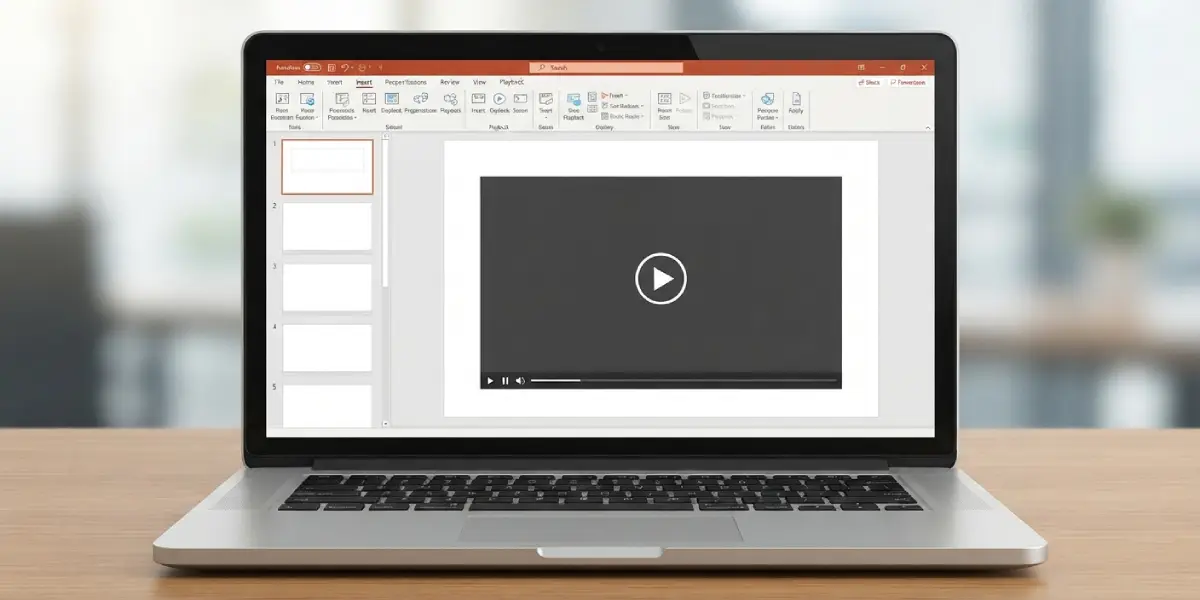
Tip: Click the main ‘Insert’ button rather than the small arrow beside it. The arrow reveals an ‘Insert and Link to File’ option, which keeps the video outside the presentation and breaks playback when the file moves to another computer.
Set the Video to Play Automatically
The ‘Start’ drop-down on the Playback tab has three choices. ‘In Click Sequence’ plays the video as part of the slide’s animation order, ‘Automatically’ plays it the moment the slide appears, and ‘When Clicked On’ waits until the presenter clicks the video. Most people find that ‘Automatically’ suits a silent background clip, while ‘When Clicked On’ gives a speaker more control during a live talk.
Trim the Video Inside PowerPoint
A clip with a slow intro or an extra ending does not need to be edited elsewhere. Select the video, open the ‘Playback’ tab, and click ‘Trim Video’. Drag the green marker to set the new start point and the red marker to set the new end point, then click ‘OK’. The original footage stays intact inside the file, so the trim can be adjusted again later.
Embed a Video in PowerPoint for Mac
The process is almost identical on a Mac. Select the slide, click ‘Insert’ on the ribbon, choose ‘Video’, then ‘Movie from File’. Pick the video and click ‘Insert’. Playback options live on the ‘Playback’ tab, just like on Windows.
Compress the Embedded Video
Video can make a presentation surprisingly heavy, which is a problem when the file needs to be emailed. Click ‘File’, then ‘Info’, then ‘Compress Media’, and pick ‘Full HD (1080p)’, ‘HD (720p)’, or ‘Standard (480p)’. PowerPoint shows a progress window and reports how much space was saved. Standard (480p) is usually fine for a clip that fills only part of a slide.
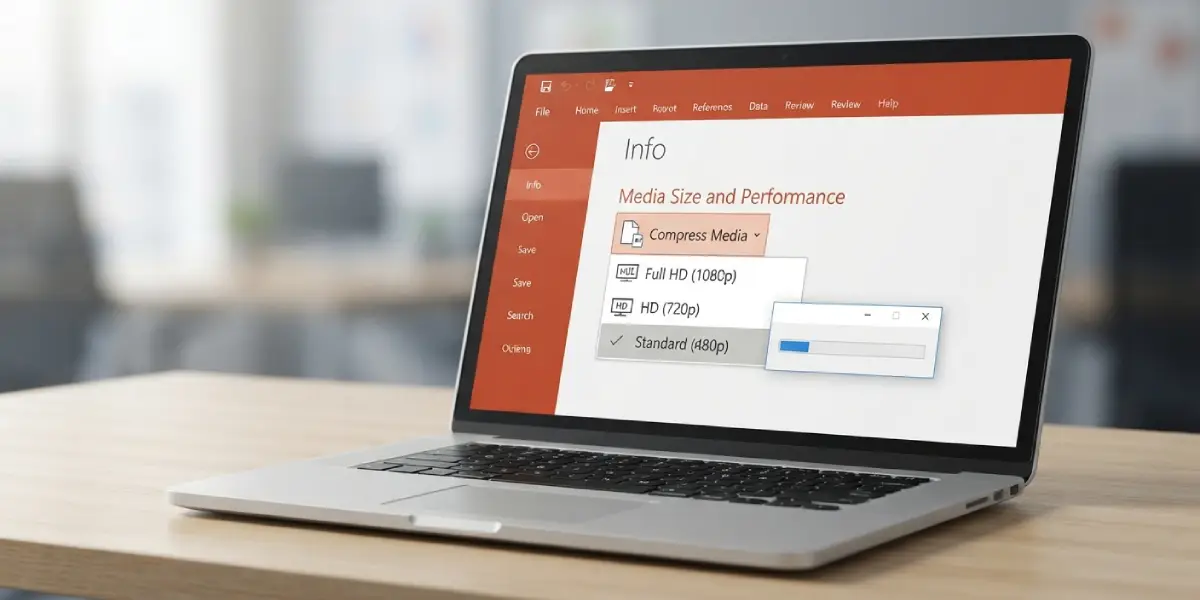
Tip: Run Compress Media on a copy of the presentation if the original footage quality matters. Compression replaces the embedded video, and the change cannot always be reversed after saving.
Common Problems and Fixes
The video will not insert or shows a format error
This usually means the file uses a format or codec that PowerPoint cannot read. Convert the video to MP4 with H.264 video and AAC audio using a free converter, then insert the new file the same way.
The video does not play on another computer
The video was probably linked instead of embedded, or the codec differs on the second machine. Delete the video from the slide and re-insert it with the main ‘Insert’ button. If the problem continues, go to ‘File’, then ‘Info’, and click ‘Optimize Compatibility’ when it appears.
The video stutters or lags during the slide show
Large high-resolution clips can overwhelm older computers. Use ‘Compress Media’ from the File menu to lower the resolution, or run ‘Optimize Compatibility’ if that button is available.
The video does not start automatically
Automatic playback only works in Slide Show mode, not in the normal editing view. Check that ‘Start’ on the ‘Playback’ tab is set to ‘Automatically’, then press F5 to test.
There is no sound
Click the video, open the ‘Playback’ tab, select ‘Volume’, and make sure ‘Mute’ is not chosen and the level is set to Medium or High. Also check that the computer’s own volume is up.
The presentation file became too large to send
Embedded video adds its full size to the presentation. Use ‘File’, ‘Info’, ‘Compress Media’ to shrink it, or trim unused footage with ‘Trim Video’ before compressing.
Frequently Asked Questions
What is the best video format to embed in PowerPoint?
MP4 with H.264 video and AAC audio is the most dependable format. It plays on both Windows and Mac and rarely causes compatibility problems.
What is the difference between embedding and linking a video in PowerPoint?
An embedded video is stored inside the presentation file and goes wherever the file goes. A linked video stays in its original folder, so playback fails if the file is moved, renamed, or opened on another computer.
Can a YouTube video be embedded in a PowerPoint slide?
Yes. Go to Insert, Video, then Online Videos, and paste the video link. The clip plays from the web rather than from inside the file, so an internet connection is required during the presentation.
How do I make an embedded video play automatically?
Select the video, open the Playback tab, and set Start to Automatically. The video then begins as soon as the slide appears in Slide Show mode.
How do I make a video loop in PowerPoint?
Select the video, open the Playback tab, and check Loop until Stopped. The clip repeats until the presenter moves to the next slide.
How do I make a video play full screen?
Select the video, open the Playback tab, and check Play Full Screen. The video expands to fill the screen during the slide show and returns to the slide when it ends.
How do I trim an embedded video in PowerPoint?
Select the video, click Trim Video on the Playback tab, and drag the green and red markers to set the start and end points. Click OK to apply the change.
Will an embedded video still work if the presentation is emailed?
Yes, because the video is stored inside the file. The presentation may be large, so compressing the media first helps it stay within email size limits.
How do I reduce the size of a presentation with an embedded video?
Click File, then Info, then Compress Media, and choose Full HD, HD, or Standard quality. Lower quality settings produce smaller files.
