
Learning to use entrance and exit animations in PowerPoint takes only a few clicks, and it turns a flat slide into one that reveals its content at the right moment. An entrance animation brings an object onto the slide, while an exit animation removes it. This guide walks through both, from picking the effect to timing it so the slide plays smoothly.
Key Takeaways
- Entrance and exit effects live in the Animation gallery on the Animations tab.
- An object needs its entrance effect applied first, and the exit effect must be added with the Add Animation button.
- The Start, Duration, and Delay settings control when and how fast each effect plays.
- The Animation Pane shows the full sequence and lets the order be changed.
How to Use Entrance and Exit Animations in PowerPoint Step by Step
Add an Entrance Animation
- Step 1: Open the slide and click the object to animate. This can be a text box, picture, shape, chart, or icon. Animations only attach to a selected object, so the selection comes first.
- Step 2: Select the Animations tab on the ribbon. The Animation gallery appears with effects grouped by color. Green effects are entrance effects, yellow are emphasis, and red are exit.
- Step 3: Click an entrance effect in the gallery, such as Appear, Fade, Fly In, Float In, Wipe, or Zoom. For more choices, open the gallery and select More Entrance Effects at the bottom. The slide plays a quick preview, and a small number tag appears next to the object.
- Step 4: Click Effect Options, just to the right of the gallery, to adjust the direction or sequence. For example, Fly In can come from the bottom, left, right, or top, and a text box can enter all at once or one paragraph at a time.
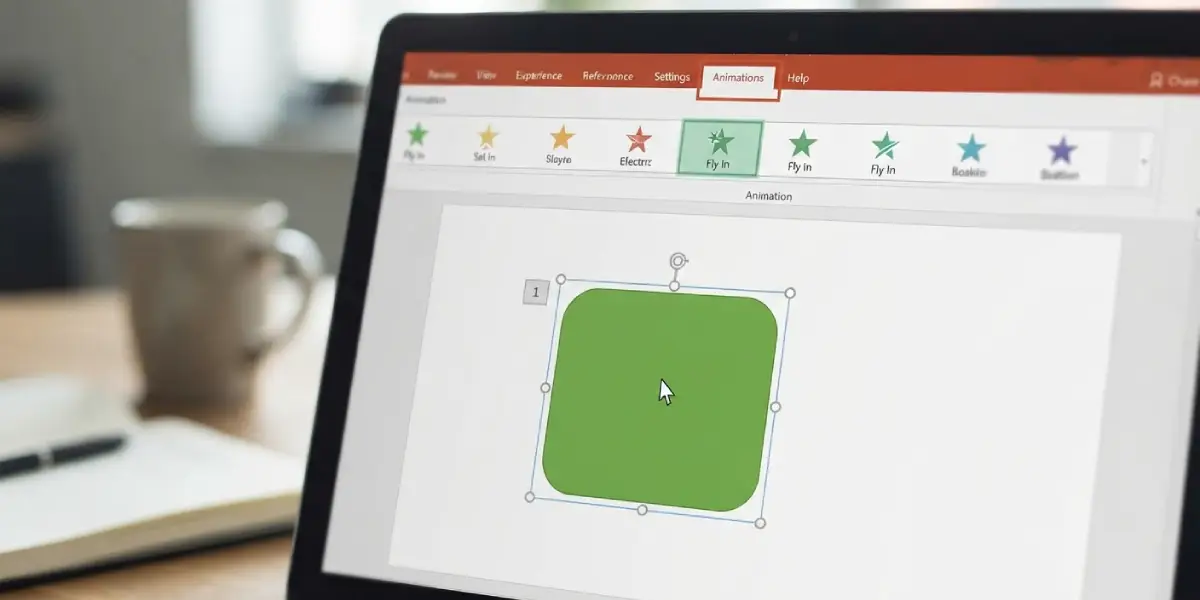
Tip: Subtle effects such as Fade and Wipe usually look more professional than flashy ones. Think of an animation as a stage curtain – it should guide attention, not steal the show.
Set the Timing for the Entrance
- Step 5: In the Timing group on the Animations tab, open the Start menu. On Click waits for a click or key press, With Previous plays alongside the previous effect, and After Previous plays as soon as the previous effect finishes.
- Step 6: Enter a value in the Duration box to set how long the effect lasts, and use the Delay box to add a pause before it begins. A duration between 0.5 and 1 second suits most business slides.
Add an Exit Animation to the Same Object
- Step 7: With the same object still selected, click Add Animation in the Advanced Animation group. Using the main gallery instead would replace the entrance effect rather than add to it.
- Step 8: Scroll to the red Exit section and choose an effect such as Disappear, Fade, Fly Out, Float Out, Wipe, or Zoom. More Exit Effects at the bottom of the menu opens a longer list.
- Step 9: Set Start, Duration, and Delay for the exit in the Timing group. A common pattern is an entrance On Click and an exit On Click, so the object appears and leaves on the presenter’s cue. For a callout that should vanish by itself, choose After Previous with a delay of a few seconds.
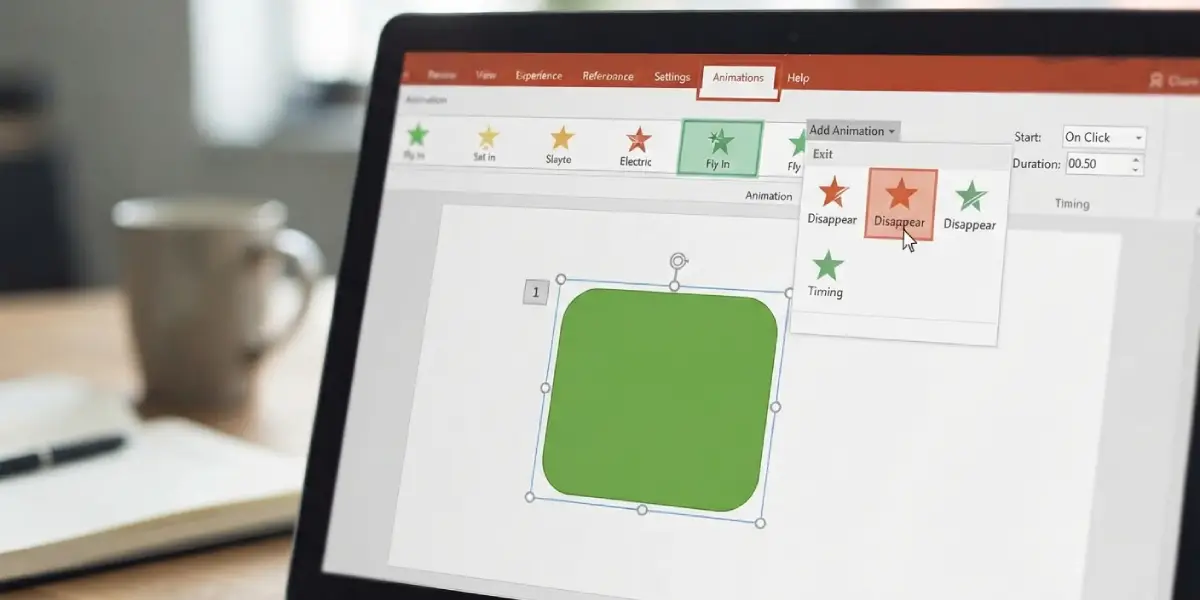
Tip: The number tags beside an object show the order of its effects. An object with both an entrance and an exit will show two tags, which confirms the exit was added correctly.
Check the Order and Preview the Result
- Step 10: Click Animation Pane in the Advanced Animation group. A list opens on the right showing every effect on the slide in play order. Green icons mark entrances and red icons mark exits.
- Step 11: To change the order, drag an item up or down in the pane, or select it and use Move Earlier or Move Later in the Timing group.
- Step 12: Click Preview on the far left of the Animations tab to play the sequence in the editing view. For a true test, go to the Slide Show tab, choose From Current Slide, and click through the way an audience would see it.
Common Problems and Fixes
The Entrance Effect Disappeared After Adding the Exit
The exit was applied from the main gallery instead of the Add Animation button, which swaps the old effect for the new one. Select the object, click Add Animation, and choose the exit effect again. Then re-apply the entrance with Add Animation if it is missing from the Animation Pane.
The Animation Gallery Is Greyed Out
No object is selected, or the selection is a slide area rather than an object. Click directly on the text box, picture, or shape, and the gallery becomes available.
Animations Do Not Play in Slide Show
Open the Slide Show tab, click Set Up Slide Show, and make sure the Show without animation box is unchecked. This setting suppresses every effect in the presentation.
The Object Exits Too Early or Too Late
The exit is probably set to the wrong Start option or the wrong position in the sequence. Open the Animation Pane, select the exit effect, and review Start and Delay in the Timing group. Dragging the effect to a different position in the pane also fixes the order.
Text Appears All at Once Instead of Line by Line
Select the text effect in the Animation Pane, open Effect Options, and choose By Paragraph. Each paragraph or bullet then enters on its own.
Frequently Asked Questions
Can one object have both an entrance and an exit animation?
Yes. Apply the entrance effect from the Animation gallery, then click Add Animation and pick an exit effect. Both effects stay attached to the same object and appear in the Animation Pane.
Where are the entrance and exit effects in PowerPoint?
They are in the Animation gallery on the Animations tab. Entrance effects are green and exit effects are red. Select More Entrance Effects or More Exit Effects at the bottom of the gallery for the full list.
How do I make an object exit automatically?
Select the exit effect in the Animation Pane and set Start to After Previous. Add a value in the Delay box to control how many seconds the object stays visible before leaving.
How do I remove an animation from an object?
Open the Animation Pane, click the effect, and press Delete. Selecting the object and choosing None in the Animation gallery also removes the effect.
How do I change the order of animations on a slide?
Open the Animation Pane and drag effects up or down, or select an effect and click Move Earlier or Move Later in the Timing group on the Animations tab.
How can several objects enter at the same time?
Apply an entrance effect to each object, then set Start to With Previous on every effect after the first. They all play together when the first one is triggered.
How do I copy an animation to another object?
Select the animated object, click Animation Painter in the Advanced Animation group, and then click the target object. The effect and its timing settings are copied over.
Why can I only see animations in Slide Show or Preview?
Animations are playback effects, so the normal editing view shows only the number tags. Use Preview on the Animations tab or start the Slide Show tab to watch them run.
