
Those little number counters on taskbar icons can be distracting, especially when Mail, Teams, or Microsoft Store apps keep piling up unread alerts. It only takes a few clicks to turn off taskbar badges in Windows 11, and the change works on Home, Pro, and Enterprise editions without administrator rights.
Key Takeaways
- The quickest route is Settings > Personalization > Taskbar > Taskbar behaviors.
- Clear the checkbox named Show badges (unread messages counter) on taskbar apps to hide the counters.
- The change applies to the current user account only and takes effect right away.
- A Registry Editor method and a Command Prompt method are available if the Settings option is missing.
- Re-ticking the same checkbox brings the badges back at any time.
How to Turn Off Taskbar Badges in Windows 11 Step by Step
Method 1: Use the Settings App
- Press Windows + I to open Settings.
- Click Personalization in the left sidebar.
- Click Taskbar on the right side.
- Scroll down and click Taskbar behaviors to expand the section.
- Clear the checkbox next to Show badges (unread messages counter) on taskbar apps.
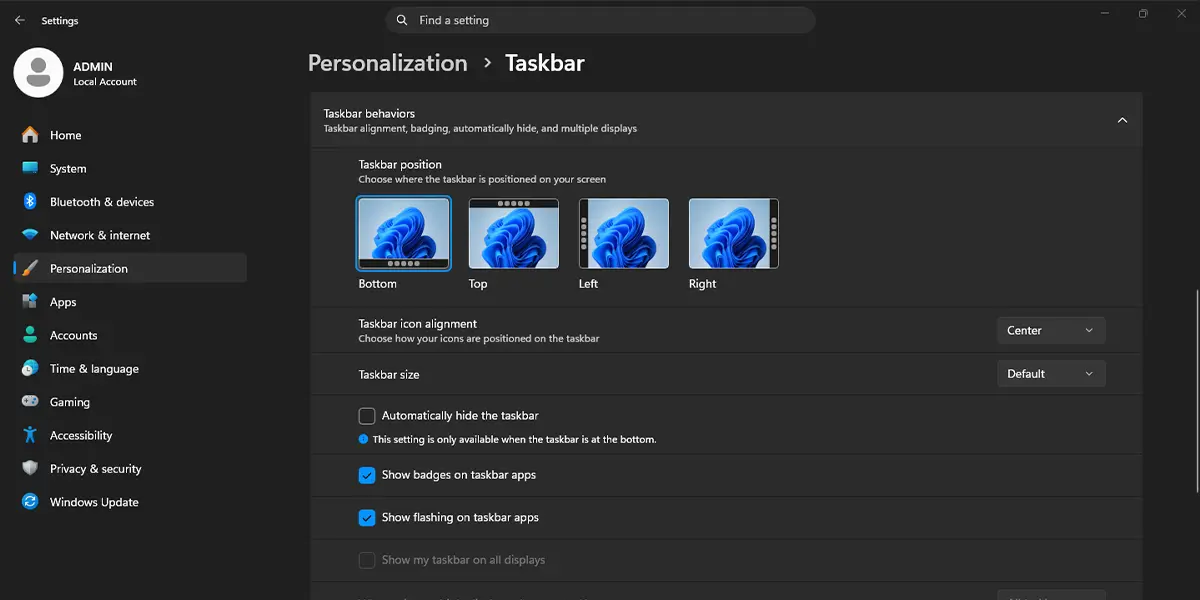
The number counters vanish from the taskbar icons straight away. Apps such as Mail or Teams keep receiving messages as usual – only the little red or colored counter is hidden.
Tip: Right-click any empty spot on the taskbar and choose Taskbar settings to jump to the same page without clicking through Settings.
Method 2: Use the Registry Editor
This method edits the registry, so create a restore point first. A wrong edit in the registry can cause unexpected behavior, although this change only touches one value for the current user.
- Press Windows + R, type regedit, and press Enter.
- Click Yes if the User Account Control prompt appears.
- Go to this key: HKEY_CURRENT_USER\Software\Microsoft\Windows\CurrentVersion\Explorer\Advanced
- Find the DWORD value named TaskbarBadges in the right pane and double-click it.
- Type 0 in the Value data box and click OK.
- Press Ctrl + Shift + Esc to open Task Manager, right-click Windows Explorer, and choose Restart.
The taskbar flickers for a second and comes back without badges. If TaskbarBadges is not listed, right-click an empty area, choose New > DWORD (32-bit) Value, name it TaskbarBadges, and then follow steps 4 and 5.
Method 3: Use Command Prompt
This is the same registry change as Method 2, done with one command, so the same restore point advice applies. It runs in a regular Command Prompt window and does not need to be elevated.
- Click Start, type cmd, and press Enter to open Command Prompt.
- Type the following command and press Enter:
reg add HKCU\Software\Microsoft\Windows\CurrentVersion\Explorer\Advanced /v TaskbarBadges /t REG_DWORD /d 0 /f
- Type the next command and press Enter to close Windows Explorer:
taskkill /f /im explorer.exe
- Type the last command and press Enter to start it again:
start explorer.exe
The taskbar returns within a few seconds, and the badges stay hidden. The Command Prompt window can be closed afterward.
How to Undo or Reverse This Change
To bring the counters back, open Settings > Personalization > Taskbar > Taskbar behaviors and tick Show badges (unread messages counter) on taskbar apps again. If the registry or Command Prompt method was used, setting the TaskbarBadges value to 1 and restarting Windows Explorer restores the default behavior.
Common Problems and Fixes
The Taskbar behaviors section is collapsed
The checkbox is hidden until the section is expanded. Scroll to the bottom of the Taskbar page and click Taskbar behaviors to reveal it.
Badges still appear after clearing the checkbox
Restart Windows Explorer from Task Manager, or sign out and sign back in. After that, the taskbar redraws with the new setting applied.
The icon still flashes orange
Flashing is a separate behavior from badges. Clear Show flashing on taskbar apps in the same Taskbar behaviors section to stop it.
The option is missing or the change does not stick
On a work or school PC, an organization policy may control taskbar settings and reset them. In that case, the device administrator has to allow the change. On a personal PC, use the registry method and restart Windows Explorer.
Frequently Asked Questions
Does turning off taskbar badges work on Windows 11 Home?
Yes. The checkbox in Settings and the registry method are both available on Windows 11 Home, Pro, and Enterprise.
Do I need administrator rights to turn off taskbar badges?
No. The setting is stored for the current user account, so a standard account can change it.
Does the PC need a restart after the change?
No. The Settings method applies immediately. The registry and Command Prompt methods only need Windows Explorer to be restarted.
Will I still receive messages if badges are turned off?
Yes. Apps continue to receive messages and can still show notification banners. Only the unread counter on the taskbar icon is hidden.
Can badges be turned off for just one app?
No. The Windows 11 taskbar setting applies to all taskbar apps at once.
Does it affect other user accounts on the same computer?
No. The setting is saved per user, so each person on a shared computer needs to change it in their own account.
Is there a keyboard shortcut to turn off taskbar badges?
There is no direct shortcut for this toggle. Press Windows + I to open Settings quickly, then go to Personalization > Taskbar > Taskbar behaviors.
Does turning off badges save battery or improve performance?
The effect is too small to notice. The main benefit is a cleaner, less distracting taskbar.
