
Knowing how to password-protect a Word document takes about a minute and keeps contracts, résumés, financial notes, and other private files out of the wrong hands. Word uses built-in encryption, so no extra software is needed. The steps below work in Word for Microsoft 365, Word 2021, Word 2019, and Word 2016 on Windows, and the Mac steps follow right after.
Key Takeaways
- Open the document, go to File, then Info, then Protect Document, and choose Encrypt with Password.
- Type a password, confirm it, and save the file to lock the encryption in place.
- On Mac, use the Review tab and select Protect Document to set an open password.
- A forgotten password cannot be recovered by Microsoft, so store it somewhere safe.
- Remove the password at any time by repeating the steps and clearing the password box.
Step-by-Step Guide to Password-Protect a Word Document
On Windows
- Step 1: Open the Word document that needs protection.
- Step 2: Click the File tab in the top-left corner of the ribbon.
- Step 3: Select Info from the left-hand menu.
- Step 4: Click the Protect Document button (it may be labeled Protect Document with a padlock icon).
- Step 5: Choose Encrypt with Password from the drop-down list.
- Step 6: Type a password into the Encrypt Document box and click OK.
- Step 7: Re-enter the same password in the Confirm Password box and click OK.
- Step 8: Save the document by pressing Ctrl + S so the password is applied to the file.
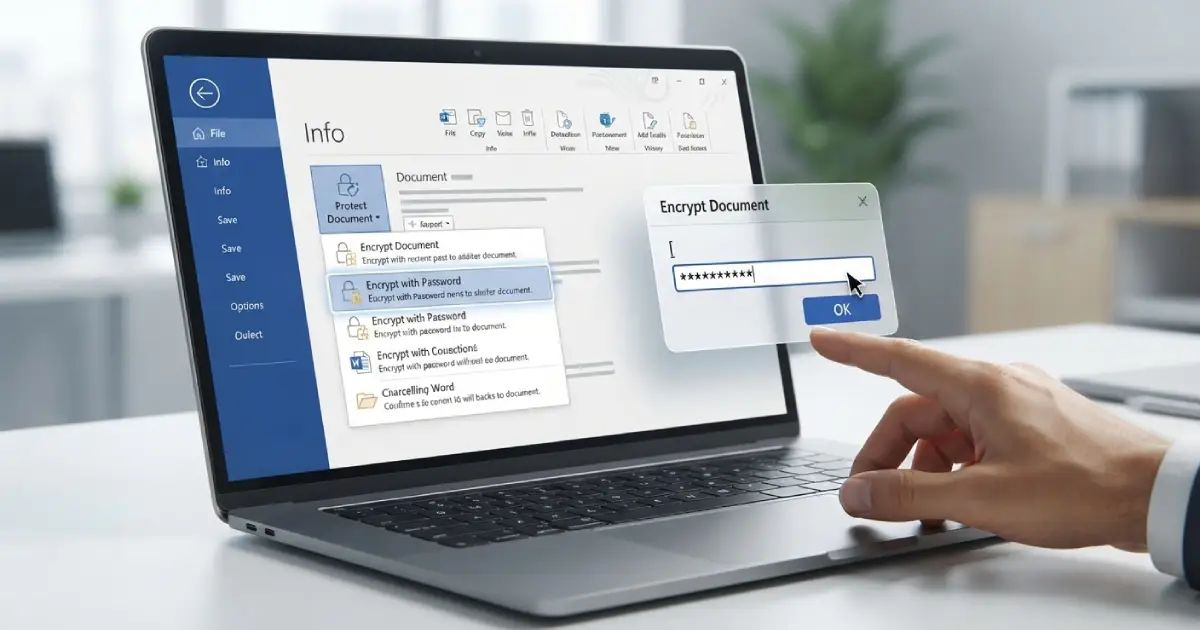
Tip: Choose a password of at least 12 characters that mixes words, numbers, and symbols. A short phrase with a few substitutions is far harder to guess than a single dictionary word, and it is easier to remember than a random string.
On Mac
- Step 1: Open the document in Word for Mac.
- Step 2: Click the Review tab on the ribbon.
- Step 3: Click Protect and select Protect Document.
- Step 4: Enter a password in the Password to open box. A second password for editing can be added in the Password to modify box if needed.
- Step 5: Click OK and re-enter the password when asked to confirm it.
- Step 6: Save the file with Command + S to finish.

How to Confirm the Password Works
- Step 1: Close the document completely.
- Step 2: Reopen the file from its saved location.
- Step 3: Check that Word asks for the password before showing any content.
Think of this check like trying a new lock before leaving the house. A quick test now avoids a nasty surprise later, especially before the file gets emailed or uploaded to cloud storage.
How to Remove the Password Later
- Step 1: Open the protected document and enter the password.
- Step 2: Go to File, then Info, then Protect Document, and choose Encrypt with Password.
- Step 3: Delete the contents of the password box so it is completely empty, then click OK.
- Step 4: Save the document to remove the encryption.
Tip: Keep an unprotected backup in a secure location, such as an encrypted drive, if the file is important. That way a lost password never means lost work.
Common Problems and Fixes
The Encrypt with Password option is missing or grayed out
This usually happens when the file is open in Protected View or is marked as final. Click Enable Editing at the top of the window first. If the file is a very old format such as .doc, use File, then Save As, and save it as a .docx file before applying the password.
The two passwords do not match
Word shows a message saying the confirmation password does not match the original. Click OK, then retype both entries carefully. Check that Caps Lock is off, since passwords in Word are case-sensitive.
The password prompt does not appear when reopening the file
The most common cause is forgetting to save after setting the password. Reapply the password using the steps above, then press Ctrl + S (or Command + S on Mac) before closing the document.
The password has been forgotten
Microsoft cannot recover or reset a lost password for an encrypted Word file. Try any variations of the password that might have been used. If a backup copy without a password exists, restore from it. Otherwise the content stays locked, which is exactly why a saved record of the password matters.
The password does not carry over to a shared copy
Encryption applies to the file itself, so any copy made after the password was set stays protected. If a copy was created before encrypting, that earlier copy remains open to everyone and should be encrypted or deleted.
Frequently Asked Questions
Can a Word document be password-protected for free?
Yes. Encryption is a built-in feature of Word, so no extra software or subscription is needed beyond the version of Word already installed.
Where is the Protect Document button in Word?
On Windows, it is under File, then Info. On Mac, it is on the Review tab under Protect. In Word for the web, the option is not available for setting a new password.
What is the difference between a password to open and a password to modify?
A password to open blocks anyone from viewing the document. A password to modify lets people read the file but stops edits unless the correct password is entered. Windows encryption through Info sets the open password, while the Mac Protect Document dialog offers both.
Can Microsoft recover a forgotten Word password?
No. Microsoft does not keep a copy of document passwords and cannot reset them, so the password should be stored in a trusted password manager or another safe place.
Are Word passwords case-sensitive?
Yes. A password typed with different capitalization will not unlock the document, so Caps Lock should be checked whenever an entry is rejected.
Is there a limit on how long a Word password can be?
Word accepts passwords of up to 255 characters, which is far longer than most people need. A passphrase of 12 or more characters offers strong everyday protection.
Does password protection work on a document sent by email?
Yes. The encryption stays with the file wherever it goes, so the recipient must enter the password to open it. The password should be shared through a different channel, such as a phone call or text message, rather than in the same email.
How can the password be removed from a Word document?
Open the document with the password, go to File, then Info, then Protect Document, and choose Encrypt with Password. Clear the password box, click OK, and save the file.
Will a password-protected document open on a phone or tablet?
Yes. The Word mobile apps prompt for the password and open the file once it is entered correctly.
