
Adding End Task to the taskbar right-click menu in Windows 11 turns a frozen app into a two-click problem instead of a trip through Task Manager. The option is switched off by default, but it takes less than a minute to enable on current builds, including versions 24H2 and 25H2. The Settings method needs no administrator rights.
Key Takeaways
- On Windows 11 version 25H2 and later, open Settings > System > Advanced and turn on the End Task toggle.
- On version 24H2 and earlier builds, the same toggle sits in Settings > System > For developers.
- Once enabled, right-click any running app on the taskbar and select End Task to close it immediately.
- A single Command Prompt line can switch the feature on as an alternative to the Settings app.
- The toggle can be switched off again at any time.
How to Add End Task to the Taskbar Right-Click Menu in Windows 11 (Step-by-Step)
Method 1: Use the Settings App
This is the easiest route for most people. On Windows 11 version 25H2 and later, follow these steps:
- Press Windows + I to open Settings.
- Click System in the left sidebar.
- Scroll down and click Advanced.
- Find the Taskbar section and switch the End Task toggle to On. The toggle changes to the On position straight away.
- Close Settings.
- Right-click the taskbar button of any running app. End Task now appears in the menu, next to Close window.
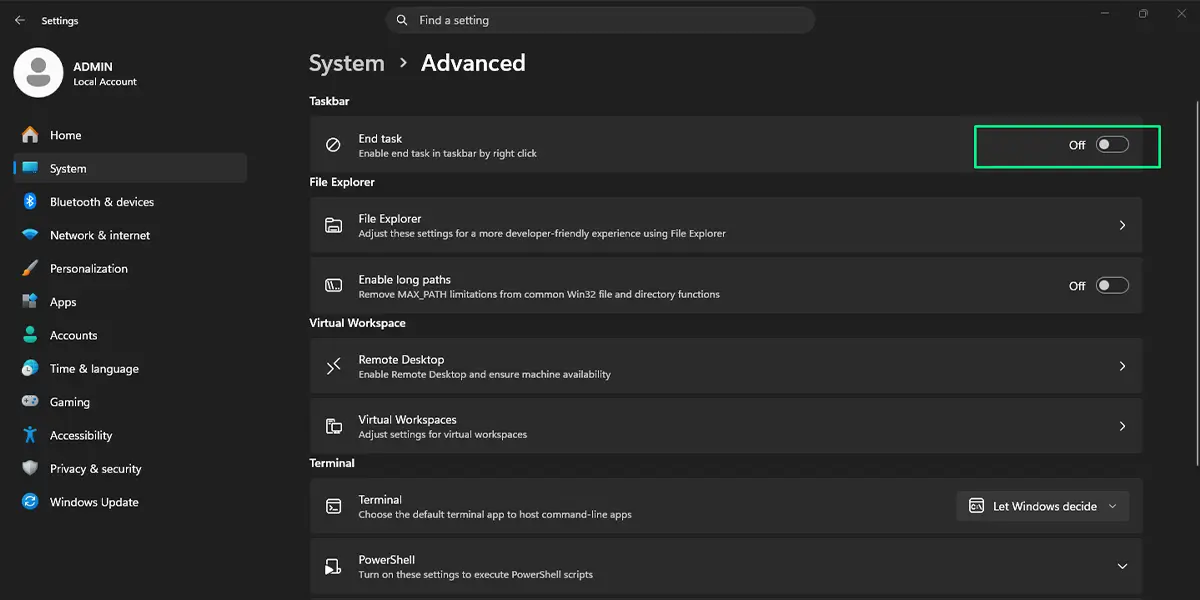
On Windows 11 version 24H2 or an earlier build, the page has a different name. Use this path instead: Settings > System > For developers. Then switch on the End Task toggle and continue from the last step above.
Tip: Type ‘end task’ into the search box at the top of Settings to jump straight to the toggle, no matter which version is installed.
Method 2: Use Command Prompt
This route suits anyone who prefers typing one line over clicking through pages. It edits the registry, so creating a restore point first is a sensible precaution. The command runs in a normal window and does not need administrator rights.
- Press Windows + S, type Command Prompt, and click Open.
- Paste the command below into the window.
- Press Enter. The message ‘The operation completed successfully.’ confirms the change.
- Right-click a running app on the taskbar and check for End Task in the menu.
reg add HKCU\Software\Microsoft\Windows\CurrentVersion\Explorer\Advanced\TaskbarDeveloperSettings /v TaskbarEndTask /t REG_DWORD /d 1 /f
If the option does not appear right away, sign out of Windows and sign back in.
How to Use End Task From the Taskbar
Picture a photo editor that stops responding while a laptop is running on battery. Instead of opening Task Manager and hunting through a long process list, right-click the editor’s taskbar button and select End Task. The app closes immediately.
The key is to remember that End Task does not ask the app to save anything first. Unsaved work in that window can be lost, so use Close window first and keep End Task for apps that are truly stuck.
Tip: The option only shows for apps that are currently running. A pinned app that is not open has no End Task entry.
How to Undo or Reverse This Change
To remove the option, go back to Settings > System > Advanced (or Settings > System > For developers on older builds) and switch the End Task toggle to Off. The entry disappears from the taskbar menu.
If the feature was enabled with the command, this line turns it off again in Command Prompt:
reg add HKCU\Software\Microsoft\Windows\CurrentVersion\Explorer\Advanced\TaskbarDeveloperSettings /v TaskbarEndTask /t REG_DWORD /d 0 /f
Common Problems and Fixes
The Advanced page is missing in Settings
The Advanced page appears only on Windows 11 version 25H2 and later. On earlier builds, open Settings > System > For developers instead. Installing the latest Windows updates also brings the newer layout.
End Task does not appear in the right-click menu
First confirm that the toggle is set to On. Then make sure the right-click is on the taskbar button of an app that is currently open. If the entry is still missing, sign out and back in, or restart the PC.
The End Task toggle is greyed out
On a work or school PC, an administrator may control this setting. In that case the toggle cannot be changed from the Settings app, and the IT team is the one to ask.
The change does not stick after a restart
Open the Settings page again and check whether the toggle is still on. A management policy on a work or school device can reset it. On a personal PC, switching it on again normally keeps it on.
Frequently Asked Questions
Where is the End Task setting in Windows 11 version 25H2?
Open Settings > System > Advanced and switch on the End Task toggle in the Taskbar section.
Where is the End Task setting in Windows 11 version 24H2 or earlier?
The toggle is on the For developers page. Open Settings > System > For developers and turn on End Task.
Does adding End Task to the taskbar need administrator rights?
No. Both the Settings method and the Command Prompt method change a setting for the current user only, so a standard window is enough.
Do I need to restart the PC after turning on End Task?
Usually not. The entry normally shows up in the right-click menu as soon as the toggle is on. If it does not, signing out and back in is the next thing to try.
What is the difference between End Task and Close window?
Close window asks the app to close normally, so it can offer to save work. End Task shuts the app down immediately, which is better for apps that have frozen.
Does turning on End Task affect performance or battery life?
No noticeable effect is expected. The setting only adds a menu entry to the taskbar right-click menu.
Why is End Task missing when I right-click an app on the taskbar?
The most common reasons are that the toggle is still off, the app is not running, or the device is managed by work or school. Check the toggle in Settings first.
How do I remove End Task from the taskbar menu?
Switch the End Task toggle to Off on the Advanced page, or on the For developers page on older builds. The menu entry is removed.
