
Knowing how to rearrange pinned apps in the Start menu on Windows 11 saves a surprising amount of time, because the apps used most often can sit exactly where the eye lands first. The steps work on Windows 11 Home, Pro, and Enterprise, need no administrator rights, and work with a mouse, touchpad, or touch screen.
Key Takeaways
- Open Start, then drag any icon in the Pinned section to a new spot to reorder it.
- Right-click a pinned app and choose Move to front to send it straight to the first position.
- The layout setting at Settings > Personalization > Start > Layout controls how many pinned apps fit on screen at once.
- The new order saves automatically, so no Save button or restart is needed.
Step-by-Step Guide to Rearrange Pinned Apps in the Start Menu
Windows 11 does not have a dedicated Settings page for ordering pinned apps. The order is changed directly inside the Start menu, using either of the two methods below.
Method 1: Drag and Drop Inside the Start Menu
This is the quickest option when an app only needs to move a short distance, such as swapping two icons on the same row.
- Click the Start button on the taskbar, or press the Windows key.
- Look at the Pinned section at the top and find the app that needs to move.
- Click and hold the app icon. On a touch screen, press and hold the icon with a finger.
- Drag the icon to the new position. The neighboring icons slide aside to make room.
- Release the mouse button or lift the finger. The app drops into place and stays there.
Tip: Dragging an icon onto another pinned app creates a folder instead of swapping places. If a folder appears by accident, drag the app back out of it.
Method 2: Use the Move to Front Option
This method works best when a pinned app is buried far down the list, or when a drag keeps slipping. It skips the dragging entirely.
- Open the Start menu.
- Right-click the pinned app that should come first. On a touch screen, press and hold it.
- Click Move to front in the menu that appears.
The app jumps to the very first position in the Pinned section, top left. The other icons shift over by one spot.
Tip: To build a whole new order quickly, use Move to front on the apps in reverse order. Start with the app that should be last in the top row and finish with the one that should be first.
See More Pinned Apps While Arranging Them
When the pinned list runs across several pages, reordering gets awkward. Showing more pins at once keeps everything in view.
- Press Windows + I to open Settings.
- Go to Settings > Personalization > Start.
- Under Layout, select More pins.
- Open the Start menu again and rearrange the icons using either method above.
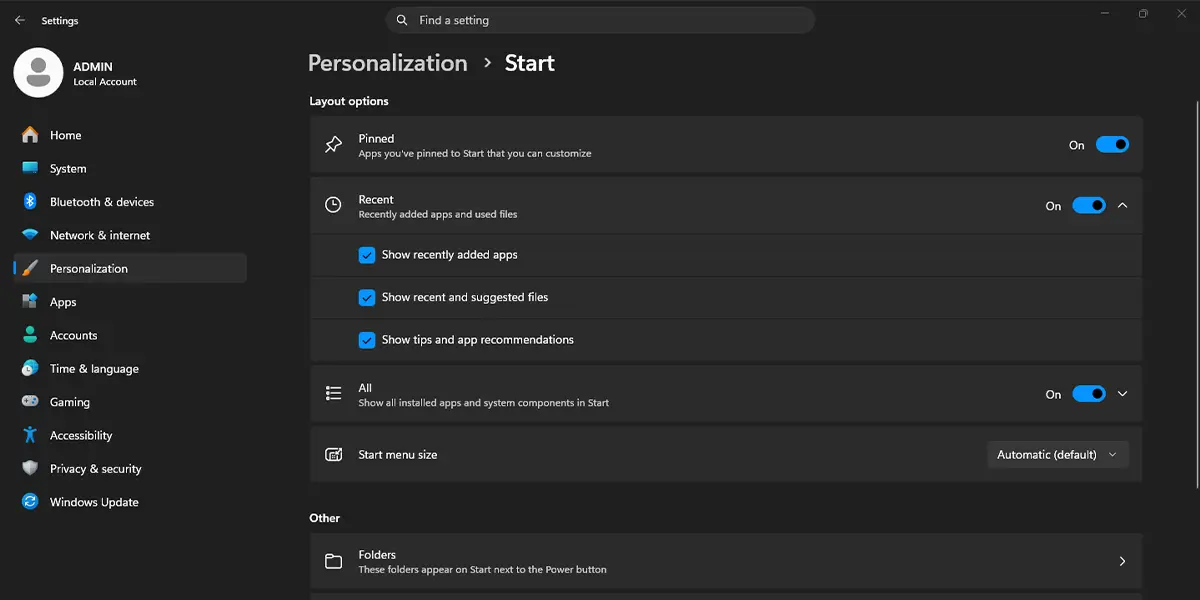
The Pinned section now takes up more room, so extra rows are visible at the same time. Choosing Default later returns the original balance between pinned apps and the recommended area.
How to Undo or Reverse This Change
Windows 11 has no undo button for Start menu ordering. To go back to an earlier arrangement, drag the icons back to their old spots, or use Move to front on each app in the order it should appear. Nothing is deleted during any of this, so an app can never be lost by moving it.
Common Problems and Fixes
The App Will Not Move When Dragged
A quick click does not start a drag. Click and hold the icon for a moment, then move the pointer. If it still refuses, switch to the right-click method and choose Move to front.
Move to Front Is Missing From the Menu
This option only appears for apps pinned in the Pinned section. An app that is listed under All apps or Recommended must be pinned first. Right-click it, choose Pin to Start, and it is added to the end of the pinned list, ready to be moved.
The Pinned Apps Cannot Be Rearranged at All
On a work or school computer, the organization can lock the Start layout. In that case the icons will not budge no matter which method is used, and only the IT administrator can lift the restriction.
The Order Changes Back After a Restart
A Start layout enforced by a work or school policy can reapply itself at sign-in and overwrite personal changes. On a personal PC, this is rare. If it happens on a managed device, check with the administrator.
Frequently Asked Questions
Can pinned apps be rearranged on Windows 11 Home?
Yes. Both drag and drop and the Move to front option work on Home, Pro, and Enterprise editions.
Does rearranging pinned apps need a restart?
No. The new order applies immediately and is saved automatically.
Is there a Settings page for reordering pinned apps?
No. Ordering is done inside the Start menu itself. The Settings > Personalization > Start page only controls the layout, such as showing more pins.
Can pinned apps be rearranged with a keyboard shortcut?
No keyboard shortcut for reordering pinned apps is available in Windows 11. Press the Windows key to open Start, then use the mouse, touchpad, or touch screen to move the icons.
Will rearranging pinned apps slow down the computer?
No. Changing the order only changes where the shortcuts appear in the Start menu. It has no effect on performance or battery life.
How can an app be moved to the first position fast?
Right-click the pinned app in the Start menu and click Move to front. The app jumps to the top-left spot at once.
Why did dragging one app onto another create a folder?
Dropping an icon directly on top of another pinned app groups the two into a folder. To reorder instead, release the icon in the gap between apps rather than on top of one.
Does the same arrangement apply to every user account on the PC?
No. Each user account has its own Start menu layout, so changes made on one account do not affect the others on a shared family computer.
