
To animate text one paragraph at a time in PowerPoint, add an entrance animation to the text box and set Effect Options to By Paragraph. Each paragraph then waits for its own click, so the audience reads only the point being discussed.
Key Takeaways
- Select the whole text box, then apply an entrance effect such as Appear or Fade from the Animations tab.
- Choose Effect Options, then By Paragraph, to split the animation into separate builds.
- Keep Start set to On Click to control when every paragraph appears.
- Test the result in Slide Show view before presenting.
How to Animate Text One Paragraph at a Time in PowerPoint
Think of By Paragraph as dealing cards one by one instead of dropping the whole deck on the table. The steps below use the desktop app, and the same core settings appear in PowerPoint for Mac and PowerPoint for the web.
Apply the Paragraph Animation
- Step 1: Open the presentation and go to the slide that holds the text.
- Step 2: Check that each block you want to reveal separately is its own paragraph. Press Enter at the end of a block to start a new one.
- Step 3: Click the border of the text box to select the entire box.
- Step 4: Select the Animations tab on the ribbon.
- Step 5: Choose an entrance effect from the animation gallery, such as Appear or Fade.
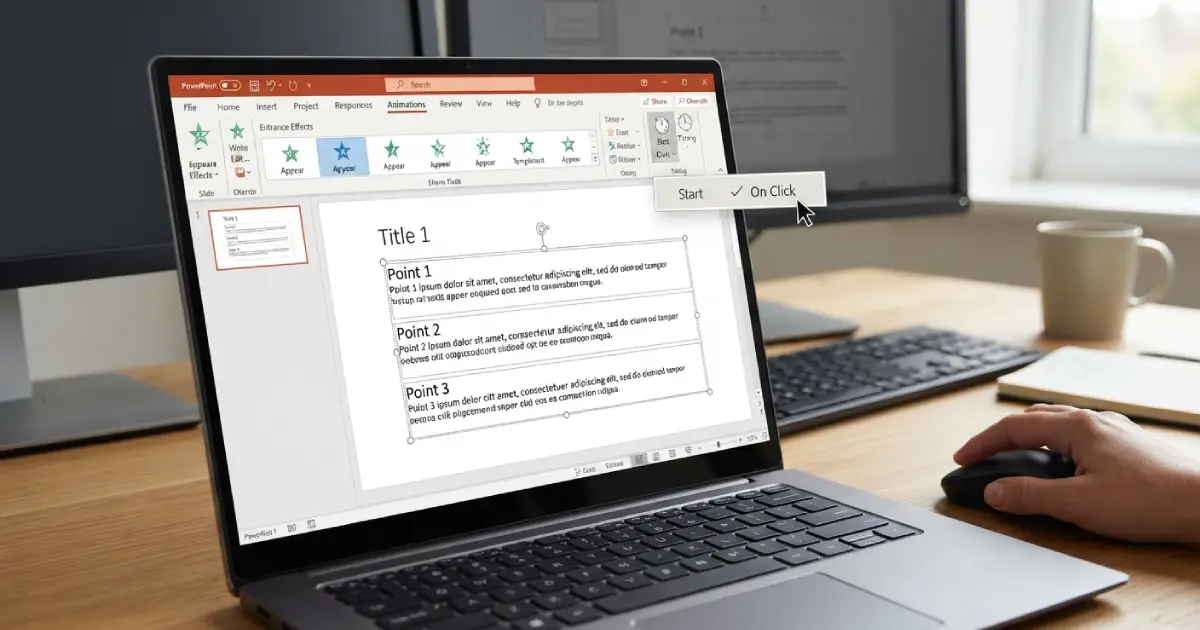
- Step 6: Select Effect Options, then choose By Paragraph under Sequence. If it is already selected, leave it as it is.
- Step 7: In the Timing group, open the Start list and choose On Click.
Small numbers now appear beside the paragraphs while the Animations tab is open. Different numbers, such as 1, 2, and 3, mean each paragraph has its own click.
Tip: Appear and Fade work best for text-heavy slides. Large movements can pull attention away from the words, especially when the same effect repeats five or six times.
Test the Animation
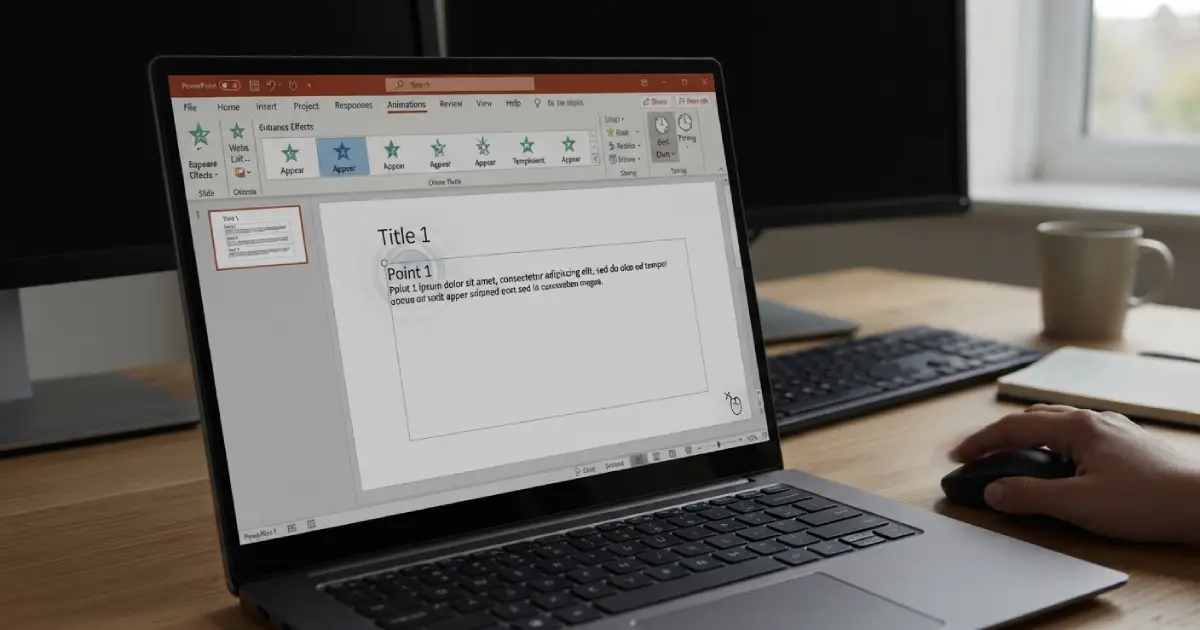
- Step 8: Select the Slide Show tab, then choose From Current Slide. On Windows, pressing Shift + F5 does the same job.
- Step 9: Click once for each paragraph and confirm that the text appears in the right order. The Spacebar, the Right Arrow key, or a presentation clicker also works.
- Step 10: Press Esc to return to editing, then save the presentation.
Adjust How Each Paragraph Appears
The basic setup suits most slides. A few extra settings help when a talk needs automatic timing, separate sub-bullets, or faded earlier points. These dialog box options are found in the desktop app.
Open the Animation Settings
- Step 1: Select the text box, then select Animations and choose Animation Pane.
- Step 2: In the pane, select the arrow next to the animation for that text box. If the list is expanded, select the first paragraph, hold Shift, and select the last one before opening the arrow.
- Step 3: Choose Effect Options to open the dialog box.
Reveal Sub-Bullets Separately
By default, an indented sub-bullet usually arrives together with the main bullet above it. To give second-level points their own click, open the Text Animation tab, set Group text to By 2nd Level Paragraphs, and select OK.
Play Paragraphs Automatically
For a self-running slide, open the Text Animation tab. Keep Group text set to a paragraph level, check Automatically after, enter the delay in seconds, and select OK. A teacher showing discussion prompts, for instance, might allow several seconds between each one.
Dim Earlier Paragraphs
Open the Effect tab, select the After animation list, pick a color such as light gray, and select OK. Each earlier paragraph changes to that color on the next click, which keeps the current point in focus.
Tip: Choose a dim color that remains readable against the slide background. Audience members often glance back at a previous point.
Common Problems and Fixes
All the Text Appears at Once
Select the text box, open Effect Options on the Animations tab, and choose By Paragraph. If that is already set, check that Start shows On Click instead of With Previous or After Previous.
Several Lines Appear on the Same Click
The lines were probably separated with Shift + Enter, which creates a line break inside one paragraph. Delete the break and press Enter instead. Indented sub-bullets can also share a click, so set Group text to By 2nd Level Paragraphs if needed.
Effect Options Is Grayed Out
Make sure the text box is selected and already has an animation. Some effects offer no extra choices on the ribbon. Applying Appear or Fade is a quick way to restore the paragraph options.
The First Paragraph Shows Without a Click
Open the Animation Pane and select the first paragraph entry. Expand the list first if only one entry is visible. Then change Start to On Click.
Animations Do Not Play During the Slide Show
Select Slide Show, then Set Up Slide Show. Clear the Show without animation check box and select OK.
Frequently Asked Questions
How do you make text appear one paragraph at a time in PowerPoint?
Select the text box, open the Animations tab, and apply an entrance effect. Then select Effect Options, choose By Paragraph, and set Start to On Click.
Which animation is best for revealing paragraphs?
Appear and Fade are strong choices because they reveal text cleanly without distracting movement.
Can paragraphs appear automatically without clicking?
Yes. In the desktop app, open Effect Options from the Animation Pane, select the Text Animation tab, check Automatically after, and enter a delay in seconds.
Do the paragraphs need bullet points?
No. By Paragraph works with plain text as well as bulleted or numbered lists. Each block simply needs to be a separate paragraph.
How do you keep a main bullet and its sub-bullets together?
Set Group text to By 1st Level Paragraphs on the Text Animation tab. Each main bullet then appears with the sub-bullets under it.
Can the order of the paragraphs be changed?
Yes. Open the Animation Pane, expand the list, and drag a paragraph entry to a new position. Preview the slide afterward to confirm the order.
Does By Paragraph work in PowerPoint for the web?
Yes. Select the text box, choose an effect on the Animations tab, then select Effect Options and By Paragraph.
How do you remove the paragraph animation?
Select the text box, open the Animations tab, and choose None in the animation gallery. The text stays on the slide and only the animation is removed.
