
To hide recently added apps in Start on Windows 11, all it takes is one toggle in the Settings app. The change works on every edition and needs no administrator rights. The Group Policy method further down is limited to Windows 11 Pro, Enterprise, and Education.
Key Takeaways
- The quickest route is Settings > Personalization > Start > Show recently added apps, switched to Off.
- The Settings method works on Home, Pro, Enterprise, and Education, and the change applies right away.
- Pro, Enterprise, and Education PCs can also use Group Policy, and every edition can use a registry command.
- Hiding the list does not uninstall anything. New apps still appear in the All list and in search.
Step-by-Step Guide to Hide Recently Added Apps in Start
Method 1: Use the Settings App
This is the easiest option for most people, and it works the same on a laptop, a desktop, or a shared family PC.
- Press Windows + I to open Settings.
- Select Personalization in the left sidebar.
- Scroll down and click Start.
- Find Show recently added apps and switch the toggle to Off.
- Open the Start menu. The Recently added list is gone, and new installs no longer get a spot there.
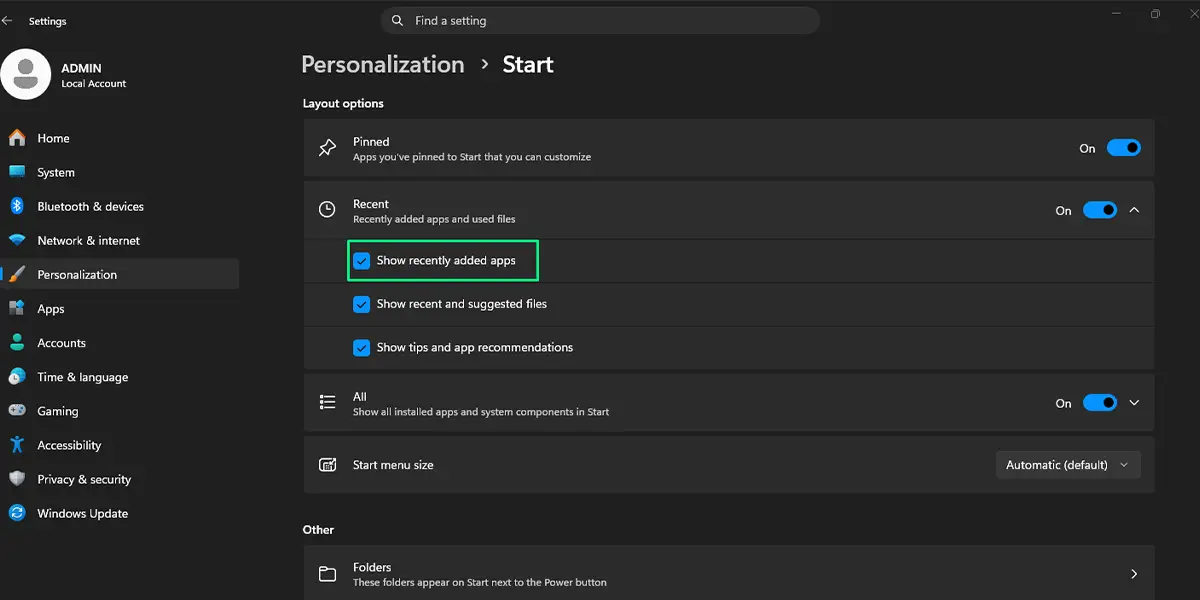
Tip: Windows + I jumps straight into Settings, so the whole change takes about ten seconds once the path is familiar.
Method 2: Use Group Policy (Pro, Enterprise, and Education)
This method needs an administrator account and the Local Group Policy Editor, which is not included in Windows 11 Home. It suits a work PC or any computer where the setting should stay locked in place.
- Press Windows + R, type gpedit.msc, and press Enter.
- Go to Computer Configuration > Administrative Templates > Start Menu and Taskbar.
- Double-click Remove ‘Recently added’ list from Start Menu.
- Select Enabled.
- Click Apply, then OK.
- Restart the PC so the policy applies cleanly.
Tip: Once this policy is enabled, the toggle in Settings is usually greyed out. That is normal, because the policy now controls the setting.
Method 3: Use a Registry Command (All Editions)
This route reaches the same result on Windows 11 Home, where Group Policy is missing. It writes the same value the policy uses, so create a restore point first as a safety net.
- Right-click the Start button and select Terminal (Admin).
- Click Yes when User Account Control appears.
- Paste the command below and press Enter. It must run in this elevated window.
reg add HKLM\SOFTWARE\Policies\Microsoft\Windows\Explorer /v HideRecentlyAddedApps /t REG_DWORD /d 1 /f
- Wait for the message saying the operation completed successfully.
- Restart the PC and open Start to confirm the list is hidden.
How to Undo or Reverse This Change
To bring the list back after using Method 1, return to Settings > Personalization > Start and switch Show recently added apps to On.
After Method 2, open the same policy in the Local Group Policy Editor, choose Not Configured, click Apply, and restart. After Method 3, run the command below in Terminal (Admin), then restart.
reg delete HKLM\SOFTWARE\Policies\Microsoft\Windows\Explorer /v HideRecentlyAddedApps /f
Common Problems and Fixes
The Toggle Is Greyed Out
A greyed-out Show recently added apps toggle usually means a policy is controlling it. That happens when the PC is managed by work or school, or when Method 2 or Method 3 was applied earlier. Reverse the policy or registry value using the undo steps above, or ask the IT administrator if the device is managed.
The Recently Added List Still Appears After Switching the Toggle Off
Most people find that a quick restart clears this up. Sign out and back in, or restart the PC, then open Start again. Apps that were pinned manually stay pinned, since they are a separate list from Recently added.
The Start Page Is Missing in Settings
If Settings > Personalization does not show a Start page, the PC may be missing recent Windows updates. Open Settings > Windows Update, install anything pending, restart, and check the path again.
Group Policy Editor Will Not Open
If gpedit.msc returns a not found message, the PC is running Windows 11 Home, which does not include the Local Group Policy Editor. Use Method 1 or Method 3 instead.
Frequently Asked Questions
Does hiding recently added apps work on Windows 11 Home?
Yes. The Settings method and the registry command both work on Windows 11 Home. Only the Group Policy method is limited to Pro, Enterprise, and Education.
Does the change need a restart?
The Settings toggle applies immediately. The Group Policy and registry methods work best after a restart.
Does this uninstall or delete any apps?
No. Only the Recently added list is hidden. Every installed app stays on the PC and remains available in the All list and in search.
Will it affect battery life or performance?
No noticeable effect. The setting only controls what Start displays, so a laptop on battery runs exactly as before.
Why is the Show recently added apps toggle greyed out?
A policy is controlling the setting. This is common on work or school PCs, and it also happens after Group Policy or the registry command has been used to hide the list.
Is there a keyboard shortcut to hide recently added apps?
There is no dedicated shortcut for this setting. Press Windows + I to open Settings quickly, then go to Personalization > Start.
Will new apps still be searchable after hiding the list?
Yes. Newly installed apps can still be found by pressing the Windows key and typing the app name, and they remain in the All list in alphabetical order.
Does the Settings toggle apply to every user account on the PC?
The toggle in Settings applies to the signed-in account only. Group Policy and the registry command apply to the whole device, so every user on a shared computer is covered.
