
Need to switch Start menu views in Windows 11 because the app list feels cluttered or hard to scan? The All section of the redesigned Start menu can show installed apps as Category, Grid, or List, and the change takes only a few clicks. This works on Windows 11 versions 24H2 and 25H2 once the newer Start menu update is installed, and no administrator rights are needed.
Key Takeaways
- The view control sits inside the Start menu itself: Start > All > View.
- Three layouts are available: Category (the default), Grid, and List.
- The change applies instantly, with no restart and no administrator rights.
- Windows remembers the last view picked for the signed-in account.
- If the View option is missing, install pending updates in Settings > Windows Update.
Step-by-Step: How to Switch Start Menu Views in Windows 11
- Click the Start button on the taskbar, or press the Windows key.
- Scroll down inside the Start menu until the All section appears below the pinned apps.
- Click View on the right side of the All heading. A small drop-down opens with three choices.
- Click Category, Grid, or List, depending on the layout that suits the way apps are found.
- Scroll through the All section to confirm the new layout, then click away from Start or press the Windows key to close it.
The app list redraws the moment a new view is selected. Switching from Category to List, for example, replaces the grouped cards with a plain alphabetical list. Nothing is installed, removed, or moved, so it is safe to try all three views in a row.
Tip: Windows keeps the last view picked, so the choice does not need to be repeated every time Start opens. On a shared family PC, each user account keeps its own preference.
Which Start Menu View Works Best
Each layout suits a different habit. Trying all three for a day or two is the quickest way to find the right fit.
Category View
Category view groups apps into labeled cards, such as Productivity or Games, and bubbles the most used apps toward the top. It suits a PC with a long list of installed software, where browsing by type is faster than scrolling A to Z.
Grid View
Grid view sorts apps alphabetically but spreads them across the width of the menu. Most people find that this layout shows more apps at once, which works nicely on a wide monitor or a laptop with a large screen.
List View
List view is the familiar alphabetical list, one app after another. It is the best pick for anyone who simply wants the older, predictable Start menu feel and knows roughly which letter an app starts with.
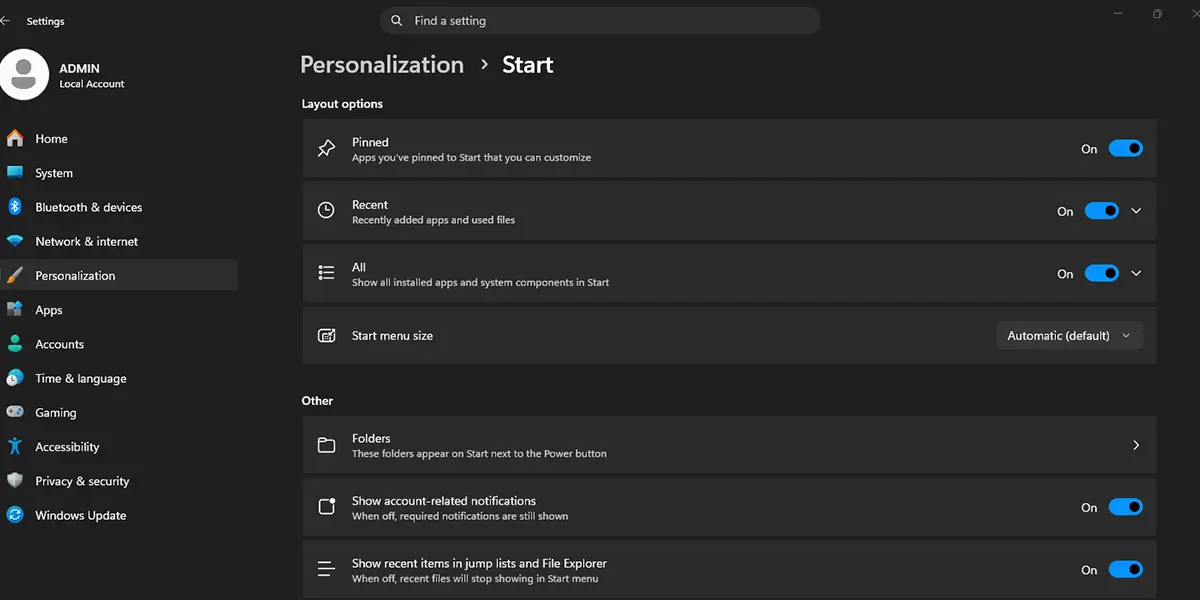
Tip: Settings > Personalization > Start holds related options for the Pinned and Recommended areas, so the whole Start menu can be tidied up from one page.
How to Undo or Reverse This Change
To go back, repeat the same steps: open Start, scroll to the All section, click View, and pick the layout that was in use before. Category is the default view, so choosing it restores the original look.
Common Problems and Fixes
The View Option Is Missing
This usually means the PC has not received the redesigned Start menu yet. Open Settings > Windows Update, click Check for updates, install everything that appears, and restart the computer. After the restart, open Start and scroll down to the All section again.
The View Choice Does Not Stick
The selection is saved for each user account, so confirm that the same account is signed in each time. If the layout still switches back, restart the PC, pick the view again, and close Start normally before shutting down.
Start Menu Options Are Restricted on a Work or School PC
A PC managed by an organization can have Start menu settings controlled by policy. When the View menu is locked or limited, the only fix is to ask the IT administrator who manages the device.
Frequently Asked Questions
What is the default Start menu view in Windows 11?
Category is the default view for the All section on a PC with the redesigned Start menu. It groups apps by type and places the most used ones near the top.
Does switching Start menu views work on Windows 11 Home?
Yes. The views are part of the Start menu update for Windows 11 versions 24H2 and 25H2, not an edition-only feature, so Home and Pro PCs get them once the update is installed.
Does the Start menu view change need a restart?
No. The All section redraws as soon as a new view is selected, and no administrator rights are required.
Does Windows 11 remember the selected Start menu view?
Yes. The Start menu keeps the last view that was picked, so it opens with the same layout next time. The choice is stored for the signed-in user account.
Is there a keyboard shortcut to switch Start menu views?
Windows 11 does not offer a dedicated shortcut for changing the view. Press the Windows key to open Start, scroll to the All section, and use the View menu.
Which Start menu view is best for finding an app quickly?
Grid and List both sort apps alphabetically, which makes a known app easy to find. Category works better for browsing, because it groups apps by type and puts the most used apps first.
Does changing the Start menu view remove or move any apps?
No. The view only changes how the All list is displayed. Installed apps and pinned apps stay exactly where they were.
Why is the View option missing from the Start menu?
The PC most likely has not received the Start menu update yet. Open Settings > Windows Update, install any available updates, and restart the PC. Work or school PCs can also restrict Start menu options.
