
Knowing how to turn off tips and app promotions in Start on Windows 11 keeps the menu focused on the apps and files that matter. The toggles involved are available on both Home and Pro editions and do not need administrator rights. A work or school PC may lock the options, which is covered in the troubleshooting section below.
Key Takeaways
- The main setting lives at Settings > Personalization > Start.
- Switching off Show recommendations for tips, shortcuts, new apps, and more stops suggested apps and tips from appearing in Start.
- The Show account-related notifications toggle on the same page removes account prompts from Start.
- The change takes effect right away and does not remove any pinned apps.
- A registry command is available as a backup method if the toggle is missing.
Step-by-Step Guide to Turn Off Tips and App Promotions in Start
Method 1: Use the Settings App
This is the easiest route for most people and works the same on a laptop, desktop, or tablet.
- Press Windows + I to open Settings.
- Select Personalization in the left sidebar.
- Click Start in the list of personalization pages.
- Find the toggle named Show recommendations for tips, shortcuts, new apps, and more and switch it to Off.
- Switch Show account-related notifications to Off as well if account prompts also appear in Start.
- Close Settings and open the Start menu.
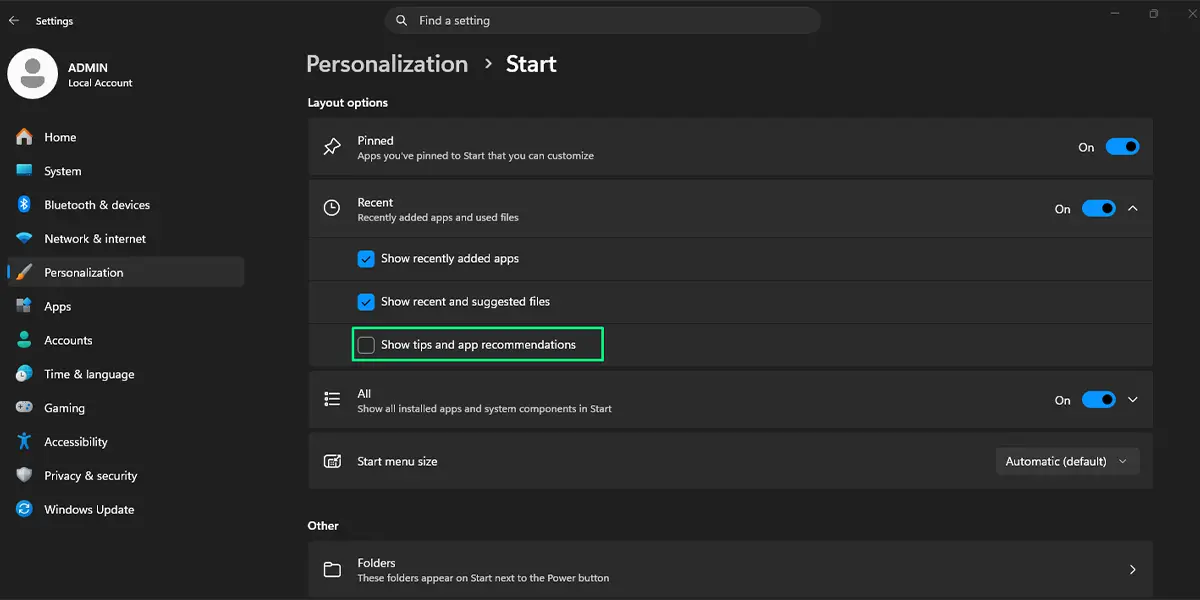
The suggested apps and tip cards should be gone from the recommendations area. Most people notice the cleaner layout straight away, with no restart needed.
Tip: The same page holds the Layout options. Choosing More pins gives pinned apps more room, which is handy on a smaller laptop screen once the promotions are gone.
Method 2: Use a Registry Command
This method suits a PC where the toggle is missing or keeps switching back. It changes a registry value, so create a restore point first as a safety net. The value belongs to the current user account, so an elevated (administrator) window is not required.
- Right-click the Start button and select Terminal.
- Paste the following command and press Enter:
reg add HKCU\Software\Microsoft\Windows\CurrentVersion\Explorer\Advanced /v Start_IrisRecommendations /t REG_DWORD /d 0 /f
- Wait for the message saying the operation completed successfully.
- Sign out of Windows and sign back in so Start picks up the change.
After signing back in, the same toggle in Settings > Personalization > Start should show as Off.
How to Undo or Reverse This Change
To bring the tips and suggestions back, open Settings > Personalization > Start and switch Show recommendations for tips, shortcuts, new apps, and more back to On. If the registry command was used, run the same command with the final value changed from 0 to 1, then sign out and back in.
Common Problems and Fixes
The toggle is greyed out or says some settings are managed
This usually means the PC is managed by a work or school organization, and an administrator controls the Start menu. Only that administrator can change it. On a personal PC, restart the computer and open the page again.
The toggle is missing from the Start page
Older builds of Windows 11 may not show the exact label. Open Settings > Windows Update, install any pending updates, and check again. The registry command in Method 2 is the alternative if the option still does not appear.
The promotions come back after a restart
A managed device or a policy applied by an organization can reset the setting at sign-in. On a personal PC, confirm the toggle still shows Off, then run the Method 2 command and sign out and back in.
Frequently Asked Questions
Does this work on Windows 11 Home?
Yes. The Settings toggle and the registry command both work on Windows 11 Home and Pro without administrator rights.
Do I need to restart the PC after turning this off?
No. The Settings toggle applies immediately. The registry method works best after signing out and back in.
Will turning this off remove my pinned apps?
No. Pinned apps stay exactly where they are. Only the suggested apps, tips, and promotional entries are hidden.
Does this affect performance or battery life?
The effect is too small to notice. The change simply stops Start from showing suggestions.
Is there a keyboard shortcut for this?
There is no single shortcut for the toggle itself. Pressing Windows + I opens Settings quickly, and the path is Personalization > Start.
Why is the recommendations toggle missing?
The most common reasons are an older Windows 11 build or a work or school device that hides the option. Installing updates or using the registry method usually solves it on a personal PC.
Does this hide my recently opened files too?
No. Recent files are controlled by a separate toggle on the same page, named Show recently opened items in Start, Jump Lists, and File Explorer.
