
An AMD GPU driver timeout usually shows up as a black screen flicker, a frozen game, or a Windows notification saying the display driver stopped responding and has recovered. This guide walks through the real causes and the fixes that actually resolve it, starting with the quickest checks and moving into deeper driver and hardware troubleshooting.
Key Takeaways
- Driver timeout errors happen when Windows waits too long for the GPU to respond and force-restarts the display driver.
- Outdated, corrupted, or conflicting AMD drivers are the most common trigger.
- Overheating, unstable overclocks, and weak power delivery can all cause the same symptom.
- A clean driver reinstall using AMD’s official uninstall tool solves the issue in most cases.
- Adjusting the Windows Timeout Detection and Recovery (TDR) delay can help isolate whether the card is actually failing or just needs more response time.
Common Causes of AMD GPU Driver Timeout
Before jumping into fixes, it helps to understand what is actually happening under the hood. Windows has a built-in watchdog called Timeout Detection and Recovery. If the GPU driver does not respond within a set window, Windows assumes the card has hung and resets the driver rather than letting the whole system freeze. That reset is what generates the timeout message.
Driver Issues
A corrupted installation, leftover files from a previous driver version, or a buggy release straight from AMD can all cause the driver to stall under load. This is by far the most frequent culprit, especially right after a Windows update or a fresh driver push.
Overheating
When the GPU core or memory runs too hot, it can throttle unpredictably or stall entirely. Dust buildup, dried thermal paste, or blocked fans on the card all raise the odds of a timeout during demanding tasks like gaming or rendering.
Unstable Overclocks or Undervolts
A manual overclock, undervolt, or aggressive fan curve pushed through AMD software or a third-party tool can leave the card unstable under specific workloads, triggering a timeout even though everything looks fine at idle.
Power Delivery Problems
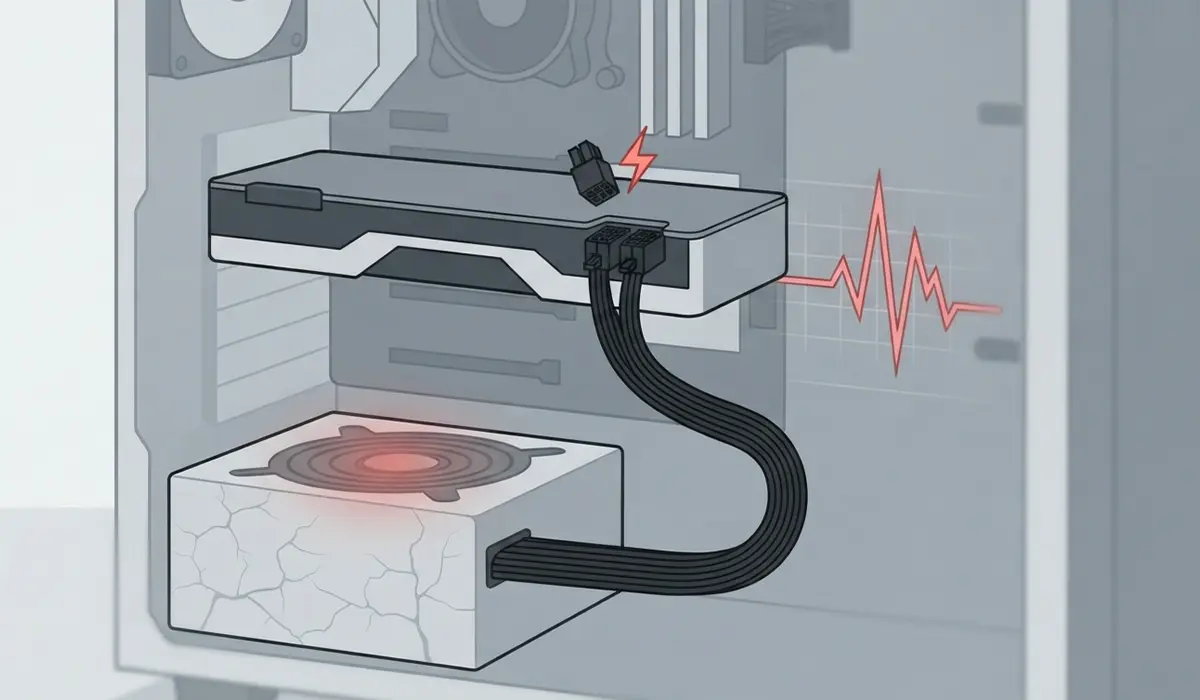
An underpowered or aging power supply, a loose PCIe power connector, or a power supply that cannot handle sudden load spikes can starve the GPU for a fraction of a second, long enough for Windows to flag a timeout.
Software Conflicts
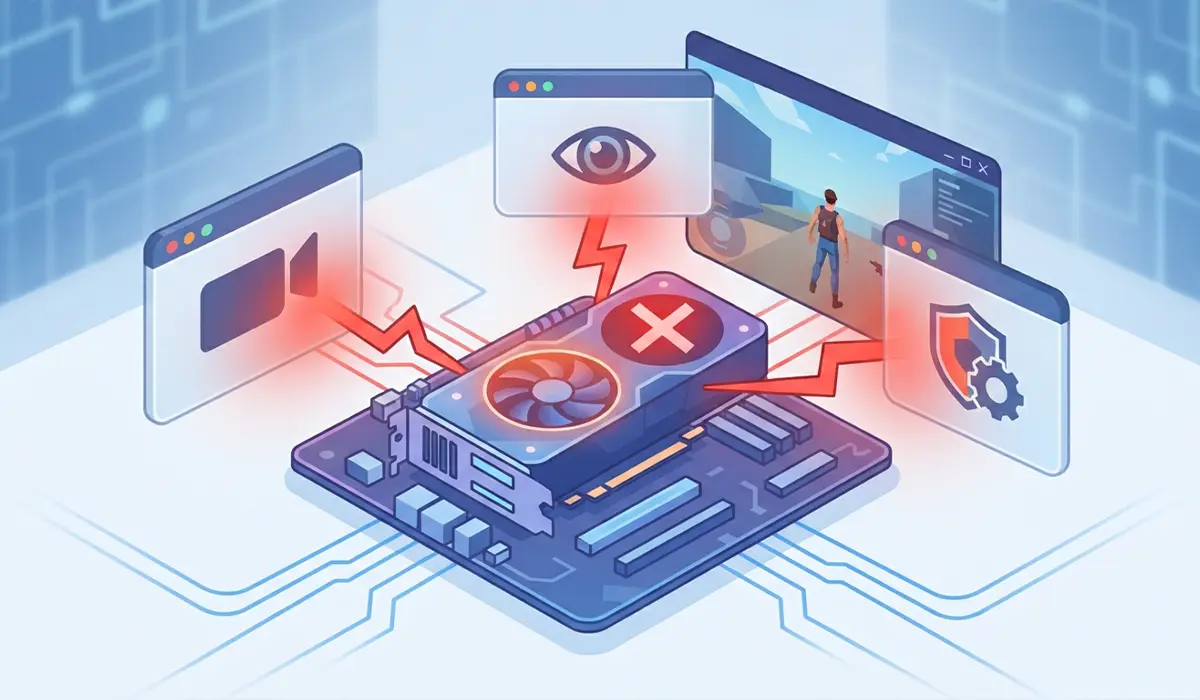
Overlay software, recording tools, and some antivirus programs occasionally interfere with the graphics driver’s ability to respond in time, especially when running alongside a game or GPU-intensive application.
Fixing AMD GPU Driver Timeout Step by Step
Work through these steps in order. Most people find that the driver reinstall alone clears the problem, but if the timeout persists, the later steps deal with hardware and settings causes.
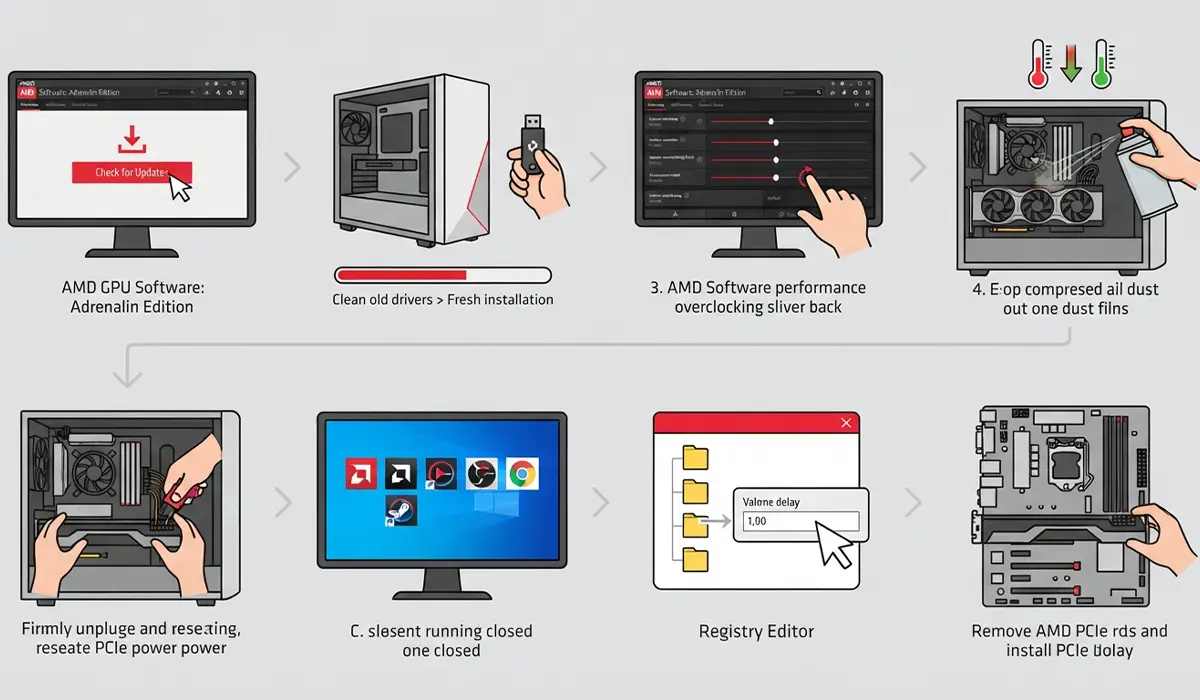
- Step 1: Update to the latest AMD driver through AMD Software: Adrenalin Edition, or download the newest version directly from AMD’s official driver page for the exact GPU model.
- Step 2: If the timeout continues, uninstall the current driver completely using AMD’s Cleanup Utility, restart the PC, and install a fresh copy of the latest driver rather than layering it over the old one.
- Step 3: Revert any manual overclock, undervolt, or custom fan curve back to default settings in AMD Software and confirm whether the timeout still occurs under the same workload.
- Step 4: Check GPU temperatures during a demanding task using AMD Software’s built-in performance metrics overlay. If temperatures climb unusually high, clean dust from the card’s fans and heatsink with compressed air and confirm the case has adequate airflow.
- Step 5: Inspect the physical power connections. Reseat the PCIe power cables at both the power supply and the graphics card, and confirm the power supply has enough headroom for the card, especially after a recent upgrade.
- Step 6: Close background overlays, recording software, and unnecessary startup programs, then reproduce the issue to see if a conflicting application was responsible.
- Step 7: Adjust the Windows Timeout Detection and Recovery delay through the registry if short, isolated timeouts continue despite a stable setup. Increasing this value gives the GPU slightly more time to respond before Windows intervenes, which helps confirm whether the card is marginally slow rather than truly hung.
- Step 8: Test the GPU in a different PCIe slot or, where possible, in another system to rule out a motherboard or slot-level issue.
Tip: Run one variable at a time. Changing the driver, the overclock, and the power cables all in the same session makes it impossible to know which fix actually solved the timeout.
Common Problems and Fixes
Timeout Still Happens Right After a Clean Driver Install
This usually points away from software and toward heat or power. Recheck temperatures under load and confirm the power supply connectors are fully seated before assuming the new driver is also faulty.
Timeout Only Occurs in One Specific Game or Application
This pattern often traces back to that application’s settings rather than the GPU itself. Try lowering in-game graphics settings, disabling any in-game overlay, or updating the application to its latest patch.
Black Screen With No Recovery Message
If the screen goes black and never recovers, rather than flickering and returning, this can indicate a more serious hardware fault. A hard freeze that requires a forced restart is a sign to stop troubleshooting software and have the card tested or inspected by a professional.
Timeout Returns After a Windows Update
Windows updates sometimes reinstall a generic display driver over the AMD driver. Reinstall the latest AMD driver after any major Windows update to rule this out.
Frequently Asked Questions
What does ‘AMD GPU driver timeout’ actually mean?
It means Windows waited for the graphics driver to respond and it did not answer in time, so the system automatically reset the driver to prevent a full freeze.
Is a driver timeout the same as a graphics card dying?
Not usually. Most timeouts trace back to a driver issue, overheating, or an unstable setting rather than actual hardware failure, though repeated timeouts alongside artifacts or crashes can point to a failing card.
Can overheating alone cause a driver timeout?
Yes. If the GPU core or memory temperature climbs too high, the card can stall or throttle in a way that Windows interprets as a hang, triggering the timeout message.
Does undervolting cause driver timeouts?
An overly aggressive undervolt can make the GPU unstable under certain loads, which can trigger a timeout. Reverting to default voltage settings is a quick way to test this.
Will reinstalling Windows fix a driver timeout?
In most cases, no. A clean driver reinstall using AMD’s official cleanup tool resolves the same underlying software issue without needing to reinstall the operating system.
Should the Windows TDR delay be changed permanently?
It is best used as a diagnostic step rather than a permanent fix. If increasing the delay stops the timeouts, the real fix is usually addressing the underlying heat, power, or driver issue rather than leaving Windows waiting longer indefinitely.
Can a weak power supply cause GPU driver timeouts?
Yes. A power supply that cannot handle sudden load spikes from the graphics card can cause a brief dip that triggers a timeout, especially on higher-end cards under heavy load.
Why does the timeout only happen during gaming?
Gaming pushes the GPU to its highest sustained load, which is when marginal heat, power, or driver instability is most likely to surface.
Do laptop AMD GPUs get driver timeouts too?
Yes, and dust buildup restricting airflow is a particularly common cause in laptops due to their limited internal cooling space.
When should a professional be involved instead of troubleshooting further?
If timeouts continue after a clean driver install, verified safe temperatures, and confirmed power delivery, or if the card shows visible artifacts or physical damage, having it tested or serviced by a professional is the safer next step.
