
Picking the best thermal paste for CPUs comes down to matching the compound to the job, whether that’s a quiet home office build, a gaming rig pushed to its limits, or a laptop that runs hot under load. The right paste closes the microscopic gaps between the CPU’s heat spreader and the cooler, letting heat transfer efficiently instead of getting trapped. Prices, packaging, and formulas change often, so this guide focuses on the categories that matter most and names only well-established, currently available products.
Key Takeaways
- Non-conductive, carbon or ceramic-based pastes are the safest and easiest choice for most desktop and laptop builds.
- Liquid metal compounds offer the lowest temperatures but require careful handling since they conduct electricity.
- Reapplication every one to three years keeps temperatures stable as older paste dries out and loses effectiveness.
- A pea-sized or thin line application is enough – more paste does not mean better cooling.
- Budget pastes from reputable brands perform close to premium options for typical desktop use, so the price jump is mainly worth it for overclocking or extreme thermal loads.
Top Thermal Paste Picks for 2026
The best thermal paste for CPUs generally falls into three practical categories: everyday performance, high-performance non-conductive, and liquid metal for advanced users. Most people never need to go beyond the first two.
Best Overall for Everyday Use
Noctua NT-H2 and Arctic MX-6 are two of the most trusted names for general desktop and laptop use. Both are non-conductive, easy to spread, and hold up well over long periods without pumping out or drying prematurely. This works best when the goal is reliable, set-and-forget cooling rather than squeezing out the last degree of performance.
Best High-Performance Non-Conductive Paste
Thermal Grizzly Kryonaut is a long-standing favorite among enthusiasts and system builders who want strong thermal conductivity without the risks that come with liquid metal. It handles high heat loads well, which makes it a solid pick for gaming PCs, workstations, and mild overclocking.
Best for Extreme Overclocking or Delidded CPUs
Thermal Grizzly Conductonaut is a liquid metal compound built for users chasing the lowest possible temperatures, often on delidded CPUs or heavily overclocked systems. Liquid metal conducts electricity, so it should never touch a motherboard, RAM slot, or bare aluminum cooler surface. Most people find that liquid metal is worth the extra care only when air or standard liquid cooling can no longer keep up.
Best Thermal Pad Alternative
PTM7950 is a phase-change thermal pad rather than a traditional paste, and it has gained popularity for laptops and small form factor PCs. It stays solid at room temperature, then softens slightly under heat to fill gaps evenly, and it tends to resist drying out the way traditional paste can over time.
Best Budget Option
Corsair TM30 delivers dependable performance at a lower price point, which makes it a practical choice for casual builds, office PCs, or anyone reapplying paste on a tight budget. Tip: pairing a budget paste with correct application technique often matters more for temperatures than upgrading to a premium compound.
How to Apply Thermal Paste Correctly
Choosing the best thermal paste for CPUs only pays off if it goes on correctly. A rushed or uneven application can undo the benefits of even the highest-rated compound.
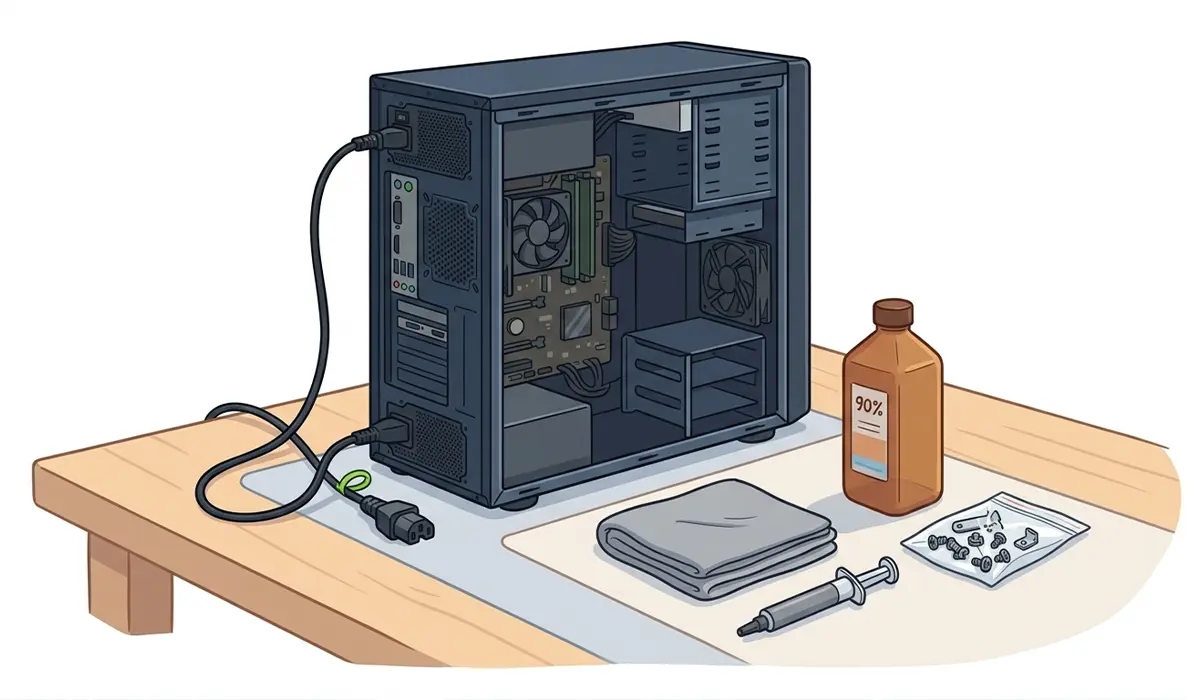
Before You Start
- Power off the system completely and unplug it from the wall.
- Touch a bare metal part of the case or use an anti-static wrist strap to discharge static before handling components.
- Let the CPU and cooler cool down fully if the system was recently running.
- Gather 90 percent or higher isopropyl alcohol, a lint-free or microfiber cloth, the new thermal paste, and the cooler’s original mounting hardware.
Application Steps
- Step 1: Remove the cooler according to the motherboard or laptop manufacturer’s instructions, then set it aside on a clean surface.
- Step 2: Wipe off the old paste from both the CPU surface and the cooler’s contact plate using isopropyl alcohol and a lint-free cloth until both surfaces are clean and dry.
- Step 3: Apply a small pea-sized dot in the center of the CPU for most consumer coolers, or a thin line across the die for larger heat spreaders.
- Step 4: Reseat the cooler using firm, even pressure so the paste spreads naturally under the mounting force rather than manual spreading in most cases.
- Step 5: Tighten the mounting screws in a diagonal or crisscross pattern to keep pressure balanced across the CPU.
- Step 6: Reconnect the cooler’s fan cable, power the system on, and monitor temperatures using a monitoring tool to confirm the new paste is performing well.
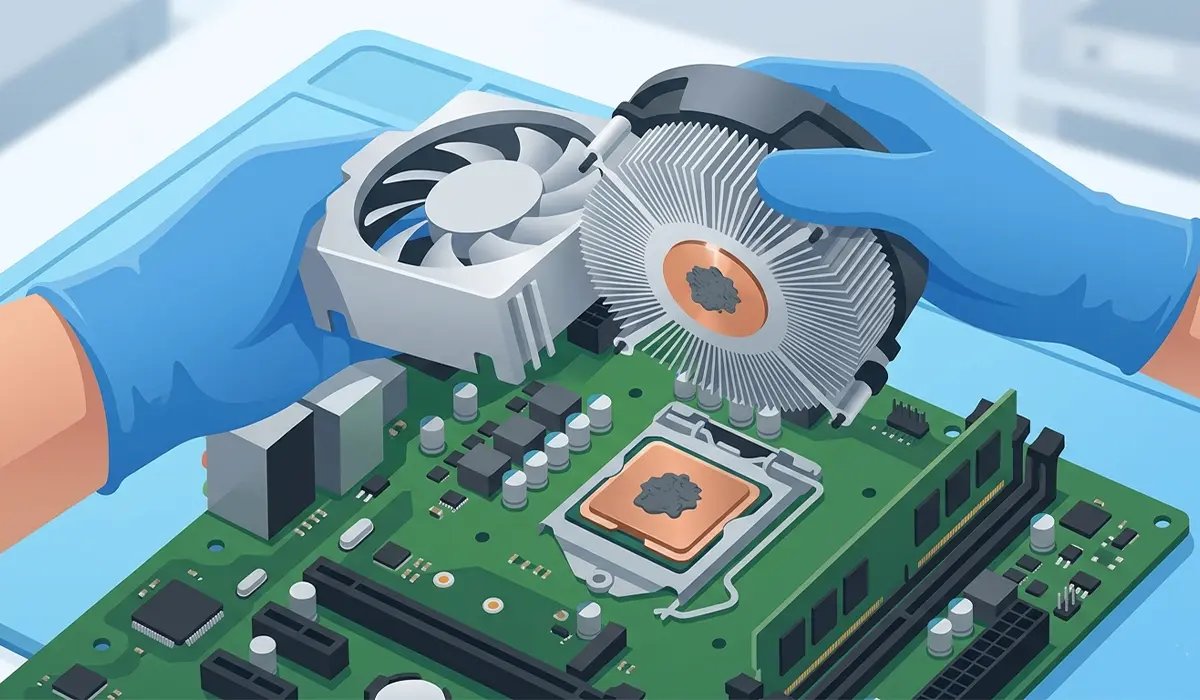
Tip: avoid using excess paste, since too much can squeeze out over the CPU’s edges and, in rare cases, interfere with nearby components on the motherboard.
Common Problems and Fixes
Even with a good product chosen, a few issues tend to come up during or after a thermal paste job.
- Temperatures are still high after reapplication: Check that the cooler is seated evenly and that mounting screws are tightened in the correct diagonal pattern rather than one side at a time.
- Paste spread unevenly or left gaps: Remove the cooler, clean both surfaces again, and reapply with a slightly larger amount using the pea or line method rather than manual spreading.
- PC will not boot after a paste job: Confirm the cooler’s power cable is reconnected and that the CPU power connector on the motherboard is fully seated, since these get bumped easily during cooler removal.
- Liquid metal contact with other components: Power down immediately, and clean the affected area carefully with isopropyl alcohol, since liquid metal can cause a short if left in contact with conductive surfaces.
- Paste dried out faster than expected: This usually points to a lower-quality compound or a CPU running consistently hot, so switching to a paste rated for higher performance may help going forward.
Frequently Asked Questions
How often should thermal paste be replaced?
Most non-conductive pastes last one to three years before performance starts to drop, though heavy use or high ambient temperatures can shorten that window.
Is more expensive thermal paste always better?
Not necessarily. Premium pastes shine under heavy overclocking or extreme thermal loads, but for typical desktop or laptop use, a quality mid-range paste performs nearly as well.
Can thermal paste go bad before it is opened?
Unopened paste stored in normal room conditions generally stays usable for a long time, though very old tubes can dry out or separate and should be discarded.
Is liquid metal safe for a first-time user?
Liquid metal requires careful, precise application since it conducts electricity and can damage components if it spreads beyond the CPU surface, so it suits experienced users more than beginners.
How much thermal paste should be used?
A pea-sized dot or a thin line across the CPU die is enough for most coolers, since the mounting pressure spreads it evenly on its own.
Does thermal paste type affect CPU lifespan?
Consistently high temperatures from old or poorly applied paste can add extra thermal stress over time, so keeping temperatures in a healthy range through proper paste application supports long-term reliability.
What happens if too much thermal paste is applied?
Excess paste can squeeze out past the CPU’s edges and, in some cases, create a mess on the motherboard, though it rarely causes damage unless it is liquid metal.
Can thermal pads replace thermal paste entirely?
Phase-change pads like PTM7950 work well for laptops and compact builds, but traditional paste remains more common for desktop CPUs due to easier availability and application.
Is it necessary to remove all old paste before reapplying?
Yes, old residue should be fully cleaned off with isopropyl alcohol before applying fresh paste, since mixing old and new compounds reduces effectiveness.
Should a professional handle thermal paste replacement on a laptop?
Laptops with tightly packed components or fragile ribbon cables can be riskier to open than desktops, so anyone unfamiliar with the specific model’s teardown process may want a professional to handle it, and opening the case may affect the warranty.
