
A headset microphone not recognized by Windows can ruin a call, a stream, or a gaming session in seconds. The headphones play sound just fine, but the mic is invisible to the system. Most of the time the cause is a simple plug, privacy, or default-device issue, and the fix takes only a few minutes.
Key Takeaways
- Most cases come down to a muted cable switch, the wrong plug type, a disabled device, or blocked microphone privacy settings.
- Testing the headset on another device quickly shows whether the headset or the PC is at fault.
- Setting the headset mic as the default input device in Windows Sound settings solves many cases instantly.
- Reinstalling the audio driver fixes the problem when the microphone vanishes after an update.
- If the headset fails on every device, the microphone itself is faulty and needs replacing.
Common Causes of a Headset Microphone Not Being Recognized
- A mute switch on the cable or earcup is turned on, or the boom arm is not positioned correctly.
- A single-plug headset is connected to a jack that expects separate headphone and microphone plugs, or the reverse.
- Windows is sending input to a different device, such as the built-in laptop microphone or a webcam mic.
- Microphone access is turned off in the Windows privacy settings.
- The microphone is disabled in the Sound control panel.
- The audio driver is outdated, corrupted, or was replaced during a Windows update.
- A dirty or loose jack, a bad USB port, or an unpowered USB hub is interrupting the connection.
- Another app has taken exclusive control of the microphone.
How to Fix Headset Microphone Not Recognized
The steps below are ordered from the quickest checks to the more involved fixes. Work through them in order and test the microphone after each one by speaking and watching the input level bar in Windows Sound settings.
Quick Hardware Checks
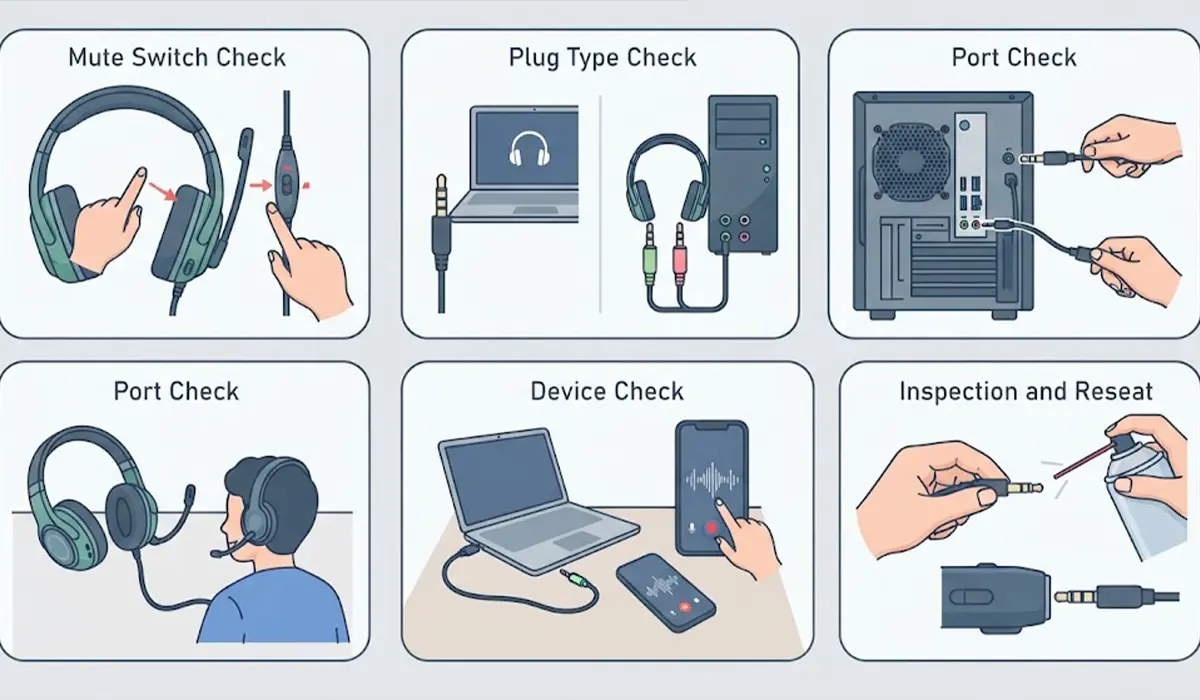
- Step 1: Check for a physical mute switch. Many headsets have a slider or button on the inline controller or on the earcup. Make sure it is off, and confirm the boom arm is lowered into position if the headset has a flip-up design.
- Step 2: Confirm the plug type matches the port. A single 3.5 mm plug with a ring-ring-sleeve layout carries both audio and microphone, and it needs a combo headset jack. A headset with two plugs (one for headphones, one for the microphone) needs separate jacks, or a splitter adapter when the PC only has one combo jack. Plugging a single-plug headset into a headphone-only jack gives sound but no microphone.
- Step 3: Try a different port. For USB headsets, plug directly into a port on the PC instead of an unpowered hub or a front-panel extension. For 3.5 mm headsets on a desktop, try the jack on the back of the motherboard, since front-panel jacks are sometimes not wired correctly.
- Step 4: Test the headset on another device, such as a phone, tablet, or a second computer. If the microphone fails there too, the headset is the problem and the rest of this guide will not help.
- Step 5: Reseat and inspect the plug. Unplug the headset, check the plug for bent or dirty contacts, and look into the jack for lint. A short burst of compressed air works well for loose dust. Never push metal objects into the jack.
Tip: Plug the headset in firmly until it seats fully. A plug that is only partly inserted often works for audio but drops the microphone contact, which is the last ring on the plug.
Windows Settings and Drivers
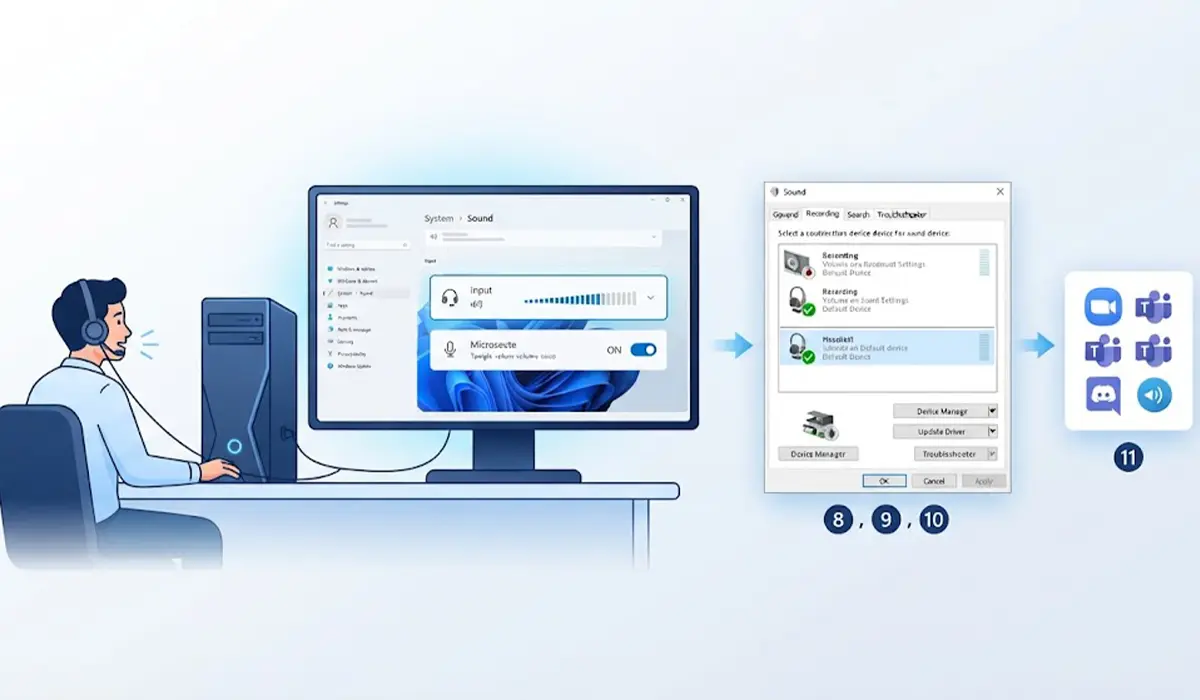
- Step 6: Select the headset as the default input device. Open Settings, then System, then Sound. Under Input, choose the headset microphone from the list. Speak and watch the input volume bar move. If the headset is not listed at all, continue to the steps below.
- Step 7: Allow microphone access. In Windows 11, open Settings, then Privacy and security, then Microphone, and make sure Microphone access is on, along with the options that let apps and desktop apps use the microphone. In Windows 10, open Settings, then Privacy, then Microphone, and turn on access for the device and for apps.
- Step 8: Enable the device if it is disabled. Open the classic Sound control panel from Sound settings by choosing More sound settings, then click the Recording tab. Right-click an empty area and tick Show Disabled Devices. If the headset microphone appears greyed out, right-click it and choose Enable, then choose Set as Default.
- Step 9: Run the built-in troubleshooter. In Windows 11, open Settings, then System, then Troubleshoot, then Other troubleshooters, and run Recording Audio. In Windows 10, open Settings, then Update and Security, then Troubleshoot, then Additional troubleshooters, and run Recording Audio.
- Step 10: Update or reinstall the audio driver. Right-click the Start button, open Device Manager, and expand Audio inputs and outputs and Sound, video and game controllers. Right-click the audio device and choose Update driver. If that does not help, choose Uninstall device, restart the PC, and let Windows reinstall the driver automatically. For laptops, the manufacturer support page often offers the most compatible audio driver for the exact model.
- Step 11: Release exclusive control and check the app settings. In the Recording tab, double-click the headset microphone, open the Advanced tab, and untick the option that lets applications take exclusive control of the device. Then open the app being used, such as Zoom, Teams, or Discord, and make sure its input device is set to the headset and not to the default or another microphone.
Tip: Restart the PC after changing drivers or privacy settings. Some audio services only pick up the new configuration after a full restart, and a quick reboot saves a lot of unnecessary troubleshooting.
Common Problems and Fixes
The Microphone Shows Up but the Input Level Does Not Move
This usually points to a muted device, an input volume set to zero, or blocked privacy access. In the Recording tab, open the microphone properties, check the Levels tab, and make sure the microphone is not muted and the volume is turned up. Then recheck the privacy settings from Step 7.
The Microphone Works in One App but Not Another
Each app keeps its own input selection. Open the audio settings inside the problem app and choose the headset microphone manually. Also close any other app that may be holding the microphone, since some apps lock it exclusively.
A Bluetooth Headset Plays Audio but the Microphone Is Missing
Bluetooth headsets use a separate hands-free profile for the microphone. Remove the headset from Bluetooth and Devices, put it back in pairing mode, and pair it again. In Sound settings, check that a hands-free input entry for the headset exists and select it. Expect audio quality to drop while the microphone is active, because that is how the hands-free profile works.
No Prompt Appears When the Headset Is Plugged In
Some PCs with a Realtek audio setup normally ask which device was connected. If no prompt appears, open the audio manager app from the manufacturer, or check Sound settings directly, and confirm the jack is set to headset or headphone with microphone mode.
The Microphone Disappeared After a Windows Update
Updates sometimes replace a working audio driver with a generic one. Reinstall the driver as described in Step 10, or use the manufacturer driver for the exact PC model. If the problem started right after an update, the Roll Back Driver button in the audio device properties in Device Manager may also restore the earlier working driver.
Nothing Works After All Steps
If the headset fails on a second device, the microphone element or cable inside the headset is faulty, and replacement is the practical fix. If the headset works elsewhere but no port on the PC detects it, the audio jack or the motherboard audio hardware may be failing. At that point, a qualified technician should take over, and it is worth remembering that opening a laptop or desktop may affect the warranty.
Frequently Asked Questions
Why is my headset microphone not recognized in Windows?
The most common reasons are a plug type that does not match the port, a muted or disabled microphone, blocked microphone privacy settings, or a driver problem. Checking those four areas in order resolves most cases.
How do I make Windows detect my headset microphone?
Plug the headset in firmly, open Settings, then System, then Sound, and select the headset under Input. If it is missing, enable it in the Recording tab by showing disabled devices and enabling the headset microphone.
Why does my headset play sound but the mic does not work?
Audio output and microphone input are separate paths. Sound can work while the microphone fails because of a mute switch, the wrong jack type, disabled input, or blocked privacy access.
Do I need a splitter for a headset with two plugs?
Yes, if the PC has only one combo headset jack. A splitter adapter joins the headphone and microphone plugs into a single plug that the combo jack can read. A PC with separate green and pink jacks does not need one.
Can a USB port cause the microphone not to be recognized?
Yes. A weak or faulty USB port, or an unpowered hub, can prevent a USB headset from being detected correctly. Plugging it directly into another port on the PC is a quick test.
How do I check if my microphone is blocked by privacy settings?
Open Settings, go to Privacy and security (or Privacy in Windows 10), and select Microphone. Make sure microphone access is on and that apps, including desktop apps, are allowed to use it.
Should I reinstall the audio driver if the microphone is missing?
It is a sensible step once the basic checks are done. Uninstall the audio device in Device Manager, restart the PC, and let Windows reinstall it. The manufacturer driver for the exact PC model is often the most reliable option.
How can I tell whether the headset or the PC is faulty?
Test the headset on a different device. If the microphone works there, the PC is the issue. If it fails there too, the headset needs repair or replacement.
