
Learning how to connect a laptop to a TV via HDMI is one of the simplest upgrades for movie nights, presentations, or gaming on a bigger screen. All it takes is the right cable, a couple of menu adjustments, and a few minutes of setup. This guide walks through the entire process from plugging in the cable to fixing the most common display and sound issues.
Key Takeaways
- An HDMI cable carries both video and audio in a single connection, so no separate audio cable is needed in most cases.
- Most laptops automatically detect a TV once connected, but the input source on the TV often needs to be switched manually.
- The display mode (duplicate, extend, or second screen only) can be changed instantly with a keyboard shortcut on most systems.
- Sound may default to the laptop speakers even after a successful video connection, and that setting usually needs to be changed manually.
- Cable quality and length matter more than most people expect, especially for 4K resolution or high refresh rates.
Before Getting Started
This is a plug-and-play task, so there is no need to power down or open either device. A few quick checks beforehand save a lot of troubleshooting later.
- Confirm both the laptop and the TV actually have an HDMI port. Most laptops from the last several years include one, though some ultra-thin models rely on USB-C or Thunderbolt instead.
- Have an HDMI cable on hand. A standard high-speed HDMI cable works fine for 1080p and most everyday use, while a premium high-speed or ‘ultra high speed’ cable is worth using for 4K video or higher refresh rates.
- If the laptop only has USB-C or Thunderbolt ports, a USB-C to HDMI adapter or cable will be needed instead of a traditional HDMI cable.
- Know which HDMI input number the cable will be plugged into on the TV, since that will be selected later using the remote.
How to Connect a Laptop to a TV via HDMI
Once the cable and ports are confirmed, connecting a laptop to a TV via HDMI only takes a few steps.
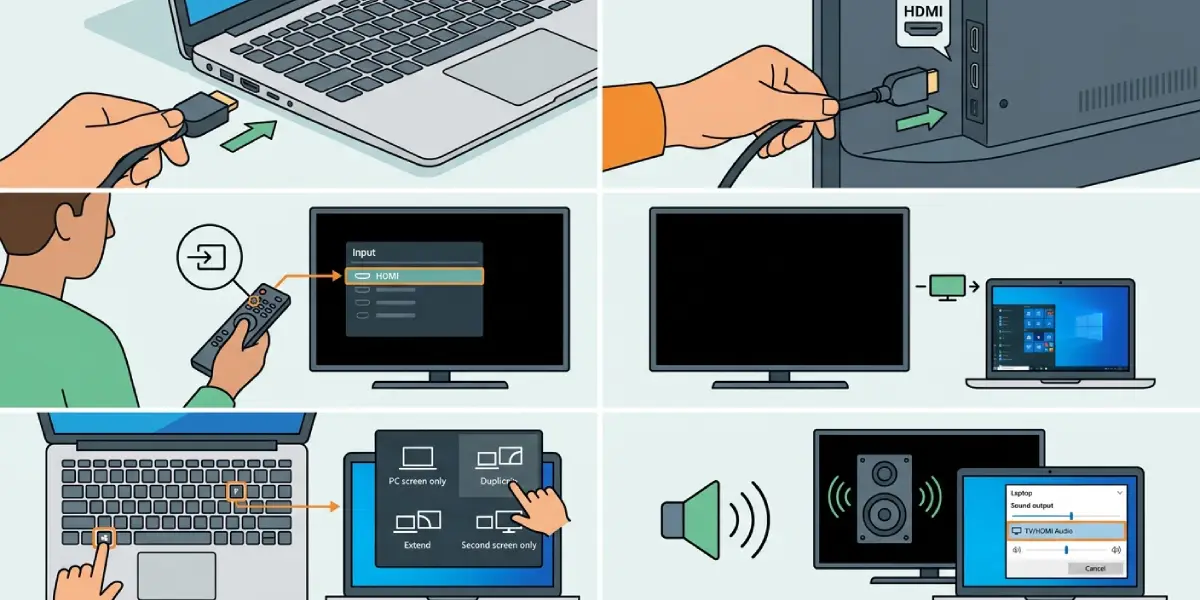
- Step 1: Plug one end of the HDMI cable into the laptop’s HDMI port (or the USB-C adapter, if that is the only option available).
- Step 2: Plug the other end into an open HDMI input on the TV. Note the input number, such as HDMI 1 or HDMI 2, printed near the port.
- Step 3: Turn on the TV and use the remote to switch the input source to match the HDMI port that was just used. This is usually done with a button labeled ‘Source’ or ‘Input’.
- Step 4: Wait a few seconds for the TV to detect the signal. The laptop screen should appear on the TV automatically, though a blank screen for a moment is normal while the connection negotiates.
- Step 5: On the laptop, choose how the screen should behave. On Windows, press the Windows key and P at the same time to open the display options and select Duplicate, Extend, or Second screen only. On a Mac, open System Settings, go to Displays, and choose how the TV should be arranged relative to the built-in screen.
- Step 6: Adjust the resolution if the image looks stretched, blurry, or oversized. This is typically found in the same display settings menu, and selecting the TV’s native resolution usually gives the sharpest result.
- Step 7: Check the audio output. If sound is still coming from the laptop speakers, open the sound settings and select the TV or HDMI audio device as the output.
Tip: If the TV shows ‘No Signal’ after switching inputs, try unplugging and reconnecting the HDMI cable at the laptop end rather than the TV end. This often forces the laptop to re-detect the external display.
Choosing Between Duplicate, Extend, and Second Screen Only
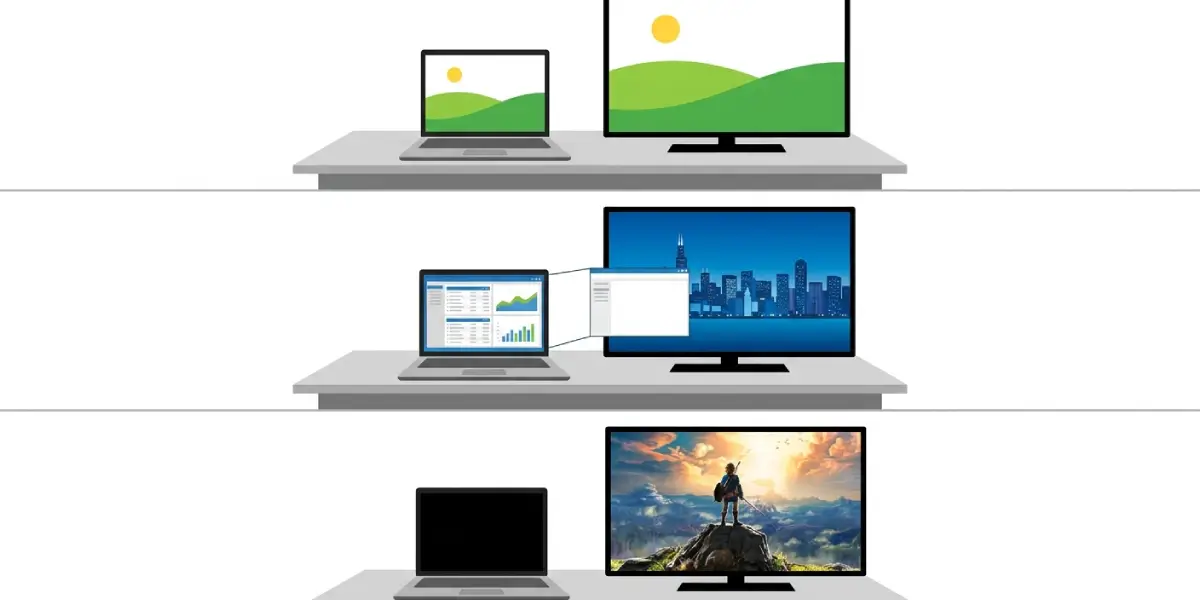
Duplicate mode mirrors the exact same image on both screens, which works well for presentations where everyone needs to see what is on the laptop. Extend mode turns the TV into an additional workspace, useful for multitasking or keeping notes open on the laptop while a video plays on the TV. Second screen only turns off the laptop display entirely and sends everything to the TV, which is the most common choice for movies or gaming.
Getting Sound to Play Through the TV
HDMI carries audio along with video, so a separate audio cable is not necessary. That said, laptops sometimes default back to their internal speakers, particularly after the TV has been unplugged and reconnected. Right-clicking the sound icon in the taskbar (Windows) or opening the Sound menu in System Settings (Mac) and manually selecting the TV as the playback device usually resolves this.
Common Problems and Fixes
- The TV shows no signal at all. Double check that the correct HDMI input is selected on the TV remote, and try a different HDMI port on the TV if one is available. A loose connection at either end is also a frequent cause, so reseating the cable firmly on both sides is worth trying first.
- The image appears but the resolution looks wrong or blurry. Open the laptop’s display settings and manually select the TV’s native resolution rather than relying on the automatic detection, which occasionally chooses a lower setting.
- Video works but there is no sound. This almost always means the laptop is still routed to its internal speakers. Selecting the TV as the active playback device in the sound settings fixes this in most cases.
- The picture flickers or cuts out intermittently. This is often a cable issue, especially with lower-quality or older cables trying to carry a 4K or high refresh rate signal. Swapping in a certified high-speed or ultra high-speed HDMI cable typically solves it.
- The laptop detects the TV, but the screen stays black. Try the Windows key and P shortcut again and cycle through the display modes, since the setting sometimes lands on an option like ‘second screen only’ when a mirrored view was expected, or the reverse.
- A USB-C to HDMI adapter is not working at all. Not every USB-C port supports video output, since some are data-only. Checking the laptop’s specifications for ‘DisplayPort over USB-C’ or ‘Thunderbolt’ support clarifies whether that port can handle a video signal.
Frequently Asked Questions
Why does the laptop screen go black for a few seconds after plugging in HDMI?
This is normal. The laptop and TV are negotiating resolution and refresh rate, and the screen typically comes back within a few seconds once that handshake completes.
Can a laptop be connected to a TV via HDMI wirelessly?
Not through HDMI itself, since HDMI is a physical cable standard. Wireless screen sharing is possible through separate technologies like Miracast or AirPlay, but that requires compatible hardware on both the laptop and TV.
Does the HDMI cable length affect picture quality?
Very long cables can occasionally cause signal degradation, especially at 4K resolution or high refresh rates. For most home setups, a cable in the 6 to 15 foot range works reliably without any noticeable quality loss.
Why does the TV only show a portion of the laptop screen?
This is usually a resolution mismatch, not a hardware problem. Adjusting the resolution in the laptop’s display settings to match the TV’s native resolution typically fills the screen correctly.
Is a USB-C to HDMI adapter as good as a direct HDMI cable?
A quality adapter performs just as well as a direct connection, since it simply converts the same video signal. Cheap or poorly made adapters can introduce flickering or resolution issues, so choosing one from a reputable brand makes a difference.
Can a laptop be connected to a TV via HDMI while charging?
Yes, HDMI and charging use separate ports on nearly all laptops, so both can be used at the same time without any conflict.
Why does the TV audio sound worse than the laptop speakers?
This usually comes down to the TV’s built-in speakers rather than the HDMI connection itself, since HDMI transmits audio without quality loss. Connecting the TV to a soundbar or external speaker system typically improves the result.
What resolution should be selected for the best picture on a TV?
Selecting the TV’s native resolution, most commonly 1080p or 4K depending on the model, gives the sharpest image. Running a resolution higher than the TV supports will not improve quality and may cause display issues.
Does every laptop support 4K output over HDMI?
Not necessarily. Support for 4K resolution and higher refresh rates depends on the laptop’s graphics hardware and the version of HDMI it uses, so checking the laptop’s specifications confirms what it can output.
Why does the TV keep switching back to its home screen after connecting HDMI?
This typically means the input source was not properly locked to the HDMI port in use. Reselecting the correct HDMI input directly from the TV’s source menu usually keeps the connection stable.
