
Learning how to customize touchpad gestures in Windows 11 turns a laptop touchpad into a much faster way to switch apps, jump to the desktop, and control volume. Every option lives on a single page in the Settings app. Three-finger and four-finger gestures appear only on laptops with a precision touchpad, and no administrator rights are needed.
Key Takeaways
- All gesture options are found at Settings > Bluetooth & devices > Touchpad.
- Scrolling and zooming gestures are under Scroll & zoom, while swipes and taps for three and four fingers have their own sections.
- Changes apply instantly, so there is no Save button and no restart.
- The Reset option on the same page restores the default gestures at any time.
Step-by-Step Guide to Customize Touchpad Gestures in Windows 11
Method 1: Use the Settings App
- Press Windows + I to open Settings.
- Click Bluetooth & devices in the left sidebar.
- Click Touchpad.
- Make sure the Touchpad toggle at the top is switched On. The gesture sections appear below it.
- Click Scroll & zoom to expand the section.
- Tick or untick Drag two fingers to scroll and Pinch to zoom depending on which gestures should stay active.
- Open the Scrolling direction drop-down and choose Down motion scrolls down or Down motion scrolls up. The first option works like a mouse wheel, while the second feels like swiping a phone screen.
- Click Three-finger gestures to expand it.
- Open the Swipes drop-down and pick an action, such as Switch apps and show desktop, Switch desktops and show desktop, Change audio and volume, or Nothing.
- Open the Taps drop-down and choose what a three-finger tap does, such as Search with Windows, Notification center, Play/pause, Middle mouse button, or Nothing.
- Click Four-finger gestures and repeat the same choices for Swipes and Taps.
- Test each gesture on the touchpad. The new action runs right away, so a wrong choice can be fixed on the spot.
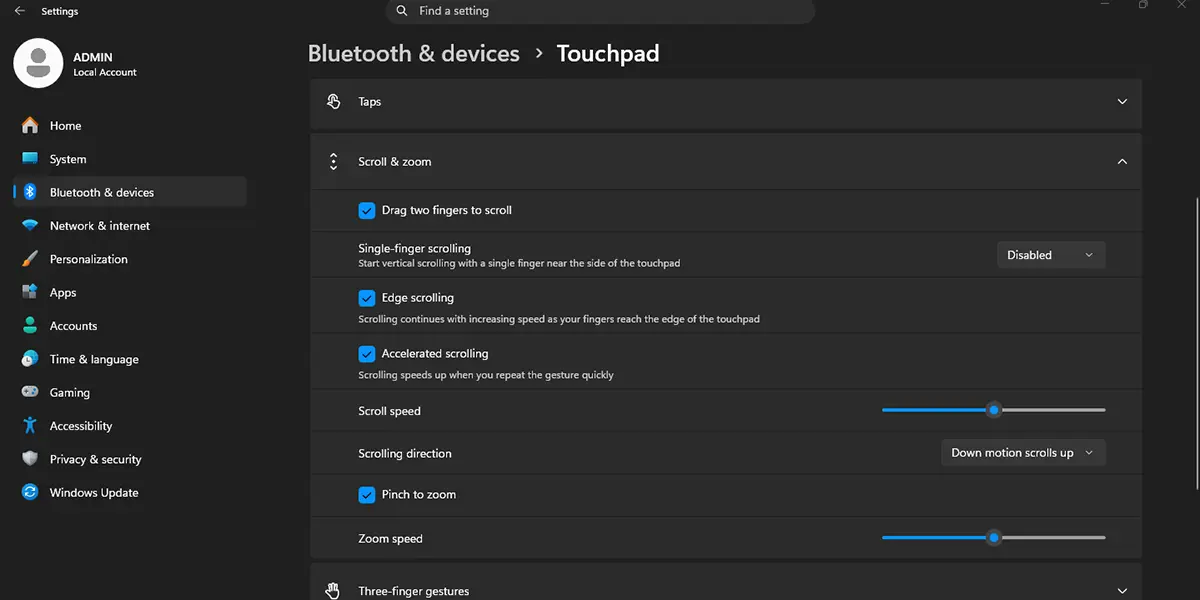
Tip: Each finger count can have a different job. A common setup is three-finger swipes for switching apps and four-finger swipes for switching virtual desktops, which keeps the two actions from getting mixed up.
Method 2: Open the Touchpad Page with the Run Command
- Press Windows + R to open the Run box.
- Type the following command exactly as shown. It does not need an elevated window.
ms-settings:devices-touchpad
- Press Enter. The Touchpad page opens directly.
- Follow steps 5 to 12 from Method 1 to set the gestures.
Fine-Tune Swipes in Advanced Gesture Configuration
The drop-down lists cover most needs, but each swipe direction can also be set individually. This helps when a laptop is used for presentations or when one direction keeps getting triggered by accident.
- On the Touchpad page, expand Three-finger gestures or Four-finger gestures.
- Click Advanced gesture configuration.
- Choose an action for each swipe direction (up, down, left, and right) from the drop-downs.
- Set the Taps action on the same page if needed.
- Go back to the Touchpad page and test the gestures.
Tip: Make one change at a time and test it before moving on. Most people find that a single adjusted gesture feels natural after a day or two, while changing everything at once makes it hard to remember what does what.
How to Undo or Reverse This Change
To restore the original behavior, go to Settings > Bluetooth & devices > Touchpad and click the Reset button for the touchpad settings and gestures. This returns every gesture and touchpad option to its default. To undo just one gesture, reopen its drop-down and select the previous option.
Common Problems and Fixes
Three-Finger and Four-Finger Sections Are Missing
These sections show up only on precision touchpads. If the Touchpad page lists just taps and scrolling, the hardware or its driver does not support multi-finger gestures. Open Settings > Windows Update > Advanced options > Optional updates, install any touchpad driver listed there, and restart the PC.
The Touchpad Page Is Missing or Settings Are Greyed Out
A laptop managed by work or school can have these options locked by the organization. On a personal laptop, check that the Touchpad toggle is On and that the touchpad driver is installed correctly.
Gestures Reset or Stop Working After a Restart
This usually points to a driver conflict after a Windows update. Install the latest optional touchpad driver from Windows Update, restart, and set the gestures again.
Frequently Asked Questions
Does this work on Windows 11 Home?
Yes. Touchpad gesture settings are part of the Settings app in every Windows 11 edition, including Home and Pro.
Do touchpad gesture changes need a restart?
No. Each change applies the moment a drop-down or checkbox is changed, so the gesture can be tested immediately.
Why are the three-finger and four-finger options missing?
The laptop likely does not have a precision touchpad, or the touchpad driver is outdated. Installing the latest optional driver from Windows Update often brings the sections back.
What are the default three-finger and four-finger gestures?
On most laptops, three-finger swipes switch apps and show the desktop, while four-finger swipes switch virtual desktops. Taps typically open Windows search for three fingers and the notification center for four fingers.
Is there a keyboard shortcut to open the touchpad gesture settings?
Press Windows + R, type ms-settings:devices-touchpad, and press Enter. The Touchpad page opens directly without clicking through Settings.
Can each swipe direction have its own action?
Yes. Open Advanced gesture configuration under Three-finger gestures or Four-finger gestures to set an action for swiping up, down, left, and right.
Do touchpad gestures affect battery life or performance?
No noticeable effect. Gestures are handled by the touchpad driver and use almost no power, so a laptop on battery runs the same as before.
Can these gestures be used with an external touchpad?
Yes, as long as it is a precision touchpad that Windows 11 recognizes. A basic external touchpad may show only taps and scrolling options.
