
A desktop PC won’t turn on for a handful of predictable reasons, and most of them can be tracked down without opening a repair ticket or buying new parts. This guide walks through the causes in order of likelihood and gives clear steps to isolate the problem, from the wall outlet all the way to the motherboard itself.
Key Takeaways
- Power delivery problems, not the motherboard, cause the majority of ‘won’t turn on’ cases.
- A dead power supply, a loose cable, or a tripped surge protector are the first things to rule out.
- Front panel connectors and RAM seating are common culprits after a build or an upgrade.
- No lights and no fan spin points to power delivery; lights or fans with no display points to a component fault.
- A systematic, one-variable-at-a-time approach saves time and avoids replacing parts that were never broken.
Common Causes
Before diving into fixes, it helps to understand what typically stops a desktop from powering on. Most cases fall into one of these categories.
Power Supply Issues
A failed or failing power supply unit (PSU) is the single most common reason a desktop stays dark. PSUs take the brunt of power surges and simply wear out over years of use.
Loose or Faulty Cables
The 24-pin motherboard connector, the CPU power cable, and even the basic wall cord can work themselves loose, especially after moving the case or cleaning inside it.
Front Panel Connector Problems
The small power switch wire that runs from the case to the motherboard is easy to dislodge and easy to overlook, since it is tucked into a corner most people never touch.
RAM or Expansion Card Seating
Memory sticks and graphics cards that are not fully seated in their slots can prevent a system from powering on or cause it to power on briefly and then shut off.
Dead CMOS Battery or Short Circuit
Less common, but still worth ruling out, is a motherboard short caused by a stray screw or standoff, or in rare cases a completely drained CMOS battery affecting boot behavior.
Step-by-Step Fixes for a Desktop PC Won’t Turn On Issue
Before You Start
Unplug the desktop from the wall before touching any internal component. Let the case sit for a minute so any residual charge in the PSU dissipates, and touch a bare metal part of the case or use an anti-static wrist strap before handling anything inside. If the PC is still under warranty, opening the case may void it, so check the terms first if that matters.
Tools needed for this process: a Phillips screwdriver, a flashlight, and optionally a multimeter or a spare known-good power supply for testing.
- Step 1: Check the wall outlet and power strip. Plug a lamp or phone charger into the same outlet to confirm power is actually reaching that spot. A tripped breaker or a dead surge protector switch causes more ‘dead PC’ calls than people expect.
- Step 2: Inspect the power cable itself. Swap in a different cable if one is available, since the thick kettle-style cord that runs from the wall to the PSU can fail internally without any visible damage.
- Step 3: Confirm the PSU switch is on. Every ATX power supply has a small rocker switch near the cable input, usually marked with 0 and 1. It needs to be in the 1 (on) position for the system to receive power at all.
- Step 4: Open the case and check the 24-pin motherboard connector and the 4 or 8-pin CPU power cable. Both need to be firmly seated with the clip fully clicked in. A connector that looks plugged in but is not fully seated is one of the most common reasons a build refuses to start.
- Step 5: Verify the front panel power switch cable. Locate the small 2-pin connector labeled PWR SW (or similar) near the bottom edge of the motherboard, usually next to a diagram printed on the board itself. Reseat it, making sure it sits on the correct pins.
- Step 6: Reseat the RAM. Remove each memory stick, check the slot for debris, and push it back in firmly until the side clips snap into place. Try booting with a single stick if more than one is installed.
- Step 7: Reseat the graphics card and its power connectors, if it uses any. A card that has shifted slightly out of the PCIe slot can prevent the system from posting or powering on cleanly.
- Step 8: Perform a breadboard test outside the case. Remove the motherboard, CPU, one stick of RAM, and the PSU from the case and set them on an anti-static surface or the motherboard box. Connect only the essentials and jump the power switch pins with a screwdriver to see if the board powers on. This isolates whether a case short is the problem.
- Step 9: Test the PSU with a paperclip. With the PSU unplugged from everything else, connect a paperclip between the green wire and any black wire on the 24-pin connector, then plug the PSU into the wall and flip its switch. If the fan does not spin, the PSU itself is very likely the failure point.
- Step 10: Reset the CMOS. Locate the small round battery on the motherboard, remove it for about a minute, then reinsert it. This clears any stuck BIOS settings that could be interfering with startup.
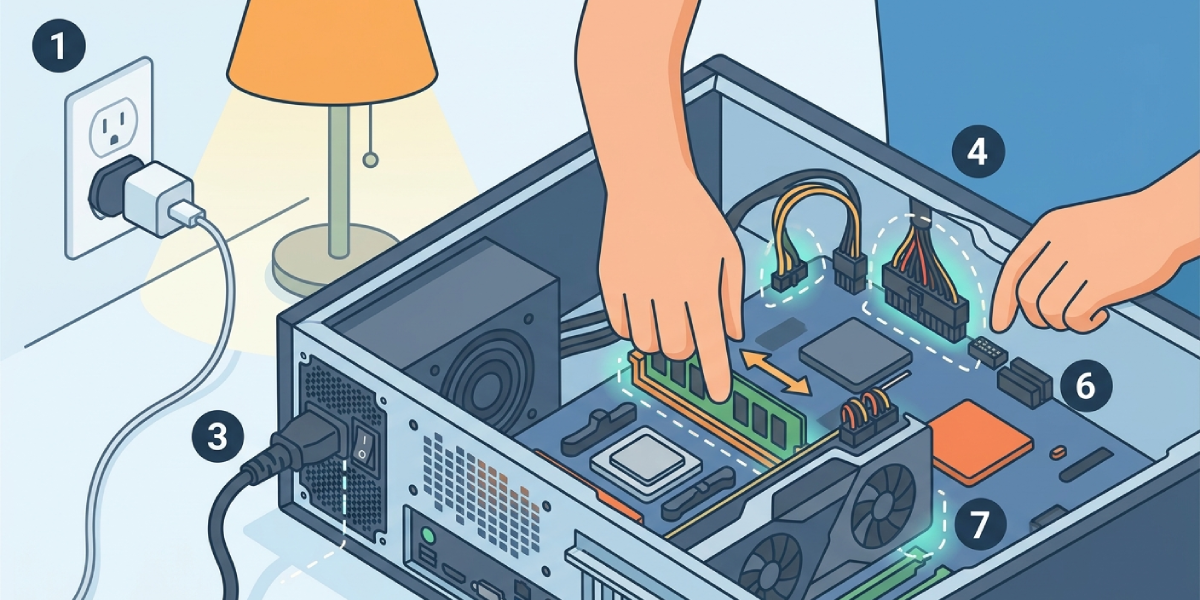
Tip: Work through these steps in order rather than jumping around. Skipping ahead often means retracing the same ground later and missing the actual cause.
Common Problems and Fixes
Fans Spin Briefly Then Stop
This usually points to a motherboard, PSU, or short-circuit protection kicking in. Try the breadboard test from Step 8 to rule out a case-related short before assuming a component is dead.
No Lights, No Fans, Completely Dead
This pattern almost always traces back to power delivery: the outlet, the cable, the PSU switch, or the PSU itself. Work through Steps 1 through 3 first.
Power Light On but No Fans or Display
Some power is reaching the board, but something downstream is blocking a full boot. Reseat RAM and the graphics card, and check that the CPU power cable is fully connected.
PC Powers On After Reseating Cables but Later Fails Again
A connector that keeps loosening on its own suggests a worn clip or a case that flexes when moved. Zip-tying cables for strain relief or replacing a worn PSU cable often resolves this for good.
PSU Fan Spins During Paperclip Test but PC Still Won’t Boot
A spinning PSU fan confirms the supply can power on, but it does not guarantee every voltage rail is healthy under load. If cabling and seating check out, the PSU may still be the weak link and is worth swapping for a known-good unit to confirm.
Frequently Asked Questions
Why does a desktop PC suddenly stop turning on with no warning?
Most sudden failures come from a power supply that has finally given out after years of gradual wear, or from a cable that has worked loose from vibration, cleaning, or moving the case.
How can someone tell if the problem is the power supply or the motherboard?
A paperclip test on the PSU is the fastest way to check. If the PSU fan spins during that test but the full system still will not power on when reconnected, the motherboard becomes the more likely suspect.
Is it safe to test a power supply with a paperclip?
It is a standard diagnostic method used by technicians, but the PSU should be disconnected from every other component first and handled only by the connector, never the internal circuitry.
Can a dead CMOS battery stop a PC from turning on at all?
A dead CMOS battery typically causes clock resets and lost BIOS settings rather than a total failure to power on, but in some cases it can interfere with boot behavior enough to warrant a reset as a troubleshooting step.
Why would a PC power on but show nothing on the monitor?
That points away from this specific issue and toward a display or POST problem, often tied to RAM seating, a loose GPU, or a monitor cable rather than the power system itself.
Does unplugging and replugging RAM actually make a difference?
Yes. Oxidation and dust on the contacts, or a stick that was never fully clicked into place, are common enough that reseating RAM resolves a surprising number of no-power and no-boot cases.
What does it mean if the case fans spin but nothing else happens?
Case fans are usually powered directly and independently, so their spinning does not confirm the motherboard or CPU are receiving power. Focus on the CPU power connector and RAM in that scenario.
How long should someone wait after unplugging the PC before working inside it?
A minute or two is generally enough for any residual charge in the power supply to drain, though the PSU itself should never be opened by anyone without proper training.
When should a professional take over instead of continuing to troubleshoot?
If the breadboard test and PSU test both check out but the system still refuses to power on, or if there is a burning smell or visible scorch marks on the board, it is time to stop and consult a professional repair service rather than risk further damage.
Will opening the case void the PC’s warranty?
It depends on the manufacturer and whether a warranty seal is present. Checking the specific warranty terms before opening a prebuilt system is worth the extra few minutes.
