
A drive not showing up in Windows is one of the most common storage headaches, whether it is a new SSD that never got initialized, an older hard drive that suddenly vanished, or a USB drive that Windows simply refuses to recognize. Most of the time the fix does not require replacing the drive at all. It just takes a methodical check of a few settings and connections that are easy to overlook.
Key Takeaways
- A missing drive is often a Windows visibility issue, not a dead drive – check Disk Management before assuming failure.
- New drives frequently need to be initialized and formatted before File Explorer will show them.
- Loose cables, a bad port, or a missing drive letter cause the majority of internal drive cases.
- Outdated storage controller drivers can hide otherwise healthy drives from the operating system.
- If a drive appears and disappears intermittently or makes clicking noises, back up data immediately and treat it as a hardware failure risk.
Common Causes of a Drive Not Showing Up in Windows
A handful of situations account for nearly every case of a missing drive. Understanding which one applies narrows down the fix considerably.
Uninitialized or Unformatted Drive
Brand new drives, or drives pulled from another system, often show up in Disk Management but not in File Explorer because they have no partition or file system yet.
Missing or Conflicting Drive Letter
Windows assigns a letter to each partition so it can display in File Explorer. If that letter was removed, or conflicts with another device, the drive becomes invisible even though it is fully functional.
Loose or Faulty Connections
For internal drives, a SATA or power cable that has worked itself loose is one of the most frequent culprits. For external drives, a worn USB cable or a failing port causes the same symptom.
Outdated or Corrupt Storage Drivers
Windows relies on chipset and storage controller drivers to detect connected drives. When these drivers are outdated or corrupted, a physically healthy drive can fail to appear anywhere in the system.
Drive Set to Offline in Disk Management
Windows sometimes marks a drive as offline, particularly after a dirty shutdown or when moving a drive between systems. An offline drive is detected by the system but hidden from File Explorer.
Failing Drive Hardware
Mechanical hard drives can develop bad sectors or motor issues, and SSDs can suffer controller failures. This is the least common cause but the most serious one.
Step-by-Step Fixes for a Missing Drive
Check Disk Management First
This single step diagnoses most cases and points directly to the correct fix.
- Step 1: Right-click the Start button and select ‘Disk Management’.
- Step 2: Look through the list of disks at the bottom of the window. If the drive appears there but not in File Explorer, the issue is a Windows visibility problem, not a hardware failure.
- Step 3: If the drive does not appear in Disk Management at all, move on to checking physical connections or trying the drive on another system.
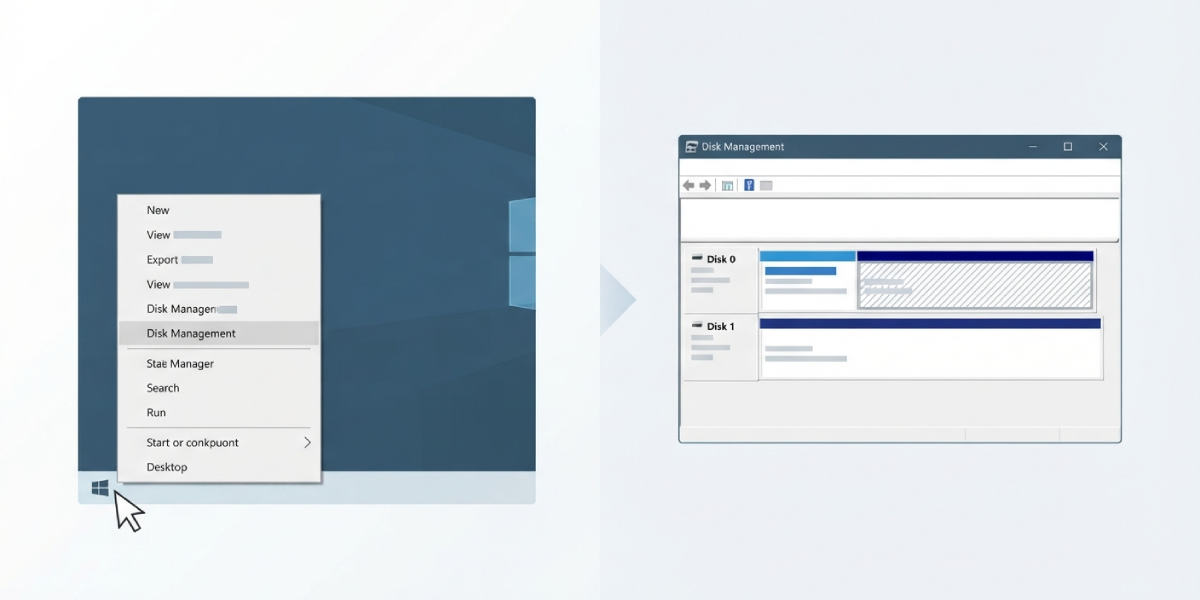
Tip: A drive that shows as ‘Unallocated’ in Disk Management is not damaged. It simply has no partition yet and needs to be initialized.
Initialize and Format a New or Unallocated Drive
- Step 1: In Disk Management, right-click the disk labeled ‘Unknown’ or showing a black ‘Unallocated’ bar.
- Step 2: Select ‘Initialize Disk’ and choose GPT for modern systems, unless the drive needs to work with older hardware that requires MBR.
- Step 3: Right-click the unallocated space and choose ‘New Simple Volume’.
- Step 4: Follow the prompts to assign a drive letter and format the partition, typically using NTFS for internal drives or exFAT for drives shared between Windows and other operating systems.
Assign or Change a Drive Letter
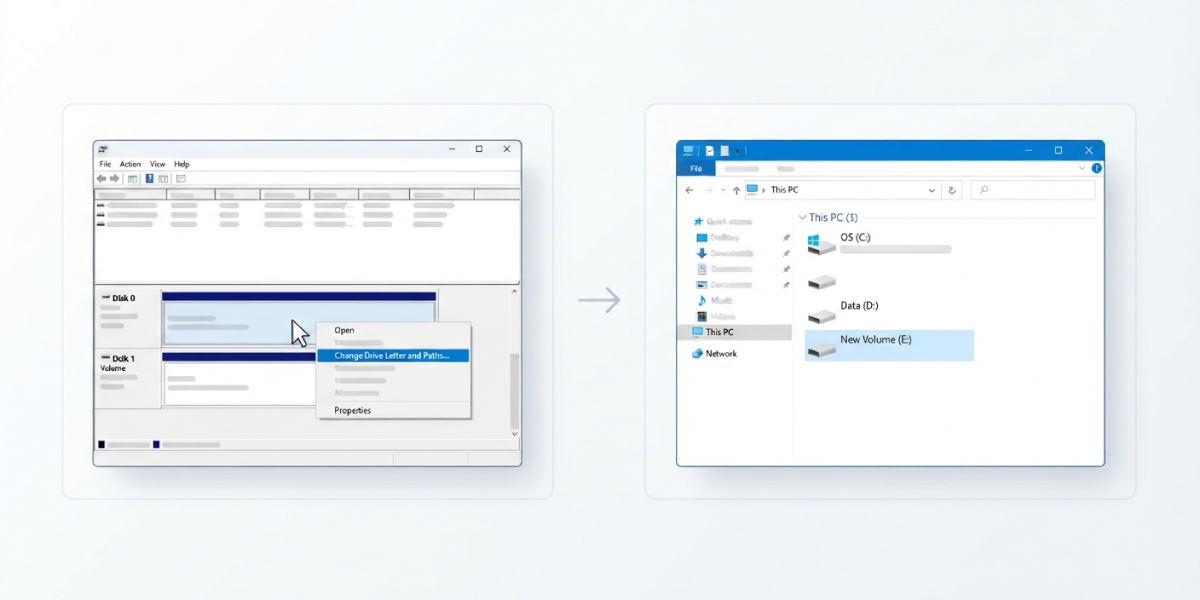
- Step 1: In Disk Management, right-click the partition that has no letter or a conflicting one.
- Step 2: Select ‘Change Drive Letter and Paths’.
- Step 3: Click ‘Add’ if no letter is assigned, or ‘Change’ to pick a different one, then confirm.
- Step 4: Open File Explorer to confirm the drive now appears.
Bring an Offline Drive Back Online
- Step 1: In Disk Management, find the disk labeled ‘Offline’.
- Step 2: Right-click the disk label itself, not the partition, and select ‘Online’.
- Step 3: If the drive shows as ‘Foreign’ after being moved from another system, right-click and select ‘Import Foreign Disks’ to make its data accessible.
Check and Reseat Physical Connections
This applies mainly to internal drives in desktop towers, though external enclosures benefit from a similar check.
- Step 1: Shut down the computer completely and unplug it from the wall.
- Step 2: Open the case and locate the drive’s SATA data cable and power cable.
- Step 3: Unplug and firmly reseat both cables at the drive and the motherboard or power supply end.
- Step 4: If a spare SATA port or cable is available, try connecting the drive to a different one to rule out a bad port or cable.
- Step 5: Power the system back on and check Disk Management again.
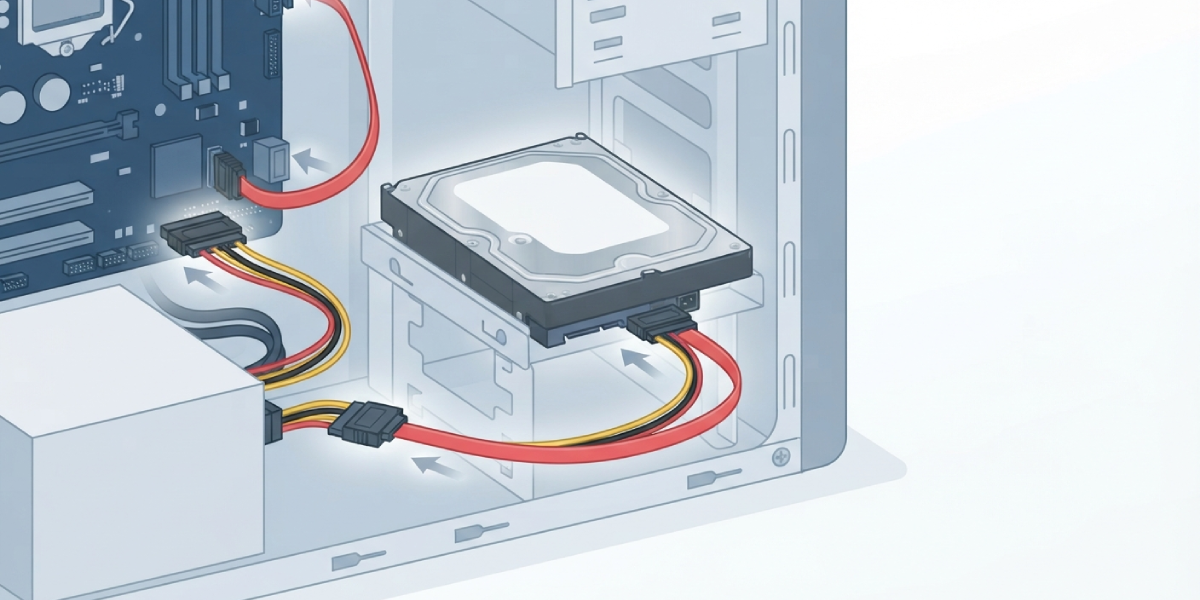
Tip: When a laptop drive or an external SSD refuses to show up, try it in a different USB port, and test it briefly on another computer to confirm whether the drive or the original system is at fault.
Update the Storage Controller Driver
- Step 1: Right-click the Start button and open ‘Device Manager’.
- Step 2: Expand ‘Disk drives’ and ‘Storage controllers’.
- Step 3: Right-click the relevant entry and select ‘Update driver’, then choose ‘Search automatically for drivers’.
- Step 4: Restart the computer once the update finishes and check whether the drive now appears.
Run Windows’ Built-In Hardware Troubleshooter
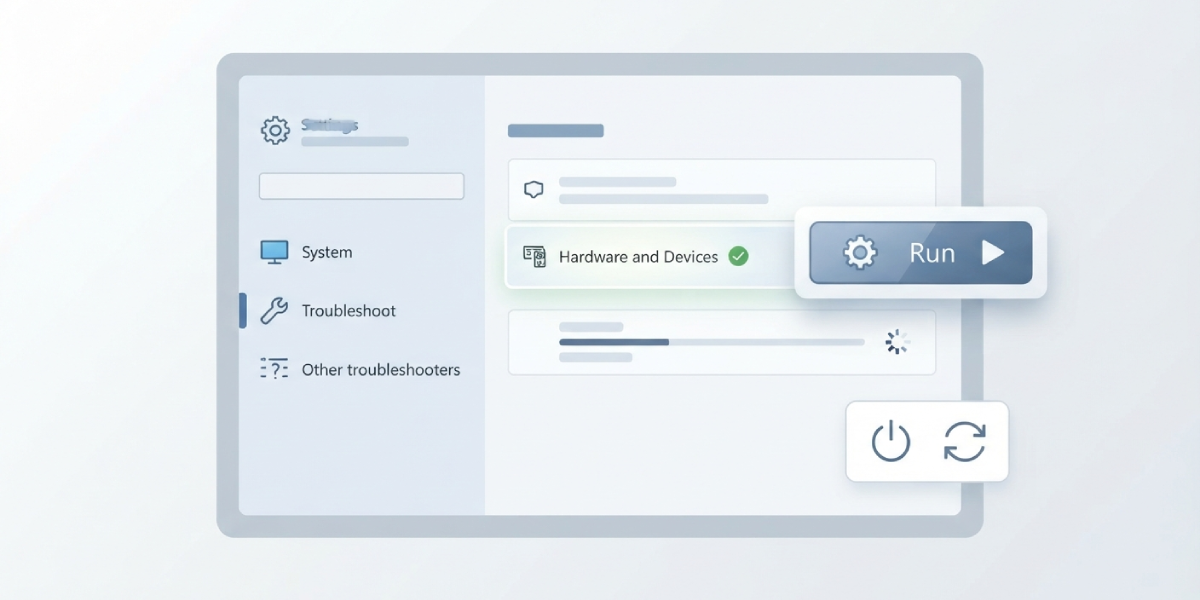
- Step 1: Open ‘Settings’ and go to ‘System’ then ‘Troubleshoot’ then ‘Other troubleshooters’.
- Step 2: Run the ‘Hardware and Devices’ troubleshooter if available, or use the general device detection tools in that section.
- Step 3: Apply any fixes it suggests and restart the system.
Common Problems and Fixes
Drive Shows in Disk Management But Not in File Explorer
This almost always means a missing drive letter or an unformatted partition. Assign a letter or format the volume as described above.
Drive Was Visible Before but Disappeared After a Windows Update
Updates occasionally reset or conflict with storage drivers. Reinstalling the driver from Device Manager, or rolling it back to a previous version, typically restores detection.
External Drive Is Detected Intermittently
This points to a failing cable, a worn USB port, or insufficient power delivery to the drive. Try a different cable and a directly connected USB port rather than a hub, since some hubs cannot supply enough power for spinning hard drives.
Drive Appears Only in BIOS or UEFI, Not in Windows
If the motherboard’s firmware detects the drive but Windows does not, the drive controller mode in BIOS may not match what Windows expects, or the drive genuinely has no usable partition yet. Check the BIOS storage mode setting and confirm the drive shows in Disk Management before assuming a deeper problem.
Drive Shows ‘Not Initialized’ Every Time the System Restarts
A drive that reverts to an uninitialized state after every reboot, even after initializing it, usually signals a failing controller board on the drive itself or a marginal power connection. Treat this as an early warning sign rather than a routine fix.
Frequently Asked Questions
Why does a brand new drive not show up in Windows?
New drives ship without a partition or file system, so Windows detects them in Disk Management but hides them from File Explorer until they are initialized and formatted.
Is a missing drive always a sign of hardware failure?
No. Most missing drives are visibility issues caused by a missing drive letter, an offline status, or an unformatted partition, all of which are fixed without any hardware replacement.
How can it be confirmed whether the drive itself is faulty?
Testing the drive in another computer, or connecting it through a different cable and port, quickly shows whether the problem follows the drive or stays with the original system.
Will initializing a drive erase existing data?
Initializing a completely new, unallocated drive does not erase anything since there is no data yet. However, initializing a drive that already contains data and partitions will remove that data, so this step should only be used on genuinely blank drives.
Why does an external hard drive disconnect and reconnect on its own?
This is typically caused by insufficient power from the USB port, a failing cable, or a struggling drive mechanism. Connecting directly to a rear USB port on a desktop, rather than a front port or hub, often resolves it.
Does a drive not showing up mean the data on it is lost?
Not necessarily. If the drive is detected in Disk Management with its existing partition intact, the data is very likely still there and only needs a drive letter assigned to become visible again.
Can outdated BIOS settings cause a drive to disappear?
Yes. If the storage controller mode in BIOS was changed, or a drive was set to a mode Windows does not expect, previously working drives can stop appearing until the setting is corrected.
Should a drive be formatted immediately if it shows as RAW?
Not right away. A RAW file system can sometimes be repaired with data recovery tools, so formatting should only happen after attempting recovery or confirming there is nothing important left on the drive.
When is it time to stop troubleshooting and replace the drive?
If the drive intermittently disappears, makes unusual clicking or grinding noises, or repeatedly reverts to an uninitialized state despite a solid connection, treat it as failing hardware, back up any recoverable data immediately, and plan for replacement.
