
Crackling, buzzing, or muffled sound coming from speakers or headphones usually points to a driver conflict, a wrong sample rate, or a loose connection. Knowing how to fix distorted audio on Windows starts with narrowing down whether the problem lives in the software, the hardware, or somewhere in between.
Key Takeaways
- Distorted audio on Windows is most often caused by outdated or corrupted audio drivers.
- Mismatched sample rate and bit depth settings between Windows and the playback device cause crackling and popping.
- Audio enhancements and third-party sound software frequently introduce distortion rather than fix it.
- Loose cables, damaged ports, or a failing DAC can cause distortion that no software fix will resolve.
- Running the built-in Windows audio troubleshooter first saves time before digging into driver or hardware checks.
Common Causes of Distorted Audio on Windows
Several everyday situations lead to this problem, and most of them are fixable without any special tools.
- Outdated, corrupted, or mismatched audio drivers.
- Sample rate or bit depth set incorrectly for the connected device.
- Windows audio enhancements or spatial sound effects interfering with playback.
- A loose, damaged, or dirty audio jack or USB connection.
- Background apps or Bluetooth interference on wireless audio devices.
- A failing sound card, onboard audio chip, or external DAC.
Fix 1: Run the Windows Audio Troubleshooter
This built-in tool catches a surprising number of common playback issues automatically, and it takes only a minute to run.
- Step 1: Right-click the speaker icon in the taskbar and select ‘Troubleshoot sound problems’.
- Step 2: Choose the affected playback device from the list.
- Step 3: Let Windows scan for issues and apply any suggested fixes.
- Step 4: Play audio again to check whether the distortion is gone.
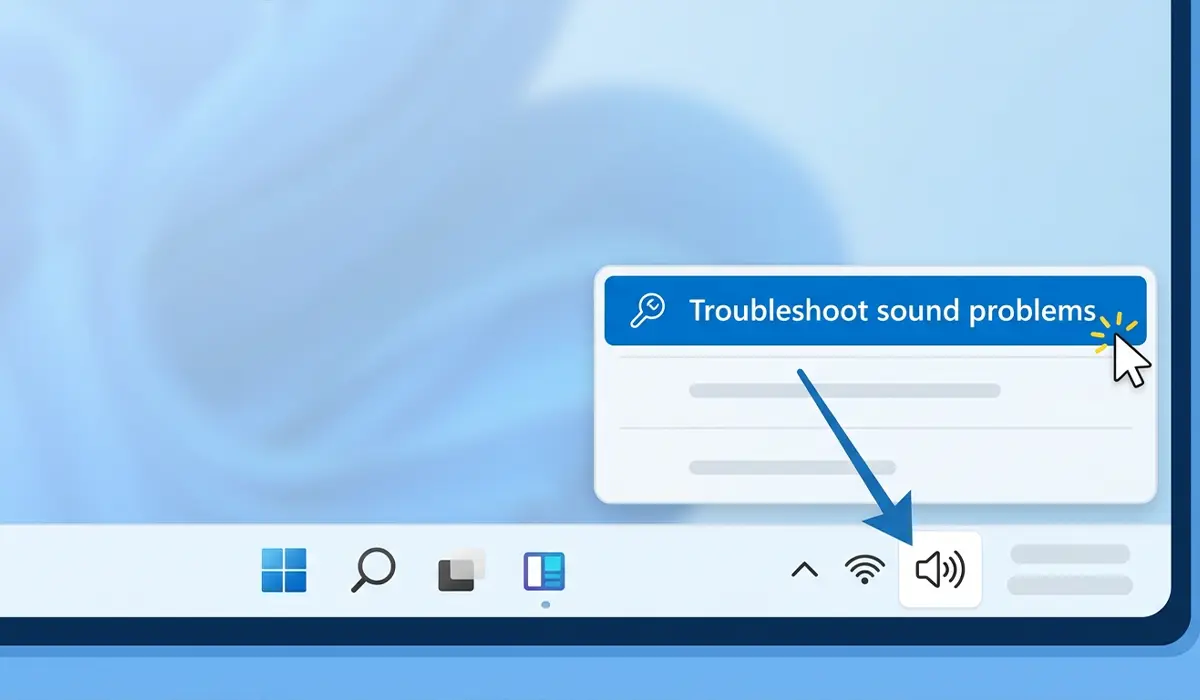
Tip: If the troubleshooter reports no problems found but the distortion continues, that usually means the issue sits deeper in the driver or hardware, not in a setting Windows can auto-correct.
Fix 2: Update or Reinstall the Audio Driver
An outdated or corrupted driver is the single most common reason sound comes out crackly, tinny, or garbled.
- Step 1: Right-click the Start button and open Device Manager.
- Step 2: Expand ‘Sound, video and game controllers’.
- Step 3: Right-click the active playback device and select ‘Update driver’, then choose ‘Search automatically for drivers’.
- Step 4: If updating does not help, right-click the same device again and select ‘Uninstall device’.
- Step 5: Restart the computer. Windows reinstalls a fresh copy of the driver automatically on startup.

Manufacturer websites for the motherboard, laptop, or dedicated sound card often carry a newer driver version than the one Windows installs by default, and that version tends to be more stable for audio-specific quirks.
Fix 3: Correct the Sample Rate and Bit Depth
Windows lets each playback device run at a specific sample rate, and setting it higher than the device actually supports is a classic source of popping and crackling.
- Step 1: Right-click the speaker icon and select ‘Sounds’.
- Step 2: Open the ‘Playback’ tab, select the active device, and click ‘Properties’.
- Step 3: Go to the ‘Advanced’ tab.
- Step 4: Try a lower default format, such as 16 bit, 44100 Hz, then click ‘Test’ to confirm clean playback.
- Step 5: Apply the change and close the window.
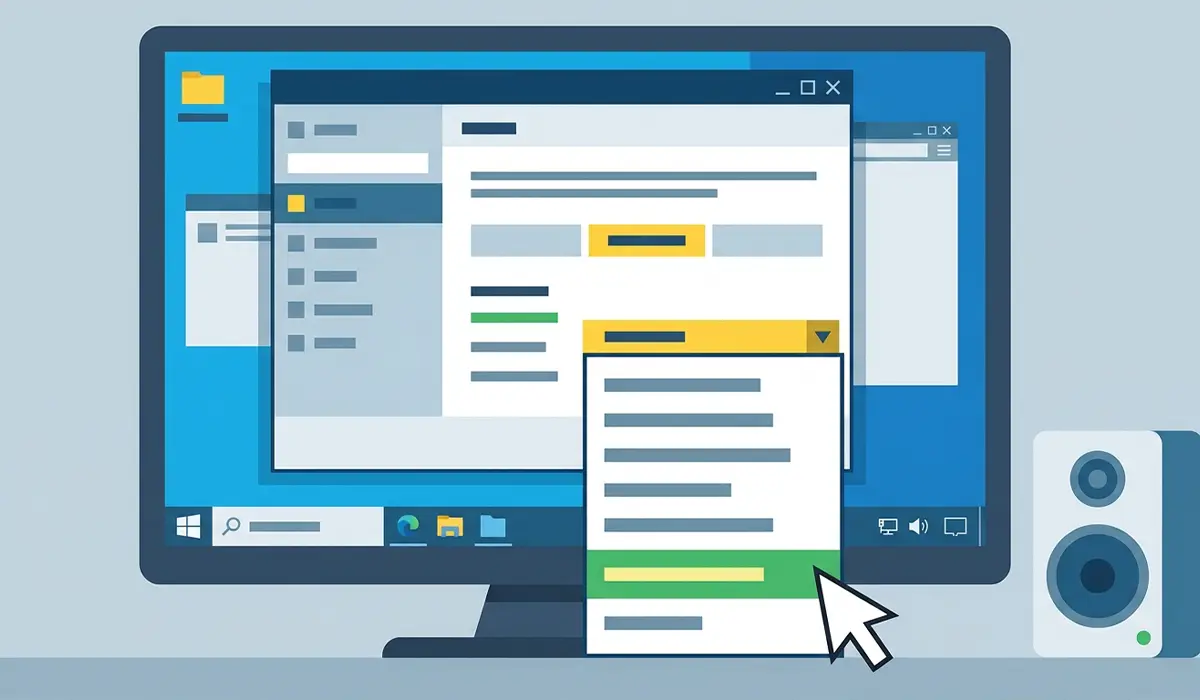
Most consumer speakers and headphones sound perfectly clean at standard CD-quality settings, so there is rarely a reason to push a higher rate unless a specific audio interface calls for it.
Fix 4: Disable Audio Enhancements
Windows and many sound card manufacturers add processing effects meant to improve sound, but these effects are also a frequent cause of distortion, especially on older or budget hardware.
- Step 1: Open the same ‘Playback’ properties window used in Fix 3.
- Step 2: Select the ‘Enhancements’ tab, if present.
- Step 3: Check the box for ‘Disable all enhancements’ or ‘Disable all sound effects’.
- Step 4: Apply the change and test playback again.
Tip: Spatial sound formats and virtual surround processing are common culprits on gaming headsets and laptop speakers alike, so turning them off is worth testing even if the enhancements list looks harmless.
Fix 5: Check Physical Connections and Hardware
Software fixes solve most cases, but a scratchy or intermittent sound that changes when the cable moves points to a physical problem instead.
- Step 1: Unplug and firmly reseat the audio cable or USB connector.
- Step 2: Wiggle the cable gently near the jack while audio plays to listen for a change in the distortion, which suggests a loose connection or damaged port.
- Step 3: Test the same headphones or speakers on another device to confirm whether the hardware itself is at fault.
- Step 4: Try a different audio cable if one is available, since worn cables degrade over time.
If the distortion follows the device to another computer, the speakers, headphones, or DAC are the likely source rather than Windows itself. A frayed cable or a corroded port is not worth fighting past a certain point, and replacing the cable is usually the more sensible move than repairing it.
Common Problems and Fixes
- Distortion returns after a Windows update: Updates sometimes reinstall a generic driver over a manufacturer one. Reinstall the correct driver from the manufacturer’s website.
- Only one app produces distorted sound: Check that app’s own audio output settings, since some applications have an internal sample rate setting separate from Windows.
- Distortion only happens on Bluetooth audio: This usually points to interference or a weak connection rather than a driver issue. Moving closer to the device or reducing Wi-Fi interference often resolves it.
- Sound cuts out and crackles under heavy CPU load: This is a sign of audio buffer underruns. Closing unnecessary background programs or increasing the audio buffer size in a dedicated sound app can help.
- Distortion appears only at high volume: This points to the speaker driver itself being pushed past its limit, not a Windows setting, and lowering the volume is the practical fix.
Frequently Asked Questions
Why does audio sound distorted only through headphones but not speakers?
This usually means the headphone jack, cable, or the headphones themselves are the issue rather than Windows. Testing the same headphones on another device helps confirm where the problem sits.
Can a Windows update cause distorted audio?
Yes. Updates sometimes replace a manufacturer-specific driver with a generic one that does not handle the hardware as well, leading to crackling or muffled sound until the correct driver is reinstalled.
Does changing the sample rate really fix crackling sound?
In many cases, yes. When Windows is set to a sample rate the playback device cannot properly handle, the result is popping or crackling, and matching the setting to the device’s native rate often clears it up immediately.
Is distorted audio always a hardware problem?
No. Most cases trace back to drivers, sample rate mismatches, or software enhancements. Hardware failure is more likely when the distortion follows the device to a different computer.
Should audio enhancements be turned off permanently?
Not necessarily for everyone, but if enhancements are causing distortion, disabling them is the safer default. Some can be re-enabled individually afterward to see which specific effect was responsible.
Why does audio distort only when playing games or watching videos?
This often points to spatial sound or surround processing kicking in for that specific content type. Disabling spatial sound in the playback device properties usually resolves it.
Can a bad USB port cause distorted audio from USB speakers or headsets?
Yes. A worn or underpowered USB port can cause intermittent crackling in USB audio devices. Trying a different port, ideally directly on the motherboard rather than through a hub, often solves this.
How can outdated audio drivers be identified?
Device Manager shows driver dates and version numbers under the properties of the audio device. Comparing that date against the latest version listed on the manufacturer’s website shows whether an update is available.
Why does distortion happen only over Bluetooth?
Bluetooth audio is more sensitive to distance, interference, and codec mismatches than wired audio. Moving closer to the paired device and reducing nearby Wi-Fi congestion typically improves it.
When should distorted audio be treated as a hardware failure needing replacement?
If the same distortion appears across multiple devices, cables, and software configurations, and reinstalling drivers and adjusting settings does not help, the speaker, headphone driver, or onboard sound chip is likely failing and replacement becomes the practical option.
