
When search stops returning results, the fastest way to fix search in New Outlook for Windows is to work through a short sequence of checks rather than guessing. Most cases trace back to search scope, a stuck sync, or a corrupted local cache, not a broken mailbox. This guide walks through the exact steps in the order that resolves the problem fastest.
Key Takeaways
- New Outlook uses server-side search, not the Windows indexing service, so index rebuilds do not apply here.
- Search scope and date filters cause a large share of ‘missing results’ complaints.
- Clearing the local cache and letting the app resync fixes most stubborn search failures.
- An Online Repair through Windows Settings resolves issues a restart cannot.
- Sign-out and sign-back-in refreshes the connection between Outlook and the mail server.
Step-by-Step Guide to Fix Search in New Outlook for Windows
Check the Search Scope First
- Step 1: Click into the search box at the top of the New Outlook window and type a test term, such as a sender’s name known to be in the inbox.
- Step 2: Look at the scope options that appear below the search box, usually labeled Current Folder, All Folders, or a similar mailbox-wide option.
- Step 3: Switch to the broader mailbox-wide scope. A message often sits in Archive or a subfolder, and a narrow scope will report zero results even though the email exists.
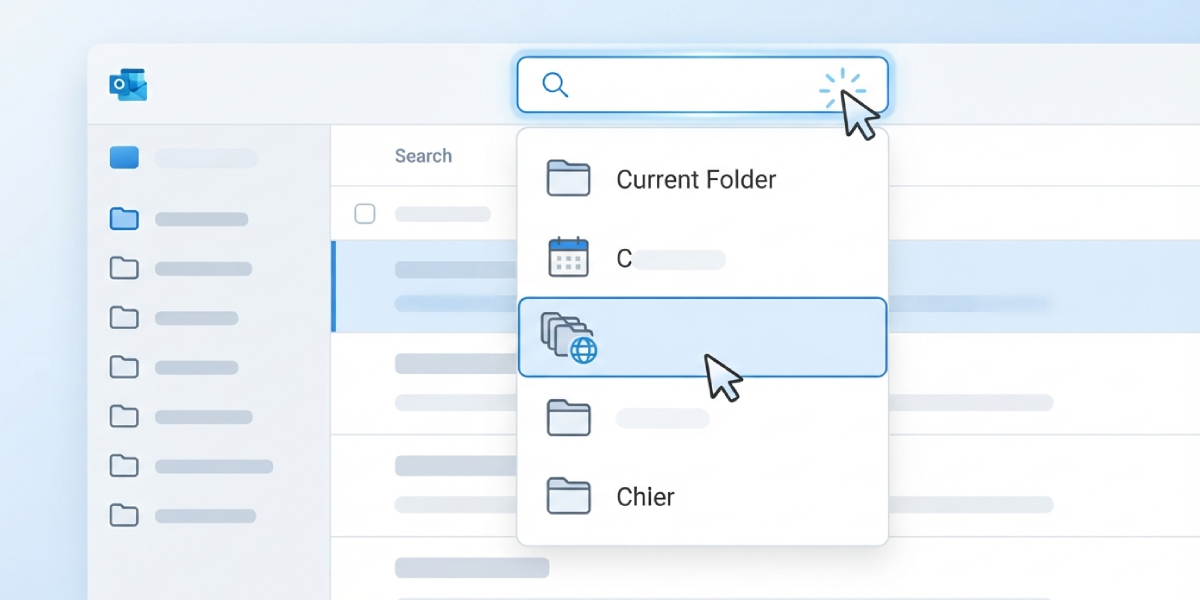
Tip: If a search filter chip is still showing under the search bar from an earlier query, click the X on it before searching again. Leftover filters silently narrow results without any obvious warning.
Restart Outlook and Check the Connection
- Step 4: Close New Outlook completely. Open Task Manager, confirm no Outlook process is still running in the background, and end it if one is.
- Step 5: Reopen New Outlook and check the connection status in the lower-left corner of the window. It should say Connected, not Trying to connect or Disconnected.
- Step 6: Run a test search again. A stalled connection during the previous session is a common reason search quietly stops working.
Sign Out and Sign Back In
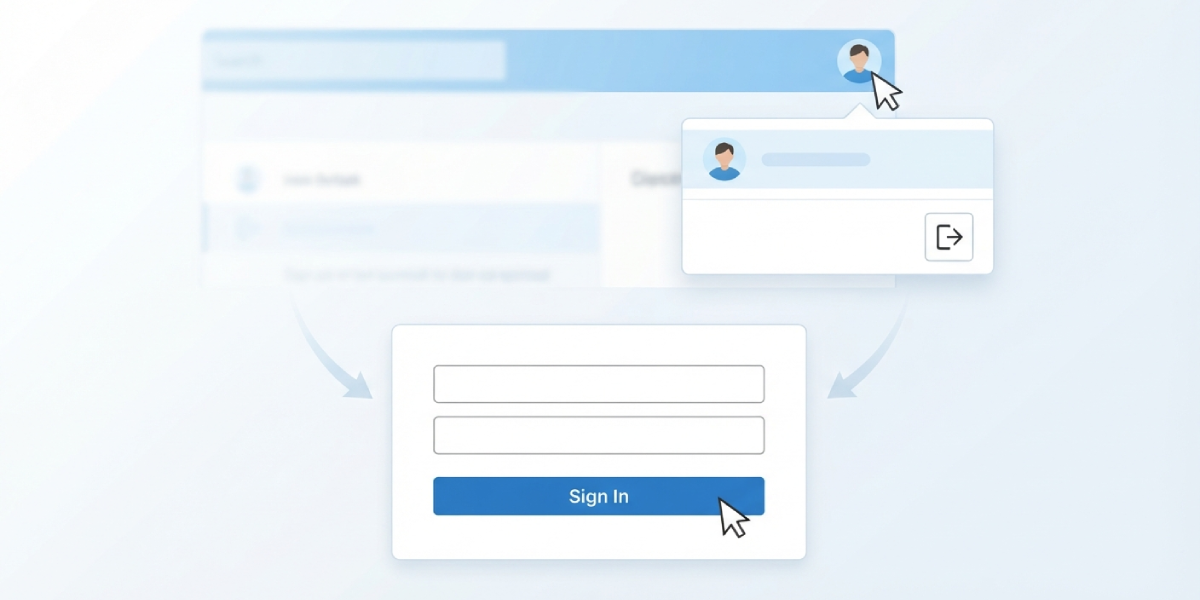
- Step 7: Select the account icon or Settings gear in the top right, then choose the account showing search problems.
- Step 8: Sign out of that account fully rather than just closing the window.
- Step 9: Sign back in with the same credentials and allow the app a few minutes to resync mail and folders before testing search again.
Clear the Local Cache
- Step 10: Close New Outlook entirely, including any background process in Task Manager.
- Step 11: Open File Explorer and go to the folder %LOCALAPPDATA%\Microsoft\Olk.
- Step 12: Rename that Olk folder to something like Olk_old, then reopen New Outlook. The app rebuilds a fresh local cache automatically, and this often clears search problems that persist after a normal restart.
Tip: Renaming the folder instead of deleting it keeps a backup available in case anything looks off after the rebuild.
Repair the Office Installation
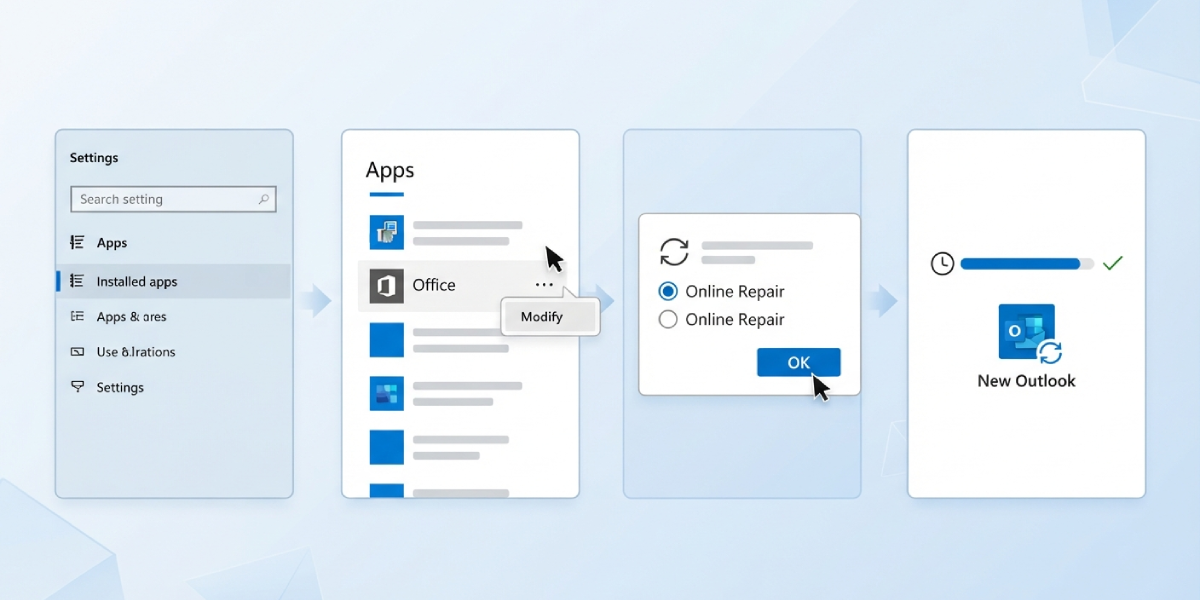
- Step 13: Open Settings on Windows, then go to Apps, then Installed apps.
- Step 14: Find Microsoft 365 or Microsoft Office in the list, click the three-dot menu next to it, and select Modify.
- Step 15: Choose Online Repair rather than Quick Repair, since Online Repair replaces damaged files instead of only checking for obvious errors, and confirm the repair.
- Step 16: Wait for the process to finish, which typically takes fifteen to thirty minutes on a stable internet connection, then reopen New Outlook and let the account resync fully before testing search.
Check for a Pending Update
- Step 17: In New Outlook, select the Settings gear, then look for an About or Help section that shows the current version number.
- Step 18: Compare that version against the latest release, or simply check the Microsoft Store for a pending New Outlook update if the app was installed through the Store.
- Step 19: Install any available update and restart the app. Search bugs are sometimes patched in a specific build, so an outdated version can be the entire problem.
Common Problems and Fixes
- Search returns ‘We couldn’t find anything’ for every single query: this usually means the connection to the server dropped. Sign out, sign back in, and confirm the status bar shows Connected before retrying.
- Search works for some folders but not others: switch the scope to search all mailboxes rather than the current folder, since a narrow scope hides results that technically still exist.
- Search worked yesterday and stopped today with no changes made: this points to a temporary server-side issue on Microsoft’s end rather than anything local. Wait an hour and retest before running an Online Repair.
- Attachments and body text are not searchable but subject lines are: this is typically a sync gap. Give the account time to finish downloading full message content, especially after a large mailbox was just added.
- Search box appears grayed out or unresponsive: close and reopen the app first. If that fails, the local cache rebuild in Step 10 through Step 12 usually resolves it.
Frequently Asked Questions
Why does New Outlook search not find emails that classic Outlook could find?
New Outlook relies on server-side search rather than the local Windows indexing service classic Outlook uses. If a message was never fully synced to the server-side index, or the account connection was interrupted, results can differ between the two versions.
Does rebuilding the Windows Search index fix New Outlook search?
No. New Outlook does not use the Windows Search index at all, so rebuilding it through Indexing Options has no effect. The fixes that help are cache clearing, account resync, and repair, as covered above.
How long should a search fix be given to work after signing back in?
Allow at least a few minutes for the account to resync folders and messages after signing back in. On larger mailboxes, full resync can take longer, so search accuracy improves gradually rather than instantly.
Is it safe to delete the Olk cache folder instead of renaming it?
Renaming is the safer approach. It preserves a backup of the original cache in case the rebuild does not resolve the issue, and it can be deleted later once search is confirmed working.
Will an Online Repair delete existing emails?
No. Online Repair reinstalls Office application files and does not remove mailbox data, which lives on the server rather than locally in New Outlook.
Why does search only fail for one specific folder?
This is almost always a scope setting rather than a broken feature. Switching the search scope to all mailboxes instead of the current folder resolves the majority of these cases.
Can a slow internet connection cause New Outlook search to fail?
Yes. Since search runs against the server rather than a local index, an unstable or slow connection can cause searches to time out or return partial results.
Should add-ins be disabled when troubleshooting search?
It is worth testing with add-ins disabled if search issues appear alongside other performance problems, since a conflicting add-in can occasionally interfere with how the app loads and displays results.
What should be done if none of these steps fix search?
If search remains broken after a cache clear and Online Repair, the issue is likely a server-side outage affecting the mailbox. Waiting and retesting after some time typically resolves it once the service-side issue clears.
