
USB selective suspend causing disconnections is a common Windows annoyance, and the fix takes only a few minutes. A mouse freezes, an external drive vanishes from File Explorer, or the unplug sound plays when nothing was touched. The culprit is usually a power-saving feature that puts USB ports to sleep and sometimes fails to wake them.
Key Takeaways
- USB selective suspend lets Windows power down individual USB ports to save energy.
- Some devices do not wake up properly afterward, which looks like a random disconnect.
- Turning the feature off in Power Options is the main fix.
- Device Manager and the Registry add two extra layers so Windows stops suspending USB ports.
- Works on both Windows 10 and Windows 11.
Step-by-Step Guide to Fix USB Selective Suspend Causing Disconnections
- Step 1: Press the Windows key + R, type powercfg.cpl, and press Enter to open Power Options.
- Step 2: Click Change plan settings next to the selected power plan, then click Change advanced power settings.
- Step 3: Scroll down and expand USB settings, then expand USB selective suspend setting.
- Step 4: Set both On battery and Plugged in to Disabled. Desktop PCs show only one option, so set that one to Disabled.
- Step 5: Click Apply, then OK.
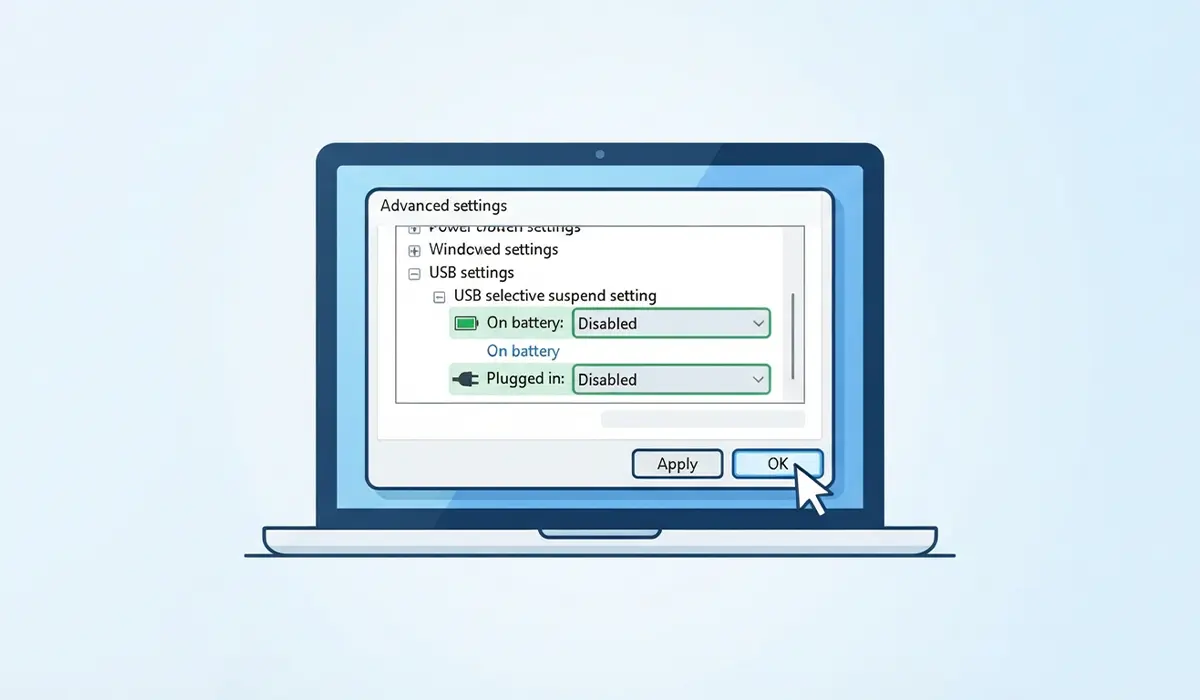
Pro-Tip: This setting is saved per power plan. If the PC uses more than one plan, such as Balanced and High performance, repeat the steps above for each plan. Otherwise the problem returns the moment Windows switches plans.
Stop Windows From Powering Off USB Hubs in Device Manager
Power Options controls the plan, but each USB hub also has its own power switch. Turning that off closes the gap.
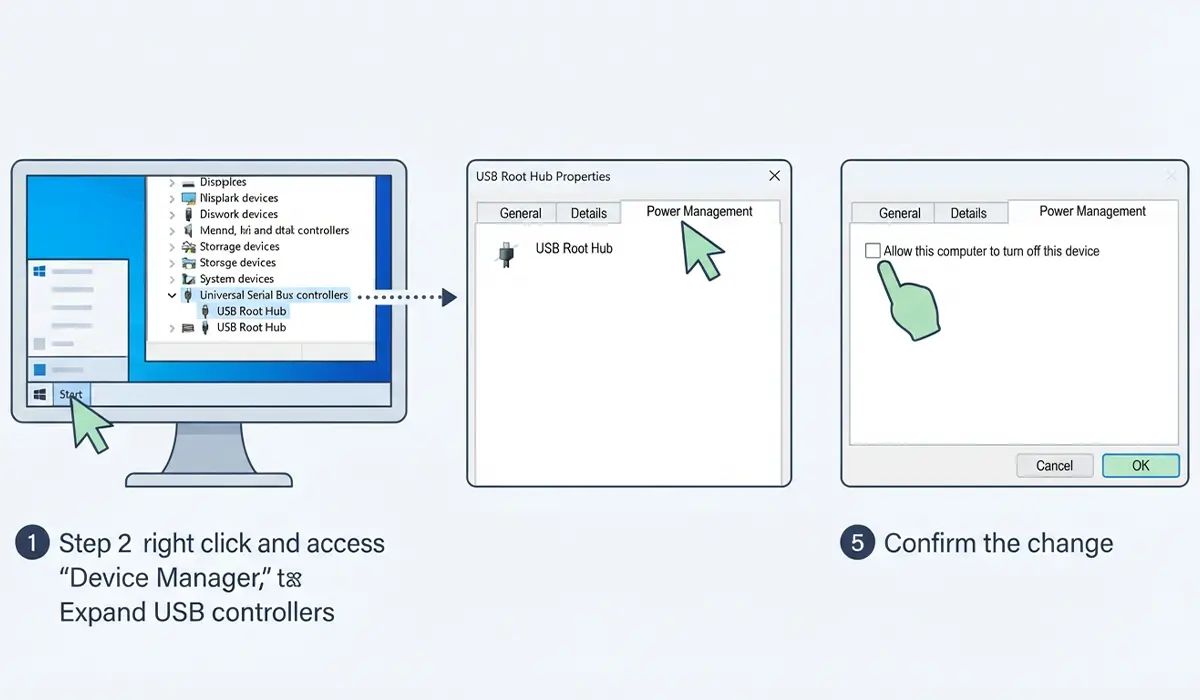
- Step 1: Right-click the Start button and select Device Manager.
- Step 2: Expand Universal Serial Bus controllers.
- Step 3: Double-click USB Root Hub or Generic USB Hub to open its properties.
- Step 4: Open the Power Management tab and uncheck Allow the computer to turn off this device to save power.
- Step 5: Click OK, then repeat for every USB Root Hub and Generic USB Hub in the list.
Disable USB Selective Suspend in the Registry
This step works at the driver level, so it applies no matter which power plan is active.
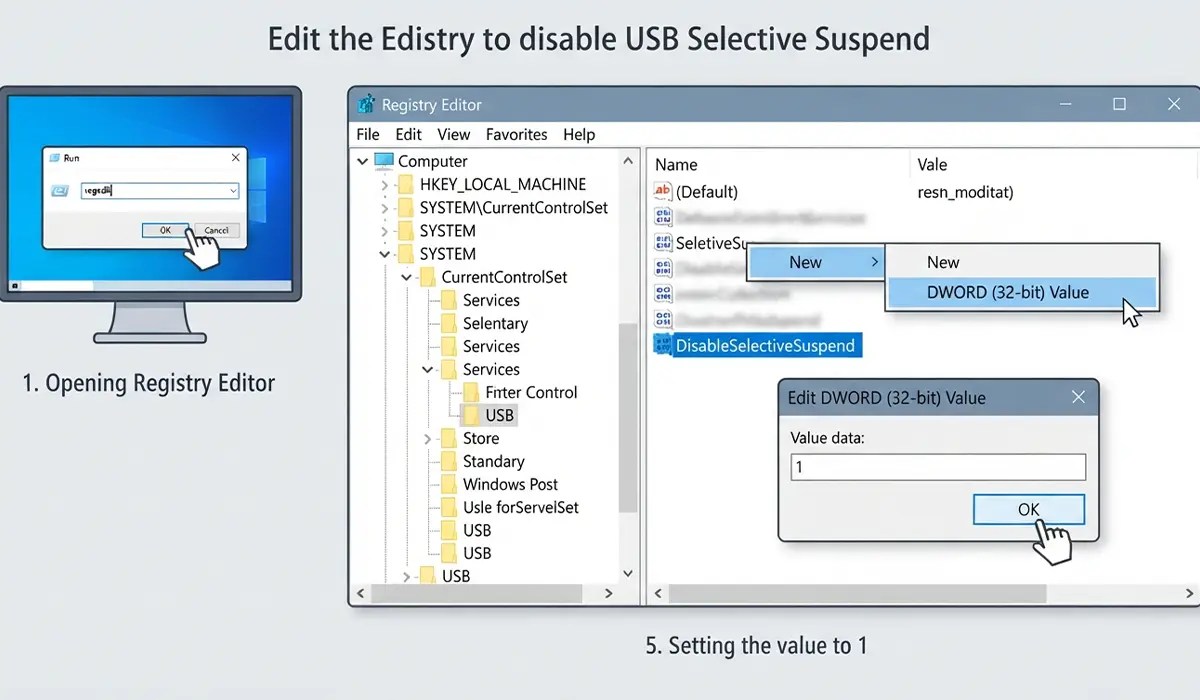
- Step 1: Press the Windows key + R, type regedit, and press Enter.
- Step 2: Go to HKEY_LOCAL_MACHINE\SYSTEM\CurrentControlSet\Services\USB.
- Step 3: Right-click an empty area in the right pane and select New, then DWORD (32-bit) Value.
- Step 4: Name the new value DisableSelectiveSuspend. If it already exists, skip to the next step.
- Step 5: Double-click DisableSelectiveSuspend, enter 1 in the Value data box, and click OK.
Pro-Tip: Back up the Registry before editing it. In Registry Editor, click File, then Export, and save the file somewhere easy to find. Double-clicking that file later restores the previous state if anything goes wrong.
Restart and Confirm the Fix
- Step 1: Close Registry Editor and restart the PC so every change takes effect.
- Step 2: Reconnect the USB device that kept dropping and use it as normal.
Most people find that the random disconnects stop right after this restart, because the ports no longer go to sleep.
Tips
- Plug the device in after the restart rather than before, so Windows detects it fresh under the new settings.
- Laptop users may notice slightly higher battery drain, since USB ports now stay powered. That is the normal trade-off for a stable connection.
- For a USB printer, an outdated driver can also cause connection drops, so it helps to update printer drivers after applying the fix.
- If a printer still shows as busy after reconnecting, restart the print spooler to clear the stuck state.
- To undo everything later, set USB selective suspend setting back to Enabled, tick the Device Manager box again, and delete the DisableSelectiveSuspend value.
Frequently Asked Questions
What is USB selective suspend?
It is a Windows power-saving feature that lets the USB hub driver suspend one port without affecting the others. Idle devices use less power this way.
Why does USB selective suspend cause disconnections?
Some USB devices do not resume correctly after their port is suspended. Windows then treats the device as removed, which looks like a sudden disconnect.
Is it safe to disable USB selective suspend?
Yes. Disabling it only keeps USB ports powered instead of letting them sleep. It does not harm the devices or the system.
Does this fix work on both Windows 10 and Windows 11?
Yes. Both versions include the USB selective suspend setting in advanced power options, and the Device Manager and Registry steps work the same way.
Do I need to change the setting for every power plan?
Yes. The option is stored separately for each power plan, so every plan in use needs to be set to Disabled.
Will disabling USB selective suspend drain the laptop battery?
Battery use can rise slightly because USB ports stay powered while idle. The difference is small for most everyday setups.
Does turning it off change USB transfer speed?
No. The feature controls port power, not data speed, so file transfers are not affected.
Is the Registry step required if Power Options is already set to Disabled?
The Registry value works at the driver level and applies to all power plans. It adds extra protection for anyone who switches plans or wants one setting that covers everything.
