
Knowing how to fix laptop not charging past 80% starts with one surprising fact: in most cases, nothing is broken. Modern laptops often stop at 80 percent on purpose to protect the battery, and the limit can usually be switched off in a few clicks. When the stop is not intentional, the cause is usually a charger, heat, or driver issue that is simple to track down.
Key Takeaways
- A charge limit set by the manufacturer’s battery app or BIOS is the most common reason a laptop stops at 80 percent.
- A weak or mismatched charger, a dirty charging port, and a hot chassis can all stall charging.
- Reinstalling the battery drivers and updating the BIOS fixes many software-side cases.
- If the limit is off and charging still stops, a worn battery is the likely cause and a battery report will confirm it.
Common Causes of a Laptop Not Charging Past 80%
Most laptops that stop at 80 percent fall into one of a few groups. Identifying the group first saves time, because each one has a different fix.
Battery Health or Charge Limit Features
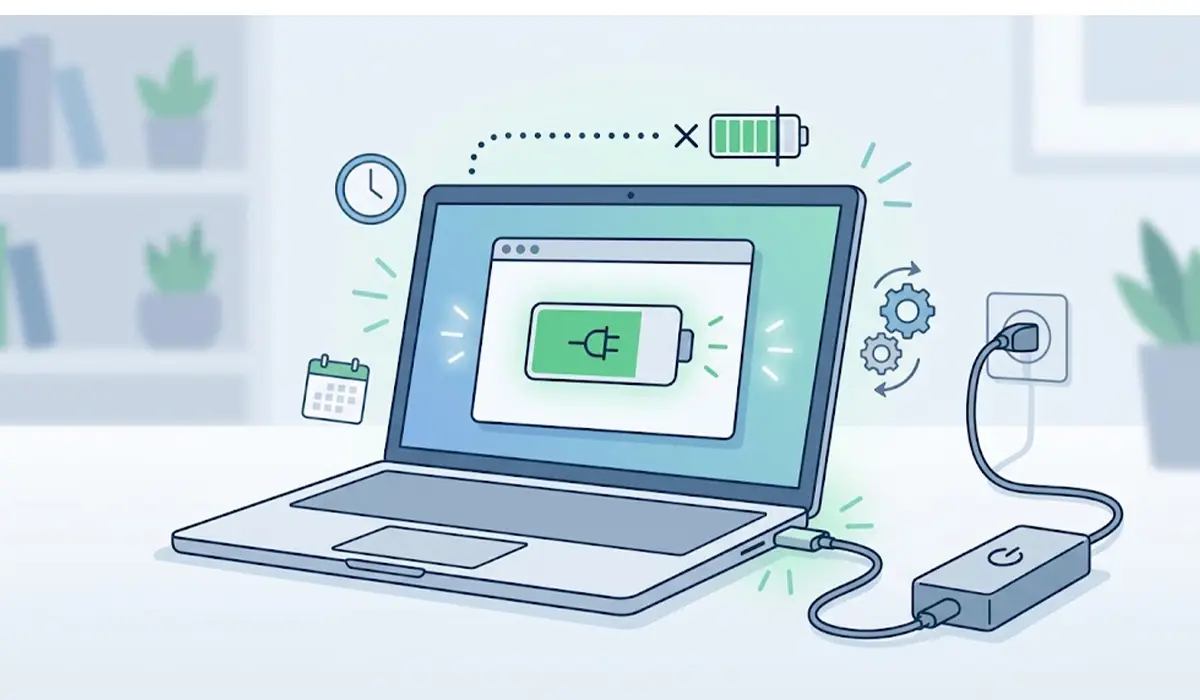
Many brands include a feature that caps charging to slow battery wear. Lithium-ion cells age faster when held at full charge, so the laptop stops early. These features go by names such as Conservation Mode, Battery Health Charging, Adaptive Charging, or Battery Life Extender. Some models also learn charging habits and hold at 80 percent when the laptop stays plugged in for long periods.
BIOS or UEFI Battery Settings
Some laptops keep the charge threshold in the BIOS or UEFI rather than in Windows. A setting there can override whatever is chosen in Windows.
Charger, Cable, or Port Problems
A charger with too little power output, a worn cable, or a port packed with lint can deliver unstable power. The laptop may then slow or pause charging once the battery is partly full.
Heat
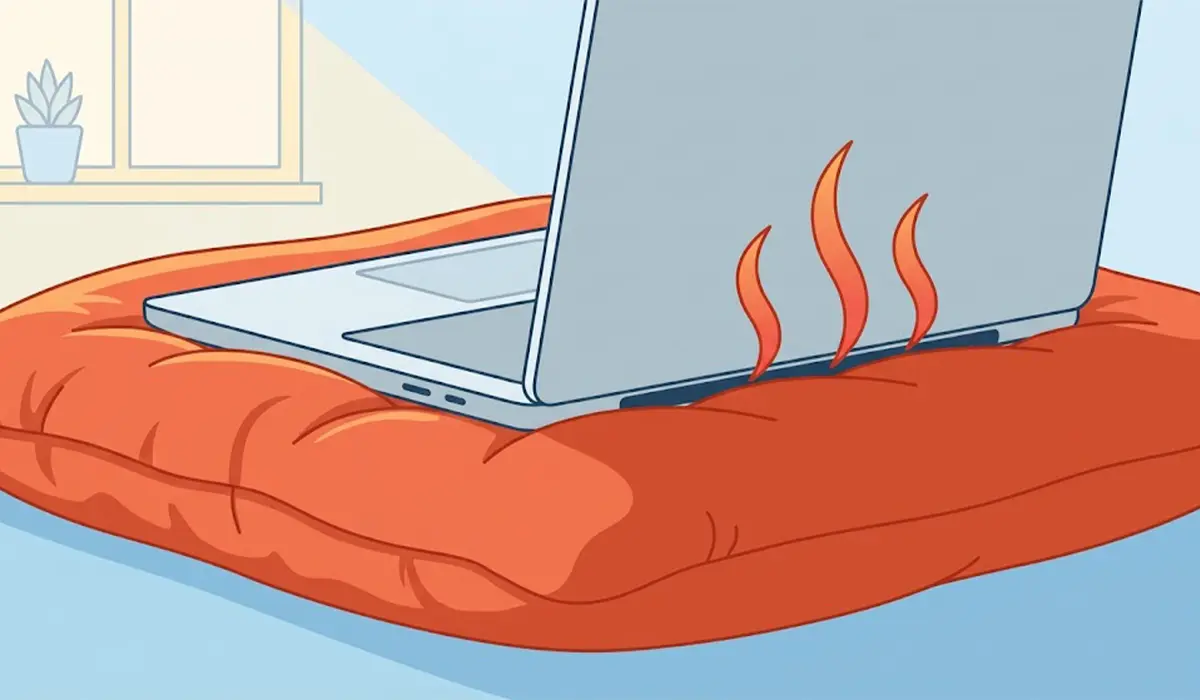
Batteries charge more slowly or pause when they get too warm. A laptop running a heavy game or sitting on a soft surface with blocked vents may stop charging until it cools down.
Driver or Firmware Glitches
A corrupted battery driver or outdated BIOS can cause wrong readings or a stuck charging state. This often shows up as a ‘Plugged in, not charging’ message.
An Aging Battery
A heavily worn battery may report its percentage inaccurately or stop accepting charge. This cause is the last to rule out, because the earlier ones are far more common.
Before You Start
Most fixes below happen in settings, so little prep is needed. Keep the original charger that came with the laptop (or an exact match for its wattage), a soft brush or compressed air for the charging port, and a few minutes with the laptop on a hard, flat surface. Save any open work first, since a few steps call for a restart.
How to Fix Laptop Not Charging Past 80%
- Step 1: Open the manufacturer’s battery app and look for a charge limit. Lenovo Vantage, MyASUS, Dell Power Manager, HP Support Assistant, Samsung Settings, and Acer Care Center all include a battery health or charge threshold option. Switch the mode to full capacity, or turn off the limit, then plug the laptop in and watch whether the percentage climbs past 80.
- Step 2: Check the BIOS or UEFI. Restart the laptop, enter the setup screen using the key shown at startup (commonly F2, Del, or F10), and look in the power or battery section for an option such as Battery Health Manager or a charge threshold. Set it to the standard or full charge option, then save and exit.
- Step 3: Inspect the charger and port. Confirm the charger matches the wattage printed on the laptop’s label or in its manual. Look over the cable for kinks, fraying, or bent connector pins. Use a soft brush or short bursts of compressed air to clear lint from the charging port, and never push metal tools into it.
- Step 4: Let the laptop cool. Move it to a hard, flat surface, close heavy apps, and make sure the vents are not blocked. Once the chassis feels normal to the touch again, check whether charging resumes.
- Step 5: Reinstall the battery drivers. Right-click the Start button, open Device Manager, and expand ‘Batteries’. Right-click ‘Microsoft ACPI-Compliant Control Method Battery’, choose Uninstall device, then restart the laptop. Windows reinstalls the driver automatically on startup.
- Step 6: Perform a power reset. Shut the laptop down, unplug the charger, and hold the power button for several seconds to drain leftover power. Plug the charger back in and start the laptop. This clears many stuck charging states.
- Step 7: Update the BIOS and drivers. Run Windows Update, then check the manufacturer’s support page for the laptop’s exact model for a newer BIOS and chipset or power management drivers. Follow the maker’s instructions closely and keep the charger connected during a BIOS update.
- Step 8: Check the battery’s health. Open Command Prompt as administrator, type powercfg /batteryreport, and press Enter. Windows saves an HTML report and shows its location. Open it and compare the design capacity with the full charge capacity. A large gap points to a worn battery that may need replacement.
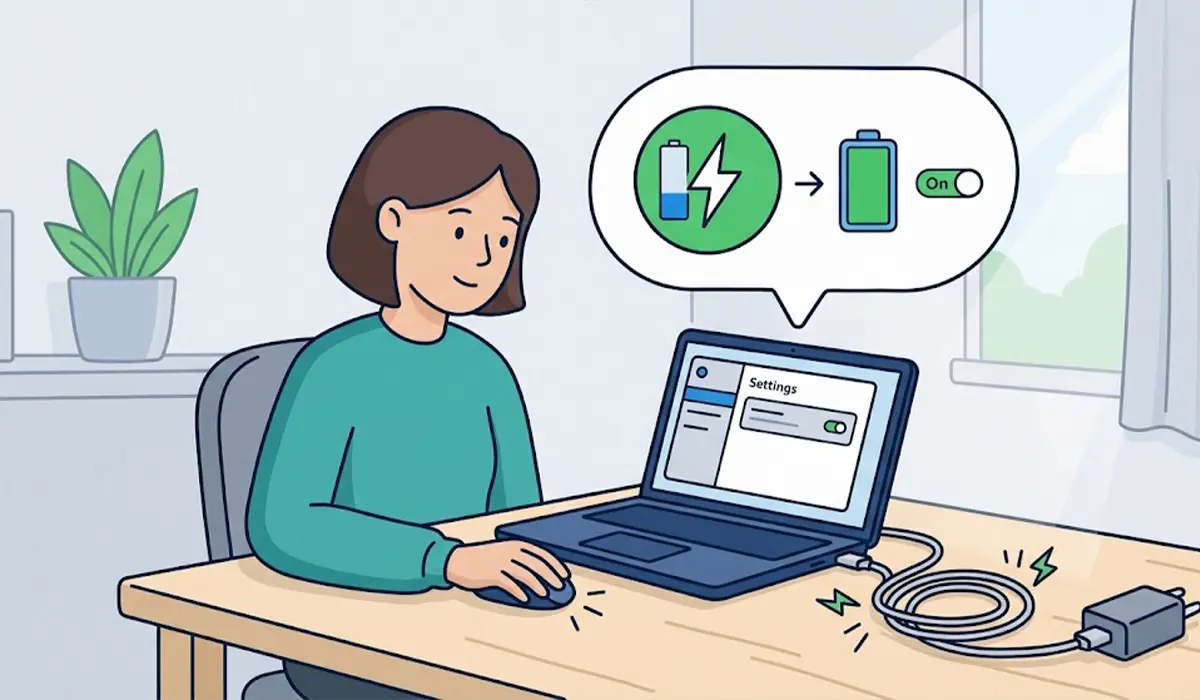
Tip: Fixing the limit in the battery app (Step 1) solves most cases. If that setting was already off, move on to the BIOS before spending time on drivers.
When a Charge Limit Is Actually Worth Keeping
If the laptop stays plugged in at a desk most days, leaving the 80 percent cap on is a sensible choice. It reduces wear on the battery over the years. Turning the limit off before a long trip or a day away from an outlet is the better way to use it.
Tip: On a MacBook, the same behavior comes from Optimized Battery Charging in the Battery settings, which can also be turned off there.
Common Problems and Fixes
The Charge Limit Option Is Missing
Not every laptop has a battery limit feature, and some only offer it in the BIOS. Check the BIOS first. If no option exists anywhere, move on to the charger, heat, and driver steps.
The Laptop Still Stops at 80% After the Limit Is Turned Off
Restart the laptop once after changing the setting, since some apps apply the new limit only after a reboot. If the stop continues, repeat the power reset in Step 6 and check for a BIOS update.
The Setting Keeps Turning Itself Back On
A BIOS update or a battery app update can reset the charge mode. Open the app again after major updates and confirm the mode is still set to full capacity.
Charging Stops Only During Heavy Use
This points to heat or an underpowered charger. Cool the laptop, clean the vents, and confirm the charger wattage matches the laptop.
The Battery Report Shows Very Low Capacity
That means the battery is worn. A replacement battery from the manufacturer or a trusted repair shop is the real fix. If the battery looks swollen, or the trackpad or case is lifting, stop using the laptop and have a professional handle it. Opening a laptop to swap the battery may also affect its warranty.
Frequently Asked Questions
Why does my laptop stop charging at 80%?
Most laptops stop at 80 percent because of a battery health feature that limits the charge to reduce wear. The limit is set in the manufacturer’s battery app or in the BIOS and can usually be turned off.
Is it bad if my laptop only charges to 80%?
No. Stopping at 80 percent is gentler on a lithium-ion battery and can extend its lifespan. The only downside is less runtime per charge.
How do I turn off the 80% charge limit?
Open the battery or power app made by the laptop’s manufacturer and switch the charging mode to full capacity. If the app has no such option, check the BIOS or UEFI battery settings.
Can a bad charger cause charging to stop at 80%?
Yes. A charger with too little wattage or a damaged cable can interrupt charging, particularly while the laptop is under load. Testing with the original charger helps rule this out.
Does heat stop a laptop from charging?
It can. Laptops slow or pause charging when the battery gets too warm to protect it. Letting the laptop cool on a hard surface with clear vents usually brings charging back.
Will updating the BIOS fix a laptop not charging past 80%?
Sometimes. A BIOS update can correct charging bugs and battery reporting errors. It can also reset battery settings, so check the charge mode afterward.
How do I check my laptop battery health in Windows?
Open Command Prompt as administrator and run powercfg /batteryreport. Open the saved report and compare design capacity with full charge capacity to see how much the battery has worn.
Should I replace the battery if it still will not charge past 80%?
Only after the limit settings, charger, drivers, and BIOS have been checked. If the battery report shows heavy capacity loss, replacement is the right next step.
