
An app that closes without warning is one of the most frustrating things a PC can throw at someone, and learning how to fix app crashes on Windows usually comes down to finding the right cause among a short list of usual suspects. Most crashing apps trace back to outdated software, a corrupted system file, a driver conflict, or a resource shortage. This guide walks through the causes first, then moves into the fixes in the order that tends to solve the problem fastest.
Key Takeaways
- Outdated apps, outdated Windows updates, and corrupted system files cause most repeated app crashes.
- Running System File Checker and DISM resolves a large share of random or unexplained crashes.
- The Event Viewer shows the exact error behind a crash instead of leaving it a guessing game.
- A clean boot isolates whether a background program or driver is the real troublemaker.
- Reinstalling or resetting the app is the reliable last step when nothing else clears it up.
Common Causes of App Crashes on Windows
Before jumping into fixes, it helps to understand why apps crash in the first place. A single crashing app usually points to a problem with that program specifically, while several unrelated apps crashing at once usually points to something deeper in Windows itself.
- The app itself is outdated, corrupted, or incompatible with the current version of Windows.
- Windows is missing updates, or a recent update introduced a compatibility issue.
- Corrupted system files are interfering with how the app loads or runs.
- An outdated or conflicting driver, especially a graphics driver, is causing instability.
- The system is low on RAM, storage space, or is overheating under load.
- A third-party antivirus or background program is blocking or interrupting the app.
How to Fix App Crashes on Windows
Update the App and Windows
This works best as the first move because a large share of crash reports get fixed by the developer or by Microsoft before most people even go looking for a manual fix.
- Step 1: Open the crashing app and check its built-in update option, or visit the Microsoft Store and select ‘Get updates’ if it was installed from there.
- Step 2: Open Settings, go to Windows Update, and select ‘Check for updates.’
- Step 3: Install any pending updates and restart the computer.
- Step 4: Reopen the app and confirm whether the crash still happens.

Tip: If the app updated recently and the crashing started right after, that update is very likely the cause. Rolling back to a previous version, when the developer offers one, often resolves it immediately.
Run System File Checker and DISM
Corrupted system files are a quiet but common reason apps misbehave, especially when the crashes seem to happen at random rather than during one specific action.
- Step 1: Open the Start menu, type ‘cmd,’ right-click Command Prompt, and choose ‘Run as administrator.’
- Step 2: Type sfc /scannow and press Enter, then wait for the scan to finish.
- Step 3: Type DISM /Online /Cleanup-Image /RestoreHealth and press Enter to repair the Windows image.
- Step 4: Restart the computer once both scans complete and test the app again.

Check the Event Viewer for Crash Details
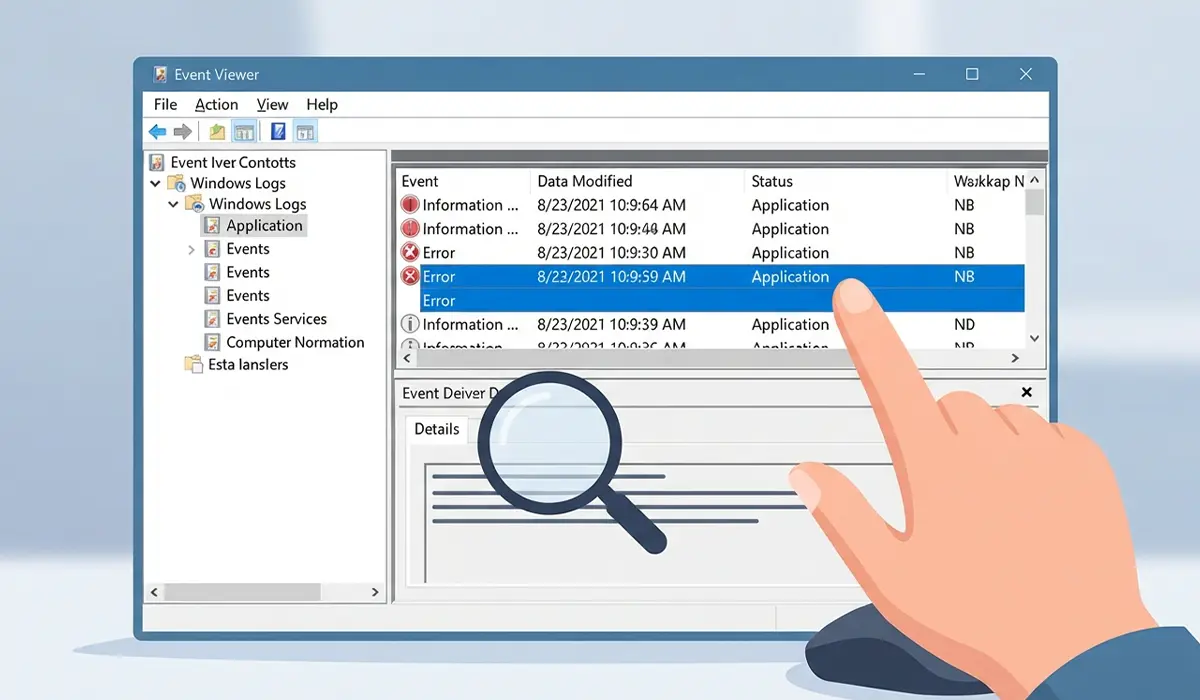
Most people skip this step, but the Event Viewer often names the exact file or module responsible for the crash, which turns a vague guessing game into a targeted fix.
- Step 1: Open the Start menu, type ‘Event Viewer,’ and open it.
- Step 2: Expand ‘Windows Logs’ and select ‘Application.’
- Step 3: Look for a red ‘Error’ entry timestamped close to when the app crashed.
- Step 4: Note the faulting module name in the details pane. A driver file often points to a driver issue, while the app’s own executable points back to the program itself.
Test in Clean Boot
A clean boot starts Windows with only essential services and startup programs running, which is the most reliable way to tell whether a background program is interfering with the app.
- Step 1: Type ‘msconfig’ in the Start menu and open System Configuration.
- Step 2: On the Services tab, check ‘Hide all Microsoft services,’ then select ‘Disable all.’
- Step 3: Open Task Manager, go to the Startup tab, and disable every startup item.
- Step 4: Restart the computer and try running the app again.
If the app runs fine in a clean boot, one of the disabled programs was the source, and re-enabling them one at a time will identify which one.
Check for Driver and Hardware Conflicts
Graphics-heavy apps and games are especially sensitive to outdated or mismatched drivers, since even a minor version gap can trigger repeated crashes during rendering.
- Step 1: Right-click the Start button and open Device Manager.
- Step 2: Expand ‘Display adapters,’ right-click the graphics card, and select ‘Update driver.’
- Step 3: If a recent driver update coincides with the crashes, right-click the device, choose ‘Properties,’ open the Driver tab, and select ‘Roll Back Driver’ if it is available.
- Step 4: Restart the computer and retest the app.
Reinstall or Reset the App
When nothing above resolves it, the app’s own files or settings are the most likely remaining cause, and reinstalling clears out corruption that troubleshooting cannot reach.
- Step 1: Open Settings, go to Apps, and find the crashing app in the list.
- Step 2: Select the app, choose ‘Advanced options’ if available, and click ‘Reset’ to clear its cache and settings without a full reinstall.
- Step 3: If the crash continues, return to the Apps list and select ‘Uninstall.’
- Step 4: Download the latest version directly from the developer or the Microsoft Store and install it fresh.
Common Problems and Fixes
Some crash patterns need a slightly different approach than the general steps above.
The app crashes only on startup: This usually points to a corrupted configuration file or a conflicting startup add-in. Resetting the app’s settings through the Apps menu, or checking for a safe mode or troubleshooting mode within the app itself, typically clears it.
One app started crashing right after a Windows Update: Compatibility mode can bridge the gap while waiting for a permanent fix. Right-click the app’s shortcut, open Properties, go to the Compatibility tab, and try running it in a mode matching an earlier Windows version.
The app closes with no error message at all: This is where the Event Viewer becomes essential, since a silent crash almost always still leaves a log entry even when no pop-up appears on screen.
Only one specific game or app crashes while everything else runs fine: This narrows the cause to that program or its dependencies. Checking for missing runtime components, such as a Visual C++ Redistributable or the latest DirectX update, resolves a large share of these cases.
The app runs fine for a while, then crashes during heavy use: This points toward a resource limit rather than a software bug. Closing unused background programs and checking available RAM and storage space in Task Manager usually confirms whether the system is simply running out of headroom.
Frequently Asked Questions
Why do apps crash on Windows for no obvious reason?
Most ‘no reason’ crashes actually do have a cause, it is just not visible without checking the Event Viewer. Corrupted system files, outdated drivers, and low system resources are the most common hidden culprits.
Does reinstalling Windows fix app crashes?
A full reinstall can resolve deep-seated corruption, but it is a last resort. Running System File Checker, DISM, and a clean boot first solves the large majority of cases without needing to wipe the system.
Can low RAM cause apps to crash?
Yes. When available memory runs low, Windows may forcibly close programs to free up resources, and apps under heavy load are the first to be affected.
How can the exact cause of a crash be found?
The Event Viewer, under Windows Logs and Application, records the faulting module and error code for most crashes, which is the most direct way to identify the true cause.
Should antivirus software be disabled to test for crashes?
Temporarily disabling third-party antivirus software can help confirm whether it is interfering with the app, but it should only be turned off briefly for testing and turned back on right after.
Why does an app crash only when opening a specific file or feature?
This usually points to a corrupted file, an unsupported file format, or a bug in that specific feature rather than a system-wide problem, and updating the app is the most effective first fix.
Is a clean boot safe to use for troubleshooting?
Yes. A clean boot only temporarily disables non-essential startup items and services, and everything returns to normal once System Configuration is reset back to ‘Normal startup.’
Can outdated graphics drivers cause non-gaming apps to crash?
Yes, particularly apps that use hardware acceleration for video playback, browsing, or editing. Updating the graphics driver resolves crashes in these apps more often than people expect.
What should be done if an app keeps crashing after every fix has been tried?
At that point, checking for a corrupted user profile or testing the app under a new Windows user account can reveal whether the issue is tied to profile-specific settings rather than the app itself.
