
Knowing how to fix monitor not switching inputs saves a lot of frustration when a second PC, console, or laptop sits idle behind a screen that refuses to change source. The cause is usually a locked menu, a weak signal, or an auto-detect setting that stopped working. Most cases can be solved in a few minutes with no special tools.
Key Takeaways
- A monitor only switches inputs when it detects a valid signal, so the cable and the source device matter as much as the monitor itself.
- A locked on-screen menu or a disabled Auto Source setting is one of the most common reasons the Input button does nothing.
- Power cycling the monitor and reseating cables clears most handshake and detection glitches.
- Deep sleep or power saving options on DisplayPort and HDMI can stop the monitor from waking and detecting a new source.
- If a different cable and a different source device both fail, a factory reset or firmware update comes next, followed by professional service.
Common Causes of a Monitor Not Switching Inputs
Before changing settings at random, it helps to know what usually goes wrong. Think of the monitor as a receptionist who only answers a call when the phone actually rings. If no signal arrives, nothing gets picked up.
- The OSD (on-screen display) menu or its buttons are locked, so presses are ignored.
- The selected input has no active signal because the source device is asleep, off, or sending output elsewhere.
- A loose, damaged, or low-quality cable fails to complete the signal handshake.
- Auto Source (or Auto Input) is turned off, or it is fighting with a manual selection.
- The wrong output mode is active on the PC, such as a projection mode that disables the external display.
- A dock, adapter, or KVM switch in the chain is dropping the signal.
- Outdated graphics drivers or monitor firmware cause detection problems after sleep or a resolution change.
Before You Start
Most of these fixes involve handling cables and ports, so a few basic precautions keep everything safe.
- Power off the monitor and the connected devices, then unplug the monitor from the wall before reseating cables.
- Touch a bare metal part of the PC case to discharge static before handling ports on a desktop.
- Have a spare cable of the same type, a second source device for testing, and the monitor manual or model number handy.
- Optional: a soft brush or a can of compressed air to clear dust from ports.
Nothing here requires opening the monitor. If a step ever points toward removing the back panel, stop there, since opening a monitor can void the warranty and exposes high-voltage parts that are best left to a professional.
Step-by-Step: How to Fix Monitor Not Switching Inputs
Start With the Quick Checks
- Step 1: Turn on every source device and make sure each one is fully awake. A laptop in sleep or a console in rest mode sends no signal, and the monitor will skip that input.
- Step 2: Press the Input or Source button on the monitor once and wait a few seconds. Some models need a moment to scan before the menu responds.
- Step 3: Select the input manually from the OSD menu rather than relying on automatic detection. Choose the exact port the cable is plugged into, such as HDMI 1, HDMI 2, or DisplayPort.
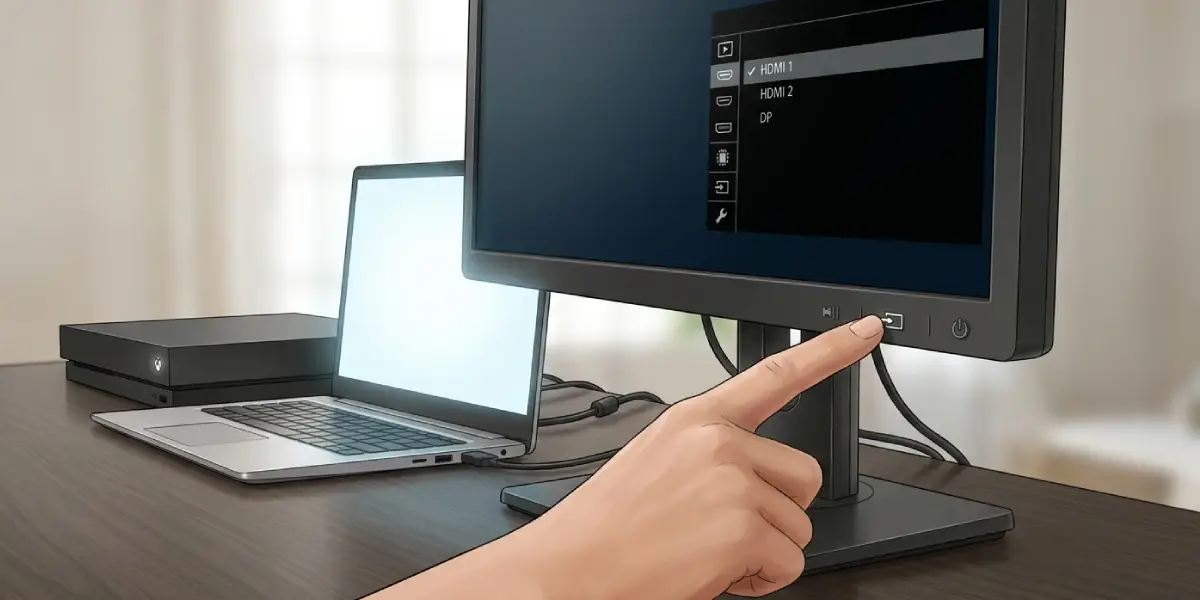
Tip: Check the label beside each port on the monitor. Many models have two HDMI ports that look identical, and picking the wrong one is a surprisingly common reason nothing appears.
Unlock the Menu and Buttons
- Step 4: If the buttons seem dead, look for an OSD lock. On many monitors, holding the Menu button for several seconds toggles the lock, though the exact method varies by brand, so the manual gives the correct combination for a specific model.
- Step 5: Once unlocked, open the menu and try switching the input again.
Reseat and Test the Cables
- Step 6: With everything powered off, unplug the video cable at both ends and look inside the connectors for bent pins, debris, or damage. Use a soft brush or short bursts of compressed air to clear dust.
- Step 7: Plug the cable back in firmly until it seats fully. HDMI should sit snug, and DisplayPort should click into its latch.
- Step 8: Swap in a spare cable of the same type. A cable that carries a signal at a low resolution but fails at a higher one will often cause detection trouble.
- Step 9: Test the same source device on a different port of the monitor. If it works there, the first port is the likely fault.
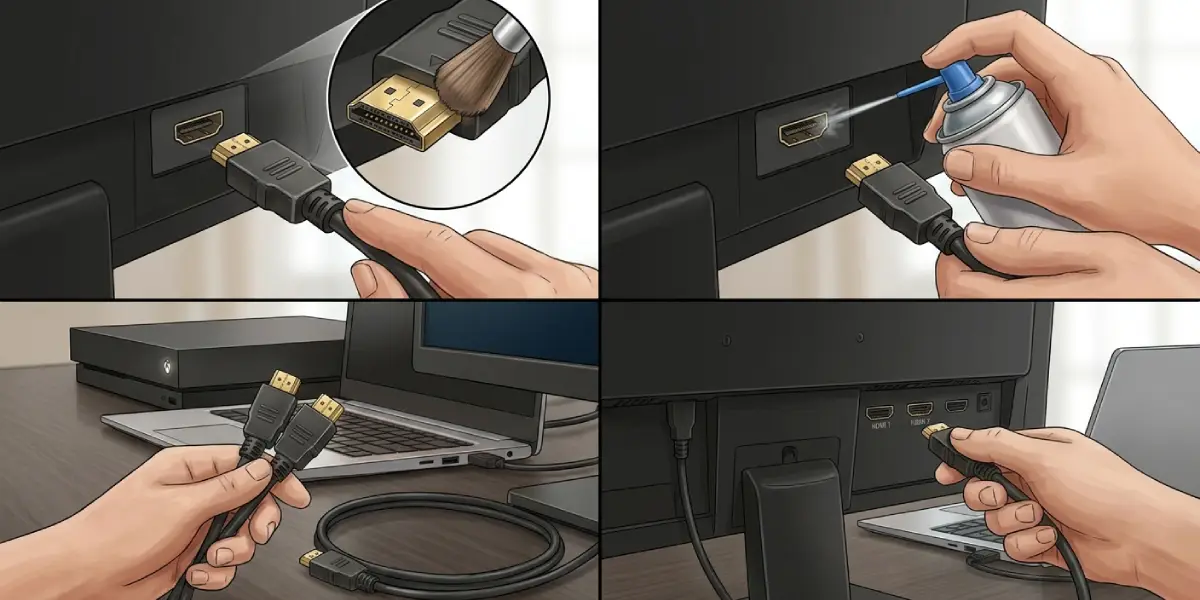
Tip: Connect the problem source device to a different monitor or TV if one is available. If it fails there too, the issue lies with the device or its output settings and not with the monitor.
Power Cycle the Monitor
- Step 10: Turn the monitor off and unplug its power cable from the wall.
- Step 11: Hold the monitor’s power button for about 15 to 30 seconds to drain any residual charge, then leave it unplugged for a minute.
- Step 12: Plug the power back in and start the monitor before turning on the source devices. This forces a fresh handshake with each input.
Adjust Auto Source and Power Saving Settings
- Step 13: Open the OSD menu and find the Auto Source, Auto Input, or Input Auto-Select option. Turn it on if the goal is automatic switching, or off if the monitor keeps jumping to an unwanted input.
- Step 14: Look for power saving options such as DisplayPort deep sleep, ECO mode, or similar names. Disabling these can help the monitor wake and detect a source after sleep.
- Step 15: If a DisplayPort version setting exists (for example DP 1.1, 1.2, or 1.4), try a different option. Some source and cable combinations only negotiate correctly on a specific setting.
Check the Output Settings on the PC
- Step 16: On Windows, press Windows key + P and choose Extend or Duplicate. If PC screen only is selected, the external display receives no signal.
- Step 17: Open Display settings and select Detect to make Windows search for connected screens again.
- Step 18: Update the graphics driver from the GPU manufacturer’s website or through the system’s update tool, then restart the PC.
- Step 19: Lower the refresh rate or resolution temporarily to confirm whether the signal is simply too demanding for the cable or port.
Remove Docks, Adapters, and Switches From the Chain
- Step 20: Connect the source directly to the monitor, skipping any dock, adapter, splitter, or KVM switch.
- Step 21: If the direct connection works, reintroduce the extra hardware one piece at a time to find the weak link. Cheap adapters and older KVM switches often cannot pass newer resolutions or refresh rates.
Reset and Update the Monitor
- Step 22: Open the OSD menu and run Factory Reset or Reset All. Note any custom picture settings first, since they will be cleared.
- Step 23: Check the manufacturer’s support page for the exact monitor model. If a firmware update is offered, follow the official instructions carefully, as interrupting an update can leave the monitor unusable.
Common Problems and Fixes
The Input Button Does Nothing
This usually points to an OSD lock or a stuck button. Unlock the menu using the method in the manual, and press each button gently to check that none feels jammed. If the menu opens but the Input option is greyed out, the monitor may be locked to a single source by a setting, so look for an input lock or priority option in the menu.
The Monitor Says No Signal on the New Input
The monitor is switching, but the source is not sending anything. Wake the device, check that its output is set to the external display, and try a different cable or port. A laptop with its lid closed may also be routing video differently than expected.
The Monitor Switches Back to the Old Input on Its Own
Auto Source is likely competing with a manual choice. Turn Auto Source off and select the input manually, or check whether a connected device is waking up and claiming the screen.
Switching Works Until the PC Goes to Sleep
Deep sleep or power saving settings often cause this. Disable them in the monitor menu, and update the graphics driver. If the problem continues, try a different cable, since some cables lose the handshake on wake.
One Port Never Works, Others Are Fine
If a spare cable and a second source device both fail on a single port, that port is probably faulty. Use another port on the monitor, and consider service if every port is needed.
The Problem Persists After a Factory Reset
At this point the cause is probably internal, such as a failing input board. Because this involves opening a monitor, it is best left to a qualified technician or the manufacturer’s warranty service.
Frequently Asked Questions
Why won’t my monitor switch to another input?
The most common reasons are a locked OSD menu, no active signal from the source device, a loose or faulty cable, or Auto Source being turned off. Checking these in order usually reveals the cause quickly.
How do I unlock the input button on my monitor?
Many monitors unlock when the Menu button is held for several seconds, but the exact method differs between brands. The manual for the specific model lists the correct button combination.
Does a bad HDMI cable stop a monitor from switching inputs?
Yes. A damaged or poor-quality cable can fail to complete the signal handshake, so the monitor never recognizes the source. Testing with a known good cable is the fastest way to rule this out.
What does Auto Source do on a monitor?
Auto Source scans the ports and switches to an input that has an active signal. Turning it on helps with automatic switching between devices, while turning it off prevents the monitor from jumping to an unwanted input.
Why does my monitor show No Signal even though the PC is on?
The selected input may not match the port in use, the cable may be loose, or the PC may be sending video elsewhere. Reseat the cable, choose the correct input manually, and use Windows key + P to confirm an external display mode is selected.
Can outdated graphics drivers cause input switching problems?
Yes. Outdated drivers can cause detection failures, especially after sleep or a resolution change. Updating the graphics driver and restarting the PC often restores normal behavior.
Will a factory reset fix a monitor that will not change inputs?
It can, particularly when a setting or a software glitch is responsible. A reset returns all menu options to default, so it is worth trying before considering repair.
Can a KVM switch or dock cause input problems?
Yes. Docks, adapters, and KVM switches add extra links to the chain, and any of them can drop the signal or limit resolution. Connecting the source directly to the monitor helps confirm whether the extra hardware is the cause.
When should a monitor be repaired or replaced?
If a different cable, a different source device, and a factory reset all fail, the fault is probably inside the monitor. A technician or the manufacturer can assess it, and the warranty status will help decide between repair and replacement.
