
Learning how to fix game controller not detected in Windows usually comes down to a short list of culprits: a charge-only cable, a driver hiccup, a USB power setting, or a pairing problem. The good news is that most cases are solved in under fifteen minutes with no special tools. This guide walks through the checks in the order that saves the most time.
Key Takeaways
- Start with the basics: a data-capable cable, a different USB port, and a restart.
- Check Device Manager and the Game Controllers panel to see whether Windows sees the device at all.
- Reinstalling the controller driver and turning off USB power saving fixes a large share of cases.
- Wireless controllers often need to be removed and paired again from scratch.
- PlayStation and Switch controllers may be detected but still ignored by games unless Steam Input or a compatible app is used.
Before You Start
No disassembly is needed, so the prep is simple. Close any game launcher that may be holding the controller, and keep these items within reach:
- The USB cable that came with the controller, or another cable known to carry data
- A second USB port, ideally one directly on the PC rather than a hub
- A second PC or console, if available, to rule out a faulty controller
- Fresh batteries or a charged battery for wireless models
Common Causes of a Game Controller Not Being Detected
Before changing settings, it helps to know what usually goes wrong. Most cases trace back to one of these:
- A charge-only USB cable that powers the controller but carries no data. Many phone-charging cables are built this way.
- A loose, dirty, or underpowered USB port, especially on unpowered hubs and front-panel ports.
- A corrupted or missing driver after a Windows update.
- USB selective suspend or power management switching the port off to save energy.
- A wireless controller that lost its pairing or has a weak battery.
- Another program, such as Steam, claiming the controller and remapping it.
- A controller type the game does not support directly, which is common with PlayStation and Switch pads.
How to Fix Game Controller Not Detected in Windows Step by Step
Quick Hardware Checks
- Step 1: Unplug the controller, restart the PC, and plug the controller back in. A restart clears stalled USB and Bluetooth services that a simple replug does not.
- Step 2: Try a different USB port, plugged directly into the PC. Avoid hubs and extension cables during testing, since they can supply too little power.
- Step 3: Swap the cable. If the controller lights up but never appears in Windows, a charge-only cable is the most likely cause. A cable that has been tested with another data device is the safest choice.
- Step 4: Test the controller on another PC or console. If it fails there too, the controller or its port is likely faulty rather than Windows.
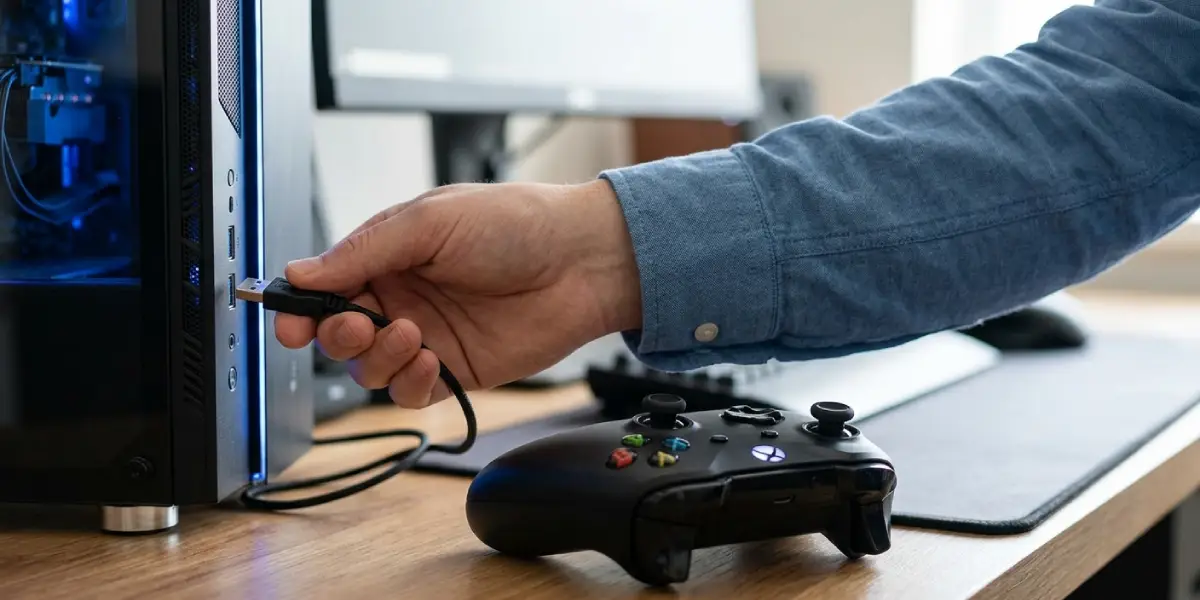
Tip: Look at the cable itself. Data cables are often slightly thicker than bargain charging cables, and a controller that vibrates or lights up but never shows in Windows is a classic sign of a power-only cable.
Confirm What Windows Can See
- Step 5: Press the Windows key plus R, type joy.cpl, and press Enter. This opens the ‘Set up USB game controllers’ panel. If the controller is listed, select it and choose Properties to test the buttons and sticks.
- Step 6: Right-click the Start button and open Device Manager. Expand ‘Human Interface Devices’, ‘Xbox Peripherals’, ‘Sound, video and game controllers’, and ‘Universal Serial Bus controllers’. Look for the controller or an entry with a yellow warning icon or the label ‘Unknown device’.
Reinstall the Controller Driver
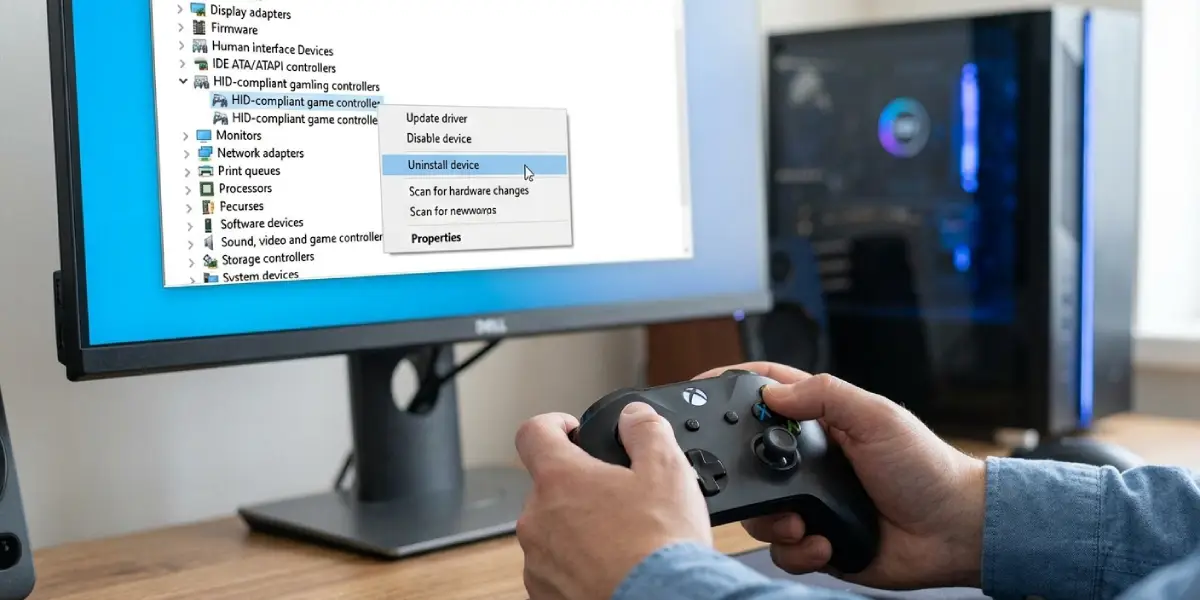
- Step 7: In Device Manager, right-click the controller entry, often named ‘HID-compliant game controller’ or the controller’s own name, and choose ‘Uninstall device’.
- Step 8: Unplug the controller, wait ten seconds, and plug it in again. Windows reinstalls a fresh driver automatically. If nothing happens, open the Action menu in Device Manager and choose ‘Scan for hardware changes’.
- Step 9: Run Windows Update and check optional updates, since controller and USB drivers sometimes arrive there. For a branded controller, the manufacturer’s support page or companion app is the reliable place for firmware and driver updates. Xbox controllers, for example, can be updated through the Xbox Accessories app from the Microsoft Store.
Turn Off USB Power Saving
- Step 10: In Device Manager, expand ‘Universal Serial Bus controllers’, right-click each ‘USB Root Hub’ entry, and choose Properties. On the ‘Power Management’ tab, untick ‘Allow the computer to turn off this device to save power’, then select OK.
- Step 11: Open Control Panel, go to Power Options, choose ‘Change plan settings’, then ‘Change advanced power settings’. Expand ‘USB settings’ and ‘USB selective suspend setting’, and set it to Disabled. On a laptop, change both the battery and plugged-in values.
Tip: Power saving problems tend to show up as a controller that works for a few minutes and then vanishes, or one that only fails after the PC wakes from sleep. If that pattern sounds familiar, this step deserves extra attention.
Fix Wireless and Bluetooth Controllers
- Step 12: Replace or recharge the battery first. A weak battery can stop a controller from connecting even when it still powers on.
- Step 13: Open Settings, then Bluetooth and devices, and make sure Bluetooth is switched on. Find the controller in the device list, select the three dots, and choose ‘Remove device’.
- Step 14: Put the controller into pairing mode using its own method, such as holding the pairing button until the light flashes quickly, then choose ‘Add device’ and pick Bluetooth. Select the controller when it appears.
- Step 15: For controllers that use a dedicated wireless adapter, plug the adapter into a port directly on the PC, keep it clear of metal cases and other wireless dongles, and pair the controller again.
Check Software That Might Be Interfering
- Step 16: Close Steam completely, including the tray icon, and check whether the controller appears in the game. Steam Input can remap a controller and make it look like a different device inside a game.
- Step 17: If the controller is detected in joy.cpl but not in a specific game, open that game’s controller settings and look for an input or controller type option. Some games only read Xbox-style controllers directly.
- Step 18: For PlayStation and Switch controllers, add the game to Steam as a non-Steam game and enable Steam Input for the controller type. This translates the controller so the game can read it.
Common Problems and Fixes
The Controller Charges but Windows Never Reacts
This points to a charge-only cable or a damaged data line. Try a different cable and a different port before assuming the controller is dead.
The Controller Appears in Device Manager With a Yellow Warning Icon
Uninstall the device, unplug the controller, restart the PC, and reconnect it. If the warning returns, install the latest driver or firmware from the controller manufacturer.
The Controller Works in joy.cpl but Not in the Game
The game is likely not reading that controller type. Check the in-game controller settings, close other launchers, and try Steam Input to translate the signal.
The Controller Disconnects After a Few Minutes
Disable USB selective suspend and the power saving option on the USB Root Hub entries. For wireless pads, check the battery and move closer to the PC or adapter.
Bluetooth Pairing Succeeds but the Controller Still Does Not Work
Remove the controller from Bluetooth and devices, restart the PC, and pair it again. Updating the Bluetooth driver through Windows Update or the PC manufacturer’s support page can also help.
Nothing Works on Any PC
If the controller fails on multiple computers with multiple cables, the controller itself or its USB port is probably damaged. Contact the manufacturer or retailer, and note that opening the controller may affect its warranty.
Frequently Asked Questions
Why is my game controller not detected in Windows?
The most common reasons are a charge-only cable, a faulty USB port, a corrupted driver, USB power saving, or a wireless pairing problem. Testing the cable and port first rules out the simplest causes quickly.
How do I check if Windows detects my controller?
Press the Windows key plus R, type joy.cpl, and press Enter. If the controller is listed in the ‘Set up USB game controllers’ window, Windows detects it and the Properties button lets its buttons and sticks be tested.
Can a bad USB cable cause a controller to go undetected?
Yes. Many cables only carry power and no data, so the controller may light up or charge while Windows shows nothing. Switching to a known data cable often solves the problem immediately.
How do I reinstall a game controller driver in Windows?
Open Device Manager, right-click the controller entry, and choose ‘Uninstall device’. Unplug the controller, wait a few seconds, and plug it back in so Windows installs a fresh driver automatically.
Why does my controller disconnect randomly?
USB selective suspend and the ‘Allow the computer to turn off this device to save power’ setting can cut power to the port. A weak battery, a loose cable, or wireless interference can also cause random disconnects.
Why is my PS4 or PS5 controller detected but not working in games?
Many PC games expect an Xbox-style controller. A PlayStation controller may appear in Windows but be ignored by the game unless Steam Input or a similar translation tool is used.
How do I fix a Bluetooth controller that will not connect?
Remove the controller from Bluetooth and devices, put it back into pairing mode, and add it again. Make sure Bluetooth is on, the battery is charged, and the controller is close to the PC.
Should I update Windows to fix a controller not being detected?
It is worth checking. Windows Update and its optional updates can deliver controller, USB, and Bluetooth driver fixes, and installing pending updates followed by a restart sometimes restores detection.
Can Steam stop Windows from detecting my controller?
Steam does not stop Windows from detecting a controller, but Steam Input can change how a game sees it. Closing Steam completely is a quick way to test whether it is causing the problem.
