
Knowing how to fix pink or green lines on a laptop screen starts with one question: is the fault in the software, the display cable, or the panel itself? A few simple tests answer that quickly and often save an unnecessary repair. This guide walks through each check in the right order, from free software fixes to hardware repairs.
Key Takeaways
- Pink or green lines usually come from a graphics driver glitch, a worn display cable, a graphics chip problem, or a damaged panel.
- Connecting an external monitor is the fastest way to tell whether the fault is in the graphics hardware or in the laptop screen.
- If the lines appear in the BIOS or on the startup logo, the cause is hardware, and driver changes will not help.
- Lines that change when the lid is moved point to a loose or damaged display cable at the hinge.
- A cracked or pressure-damaged panel cannot be repaired and needs a compatible replacement.
Common Causes of Pink or Green Lines on a Laptop Screen
Colored lines are a visual symptom, and several different faults can produce them. Sorting the likely causes first makes the testing below much easier to follow.
Graphics Driver or Software Glitches
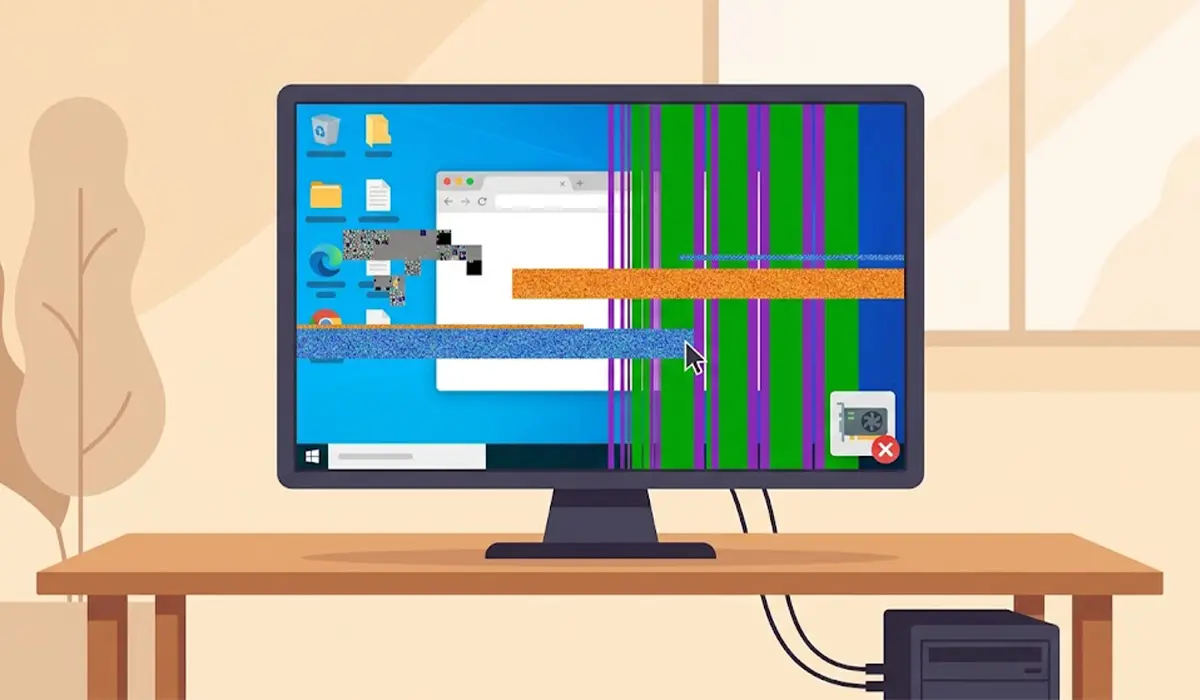
A corrupted or mismatched graphics driver can draw lines, stripes, or tinted bands across the display. This is the easiest cause to fix, and it usually shows up only after Windows loads.
Loose or Damaged Display Cable
The cable that carries the image from the motherboard to the panel runs through the hinge and flexes every time the lid opens or closes. Over time it can loosen at the connector or wear internally. Lines that shift, flicker, or disappear at certain lid angles are the classic sign.
Graphics Chip or Overheating Problems
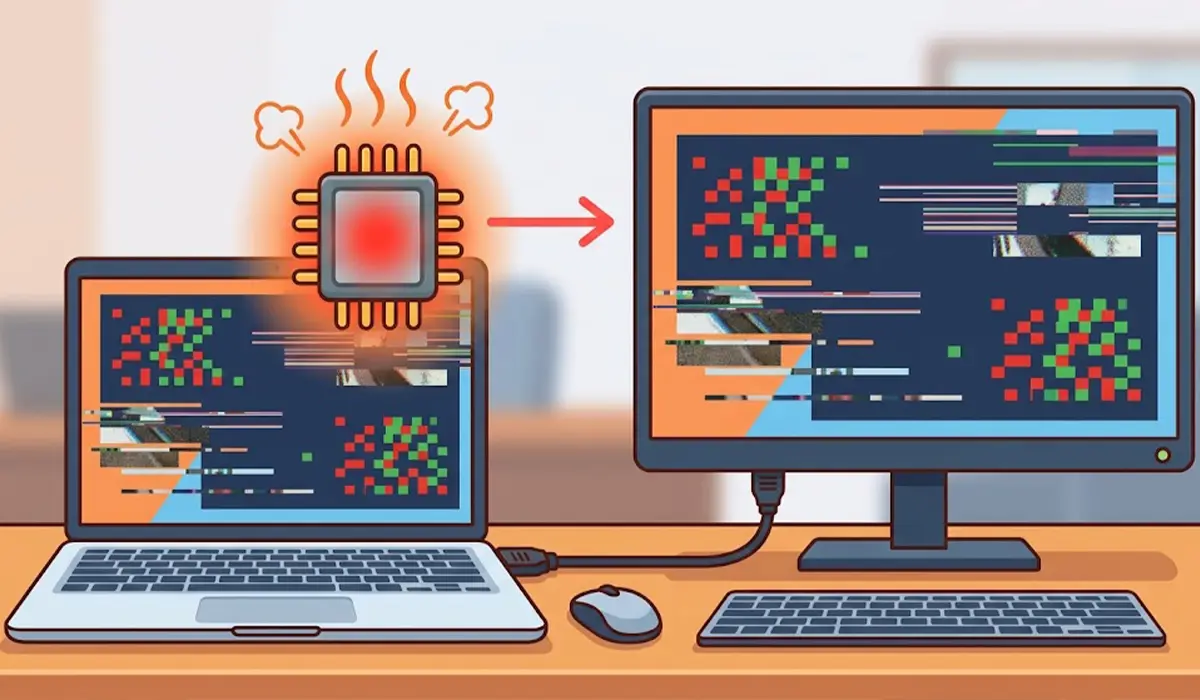
A failing or overheated graphics chip can produce visual artifacts, often during games, video, or other heavy tasks. In this case, an external monitor usually shows the same problem.
Physical Damage to the Panel
Pressure on a closed lid, a drop, or a heavy object placed on the laptop can damage the panel or its internal driver circuitry. Lines caused this way are typically fixed in position and often grow over time.
Steps to Fix Pink or Green Lines on a Laptop Screen
Work through these steps in order. The early steps cost nothing and need no tools, and each one narrows down the cause.
Software and Diagnostic Checks
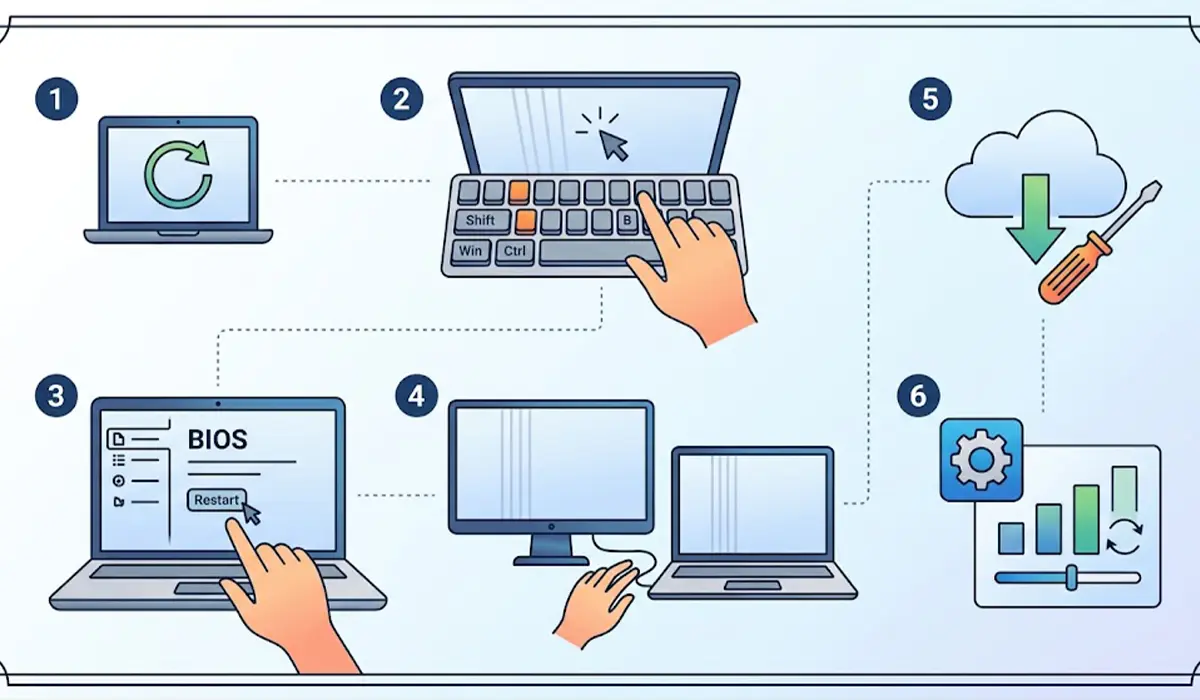
- Step 1: Restart the laptop fully. Choose Restart rather than Shut down, since Windows fast startup can carry a graphics glitch from one session to the next.
- Step 2: Restart the graphics driver without rebooting by pressing the Windows key, Ctrl, Shift, and B together. The screen flickers for a moment, and a driver-related glitch may clear.
- Step 3: Check the BIOS or startup screen. Restart the laptop and open the BIOS setup using the key shown at startup, often F2, Delete, or Esc. If the lines are visible there, Windows and the drivers are not the cause, so skip ahead to the hardware steps.
- Step 4: Connect an external monitor or TV using HDMI or USB-C. If the external display is clean, the graphics hardware is working and the fault sits in the laptop panel or cable. If the same lines appear on the external display, the graphics driver or graphics chip is the likely cause.
- Step 5: Update or reinstall the graphics driver. Download the latest driver from the laptop manufacturer or the graphics chip maker. For a stubborn case, a clean install using the free Display Driver Uninstaller tool in Safe Mode removes leftover driver files before the new driver goes on. Rolling back to the previous driver version is also worth trying if the lines began right after an update.
- Step 6: Reset the display settings. Open Display settings in Windows, confirm the resolution is set to the recommended value, and try a different refresh rate under Advanced display. Also check the BIOS for an available update from the manufacturer, since display fixes are sometimes included.
Tip: Gently flex the lid a little while watching the lines. If they shift, flicker, or vanish at certain angles, the display cable is almost certainly the problem. Press only lightly, and never push on the screen surface itself.
Before You Start Any Hardware Repair
The next steps involve opening the laptop. Preparation keeps the repair safe for both the person and the machine.
- Shut down the laptop completely, unplug the charger, and let the machine cool.
- Disconnect the internal battery if the service manual calls for it, and discharge static by touching bare metal or wearing an anti-static strap.
- Tools needed: a precision Phillips screwdriver set, plastic pry tools, and a small container for screws.
- Opening the laptop may affect the warranty. If the laptop is still covered, contact the manufacturer first.
- If the display cable connector looks fragile or the bezel is hard to release, stop and let a professional technician handle it.
Hardware Fixes for Pink or Green Lines
Reseating the Display Cable
- Step 7: Follow the manufacturer service manual or a model-specific teardown guide to remove the screen bezel using plastic pry tools. Metal tools can crack the bezel or scratch the panel.
- Step 8: Locate the display cable connector on the back of the panel and on the motherboard. Release the retaining latch or tape carefully, unplug the cable, inspect it for creases or burnt contacts, and plug it back in firmly until it seats fully.
- Step 9: Reassemble the laptop, reconnect power, and test the screen. Flex the lid gently again to confirm the lines no longer change.
Tip: Take photos at each stage of disassembly. A clear picture of where each cable and screw belongs removes most of the guesswork during reassembly.
Replacing the Cable or the Panel
If reseating does not help and the cable looks worn, a replacement cable for the exact laptop model is the next step. If the lines stay fixed in place and are not affected by lid movement, the panel is the likely culprit. A replacement panel must match the original in size, resolution, and connector type, so check the part number printed on the back of the current panel before ordering.
Cooling and Graphics Chip Concerns
When the same lines appear on an external monitor, especially under load, check the laptop for dust buildup and blocked vents. Cleaning the fans and vents can help if heat is the trigger. If the lines remain after cooling is sorted out, the graphics chip or motherboard needs professional diagnosis, because this is not a safe home repair.
Common Problems and Fixes
Lines Remain After a Driver Reinstall
If a clean driver install changes nothing, the fault is almost certainly hardware. Return to the BIOS and external monitor tests to confirm whether the panel, cable, or graphics chip is involved.
Lines Appear Only When the Lid Is at Certain Angles
This points to a worn display cable at the hinge. Reseating may bring a temporary improvement, but replacing the cable is the lasting fix.
Lines Spread or Increase Over Time
Growing lines usually mean the panel or its internal driver circuitry is failing. Panel replacement is the reliable solution at this stage.
External Monitor Shows the Same Lines
Lines on both screens rule out the panel and cable. Update the driver, check cooling, and consider professional graphics chip diagnosis if the problem continues.
Screen Worked Before and Failed After a Repair
Reopen the laptop and check that the display cable is fully seated and that no cable is pinched under the bezel or hinge cover.
Frequently Asked Questions
Why are there pink or green lines on my laptop screen?
Most often the cause is a damaged or loose display cable, a failing graphics driver, a graphics chip problem, or a physically damaged panel. Testing with an external monitor shows which group the fault belongs to.
Can pink or green lines on a laptop screen fix themselves?
Lines caused by a driver glitch or a temporary heat issue may disappear after a restart. Lines that keep returning or grow larger usually point to hardware wear and rarely resolve on their own.
Does an external monitor test really help find the cause?
Yes. If the external screen looks clean, the graphics hardware is working and the fault is in the laptop panel or its cable. If the external screen shows the same lines, the graphics chip or driver is the more likely cause.
Can a graphics driver update remove the lines?
Yes, when the cause is software. A clean install of the graphics driver fixes many cases where lines show up in Windows but not in the BIOS or on the startup screen.
Why do the lines change when the lid moves?
Lid movement flexes the display cable that runs through the hinge. Lines that shift or vanish at certain angles strongly suggest a worn or loose cable.
Can overheating cause pink or green lines?
Yes. A graphics chip running too hot can produce visual artifacts, usually during demanding tasks and often on an external monitor as well.
Does replacing the screen fix pink or green lines?
It does when the panel is the source of the fault, provided the replacement matches the exact laptop model. It will not help if the graphics chip or motherboard is causing the lines.
Is it safe to keep using a laptop with colored lines?
The laptop can generally still be used, but the lines may spread and the underlying fault may worsen. Backing up important files and planning a repair is the safest approach.
Is a screen with colored lines covered by warranty?
That depends on the manufacturer terms. Manufacturing defects are often covered, while physical damage usually is not, so check the warranty before opening the laptop.
