
Figuring out how to generate a battery report in Windows is one of the fastest ways to see exactly what is happening with a laptop’s power cell, without opening the case or installing any extra software. Windows has a built in tool that pulls detailed usage history and health data straight from the operating system, and it only takes a couple of minutes to run.
Key Takeaways
- Windows includes a free, built in battery reporting tool – no third party software is needed.
- The report is created through the Command Prompt using a single command.
- The output is a detailed HTML file showing battery capacity, usage history, and estimated life.
- Comparing the design capacity to the full charge capacity is the quickest way to judge battery wear over time.
- The whole process takes less than a minute on most laptops.
How to Generate a Battery Report in Windows Using Command Prompt
This method works the same way on Windows 10 and Windows 11, and it does not require installing anything extra. The key is running the command with administrator access, since a standard window will sometimes block the file from saving where expected.
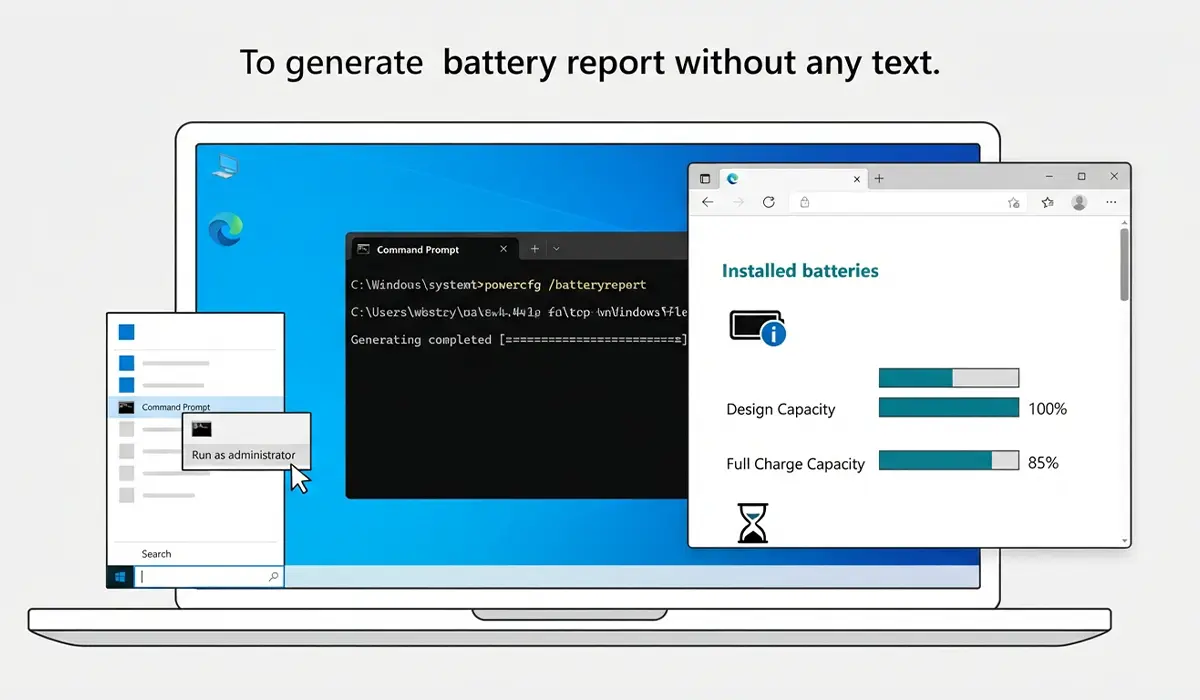
- Step 1: Click the Start menu, type ‘Command Prompt’, right click the top result, and select ‘Run as administrator’. Approve the User Account Control prompt if one appears.
- Step 2: In the black window that opens, type ‘powercfg /batteryreport’ and press Enter. This tells Windows to scan its internal power logs and compile them into a readable report.
- Step 3: Look at the line of text that appears after the command finishes running. It shows the exact file path where the report was saved, which is usually the user’s folder, something like ‘C:\Users\YourName\battery-report.html’.
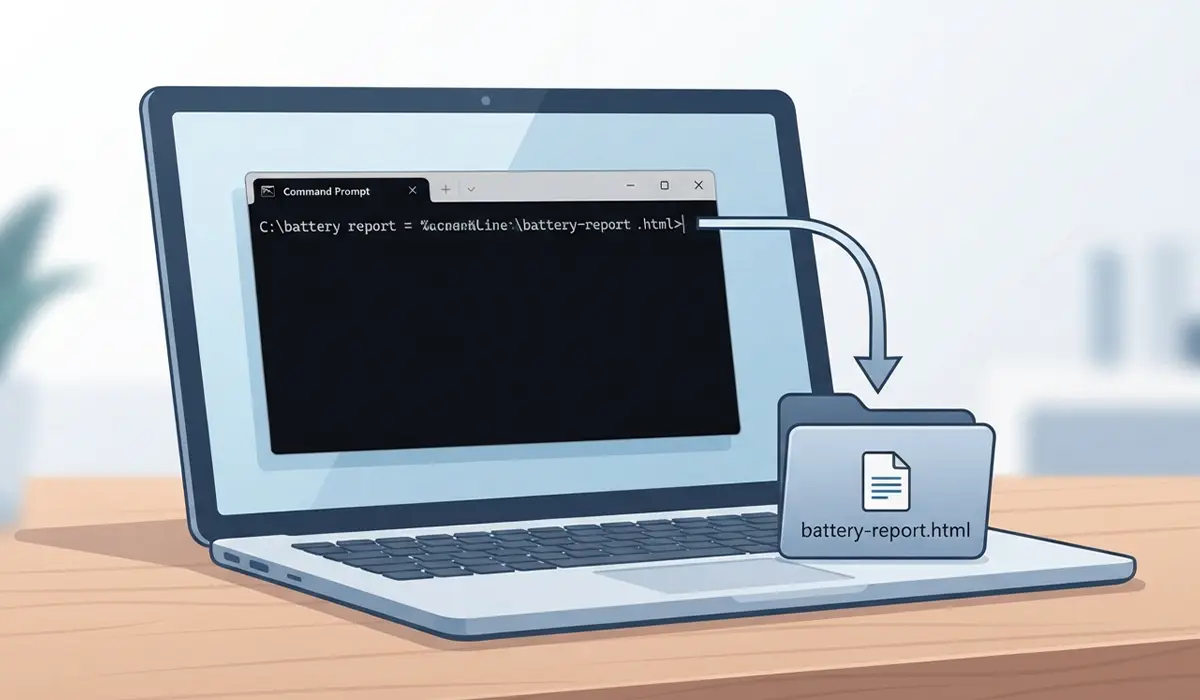
- Step 4: Open File Explorer, paste that path into the address bar, and press Enter to jump straight to the file. Double click ‘battery-report.html’ and it will open automatically in the default web browser.
- Step 5: Scroll down to the ‘Installed batteries’ section first. This shows the design capacity, which is what the battery could hold when it was brand new, next to the full charge capacity, which is what it can hold right now.
Tip: Saving the report to the desktop instead of the default folder makes it easier to find later, especially when comparing reports over several months to track battery wear.
Saving the Report to a Specific Folder
By default, the report lands wherever the Command Prompt is pointed, which is usually the user profile folder. To send it somewhere more convenient, add a destination path directly to the command. Typing ‘powercfg /batteryreport /output “C:\Users\YourName\Desktop\battery-report.html”‘ saves the file straight to the desktop instead, which is handy when the report needs to be shared or archived.
Reading the Most Useful Sections of the Report
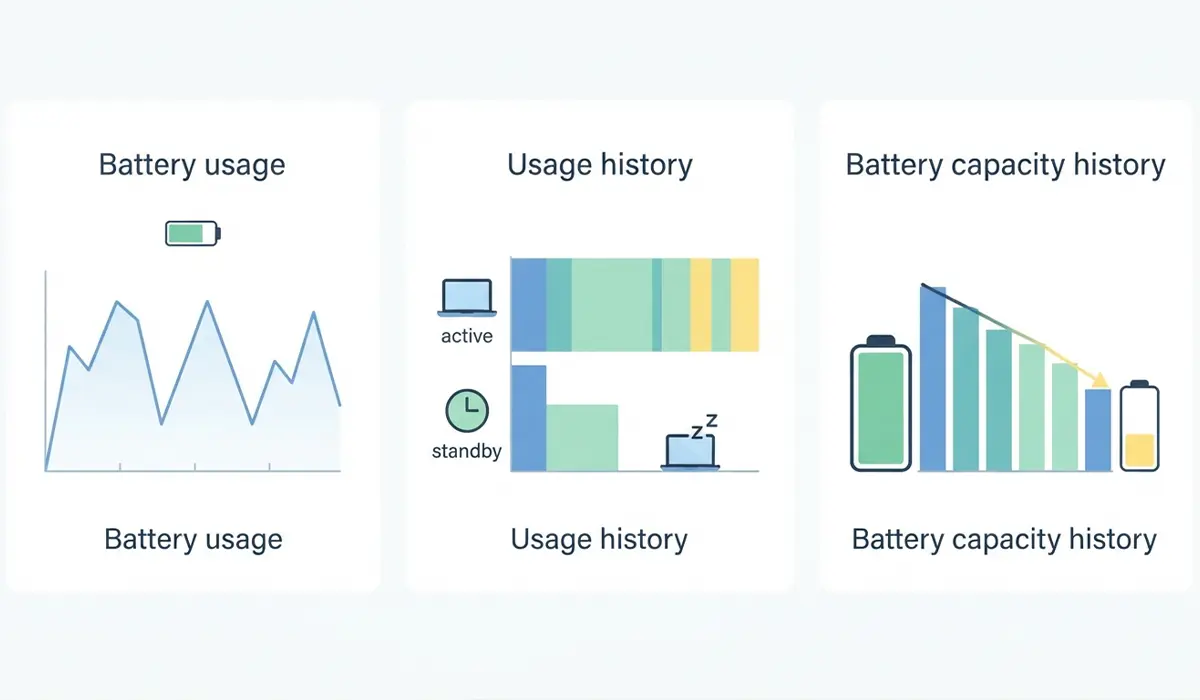
The report contains several sections, but three of them matter most for everyday troubleshooting. ‘Battery usage’ shows a chart of charge and discharge patterns over the last few days. ‘Usage history’ breaks down active and standby time going further back. ‘Battery capacity history’ tracks how the full charge capacity has dropped, week by week, which is the clearest sign of long term wear. A battery that has lost a large percentage of its original capacity compared to when it was new is the main reason many laptops start losing runtime even though nothing else about the system has changed.
Common Problems and Fixes
The Command Is Not Recognized
This almost always means the command was typed into a regular Command Prompt window instead of one opened as administrator, or the wrong tool was opened entirely, such as PowerShell with a typo in the command. Closing the window, reopening Command Prompt as administrator, and retyping the command carefully usually solves it.
The Report File Cannot Be Found
If File Explorer shows no file at the listed path, double check that the full path was copied exactly as it appeared in Command Prompt, since a single missing character in the folder name will cause it to fail. Running the command again with a custom output path to the desktop removes the guesswork entirely.
The Battery Section Is Missing or Shows No Data
On desktop PCs, or on laptops where the battery has been physically removed or is not detected by Windows, the report will still generate but the battery specific sections will be empty. This is expected behavior rather than an error, since there is no battery for Windows to log data from.
Full Charge Capacity Shows Higher Than Design Capacity
Occasionally a very new battery reports a full charge capacity slightly above the design capacity. This is normal and comes down to how manufacturers round these numbers, and it is not a sign of a problem.
Frequently Asked Questions
Does generating a battery report harm the battery in any way?
No. The report only reads data that Windows has already logged in the background. It does not run any test, apply any load, or change any setting.
How often should a battery report be checked?
Checking every few months is generally enough for most users. Anyone noticing a sudden drop in battery life benefits from checking more often to track how quickly the capacity is declining.
What is considered normal battery wear?
Some loss in full charge capacity compared to design capacity is expected as a battery ages through normal charge cycles. A steep or sudden drop over a short period is more worth investigating than a gradual decline over a year or more.
Can this battery report be generated on a desktop computer?
The command will run on a desktop, but since desktops typically have no battery, the battery specific sections of the report will simply be empty.
Does this work on older versions of Windows?
The powercfg battery report command has been part of Windows since Windows 8, so it works reliably on Windows 8, Windows 10, and Windows 11.
Why does the report need to be run as administrator?
Administrator access allows the tool to read the deeper system power logs it needs and to save the output file without running into permission restrictions.
Can the battery report predict exactly when a battery needs replacing?
It gives a strong indicator through the capacity history trend, but it is a guide rather than an exact countdown. A battery that has lost a large portion of its original capacity and no longer holds a useful charge is generally a candidate for replacement.
Is there a way to see battery health without using Command Prompt?
Command Prompt is the most direct built in method. Some laptop manufacturers include their own battery health utilities in preinstalled software, which can offer a similar summary without typing any commands.
Why does the report show ‘Design Capacity’ and ‘Full Charge Capacity’ as two different numbers?
Design capacity reflects what the battery was built to hold when new. Full charge capacity reflects what it can currently hold after normal wear. The gap between the two numbers grows naturally over time.
Does closing the laptop lid or fully shutting down affect the report’s accuracy?
No. The report pulls from historical data already stored by Windows, so it reflects genuine usage patterns regardless of whether the laptop was shut down, put to sleep, or left running.
