
Learning how to replace a laptop battery is one of the most practical repairs a laptop owner can tackle at home, and it often costs far less than a trip to a repair shop. A tired battery that no longer holds a charge does not mean the laptop is done for. With the right tools and a little patience, swapping it out is a manageable weekend project.
Key Takeaways
- Most laptops fall into one of two categories: models with an easily removable external battery, or models with an internal battery secured by screws and adhesive.
- Powering down completely, unplugging the charger, and discharging static electricity are non-negotiable steps before opening any laptop.
- A small magnetic screwdriver set and plastic pry tools make the job significantly easier and safer for the internal components.
- Matching the exact battery model number, or at minimum the correct voltage and connector type, prevents damage and compatibility issues.
- A new battery should be calibrated during its first few charge cycles for the most accurate battery percentage readings.
Before You Start
A little preparation goes a long way toward a smooth battery swap. Gather everything needed and set up a clean, well-lit workspace, ideally on a hard surface like a kitchen table rather than a carpeted floor where small screws can vanish.
Tools and Materials Needed
- A precision magnetic screwdriver set, usually including Phillips #00 and Torx bits
- Plastic pry tools or a plastic spudger
- A small container or magnetic mat to keep screws organized
- Tweezers for handling small connectors and clips
- The correct replacement battery for the specific laptop model
- An anti-static wrist strap, or access to a bare metal surface to touch for grounding
Safety Checklist
- Power the laptop off completely; do not just close the lid or put it to sleep
- Unplug the charger and remove any external power source
- Let the laptop cool down fully if it was recently in use
- Discharge static electricity by touching a bare metal surface or wearing an anti-static strap before touching internal components
- Hold the power button for about fifteen seconds after unplugging to drain any residual charge from the system
Tip: Take a photo with a phone before removing any cables or screws. It becomes a handy reference when it is time to put everything back together.
Opening a laptop, especially one still under manufacturer warranty, may void that warranty. If the battery is swollen, punctured, or visibly damaged in any way, stop and have a professional technician handle the removal rather than risking a puncture that could cause the cell to vent or ignite.
How to Replace a Laptop Battery Step by Step
The exact process varies slightly depending on whether the laptop has an external, easily accessible battery or an internal one that requires opening the chassis. Both approaches share the same basic logic.
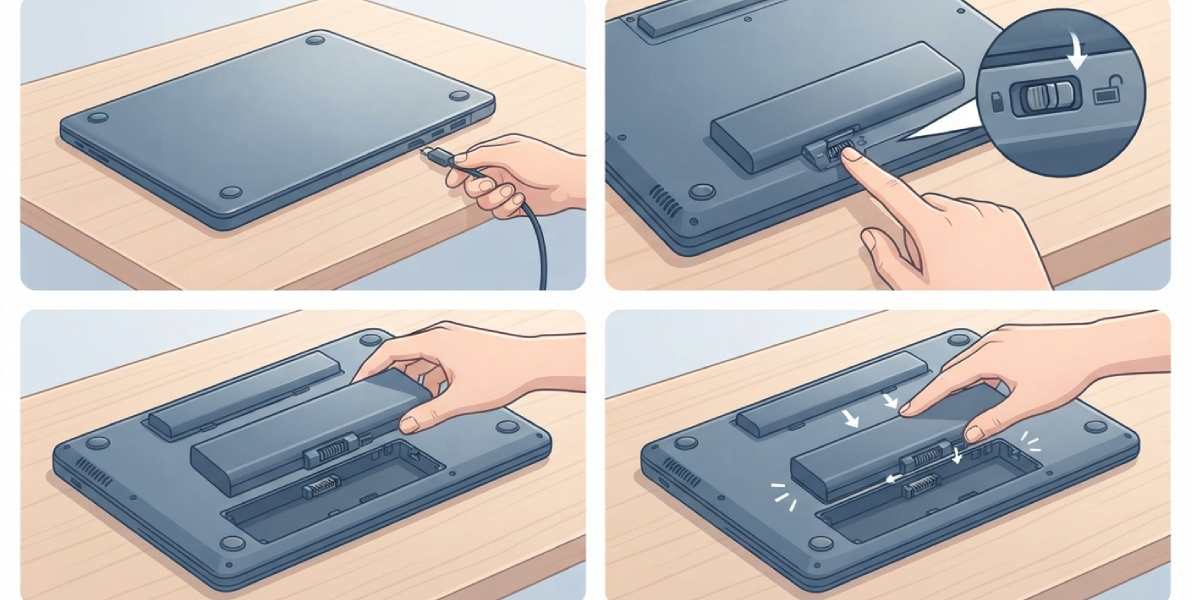
Replacing an External (Removable) Battery
- Step 1: Shut down the laptop and unplug the charger.
- Step 2: Flip the laptop over and locate the battery release latch or switch, often marked with a small battery icon.
- Step 3: Slide the latch to the unlocked position and lift the old battery out of its bay.
- Step 4: Check the battery bay for dust or debris and wipe it out gently with a dry microfiber cloth if needed.
- Step 5: Align the new battery with the connector pins and bay contours, then slide it into place until it clicks or locks.
- Step 6: Flip the laptop back over, plug in the charger, and power it on to confirm the new battery is recognized.
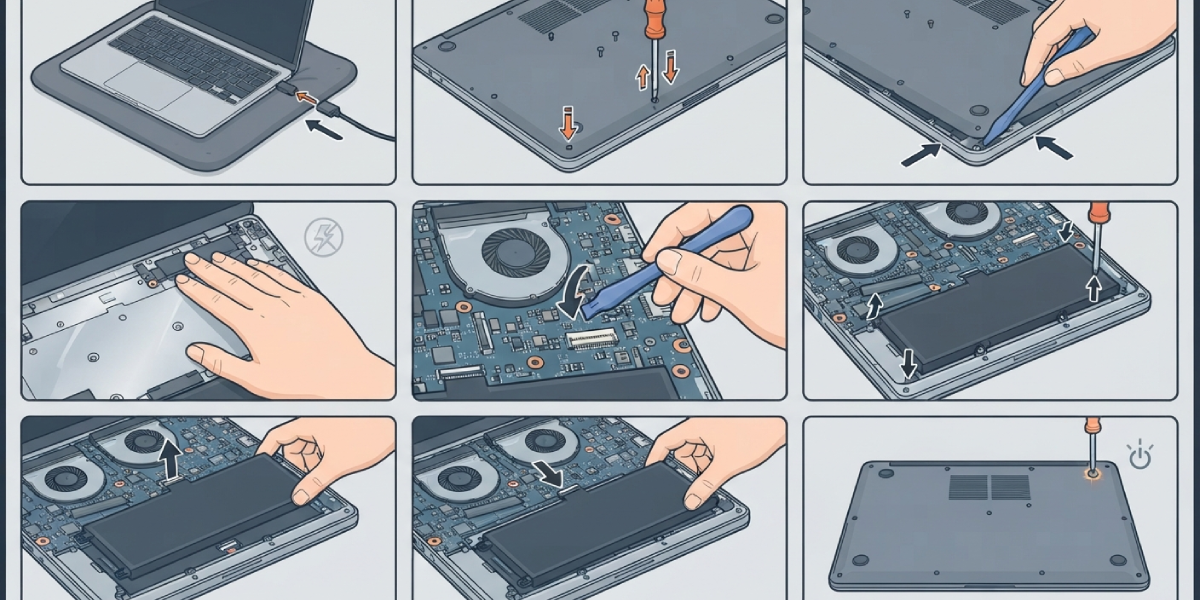
Replacing an Internal Battery
- Step 1: Power down the laptop, unplug it, and flip it over on a soft, clean surface.
- Step 2: Remove all the bottom panel screws, keeping track of their positions since laptops often use different screw lengths in different spots.
- Step 3: Use a plastic pry tool to gently separate the bottom panel from the chassis, working around the edges rather than prying from one spot.
- Step 4: Ground out static electricity by touching bare metal on the chassis before touching any components.
- Step 5: Locate the battery connector on the motherboard and disconnect it carefully using a plastic spudger or fingernail, never a metal tool that could short the connector.
- Step 6: Remove the screws or adhesive strips securing the battery to the chassis. Adhesive-mounted batteries may need gentle, steady pulling with a plastic pry tool rather than yanking.
- Step 7: Lift the old battery out carefully, avoiding any bending, flexing, or puncturing of the cell.
- Step 8: Position the new battery in the same orientation, secure it with the original screws or fresh adhesive strips, and reconnect the battery connector to the motherboard.
- Step 9: Replace the bottom panel and all screws, then power the laptop on to confirm it boots normally and recognizes the new battery.
Tip: If the old battery does not lift out easily, do not force it. A gentle rocking motion along the edges, combined with light heat from a hand-held hair dryer on a low setting near strong adhesive points, often loosens the bond without damaging the cell.
Calibrating the New Battery
Once the new battery is installed, a short calibration period helps the system report an accurate charge percentage. Charge the laptop to 100 percent, let it run normally until the battery drains close to empty, then charge it back to full without interruption. Repeating this cycle once or twice over the first couple of weeks gives the internal battery gauge a clear picture of the cell’s real capacity.
Common Problems and Fixes
Laptop Will Not Power On After the Battery Swap
This usually points to a connector that is not fully seated. Open the bottom panel again and check that the battery cable is pressed firmly into its socket on the motherboard.
Battery Percentage Reads Incorrectly or Jumps Around
This is common right after a replacement and typically resolves after one or two full charge and discharge cycles as the system recalibrates its readings.
New Battery Does Not Charge Past a Certain Percentage
Many laptops include a battery health or longevity setting in the manufacturer’s software that intentionally caps charging around 80 percent to extend the battery’s lifespan. Check those settings before assuming the battery itself is faulty.
Laptop Feels Warmer Than Before Near the Battery Area
A small amount of extra warmth during the first few charge cycles is normal as the new cell settles in. Persistent excessive heat, swelling, or an odd smell means the laptop should be powered off immediately and checked by a professional.
Screws Left Over After Reassembly
This means a screw was missed somewhere on the chassis, not that it was unnecessary. Power the laptop down, reopen the panel, and locate the correct spot before running the laptop again.
Frequently Asked Questions
How long does it take to replace a laptop battery?
An external battery swap takes just a few minutes. An internal battery replacement typically takes between twenty and forty five minutes, depending on how the chassis is put together.
How do you know if a laptop battery needs replacing?
Common signs include the battery draining much faster than it used to, the laptop shutting down unexpectedly even when the battery shows charge remaining, or the battery appearing swollen or puffy.
Can a laptop be used with the battery removed?
Many laptops with removable batteries can run on AC power alone with the battery out, though this varies by model and is generally not recommended for internal batteries due to how they are integrated into the power system.
Is it safe to replace a laptop battery at home?
Yes, for most models it is a safe and manageable task as long as basic precautions are followed, including working on a clean surface, discharging static electricity, and handling the battery gently to avoid punctures.
What happens if the wrong replacement battery is installed?
A battery with the wrong voltage, connector type, or physical dimensions may not fit properly, may not be recognized by the system, or in rare cases could damage the motherboard. Always match the exact model number when possible.
Does replacing the battery void the laptop’s warranty?
It can, particularly on laptops still under manufacturer coverage. Checking the warranty terms beforehand is worthwhile before opening the chassis.
Why is the new battery not showing full capacity right away?
New lithium-ion cells often need a break-in period of a few charge cycles before the internal gauge reports capacity accurately.
What should be done with the old laptop battery?
Old lithium-ion batteries should never go in regular household trash. Most electronics retailers and local recycling centers accept them for safe disposal.
Do all laptops allow battery replacement?
Most laptops do, though some ultra-thin models make the process more involved due to heavy adhesive use or unconventional chassis designs. Checking model-specific repair guides beforehand helps set expectations.
