
Knowing how to securely wipe a hard drive before selling a PC, laptop, or loose drive is the difference between a clean handoff and handing a stranger years of personal files, saved passwords, and tax documents. Dragging files to the recycle bin or running a quick format does not remove the data, it only hides it. This guide covers the right method for each drive type so nothing recoverable is left behind.
Key Takeaways
- Deleting files or doing a quick format does not erase data. A proper wipe overwrites, erases, or cryptographically resets the drive.
- Hard disk drives (HDDs) can be overwritten with a full wipe. Solid state drives (SSDs) should use the manufacturer’s secure erase or sanitize function instead.
- Back up everything and sign out of all accounts and licenses before wiping, because the process cannot be undone.
- Windows Reset with the Clean data option and macOS Erase All Content and Settings are solid choices for most sellers.
- If a drive is failing or cannot be wiped, physical destruction is safer than selling it.
Before You Start
A wipe is permanent, so a little preparation prevents regret. Most of this is about protecting the data that should survive and avoiding the classic mistake of wiping the wrong drive.
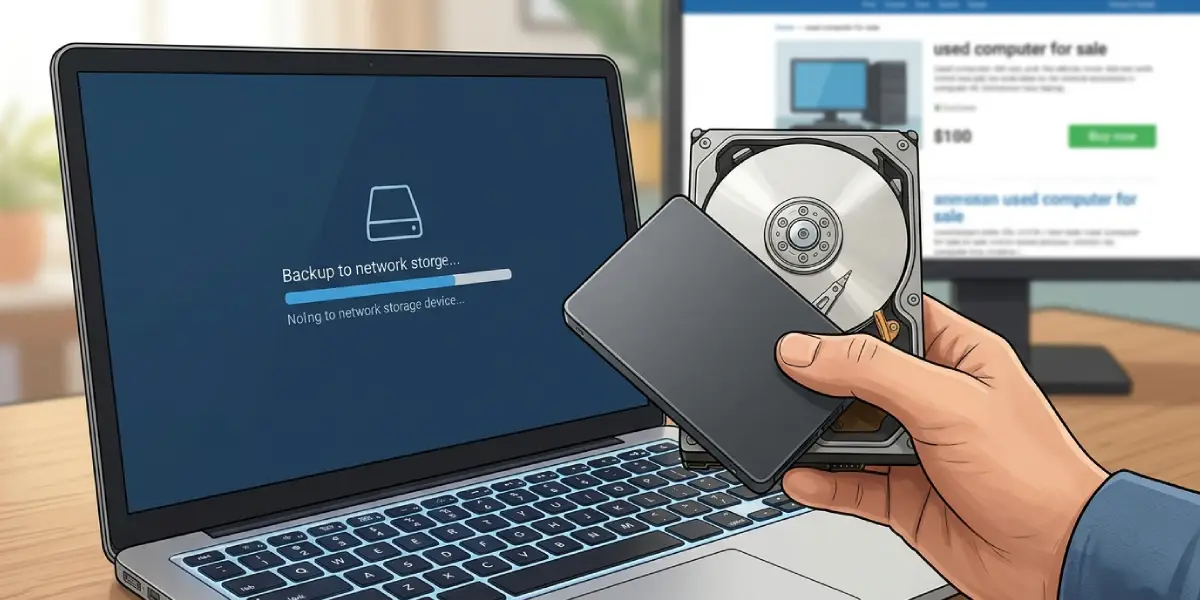
- Back up every file worth keeping to an external drive or cloud storage, then open a few files from the backup to confirm they work.
- Sign out of accounts and deauthorize licensed software such as Microsoft account, Apple ID, Adobe apps, and game launchers.
- Plug a laptop into its charger so the power does not drop mid-wipe.
- Disconnect every other drive and USB storage device so only the target drive is visible.
- Gather a USB flash drive (8 GB or larger) for Windows installation media, the drive maker’s erase utility for SSDs, and a screwdriver if the drive must be removed from the machine.
Opening a laptop or desktop to remove a drive may affect the warranty on some models. If a device has a soldered or hard-to-reach drive, using the built-in reset tools is safer than disassembly.
How to Securely Wipe a Hard Drive Before Selling: Step by Step
These steps apply to every drive type. The exact wiping method in Step 5 depends on whether the drive is an HDD, an SSD, or inside a Mac, and each one is detailed in the sections that follow.
- Step 1: Back up all personal files and confirm the backup opens correctly.
- Step 2: Sign out of Microsoft, Apple, Google, and any software accounts tied to the device, and deauthorize paid programs.
- Step 3: Identify the drive type. On Windows, open Task Manager, click Performance, and select the disk to see whether it is listed as HDD or SSD. On a Mac, check About This Mac, then System Report, then Storage.
- Step 4: Decide whether the drive stays in the device or is sold separately. Drives staying in the PC can use the built-in reset. Loose drives need a full wipe from another computer or a bootable environment.
- Step 5: Run the wipe method that matches the drive type using the sections below.
- Step 6: Verify the wipe by checking that the drive shows as blank or freshly reset and that no old files or user accounts remain.
- Step 7: Reinstall the operating system if the buyer needs a working machine, or leave the drive blank and say so in the listing.
Tip: A drive that has been wiped and then reloaded with a fresh operating system is far easier to sell than a blank one, since buyers can boot it right away.
Wiping a Windows Drive with Reset This PC
For a laptop or desktop being sold with its drive inside, the built-in reset with the Clean data option is the simplest route and works for both HDDs and SSDs.
- Step 1: On Windows 11, open Settings, choose System, then Recovery. On Windows 10, open Settings, choose Update and Security, then Recovery.
- Step 2: Click Reset this PC, then choose Remove everything.
- Step 3: Pick Local reinstall or Cloud download. Local reinstall works offline, while Cloud download pulls a fresh copy of Windows and can fix a damaged installation.
- Step 4: On the settings screen, click Change settings and turn on Clean data. Leave the option to keep data on other drives turned off if the whole machine is being sold.
- Step 5: Confirm the reset and let it finish. A clean data pass can take several hours on a large HDD, so plan for it.

Wiping a Loose or Secondary HDD with Diskpart
For a hard disk drive being sold on its own, or one that is not the current Windows drive, the diskpart clean all command writes zeros across every sector. A single full zero-fill pass is enough for modern HDDs.
- Step 1: Connect the drive to a Windows PC, or boot from Windows installation media and press Shift and F10 at the setup screen to open a command prompt.
- Step 2: Type diskpart and press Enter, then type list disk to see all connected drives.
- Step 3: Match the correct drive by its size. Type select disk followed by its number, and double-check the choice, because the next command cannot be reversed.
- Step 4: Type clean all and press Enter. Large drives can take many hours, so leave the PC powered and undisturbed until it reports success.
- Step 5: Type exit when finished. The drive will appear as unallocated space, ready for a new buyer to initialize.
Tip: The cipher /w command only wipes free space and leaves existing files untouched, so it is not a replacement for a full drive wipe when the goal is to sell the device.
Wiping an SSD Correctly
SSDs spread writes across memory cells and keep hidden spare areas, so overwriting the visible space does not reliably reach all stored data. The dependable method is a secure erase or sanitize command that the drive itself carries out.
- Step 1: Check the drive manufacturer’s website for its official utility, such as Samsung Magician or Crucial Storage Executive, and confirm the model is supported.
- Step 2: Use the utility’s secure erase or sanitize feature. Some utilities create a bootable USB drive for this, because the drive cannot erase itself while Windows is running from it.
- Step 3: On NVMe drives, an alternative is the nvme format command with the secure erase setting from a Linux live USB using the nvme-cli package. SATA SSDs support ATA Secure Erase through the hdparm tool.
- Step 4: If no manufacturer tool exists, turn on BitLocker or Device Encryption first, then run Reset this PC with Clean data. Encrypting first means leftover data is unreadable without the discarded key.
- Step 5: Check that the drive appears empty afterward, then reinstall the operating system if needed.
Some business laptops and motherboards also offer a Secure Erase option inside the BIOS or UEFI menu, which is worth checking before reaching for outside tools.
Wiping a Mac Before Selling
Macs handle this differently, because recent models encrypt their storage by default.
- Step 1: Back up with Time Machine or another method, and sign out of iCloud, Messages, and Find My.
- Step 2: On a Mac with Apple silicon or an Intel Mac with the T2 chip running macOS Monterey or later, open System Settings, choose General, then Transfer or Reset, and click Erase All Content and Settings.
- Step 3: Follow the prompts. The Mac erases its encryption keys, which makes the stored data unreadable within moments.
- Step 4: On older Macs, restart into macOS Recovery, open Disk Utility, erase the internal drive, and then reinstall macOS.
When to Destroy the Drive Instead
Some drives should never be sold. A failing drive may refuse to complete a wipe, and a drive that held highly sensitive business, medical, or financial records deserves extra caution. In those cases, physical destruction is the safer route. Take the drive to a certified electronics recycler or a professional shredding service, and get a certificate of destruction if the data was regulated. If a drive will not respond to any wipe tool, stop and let a professional handle it rather than risk selling it.
Common Problems and Fixes
Reset This PC Fails or Gets Stuck
A failed reset is often caused by a damaged Windows recovery image. Choose Cloud download instead of Local reinstall, or boot from Windows installation media and run the setup from there. If it keeps failing, use diskpart clean all from the installation media.
Diskpart Says Access Is Denied or the Drive Is Write Protected
Check whether the drive has a physical write-protect switch, and try a different cable or port. Then run the command prompt as administrator, or launch it from installation media, where no files on the drive are in use.
The Wipe Is Taking Many Hours
Full overwrite passes on large HDDs are slow by nature, and a 4 TB or larger drive can run overnight. This is normal. Keep the PC plugged in, disable sleep, and do not interrupt the process.
The Drive Does Not Show Up After Wiping
A wiped drive appears as unallocated space and will not get a drive letter until it is initialized. Open Disk Management, initialize the disk, and create a new volume. If the drive is missing entirely, check the cable or connection.
The SSD Utility Will Not Run Secure Erase
Some systems freeze the drive’s security state at startup, which blocks the command. Boot from the utility’s bootable USB, or try a hot-swap of the drive on a supported system, then run the erase again.
Old Files Still Appear After the Wipe
This usually means only a quick format or a delete was done instead of a full wipe or erase. Repeat the process using Clean data, clean all, or the manufacturer’s secure erase, and confirm the correct drive was selected.
Frequently Asked Questions
Is deleting files or formatting enough before selling a hard drive?
No. Deleting files and quick formatting only remove the index that points to the data, so recovery software can often bring files back. A secure wipe overwrites the data, or on SSDs and Macs, erases the encryption keys or runs a drive-level erase.
How long does it take to wipe a hard drive?
Time depends on drive size, speed, and method. A secure erase on an SSD often takes only minutes, while a full overwrite of a large HDD can take many hours or a full night.
Is one overwrite pass enough for a modern HDD?
Yes. A single full pass of zeros is enough for modern hard drives, and current guidance no longer calls for the old multi-pass methods. Additional passes mostly add time.
Can data be recovered after Reset This PC with Clean data?
Clean data is designed to make recovery impractical for typical buyers. For very sensitive information, an additional manufacturer secure erase, or a full wipe with diskpart clean all on an HDD, offers extra assurance.
Should an SSD be wiped differently from an HDD?
Yes. SSDs use wear leveling and hidden spare memory, so overwriting does not reliably reach all data. The manufacturer’s secure erase or sanitize function, or encryption followed by a reset, is the correct approach.
Do Macs need a special wipe process?
Modern Macs with Apple silicon or the T2 chip use Erase All Content and Settings, which destroys the encryption keys and makes the data unreadable. Older Macs need a Disk Utility erase from macOS Recovery, followed by a macOS reinstall.
Should the operating system be reinstalled after wiping?
It is recommended if the device is sold as a working computer. Buyers can start it right away, and a fresh install confirms that the wipe finished correctly. For a bare drive, leaving it blank is fine if the listing says so.
When is it better to destroy a drive than to sell it?
Destroy it if the drive is failing, will not complete a wipe, or held highly sensitive data. A certified recycler can shred the drive and provide proof of destruction.
How can a wipe be verified?
Check that the drive appears blank or freshly reset, with no old user accounts or files. For loose drives, connecting to another PC and confirming it shows only unallocated space is a quick, reliable check.
