
Knowing how to tell if your PC has been hacked can save accounts, files, and a lot of stress. A compromised computer rarely announces itself, but it almost always leaves clues in performance, settings, and network activity. This guide covers the warning signs, the exact checks to run in Windows, and what to do if something turns up.
Key Takeaways
- Unexpected slowdowns, loud fans at idle, and unfamiliar programs are the most common early signs of a compromised PC.
- Task Manager, Windows Security, and the list of installed apps can reveal most infections without extra software.
- Changed passwords, unknown sign-ins, and a webcam light that turns on by itself point to account or remote access problems.
- If a hack is confirmed, disconnect from the internet first, then change passwords from a different, clean device.
Common Ways a PC Gets Hacked
Most compromises start with an ordinary mistake rather than a dramatic break-in. Understanding the entry point makes the checks below easier to interpret.
- Phishing emails and fake login pages that capture passwords or deliver a malicious attachment.
- Pirated software, cracked games, and fake installers bundled with malware.
- Malicious browser extensions that read pages, redirect searches, or inject ads.
- Reused passwords leaked in an older data breach and then tried on other accounts.
- Remote access tools left running or tech support scams that trick users into granting control.
- Outdated Windows or software with known security flaws that have not been patched.
Warning Signs Your PC May Be Compromised
No single symptom proves a hack, but several together deserve attention. Think of it like a house: one open window might be a draft, while an open window plus missing items and muddy footprints is a different story.
Performance and Hardware Clues
- The PC runs slowly or the fans spin loudly while nothing demanding is open. Cryptomining malware often pushes the CPU or GPU hard in the background.
- The hard drive or SSD activity light stays busy with no obvious reason.
- The webcam light turns on unexpectedly.
- The battery on a laptop drains much faster than usual.
Software and Account Clues
- Programs, toolbars, or browser extensions appear that were never installed.
- The browser homepage or default search engine changes by itself, or pop-ups appear constantly.
- Security software is turned off and will not turn back on.
- Friends report strange messages sent from email or social accounts.
- Password reset emails or sign-in alerts arrive for accounts that were not touched.
- Files are renamed, missing, or locked, or a ransom message appears on screen.
How to Tell If Your PC Has Been Hacked: Step-by-Step Checks
Run these checks in order. Each one narrows down whether the problem is malware, unwanted remote access, or a compromised account.
- Step 1: Disconnect from the internet. Unplug the Ethernet cable or turn off Wi-Fi before investigating. This cuts off any remote connection and stops data from leaving the PC while the checks run.
- Step 2: Open Task Manager. Press Ctrl + Shift + Esc and sort the Processes tab by CPU, then by Memory and Network. Look for unfamiliar names using high resources while the PC is idle. Right-click a suspicious entry and choose Open file location to see where it lives. Legitimate system files sit in Windows or Program Files folders, while odd names running from a Temp or Downloads folder deserve suspicion.
- Step 3: Review startup apps. In Task Manager, open the Startup apps tab and look for entries that are unfamiliar or have no clear publisher. Malware often adds itself here to survive a restart. Disable anything clearly unwanted.
- Step 4: Check installed apps. Go to Settings, then Apps, then Installed apps. Sort by install date and look for software that appeared around the time the trouble began. Remote access tools such as AnyDesk or TeamViewer that were never installed on purpose are a red flag.
- Step 5: Run a full scan with Windows Security. Open Windows Security, choose Virus and threat protection, then Scan options, and select Full scan. For stubborn infections, choose Microsoft Defender Antivirus (offline scan), which restarts the PC and scans before Windows fully loads.
- Step 6: Check active network connections. Open Command Prompt and run netstat -ano to list connections with their process IDs. Match unfamiliar connections to a process in the Details tab of Task Manager. Resource Monitor, under its Network tab, shows the same information in a more readable layout.
- Step 7: Look for unknown user accounts and remote access. Open Settings, then Accounts, then Other users, and remove any account that does not belong. Then check Settings, then System, then Remote Desktop, and confirm it is off unless it is used on purpose.
- Step 8: Inspect browser extensions. Open the extensions page in each browser and remove anything unfamiliar or no longer needed. Reset the browser settings if the homepage or search engine keeps changing.
- Step 9: Review account activity from a different device. Check the recent sign-in activity for the Microsoft account, email, and banking accounts. Unknown locations or devices suggest stolen credentials, which can happen even when the PC itself is clean.
- Step 10: Check whether passwords have leaked. The Have I Been Pwned website lets anyone enter an email address to see whether it appeared in a known data breach. A match means the passwords tied to that email should be changed everywhere they were reused.
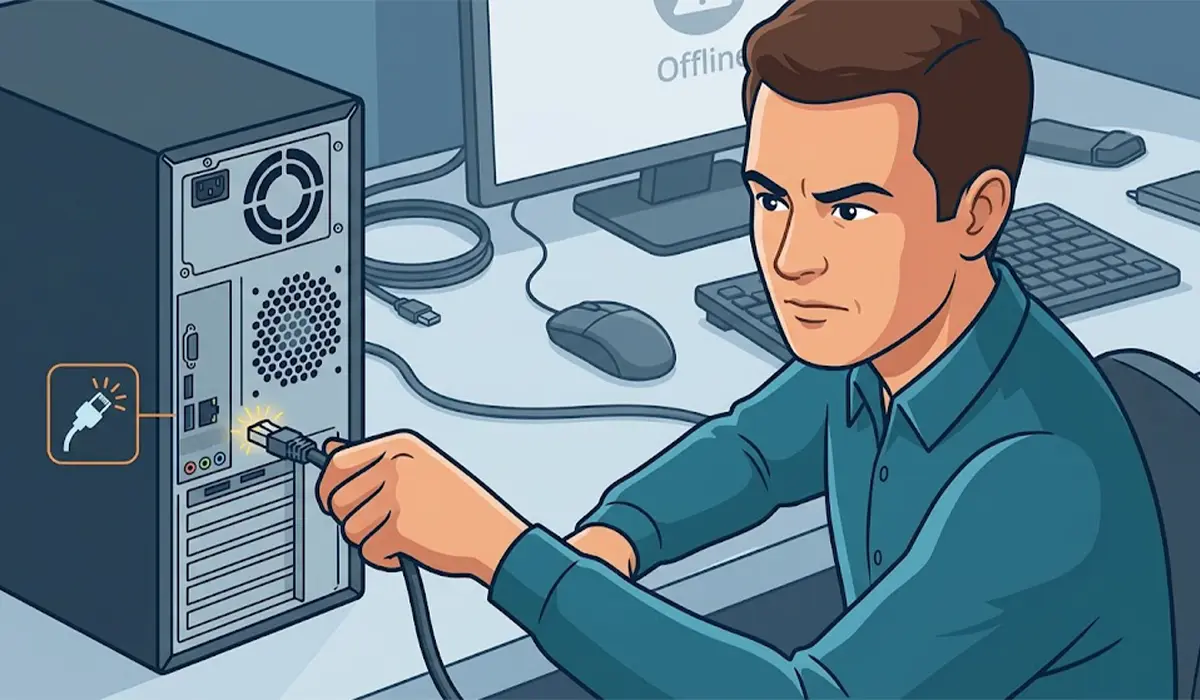
Tip: Scan results and suspicious process names can be confusing. A name that looks odd is not always malicious, so search the exact file name or check its digital signature in file Properties before deleting anything.
What to Do If the PC Has Been Hacked
Once a compromise looks likely, the order of actions matters. Acting calmly and in sequence protects accounts first and the PC second.
- Step 1: Stay offline and use a different, trusted device for anything involving passwords.
- Step 2: Change passwords for email first, since email controls password resets for everything else. Then update banking, shopping, and social accounts. Use a unique password for each one.
- Step 3: Turn on multi-factor authentication wherever it is offered, preferably with an authenticator app rather than text messages.
- Step 4: Contact the bank or card provider if any financial account was used or exposed, and watch statements closely.
- Step 5: Remove the threat. Quarantine whatever the scans found, uninstall unknown apps, and run the offline scan again until it reports clean.
- Step 6: If symptoms continue, back up personal files only (documents, photos) to an external drive and reset Windows through Settings, then System, then Recovery, then Reset this PC. Choose the option to remove everything for the most thorough cleanup.
- Step 7: After the reset, install all Windows updates before reinstalling apps, and restore files only after scanning them.
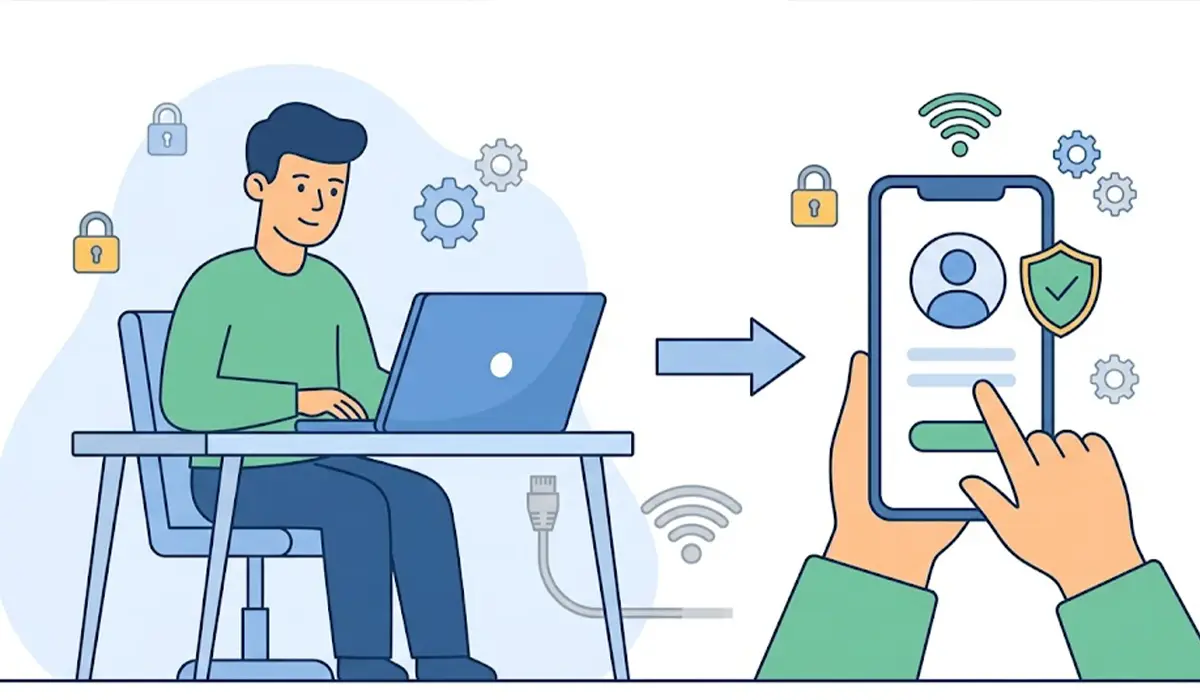
Tip: Backups of apps and system files can carry malware back onto a clean install. Restore documents and media, but reinstall programs fresh from official sources.
If the PC holds business data, if ransomware has locked files, or if financial accounts were drained, stop and bring in a professional or a qualified incident response service. A full reset can also destroy evidence that may be needed for a report.
How to Reduce the Risk of a Future Hack
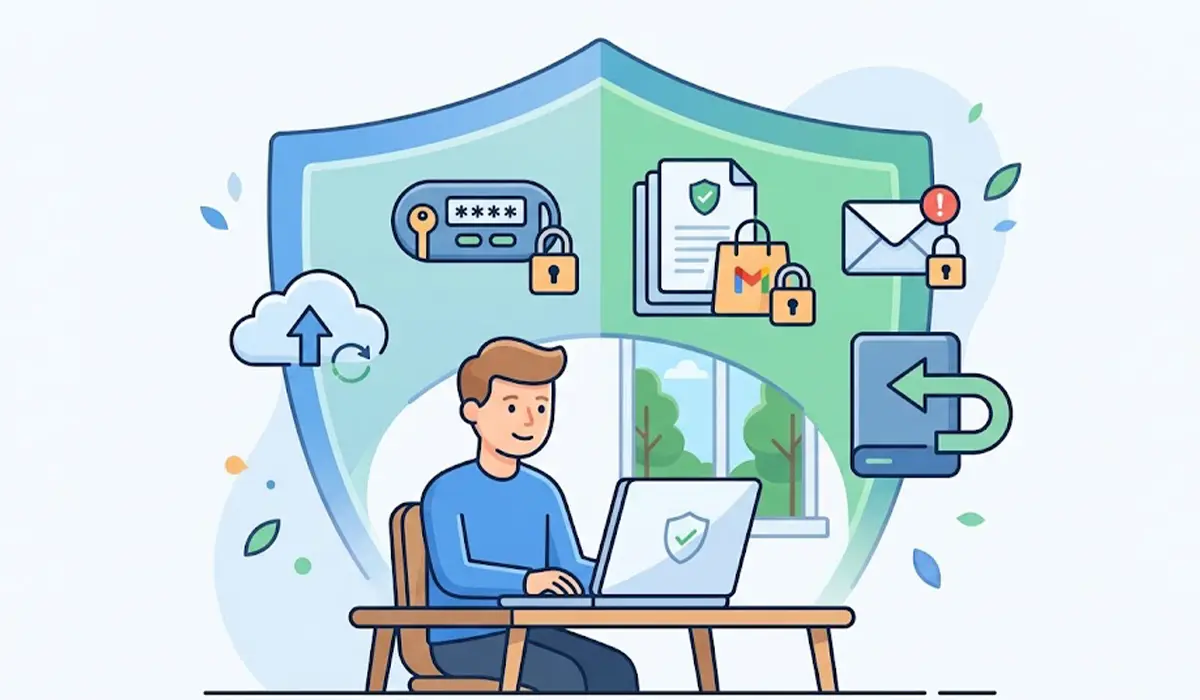
- Keep Windows, browsers, and installed software updated, and leave Windows Security real-time protection on.
- Use a password manager so every account has a long, unique password.
- Avoid cracked software and download programs only from the publisher’s official site or the Microsoft Store.
- Treat unexpected attachments, urgent payment requests, and login links in emails with suspicion.
- Use a standard user account for daily work and keep the administrator account for installs and changes.
- Keep regular backups on an external drive that is disconnected when not in use.
Common Problems and Fixes
Windows Security Will Not Turn On or Keeps Turning Off
Some malware disables protection on purpose. Restart in Safe Mode and run a scan there, or use the offline scan option. If the setting stays locked, a Windows reset is usually the cleanest answer.
The Scan Finds Nothing but the PC Still Acts Strangely
Not every problem is malware, and not every threat is caught on the first pass. Check Task Manager for steady high usage, review browser extensions, and run the offline scan. If symptoms remain, back up files and reset Windows.
The Browser Keeps Redirecting or Showing Pop-Ups
This is usually caused by a malicious extension or notification permissions granted to a spam site. Remove unfamiliar extensions, clear notification permissions in the browser settings, and reset the browser to its defaults.
Passwords Were Changed but Suspicious Sign-Ins Continue
Malware such as a keylogger may still be on the PC. Change passwords again only after the PC is confirmed clean, and sign out of all active sessions in each account’s security settings.
Fans Stay Loud and the CPU Stays High After Cleanup
Check Task Manager again for the process responsible. If nothing unusual appears, high usage may come from Windows Update or indexing and should settle after an hour or so with the PC powered on and idle.
Frequently Asked Questions
What are the first signs that a PC has been hacked?
Common early signs include sudden slowdowns, loud fans at idle, unfamiliar programs or browser extensions, a changed homepage, disabled security software, and alerts about sign-ins that were not made by the owner.
Can a PC be hacked without any visible symptoms?
Yes. Some malware is designed to stay quiet and steal data or passwords in the background. Regular scans, a review of startup apps, and checking account sign-in activity help catch hidden problems.
Does a slow computer mean it has been hacked?
Not necessarily. Full storage, too many startup programs, aging hardware, and pending updates cause slowdowns far more often. A slowdown becomes suspicious when it comes with other signs, such as unknown processes or constant network activity.
How can the Task Manager show whether a PC is hacked?
Task Manager lists every running process and how much CPU, memory, disk, and network each one uses. Unfamiliar names with high usage while the PC is idle, especially from a Temp or Downloads folder, are worth investigating.
Is Windows Security enough to detect a hack?
Windows Security catches most common malware, particularly with real-time protection on and the system up to date. It is a strong first check, but it cannot detect stolen passwords or a hijacked online account, so account activity should be checked separately.
What should be done first if a PC is hacked?
Disconnect from the internet, then use a different trusted device to change the email password and other key account passwords. After that, scan and clean the PC or reset Windows if the problem continues.
Can someone watch through a webcam or microphone without permission?
It is possible if malware or a remote access tool is installed. Signs include the webcam light turning on unexpectedly. Reviewing app permissions under Privacy settings and removing unknown apps reduces the risk.
Should Windows be reinstalled after a hack?
A reset is the most reliable fix when scans cannot fully remove a threat or symptoms keep returning. Back up personal files first, choose the option that removes everything, and reinstall apps from official sources.
