
Learning how to turn on dynamic refresh rate in Windows 11 takes less than a minute, and the payoff is a screen that feels smooth when scrolling or inking while saving battery when nothing is moving. This feature works on all Windows 11 editions, but it needs a laptop display with a variable refresh rate of at least 120 Hz and a graphics driver that supports it. No administrator rights are required.
Key Takeaways
- Dynamic refresh rate is switched on from Settings > System > Display > Advanced display.
- Pick the refresh rate option labeled Dynamic in the Choose a refresh rate list.
- The option appears only on compatible displays with an up-to-date graphics driver.
- No restart is needed, and the change can be reversed by choosing a fixed rate.
Step-by-Step Guide to Enable Dynamic Refresh Rate in Windows 11
- Press Windows + I to open the Settings app.
- Click System in the left sidebar.
- Click Display on the right side.
- Scroll down to the Related settings area and click Advanced display.
- If more than one screen is connected, use the Select a display to view or change its settings dropdown at the top to choose the built-in laptop screen.
- Find the Choose a refresh rate dropdown and click it.
- Select the option that has Dynamic in its name.
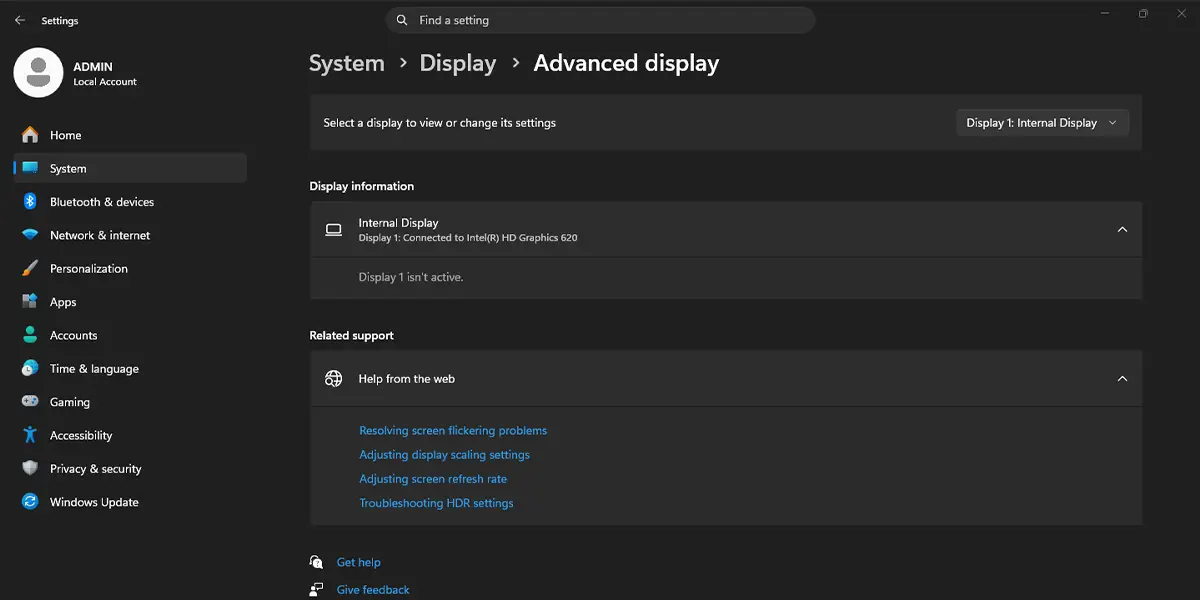
The screen may flicker or go dark for a second as the new setting applies. After that, the dropdown shows the Dynamic option as selected, and Windows adjusts the refresh rate on its own as the screen activity changes.
Tip: The full path is Settings > System > Display > Advanced display. Pressing Windows + I and then typing ‘refresh rate’ in the search box on the Settings home page can get to the same page faster.
What to Expect After Switching It On
Most people find that the change is subtle in daily use. When scrolling a web page or writing with a pen, the display ramps up to the higher rate for a fluid feel. When the screen sits still, such as while reading a document, it drops to a lower rate to use less power. This works best on a laptop running on battery, where the savings are most noticeable.
How to Undo or Reverse This Change
To go back to a fixed refresh rate, open Settings > System > Display > Advanced display, click the Choose a refresh rate dropdown, and select a standard option such as 60 Hz or the highest fixed rate listed. The change applies right away, with no restart needed.
Common Problems and Fixes
The Dynamic Option Is Missing
The most common reason is that the display does not support a variable refresh rate of at least 120 Hz. External monitors and standard 60 Hz laptop screens usually do not list the Dynamic option. Check that the correct display is selected in the dropdown at the top of the Advanced display page, because an external monitor may be selected instead of the built-in screen.
Only Fixed Refresh Rates Are Listed
An outdated or generic graphics driver can hide the Dynamic option even on a supported laptop. Open Settings > Windows Update > Advanced options > Optional updates, install any display driver update shown there, and restart the computer. Then check the Advanced display page again.
The Setting Does Not Stay After Restart
If the laptop returns to a fixed rate after rebooting, a graphics control panel from the laptop maker may be overriding the choice. Reselect the Dynamic option after the restart and check that the graphics driver is fully up to date.
The Screen Flickers When Switching
A brief flicker or blank moment while the refresh rate changes is normal. If the flicker continues during regular use, switch back to a fixed refresh rate and update the graphics driver before trying again.
Frequently Asked Questions
Does dynamic refresh rate work on Windows 11 Home?
Yes. The feature is not limited to a specific edition, so Home, Pro, and Enterprise all support it. What matters is the display and the graphics driver.
Do I need to restart the PC after turning it on?
No. The change applies as soon as the option is selected, although the screen may flicker briefly while it switches.
Does dynamic refresh rate save battery on a laptop?
It can. The display lowers its refresh rate when the content on screen is not changing much, which reduces power use. The actual savings depend on the laptop and on what is being done on it.
Why is the Dynamic option missing on my computer?
The usual causes are a display that does not support a variable refresh rate of at least 120 Hz, a graphics driver that does not support the feature, or the wrong display being selected on the Advanced display page.
Can I use dynamic refresh rate on an external monitor?
Only if that monitor and the graphics driver support it. Select the monitor in the display dropdown on the Advanced display page and check whether the Dynamic option is listed.
Is there a keyboard shortcut to turn on dynamic refresh rate?
There is no dedicated shortcut for this setting. Pressing Windows + I opens Settings, and from there the path is System > Display > Advanced display.
How can I tell that dynamic refresh rate is active?
Open Settings > System > Display > Advanced display and look at the Choose a refresh rate dropdown. If the Dynamic option is selected, the feature is on.
Will it work on a desktop PC?
It can, but only when the connected display supports a variable refresh rate of at least 120 Hz and the graphics driver supports the feature. The option is most common on laptops with modern built-in screens.
