
Learning how to use ReadyBoost to improve performance is one of the simplest tweaks available for a Windows PC that feels sluggish, especially on machines still running a traditional hard drive. ReadyBoost turns a spare USB flash drive or SD card into extra cache memory that Windows can pull from faster than a slow hard disk. It only takes a few minutes to set up, and no technical background is required to get it running.
Key Takeaways
- ReadyBoost uses a USB flash drive or SD card as a fast cache to speed up disk reads on Windows.
- It offers the biggest benefit on PCs with a traditional hard disk drive and limited RAM.
- Solid-state drives already read data quickly, so ReadyBoost provides little to no benefit and Windows often hides the option entirely on SSD systems.
- Setup happens through the drive’s Properties window and takes only a few clicks.
- The flash drive or SD card must stay plugged in for the performance boost to keep working.
How to Set Up ReadyBoost
Setting up ReadyBoost is a quick process once a compatible drive is on hand. Most modern USB flash drives will work, though very cheap or very old drives sometimes fail the built-in speed check that Windows performs automatically.
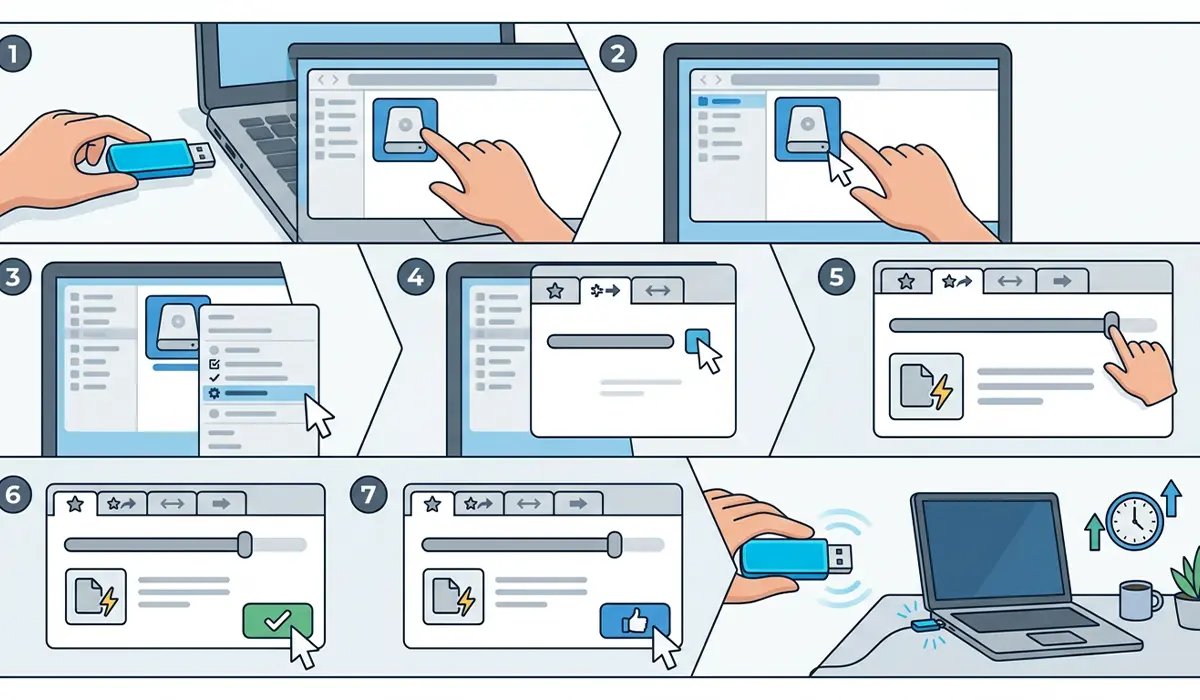
- Step 1: Insert a USB flash drive or SD memory card into an available port on the computer.
- Step 2: Open File Explorer and find the drive listed under This PC.
- Step 3: Right-click the drive and select Properties from the menu.
- Step 4: Click the ReadyBoost tab. Windows automatically tests the drive’s speed to confirm it qualifies.
- Step 5: Select ‘Dedicate this device to ReadyBoost’ or ‘Use this device’, then use the slider to set how much space to reserve for the cache.
- Step 6: Click Apply, then OK. Windows creates a cache file on the drive and starts using it right away.
- Step 7: Leave the drive plugged in during regular use, since removing it disables the performance benefit until it’s reinserted.
Tip: A drive in the 4GB to 8GB range is usually plenty for most home PCs, and it leaves the rest of the space free for regular file storage if the ‘Use this device’ option is chosen instead of dedicating the whole drive.
Checking If a Drive Is Fast Enough
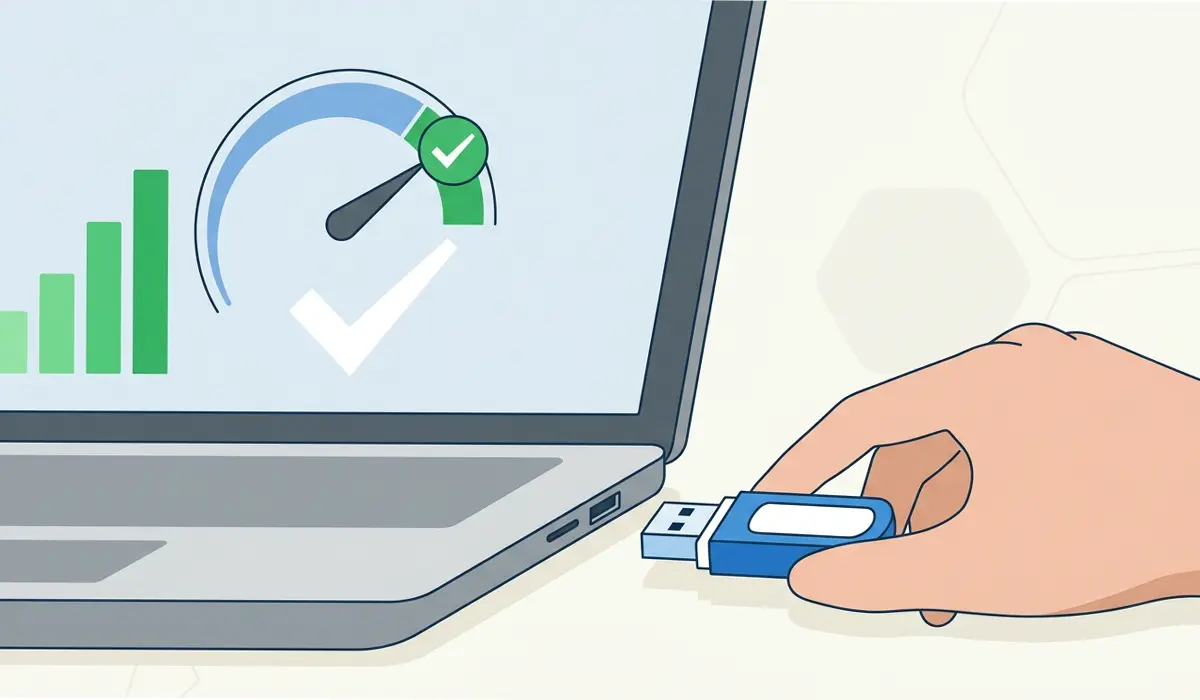
Not every flash drive qualifies. Windows runs a quick internal benchmark the moment the ReadyBoost tab is opened, checking how quickly the drive can handle small, random read and write operations. A drive built for basic file storage rather than speed will sometimes fail this test, and Windows will explain that the device does not meet the performance requirements. Trying a different drive, ideally one rated for higher read and write speeds, usually resolves this.
Choosing How Much Space to Dedicate
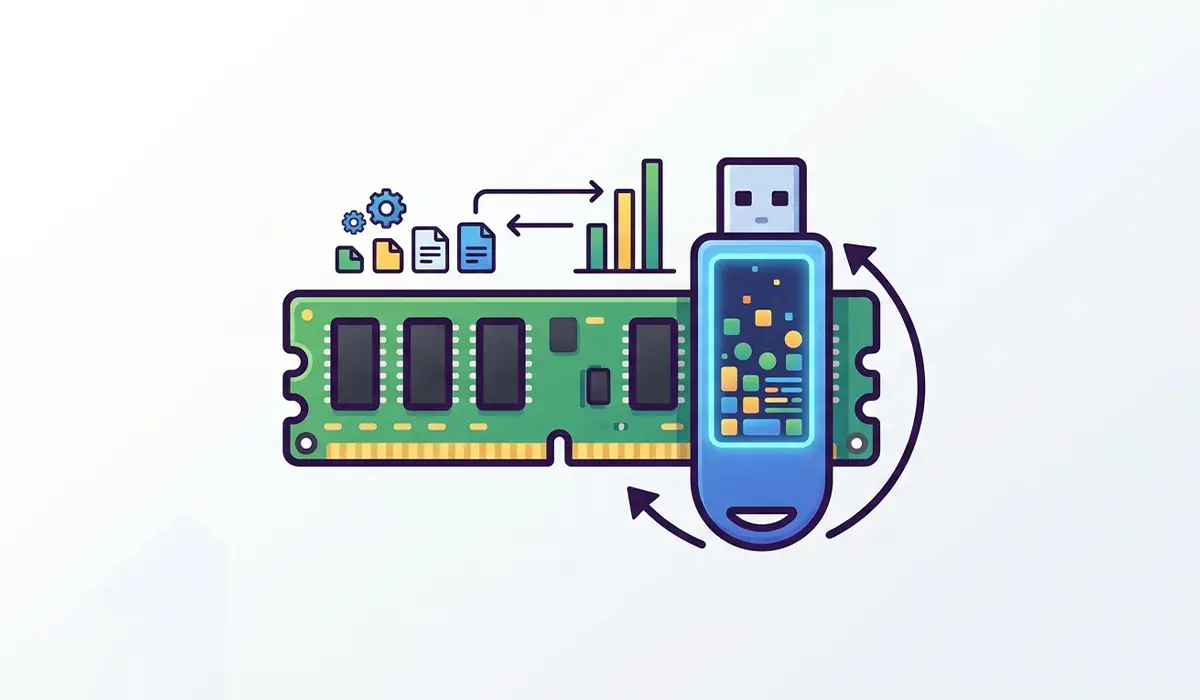
A common rule of thumb is to match the ReadyBoost cache to somewhere between one and two and a half times the amount of installed RAM. A PC with 4GB of RAM, for example, tends to see the best results with a cache in the 4GB to 10GB range. Going far beyond that rarely adds further benefit, since Windows has practical limits on how much of the cache it will actually use.
Common Problems and Fixes
The ReadyBoost Tab Does Not Appear
This usually means the system drive is a solid-state drive, since Windows detects that an SSD is already fast enough and hides the ReadyBoost option for it. If the goal is to speed up a secondary hard drive instead, check the Properties window for that specific drive rather than the C: drive.
‘This Device Does Not Have the Required Performance Characteristics’
This message means the connected drive failed the speed test. Trying a different, higher-quality USB flash drive typically fixes it, since some budget drives are simply too slow for random access operations.
No Noticeable Performance Improvement
ReadyBoost was designed for PCs with slow hard drives and limited RAM. On a system with an SSD or with 8GB of RAM or more, the difference will likely be barely noticeable, since there is little bottleneck for ReadyBoost to relieve in the first place.
ReadyBoost Stops Working After Removing the Drive
Removing the drive pauses the cache immediately, and Windows falls back to using the disk and RAM as normal. Reinserting the same drive typically resumes ReadyBoost automatically, though reopening the Properties window and reselecting the ReadyBoost tab confirms it’s active again.
Free Space on the Drive Seems Lower Than Expected
When a drive is dedicated to ReadyBoost, Windows reserves the selected amount for the cache file, which reduces the space available for regular files. Choosing ‘Use this device’ instead of dedicating the full drive keeps some space free for normal storage.
Frequently Asked Questions
What is ReadyBoost and how does it work?
ReadyBoost is a Windows feature that uses a USB flash drive or SD card as extra cache memory, allowing the system to pull frequently used data from the fast flash storage instead of a slower hard drive.
Does ReadyBoost work with an SSD?
Not really. Solid-state drives already handle random reads quickly, so Windows typically disables the ReadyBoost option for a system running on an SSD, since there is nothing meaningful to gain.
What size USB drive is needed for ReadyBoost?
A drive in the 4GB to 8GB range works well for most systems. Larger drives can be used, but Windows generally limits how much of the extra space it will actually use for the cache.
Can an SD card be used instead of a USB flash drive?
Yes. Any SD card or USB flash drive that meets the built-in speed requirement can be used for ReadyBoost, as long as it’s connected through a card reader or USB port that Windows recognizes.
Does removing the ReadyBoost drive delete personal files stored on it?
No. Removing the drive only pauses the ReadyBoost cache. Any personal files stored in the non-dedicated portion of the drive remain untouched.
How much RAM does ReadyBoost effectively add?
ReadyBoost does not add RAM directly. It creates a fast cache layer that reduces how often the system needs to read from a slow hard drive, which can make the PC feel more responsive on lower-spec hardware.
Is ReadyBoost still available in Windows 11?
Yes, ReadyBoost is still included in Windows 11, though it remains most useful on older PCs with hard disk drives rather than newer systems built around SSDs.
Can multiple drives be used for ReadyBoost at once?
Yes. Windows allows more than one flash drive or SD card to be dedicated to ReadyBoost simultaneously, combining their cache space for additional benefit.
Does ReadyBoost wear out a USB flash drive?
Frequent read and write cycles can contribute to wear over time on cheaper flash drives, though modern drives are generally durable enough that this is rarely a practical concern for everyday use.
How do you turn off ReadyBoost?
Open the drive’s Properties window, select the ReadyBoost tab, choose ‘Do not use this device’, then click Apply and OK. This stops Windows from using the drive as cache.
