
Outlook error 0x80048002 usually shows up during send/receive operations and stops mail from moving in or out of the inbox. This guide walks through the exact steps needed to clear the error and get Outlook syncing normally again.
Key Takeaways
- Outlook error 0x80048002 is most often triggered by antivirus email-scanning add-ins or a corrupted Send/Receive group.
- Disabling third-party mail-scan integration resolves the issue in most cases.
- Repairing the Outlook data file and recreating the mail profile fixes deeper account-level causes.
- A quick Office repair clears out corrupted program files that can trigger this error.
- Firewall settings occasionally block the SMTP/IMAP ports Outlook needs, which also produces this code.
How to Fix Outlook Error 0x80048002
Method 1: Disable Antivirus Email Scanning
- Step 1: Open the antivirus program installed on the computer, such as Norton, Avast, or McAfee.
- Step 2: Locate the settings for email or Outlook protection, sometimes labeled ‘Email Scan’ or ‘Mail Shield’.
- Step 3: Turn this feature off temporarily and restart Outlook to see if the error clears.
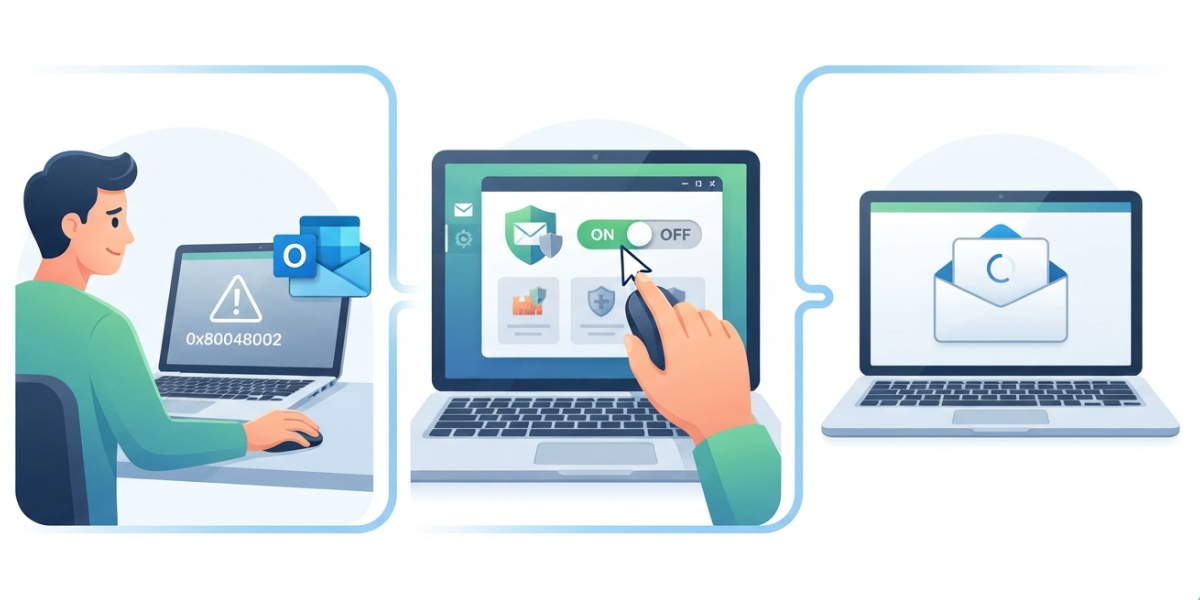
Tip: Many antivirus programs insert themselves between Outlook and the mail server to scan messages, and that extra layer is one of the most common causes of this error. Turning off just the email-scan module, not the whole antivirus program, is enough.
Method 2: Reset the Send/Receive Group
- Step 1: In Outlook, go to the ‘Send / Receive’ tab.
- Step 2: Select ‘Send/Receive Groups’ and then ‘Define Send/Receive Groups’.
- Step 3: Highlight the existing group, click ‘Edit’, and confirm the correct account is selected with ‘Send’ and ‘Receive’ both enabled.
- Step 4: Click ‘OK’, close the dialog, and run a manual send/receive to test the connection.
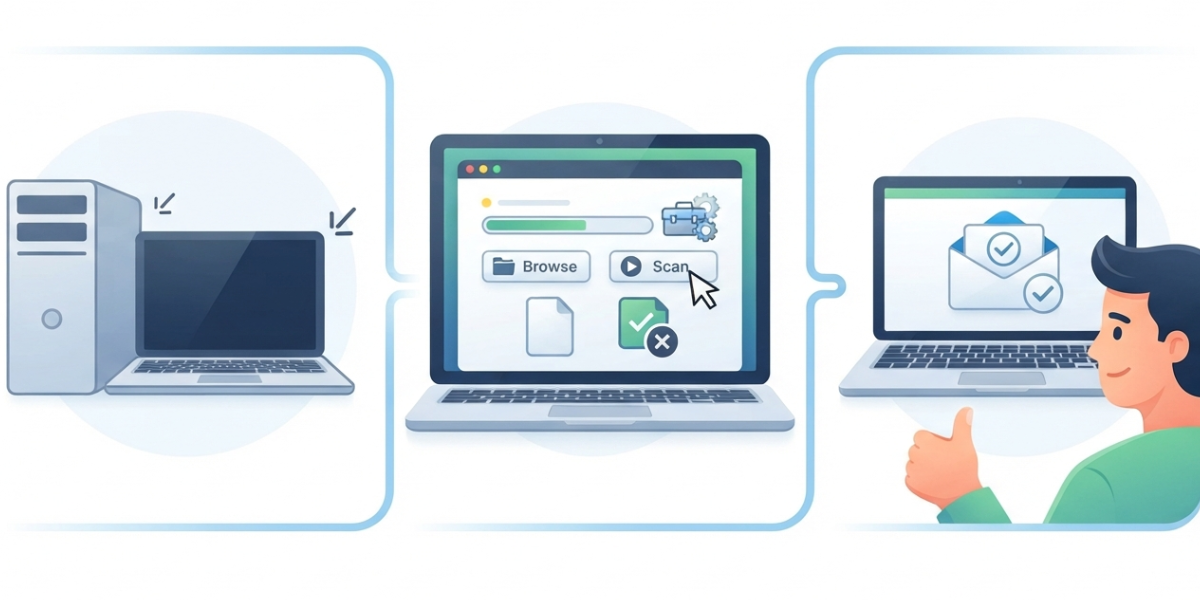
Method 3: Repair the Outlook Data File
- Step 1: Close Outlook completely.
- Step 2: Open the Microsoft Support and Recovery Assistant, or locate SCANPST.EXE in the Office installation folder.
- Step 3: Browse to the .pst or .ost file tied to the affected account and run the scan.
- Step 4: Let the tool repair any errors it finds, then reopen Outlook.
Method 4: Recreate the Mail Profile
- Step 1: Open Control Panel and select ‘Mail (Microsoft Outlook)’.
- Step 2: Click ‘Show Profiles’, then ‘Add’ to create a new profile.
- Step 3: Enter the account details again and let Outlook rebuild the connection from scratch.
- Step 4: Set the new profile as default and open Outlook to confirm mail syncs properly.
Tip: A profile rebuild sounds drastic, but it often clears corrupted connection settings that no single setting change can fix. Most people find this step resolves the error when antivirus and Send/Receive fixes alone did not.
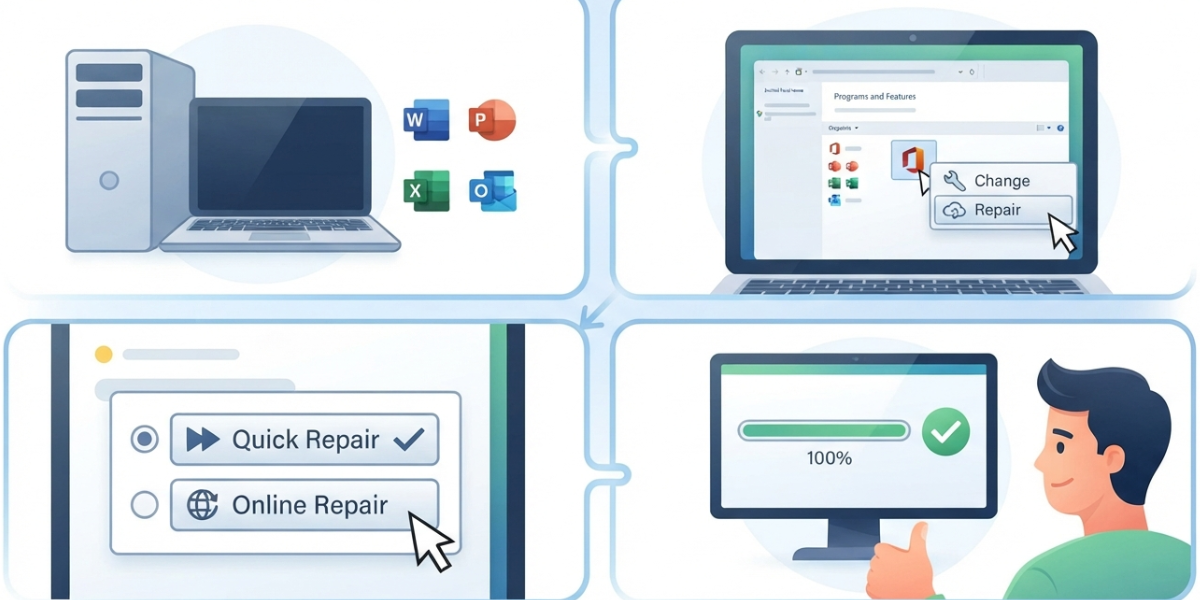
Method 5: Repair the Office Installation
- Step 1: Open Control Panel, then ‘Programs and Features’.
- Step 2: Find Microsoft Office in the list and select ‘Change’.
- Step 3: Choose ‘Quick Repair’ first, and if the error persists, run ‘Online Repair’ instead.
- Step 4: Restart the computer once the repair finishes and reopen Outlook.
Common Problems and Fixes
- Error returns right after a fix: A leftover cached password is usually the cause. Remove the account credentials from Windows Credential Manager and re-enter them the next time Outlook prompts for sign-in.
- Send/Receive group edits will not save: Outlook may still be running in the background. Check Task Manager, end any lingering Outlook process, then reopen the group settings.
- Profile rebuild does not add the account automatically: This usually points to an outdated Outlook version. Update Office through ‘File’ then ‘Office Account’ then ‘Update Options’ before trying the profile step again.
- Error appears only on one network: A firewall or router on that network is likely blocking the mail ports. Switching networks briefly confirms this, and the network administrator can then whitelist Outlook’s connection.
Frequently Asked Questions
What does Outlook error 0x80048002 actually mean?
It signals that Outlook could not complete a send or receive task, most commonly because something is interrupting the connection between Outlook and the mail server.
Is Outlook error 0x80048002 caused by a virus?
No. The error itself is not a sign of infection. It is far more often caused by antivirus software scanning email traffic too aggressively.
Will disabling antivirus permanently fix the problem?
Turning off the email-scan feature usually solves it, but the rest of the antivirus program can and should stay active for ongoing protection.
Does this error affect both IMAP and Exchange accounts?
Yes. The error can appear on IMAP, POP, and Exchange accounts alike, since it relates to the send/receive process rather than one specific account type.
Is it safe to run SCANPST.EXE on a work computer?
Yes, it is a built-in Microsoft repair tool designed specifically for Outlook data files and is safe to use on any properly licensed Office installation.
How long does an Office repair take?
A Quick Repair usually finishes in a few minutes, while an Online Repair can take fifteen to twenty minutes depending on connection speed.
Does creating a new profile delete existing emails?
No. Emails stored on the mail server or in the existing data file remain intact. The new profile simply reconnects to that same data.
What if none of these steps fix the error?
Contacting the email provider to confirm server settings and port availability is the next step, since a server-side block can produce the same error code.
