
When Outlook search showing incomplete results becomes the norm instead of the exception, finding a single email can turn into a scavenger hunt. This guide walks through the exact steps needed to rebuild the search index, fix indexing gaps, and get full, accurate search results back in Outlook.
Key Takeaways
- Incomplete search results are almost always caused by a broken or incomplete Windows search index, not a bug in Outlook itself.
- Rebuilding the index through Indexing Options usually resolves the issue within a few hours, depending on mailbox size.
- Cached Exchange Mode settings can silently limit how much mail is available to search locally.
- Checking the search scope inside Outlook is a quick first step that often gets overlooked.
- Restarting the Windows Search service clears temporary glitches without a full rebuild.
Step-by-Step Guide to Fix Outlook Search Showing Incomplete Results
Check the Search Scope First
Before touching any settings, rule out the simplest cause. Outlook lets users narrow searches to a single folder, which can look exactly like missing results.
- Step 1: Open Outlook and click into the search bar at the top of the window.
- Step 2: Look for the Search Tools tab that appears, then select ‘All Mailboxes’ or ‘All Outlook Items’ from the Scope dropdown instead of ‘Current Folder’.
- Step 3: Run the search again to see if results improve before moving to deeper fixes.
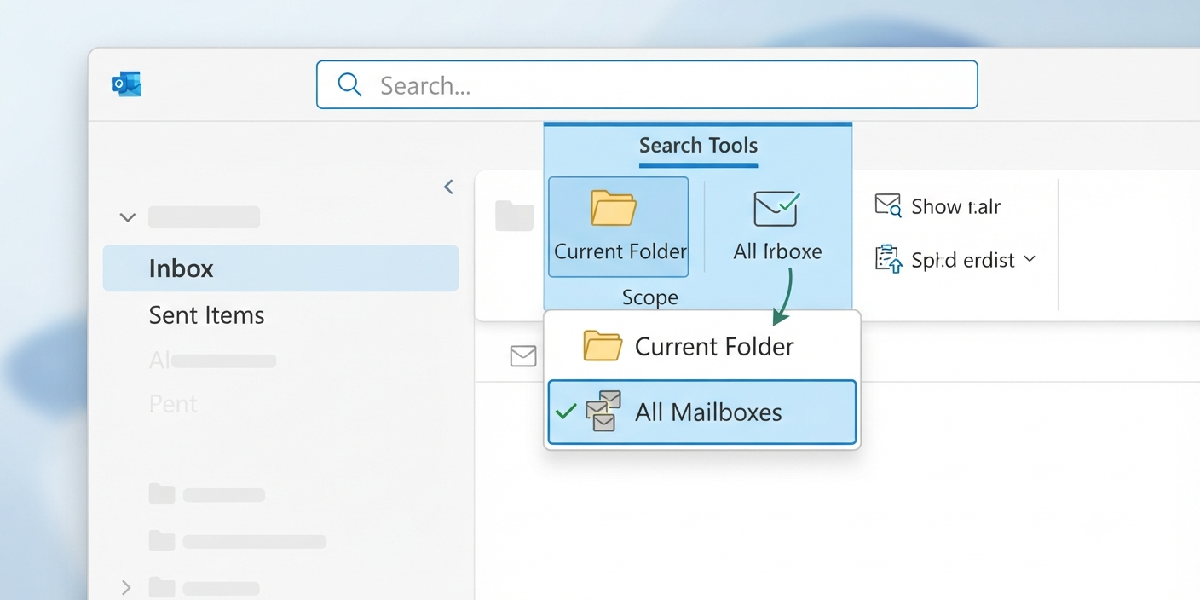
Tip: A search that only returns a handful of hits is often just scoped too narrowly, not actually broken.
Review Outlook’s Indexing Status
- Step 4: Go to the Search Tools tab again and select ‘Indexing Status’.
- Step 5: Read the message that appears. If it says Outlook is still indexing items, search results will stay incomplete until that process finishes.
- Step 6: Leave Outlook open and idle for a while if indexing is in progress, since closing it too often interrupts the process before it completes.
Confirm Outlook Is Included in Windows Indexing Options
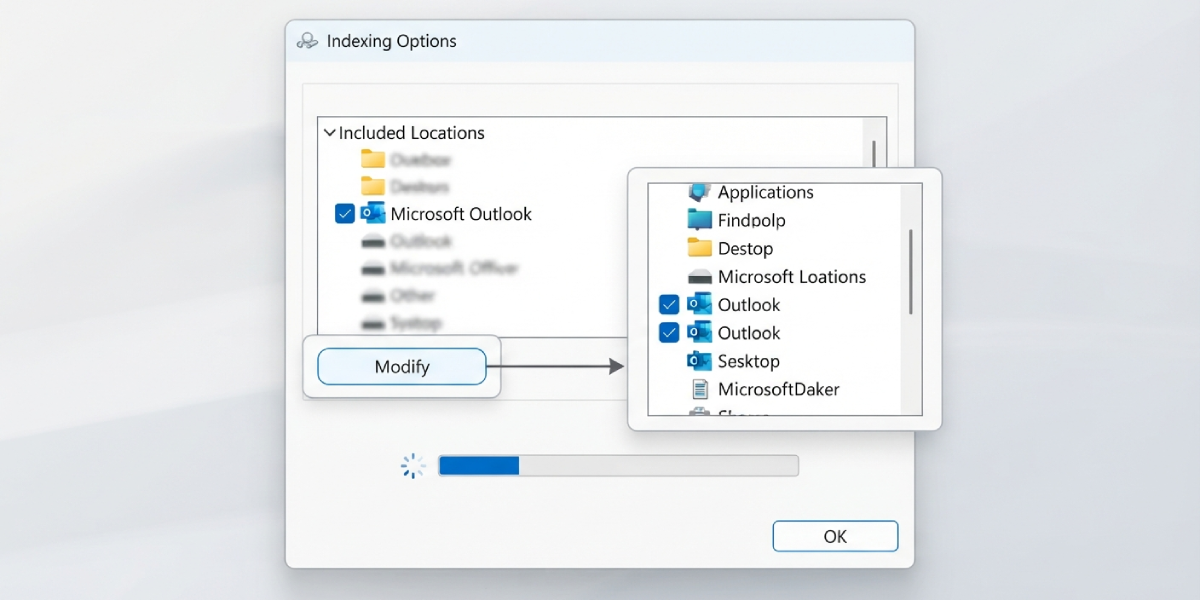
- Step 7: Close Outlook, then open the Control Panel and search for ‘Indexing Options’.
- Step 8: Click ‘Modify’ and check that Microsoft Outlook is listed and its checkbox is selected under the included locations.
- Step 9: If Outlook is missing from the list, add it back, then click OK.
Rebuild the Search Index
- Step 10: From the same Indexing Options window, click ‘Advanced’.
- Step 11: Under the Index Settings tab, click ‘Rebuild’ and confirm the prompt.
- Step 12: Reopen Outlook and let it run in the background. A full rebuild for a large mailbox can take several hours, so patience matters here.
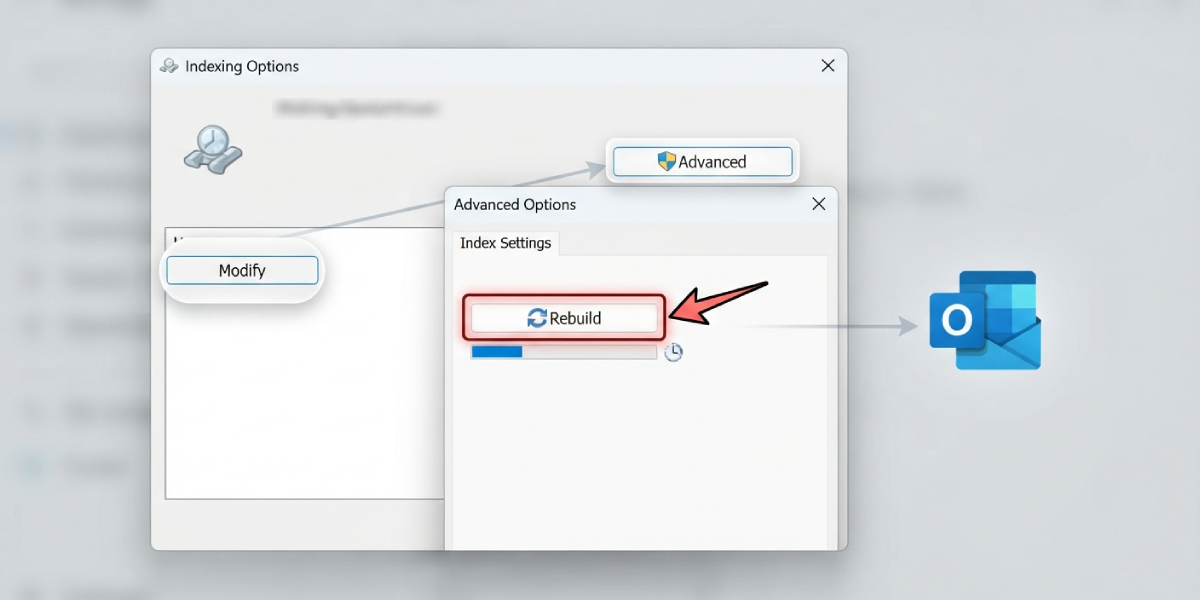
Tip: Rebuilding overnight, with the computer left on and unlocked, gives the index time to finish without competing for resources during regular use.
Restart the Windows Search Service
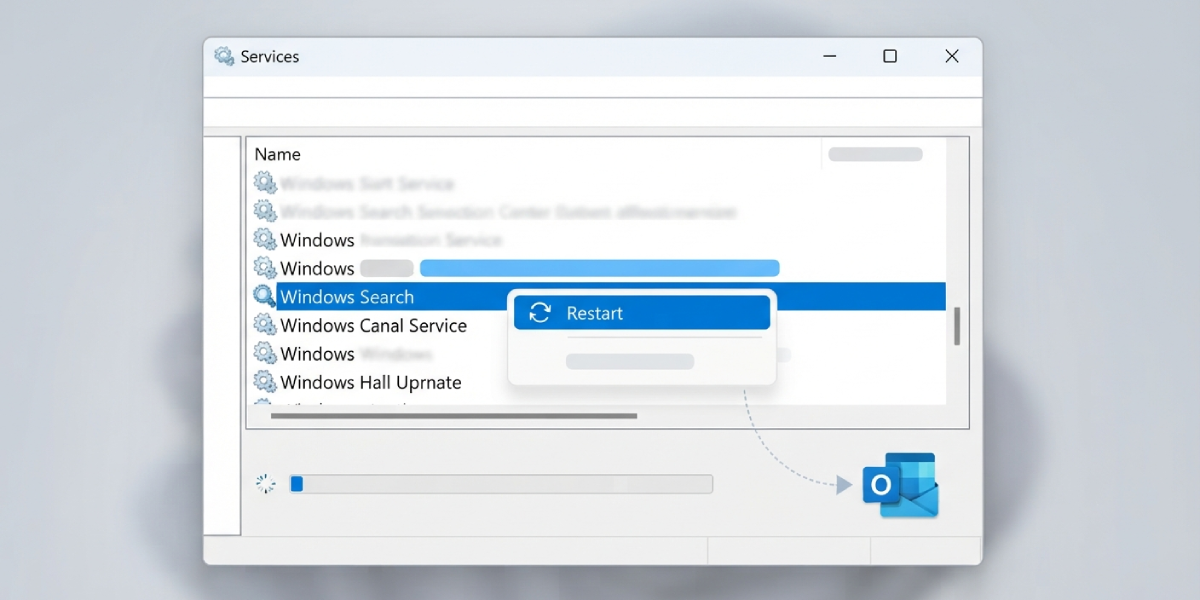
- Step 13: Press the Windows key, type ‘services.msc’, and press Enter.
- Step 14: Scroll to ‘Windows Search’, right-click it, and select ‘Restart’.
- Step 15: Reopen Outlook and test a search once the service finishes restarting.
Adjust Cached Exchange Mode for Exchange or Microsoft 365 Accounts
- Step 16: In Outlook, go to File, then Account Settings, then Account Settings again.
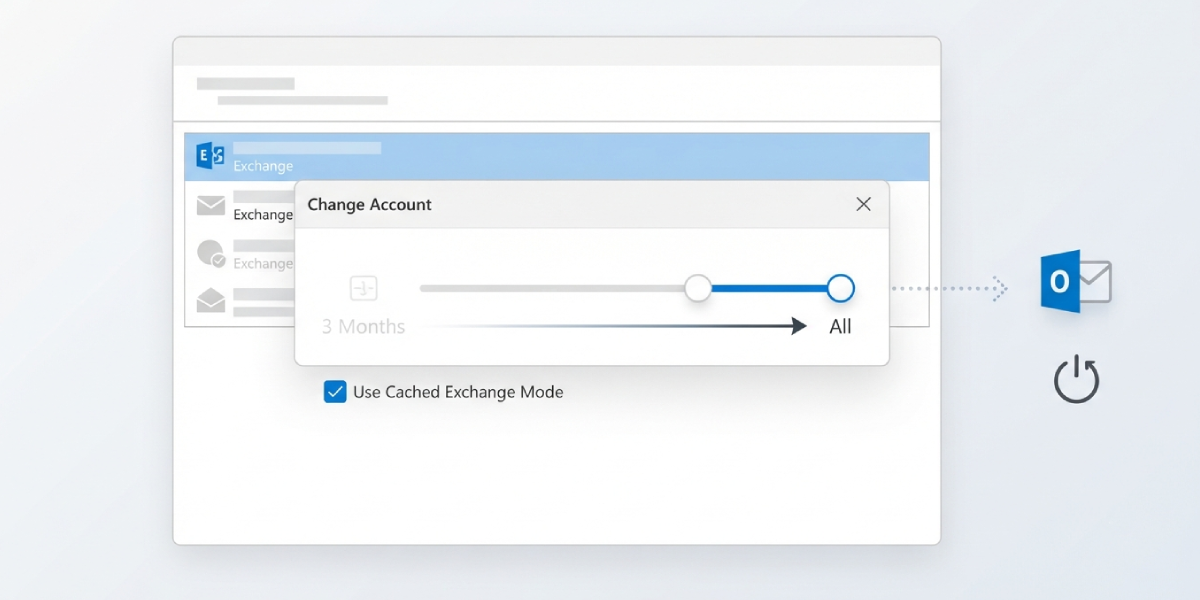
- Step 17: Double-click the Exchange or Microsoft 365 account, then find the slider labeled ‘Mail to keep offline’.
- Step 18: Move the slider toward ‘All’ so older mail is downloaded locally and included in search results, then restart Outlook to apply the change.
Common Problems and Fixes
These are the issues that show up most often while working through this exact fix, along with what actually resolves each one.
- Indexing stays stuck at 0 items: Close Outlook completely, restart the Windows Search service, then reopen Outlook so indexing can resume.
- Rebuild finishes but results are still incomplete: Check the Cached Exchange Mode slider again, since a low offline mail setting will keep older messages out of search even after a successful rebuild.
- Search works for recent email but not older messages: This usually points back to Cached Exchange Mode limiting what is stored locally rather than an indexing problem.
- Indexing Options shows Outlook as excluded even after adding it back: Restart the computer after modifying Indexing Options, since the change sometimes needs a full restart to take effect.
- Search is slow but not incomplete: This is normal during an active rebuild and typically resolves once indexing status shows 0 items remaining.
Frequently Asked Questions
Why is Outlook search showing incomplete results in the first place?
The most common cause is a Windows search index that has stopped updating correctly or was never fully built for the Outlook data file, leaving newer or older items unindexed.
How long does rebuilding the search index take?
It depends on mailbox size, but a rebuild typically takes anywhere from thirty minutes to several hours for larger mailboxes with years of stored email.
Can Cached Exchange Mode really affect search results?
Yes. If the offline mail slider is set to a limited range, such as one or three months, Outlook will not search messages older than that range unless the scope is changed to include online results.
Is it safe to interrupt an index rebuild?
It is safe, but interrupting it partway usually means the rebuild has to start over, so letting it run uninterrupted saves time in the long run.
Does restarting the computer help fix incomplete search results?
It can, especially after changing Indexing Options, since some indexing services only fully reset after a restart rather than a simple close and reopen of Outlook.
What if Outlook is not listed in Indexing Options at all?
Add it manually through the ‘Modify’ button in Indexing Options, since Outlook needs to be an included location for its items to be indexed at all.
Will disabling add-ins fix incomplete search results?
Some add-ins interfere with indexing performance, so testing Outlook in Safe Mode temporarily can help confirm whether an add-in is contributing to the problem.
Does this fix work for both Exchange and IMAP accounts?
Yes, though IMAP accounts rely more heavily on server-side folder sync, so confirming the account is fully synced is worth checking alongside the index rebuild.
How can it be confirmed that the fix actually worked?
Run a search for an older, known email that was previously missing from results. If it appears after the rebuild and service restart, the fix has taken effect.
