
Learning how to reapply thermal paste on a laptop CPU is one of the most effective ways to bring an overheating machine back to normal running temperatures. Dried-out or unevenly spread paste is a common culprit behind fan noise, thermal throttling, and sudden shutdowns, and replacing it restores the thermal connection between the processor and its heatsink.
Key Takeaways
- Thermal paste typically dries out or degrades after two to four years, reducing heat transfer between the CPU and heatsink.
- Reapplying it involves removing the old paste, cleaning both surfaces, and applying a fresh, thin layer.
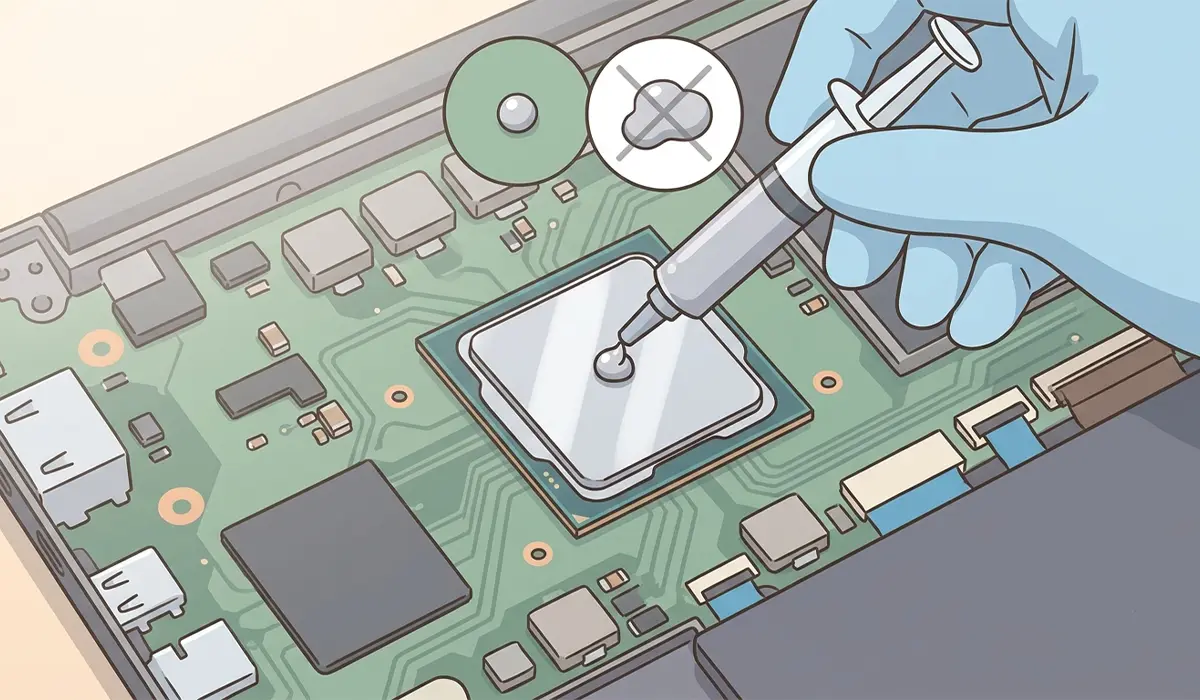
- A pea-sized dot or thin line in the center of the CPU die is usually enough – more paste is not better.
- Static precautions and correct reassembly matter just as much as the paste application itself.
- Laptops with soldered CPUs or hard-to-reach heatsinks may require extra care or professional help.
Before You Start
A little preparation prevents damage and makes the job go smoothly. Take a few minutes to get set up properly before opening the laptop.
- Power off the laptop completely and unplug the charger.
- Remove the battery if it is user-removable, or disconnect the internal battery connector once inside the case.
- Discharge static electricity by touching a bare metal surface or wearing an anti-static wrist strap.
- Let the laptop cool down fully if it was recently in use, since the heatsink and CPU can stay warm for a while after shutdown.
- Work on a flat, well-lit surface with enough room to lay out small screws without losing them.
Tip: A small parts tray or a piece of tape works well for keeping screws organized by section, since laptop screws often vary in length.
Tools and Materials Needed
- Precision screwdriver set with the correct bits for the laptop’s screws (commonly Phillips or Torx)
- Plastic pry tools or an opening spudger for removing the bottom panel
- 90 percent or higher isopropyl alcohol
- Lint-free or microfiber cloths, or coffee filters, for cleanup
- Cotton swabs for tight corners around the CPU die
- Fresh thermal paste rated for CPU use
- Compressed air or a soft brush for dust removal
How to Reapply Thermal Paste on a Laptop CPU
Step-by-Step Process
- Step 1: Remove the bottom panel using the correct screwdriver bit, working carefully around the edges with a plastic pry tool to release any clips.
- Step 2: Disconnect the battery connector from the motherboard to fully cut power before touching any internal components.
- Step 3: Locate the heatsink assembly covering the CPU. It usually connects to the motherboard with several small spring-loaded screws and a heat pipe running to the fan.
- Step 4: Loosen the heatsink screws in a diagonal, crisscross pattern rather than one at a time in order, similar to how lug nuts are removed from a wheel. This releases pressure evenly and avoids warping the plate.
- Step 5: Gently lift the heatsink straight up and off the CPU. If it feels stuck, twist it slightly rather than prying it up at an angle, since old paste can act like a weak adhesive.
- Step 6: Dab a cloth or cotton swab with isopropyl alcohol and wipe the old paste off both the CPU surface and the corresponding contact plate on the heatsink. Repeat with a fresh area of cloth until no residue remains and both surfaces look clean and dry.
- Step 7: Allow the alcohol to fully evaporate for a minute or two before applying anything new.
- Step 8: Apply a small, pea-sized dot of thermal paste to the center of the CPU die, or a thin line across it for larger dies. The goal is a thin, even layer once the heatsink presses down, not a thick blob.
- Step 9: Lower the heatsink straight down onto the CPU without sliding it sideways, which would smear the paste unevenly.
- Step 10: Tighten the heatsink screws back in the same diagonal pattern used to remove them, going a little at a time on each screw until snug. Avoid overtightening, since the goal is even pressure, not maximum force.
- Step 11: Reconnect the battery connector and reassemble the bottom panel, making sure all screws go back into their original positions.
- Step 12: Power the laptop on and let it idle for a few minutes before checking temperatures with a monitoring tool to confirm the new paste is working.
Tip: Photographing each disassembly stage on a phone makes reassembly far easier, especially for laptops with several screw lengths or hidden clips.
Common Problems and Fixes
Laptop Does Not Power On After Reassembly
This is usually caused by a loose or forgotten connector rather than the paste itself. Reopen the panel and check that the battery connector, keyboard ribbon, and any other cables disturbed during the process are firmly seated.
Temperatures Did Not Improve
If temperatures stay high after the job, the heatsink may not be sitting flush against the CPU. This can happen if a screw was left loose, if too much paste created an uneven gap, or if the heatsink was set down at an angle during reassembly. Reopening and reseating it usually resolves the issue.
Paste Squeezed Out Onto the Motherboard
A small amount of overflow at the edges is common and generally harmless as long as it stays away from exposed pins or connectors. Wipe away any excess with a dry cloth or a cotton swab lightly dampened with isopropyl alcohol.
Fan Runs Louder Than Before
This is often unrelated to the paste job and instead points to dust that got disturbed inside the fan housing during disassembly. A quick pass with compressed air through the exhaust vent usually quiets things down.
Frequently Asked Questions
How often should thermal paste be reapplied on a laptop?
Most laptops benefit from fresh paste every two to four years, though heavy daily use or a laptop that runs hot most of the time may call for it sooner.
What type of thermal paste works best for a laptop CPU?
A standard CPU-rated thermal paste from a reputable brand works fine for most laptops. Non-conductive formulas are the safer choice for beginners, since they will not cause a short if a small amount touches nearby components.
How much thermal paste should be applied?
A pea-sized dot in the center, or a thin line across larger dies, is enough. The pressure from reseating the heatsink spreads it into a thin, even layer.
Can too much thermal paste cause overheating?
Yes. Excess paste can ooze out to the edges and even insulate the CPU rather than help transfer heat, which works against the goal of cooling.
Is it safe to reapply thermal paste without removing the battery?
It is not recommended. Disconnecting the battery cuts all power to the motherboard and protects against accidental shorts while the heatsink and CPU are exposed.
Does reapplying thermal paste void a laptop’s warranty?
Opening the case may affect the warranty on some laptops, particularly those with warranty seal stickers over the screws. Checking the manufacturer’s policy beforehand is worth the extra minute.
What if the CPU is soldered directly to the motherboard?
A soldered CPU does not change the thermal paste process, since the paste still sits between the die and the heatsink. The concern is more about the difficulty of accessing certain ultra-thin laptop designs, which can require more disassembly.
How long should the new thermal paste be allowed to cure?
Many pastes perform well immediately, though some benefit from a short break-in period of a few hours of normal use before temperatures fully stabilize.
What are the signs that thermal paste needs to be replaced?
Rising idle temperatures, louder fan behavior under light tasks, and thermal throttling during workloads that used to run smoothly are common signs the paste has dried out.
When should this task be left to a professional?
Ultra-thin laptops with tightly packed components, fragile ribbon cables, or non-standard screws can be risky for a first-time repair. If the disassembly steps feel unclear or a part will not budge without force, stopping and consulting a professional technician is the safer route.
