
Seeing the Outlook something went wrong and your search couldn’t be completed message usually means the Windows Search index behind Outlook has stopped working correctly. This guide walks through the exact steps to get Outlook search running again, without wiping out mail or settings. Most people find that the fix takes less than ten minutes once the right setting is located.
Key Takeaways
- The error almost always points to a broken or outdated Windows Search index, not a corrupted mailbox.
- Rebuilding the search index is the most reliable fix and resolves the issue in the majority of cases.
- Restarting the Windows Search service can solve the problem faster when a rebuild isn’t needed yet.
- Outlook must be included in the indexing options list, or search results will never load correctly.
- A quick Outlook or Office repair clears up cases where the index itself is fine but Outlook can’t reach it.
Step-by-Step Guide to Fix the Outlook Search Error
Rebuild the Search Index
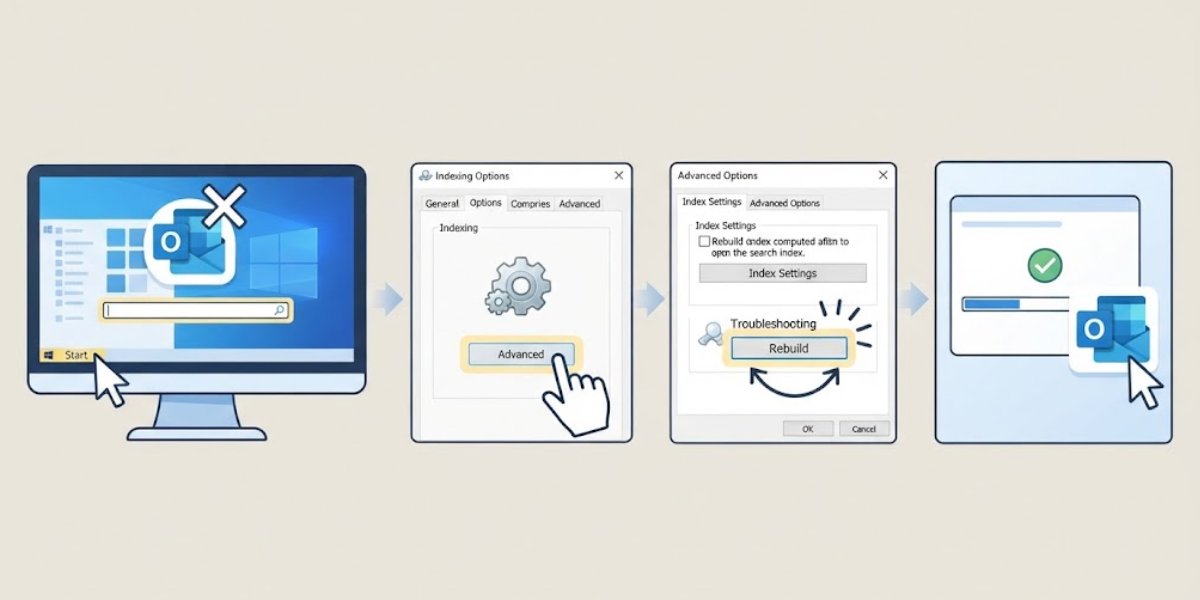
- Step 1: Close Outlook completely, then open the Windows search bar and type Indexing Options.
- Step 2: Select Indexing Options from the results, then click Advanced. Windows may ask for administrator permission – allow it.
- Step 3: On the Advanced Options window, go to the Index Settings tab and click Rebuild under the Troubleshooting section.
- Step 4: Confirm the rebuild when prompted. This process can take anywhere from a few minutes to a few hours depending on how much mail is stored locally.
- Step 5: Reopen Outlook once the rebuild finishes and try the search again.
Tip: Leave the computer on and connected to power while the index rebuilds. Interrupting it partway through often means starting the whole process over.
Confirm Outlook Is Included in the Index
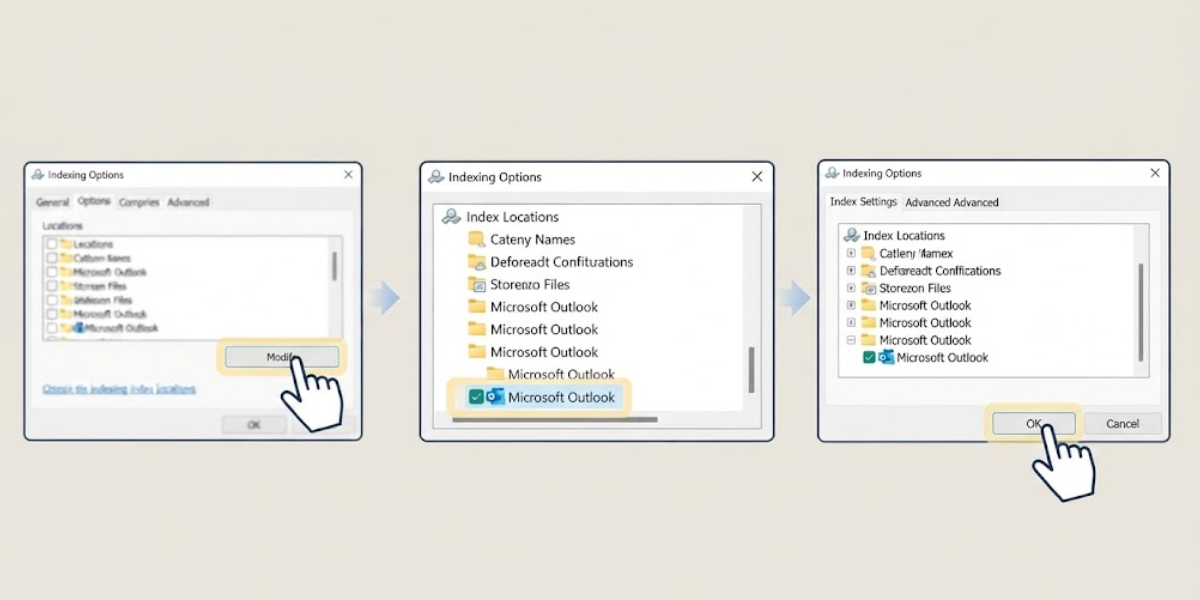
- Step 6: While still in Indexing Options, click Modify.
- Step 7: Scroll through the list of locations and make sure the checkbox next to Microsoft Outlook is selected.
- Step 8: Click OK to save changes, then close the Indexing Options window.
Restart the Windows Search Service
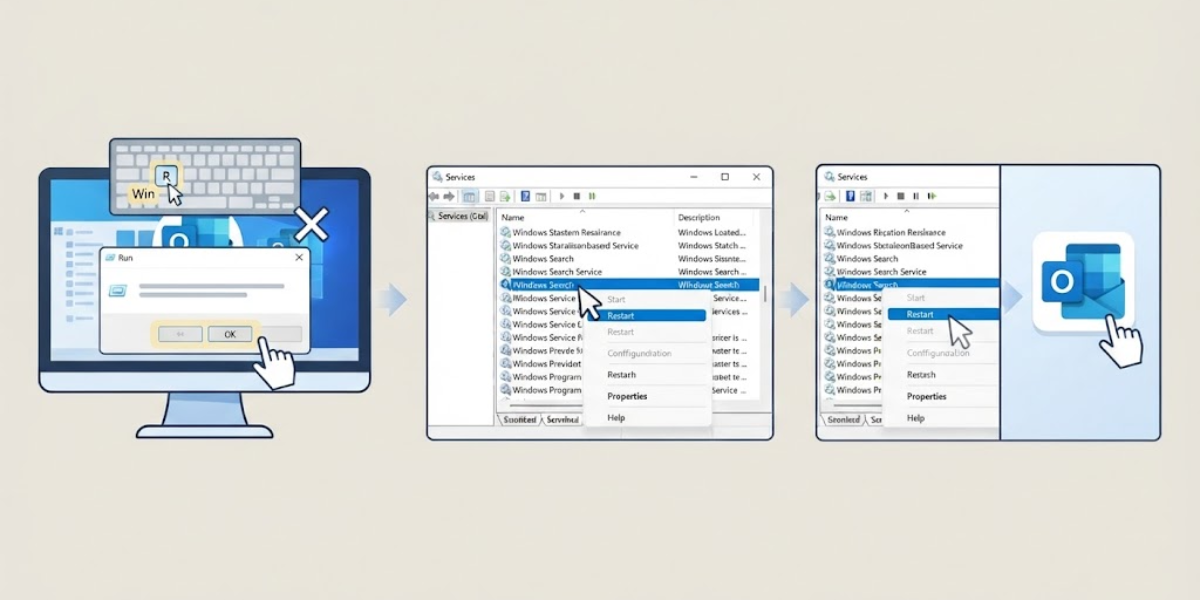
- Step 9: Press the Windows key and R together, type services.msc, and press Enter.
- Step 10: Scroll down to Windows Search, right-click it, and select Restart.
- Step 11: If Restart is grayed out, right-click and choose Start instead, then reopen Outlook.
Common Problems and Fixes
Search Still Fails After Rebuilding the Index
This usually means the rebuild didn’t finish before Outlook was reopened. Check the indexing status back in Indexing Options – if it still says items remaining, give it more time before testing search again.
Outlook Isn’t Listed in the Locations to Index
This happens when Outlook was installed or updated after the index was originally set up. Adding it manually through the Modify option in Indexing Options resolves this in one pass.
Search Works for Some Folders But Not Others
Shared mailboxes and some archive folders are sometimes excluded from indexing by default. Reopening Indexing Options and confirming those specific folders are checked usually clears this up.
Error Returns After a Windows Update
Windows updates occasionally reset search service settings. Running through the Restart the Windows Search Service steps above typically brings search back without needing a full rebuild.
Frequently Asked Questions
Why does Outlook say something went wrong and your search couldn’t be completed?
This message appears when the Windows Search index that powers Outlook search has become outdated, corrupted, or disconnected from the Outlook data files.
Will rebuilding the index delete any emails?
No. Rebuilding the index only affects the search database, not the actual mail, folders, or attachments stored in Outlook.
How long does a search index rebuild take?
It depends on mailbox size, but most rebuilds finish within thirty minutes to a few hours for larger accounts with years of stored mail.
Can this error be fixed without restarting the computer?
Yes. Restarting the Windows Search service through services.msc often resolves it without a full system restart.
What if Outlook is missing from the Indexing Options list entirely?
Click Modify inside Indexing Options and manually check the box next to Microsoft Outlook to add it back to the index.
Does this error mean the Outlook data file is corrupted?
Not usually. The error is tied to search indexing, not the health of the PST or OST file itself.
Should Office be repaired if the index rebuild doesn’t help?
Yes, a Quick Repair through Windows Settings under Apps is a reasonable next step if indexing changes don’t resolve the error.
Does this fix apply to both PST and OST mailbox files?
Yes, the indexing steps work the same way regardless of whether the mailbox uses a PST or OST file.
Can antivirus software cause this search error?
In some cases, security software blocks the indexing service from accessing mail files, which can trigger the same error message.
