
The PST file has reached maximum size error shows up when an Outlook data file hits its storage ceiling and stops accepting new mail. The good news is that this error can be resolved in minutes without deleting a single email, contact, or calendar entry.
Key Takeaways
- The error means the PST file has hit either the 2GB ANSI limit or the 50GB Unicode limit, depending on the file format.
- Compacting the PST file first often frees up enough space to resolve the warning immediately.
- Archiving older items into a second PST file is the safest long-term fix.
- Splitting a large mailbox across multiple PST files prevents the error from returning.
- No emails, attachments, or folders need to be deleted at any point in this process.
Step-by-Step Guide to Fix the PST File Has Reached Maximum Size Error
Method 1: Confirm the PST File Format
- Step 1: Open Outlook and go to File, then Account Settings, then Account Settings again.
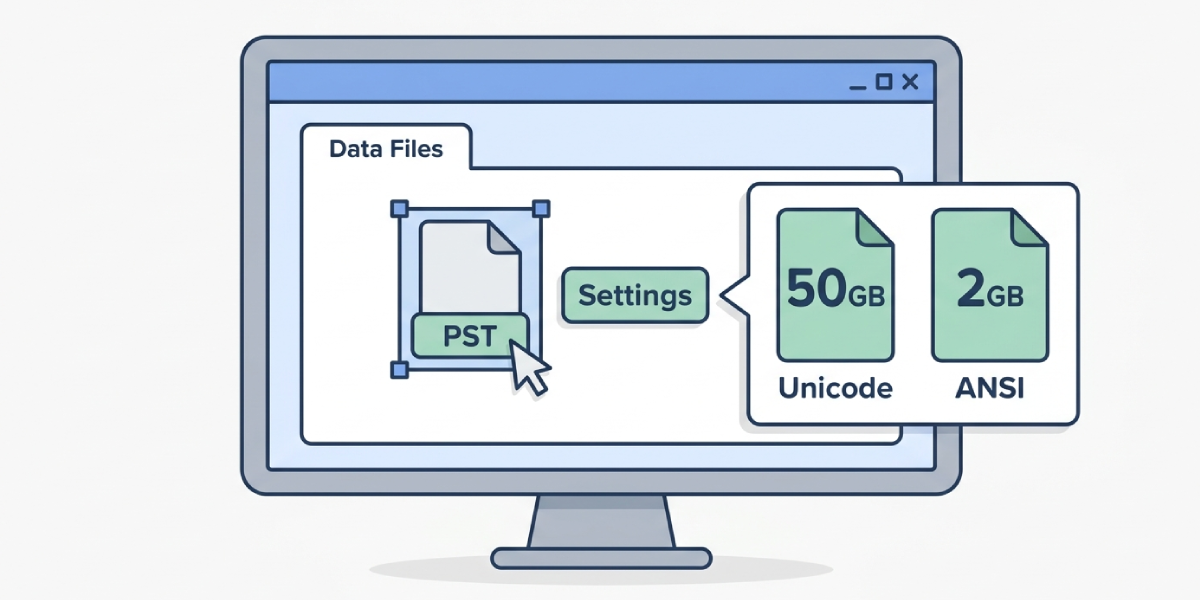
- Step 2: Click the Data Files tab and select the PST file that is throwing the error.
- Step 3: Click Settings to view the file details. A Unicode format file supports up to 50GB, while an older ANSI format file caps out at 2GB. This detail decides which fix applies next.
Method 2: Compact the PST File to Reclaim Space
- Step 1: With the data file still selected in Account Settings, click Settings, then go to the Advanced tab (or General tab, depending on the Outlook version).
- Step 2: Click Outlook Data File Settings, then click Compact Now.
- Step 3: Let the compaction run. Large files with years of deleted items can take a while, so this step works best overnight or during a lunch break.
Tip: Compacting does not remove data, it only reclaims space left behind by deleted or moved items, similar to defragmenting a hard drive.
Method 3: Archive Older Items Into a New PST File
- Step 1: Go to File, then Tools, then Clean Up Old Items (this may appear as simply Archive in some Outlook versions).
- Step 2: Choose ‘Archive this folder and all subfolders’ and select the top-level mailbox folder.
- Step 3: Set a cutoff date, such as anything older than 12 or 18 months.
- Step 4: Choose a save location for the new archive.pst file and click OK.
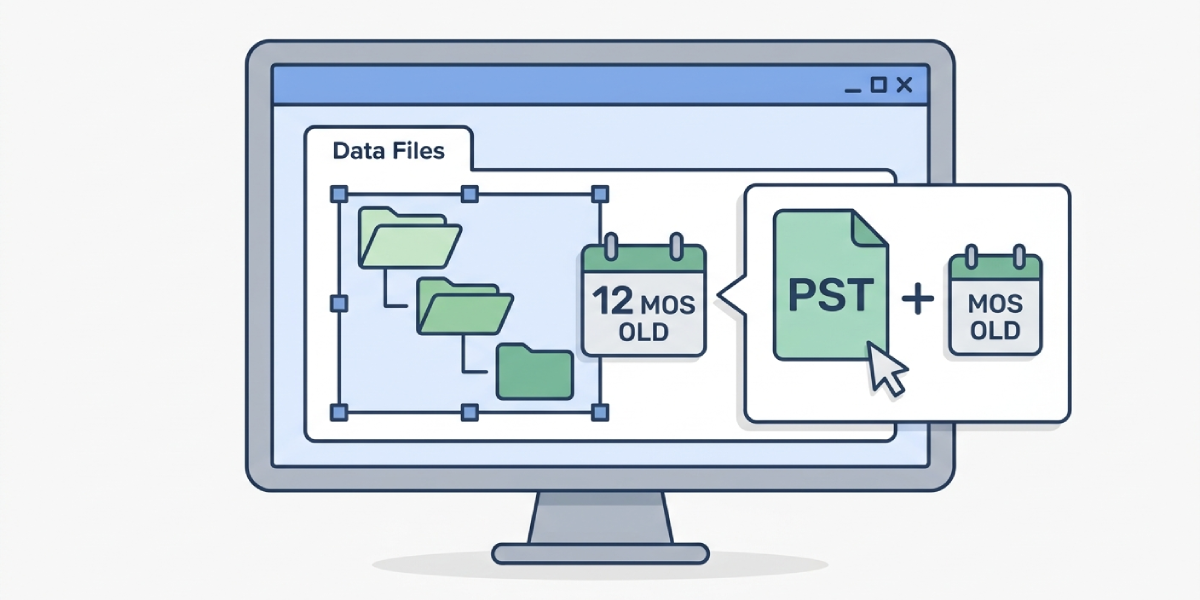
This moves older mail out of the oversized file and into a fresh one, which immediately lowers the active PST size while keeping every message accessible through Outlook.
Method 4: Split a Large Mailbox Across Multiple PST Files
- Step 1: Create a new PST file by going to File, then New Items, then More Items, then Outlook Data File.
- Step 2: Name the file and save it somewhere easy to find, such as the Documents folder.
- Step 3: Drag entire folders (like an old Projects folder or a Sent Items subfolder) from the maxed-out PST into the new one.
- Step 4: Repeat until the original file sits comfortably below its size limit.
Tip: Splitting by folder rather than by individual email keeps the mailbox organized and makes it far easier to find items later.
Method 5: Upgrade an ANSI PST File to Unicode Format
- Step 1: If Step 1 confirmed the file is ANSI format, create a brand new PST file (Unicode is the default in modern Outlook).
- Step 2: Import the old ANSI file into it by going to File, then Open & Export, then Import/Export.
- Step 3: Choose ‘Import from another program or file’, then select Outlook Data File (.pst), then browse to the old file.
- Step 4: Select ‘Include subfolders’ and choose the option to import into the current folder structure, then finish the wizard.
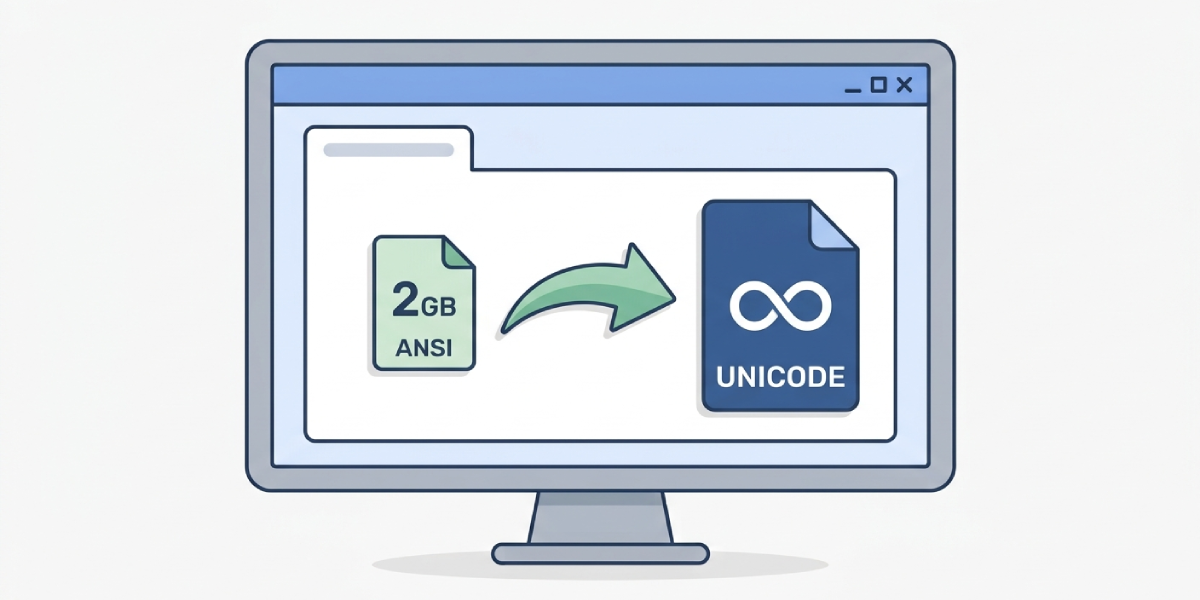
This single move raises the ceiling from 2GB to 50GB, which solves the maximum size error for years in most cases.
Common Problems and Fixes
- Compact Now is greyed out: Close all Outlook windows except the main one, or restart Outlook, since compaction cannot run while the file is actively syncing.
- The error keeps appearing right after archiving: Outlook sometimes needs a restart to recognize the new file size, so close and reopen the program after archiving finishes.
- Import/Export option is missing from the File menu: This usually means Group Policy restrictions are in place; check with an IT administrator to have PST import re-enabled.
- New PST file is not showing new mail: Verify the new file is set as the delivery location under Account Settings, then the Data Files tab, then ‘Set as Default’.
- Compacting a very large file seems stuck: This step is disk-intensive, not frozen. A file over 20GB can realistically take over an hour depending on drive speed.
Frequently Asked Questions
What causes the PST file has reached maximum size error?
The error appears when an Outlook data file hits its format’s storage limit, either 2GB for older ANSI files or 50GB for modern Unicode files.
Will compacting the PST file delete any emails?
No. Compacting only removes empty space left over from deleted or moved items, it does not touch existing emails, contacts, or attachments.
How can the PST file format be checked?
Open Account Settings, select the Data Files tab, choose the file, then click Settings to view whether it is ANSI or Unicode format.
Is archiving safe, or can items get lost?
Archiving is safe. It simply relocates older items to a separate PST file, and all archived items remain fully searchable and openable in Outlook.
How long does compacting a large PST file take?
It depends on file size and drive speed, but files over 10GB can take anywhere from 20 minutes to well over an hour.
Can the PST size limit be increased beyond 50GB?
The 50GB Unicode limit is a hard cap in Outlook and cannot be safely increased, which is why splitting or archiving into additional PST files is the recommended approach for very large mailboxes.
What happens if the error is ignored?
Outlook stops delivering new mail into that PST file, and sent items may fail to save properly until the file is compacted, archived, or replaced.
Does upgrading from ANSI to Unicode format affect email formatting?
No. The import process preserves formatting, attachments, folder structure, and metadata exactly as they appeared in the original file.
Can multiple PST files be open in Outlook at the same time?
Yes. Outlook supports multiple data files simultaneously, and they all appear in the folder pane on the left side of the screen.
