
An orphaned PST file happens when Outlook loses its connection to a data file that still exists on the hard drive. Learning how to recover an orphaned PST file means reconnecting that file to Outlook and repairing any damage along the way, without losing a single email, contact, or calendar entry.
Key Takeaways
- An orphaned PST file is usually still intact – it just needs to be relinked to Outlook.
- The free Inbox Repair Tool (scanpst.exe) fixes most corruption issues before reattaching.
- PST files can be manually added back through Outlook’s Open and Export menu.
- Always work from a copy of the PST file, never the original, until recovery is confirmed.
- Windows Search or File Explorer can locate a missing PST if its folder path is unknown.
Step-by-Step Guide to Recover an Orphaned PST File
This process works whether the PST became orphaned after a profile reset, a failed migration, or an accidental removal from Outlook’s account list.
Method 1: Close Outlook and Locate the PST File
- Step 1: Close Outlook completely, including any background processes running in Task Manager, before touching the file.
- Step 2: Open File Explorer and search for files ending in ‘.pst’. The default location is usually C:\Users\[username]\Documents\Outlook Files, but a moved or backed-up file can sit almost anywhere.
- Step 3: Once found, copy the PST file to a new folder, such as C:\PST Recovery, and work only from that copy.
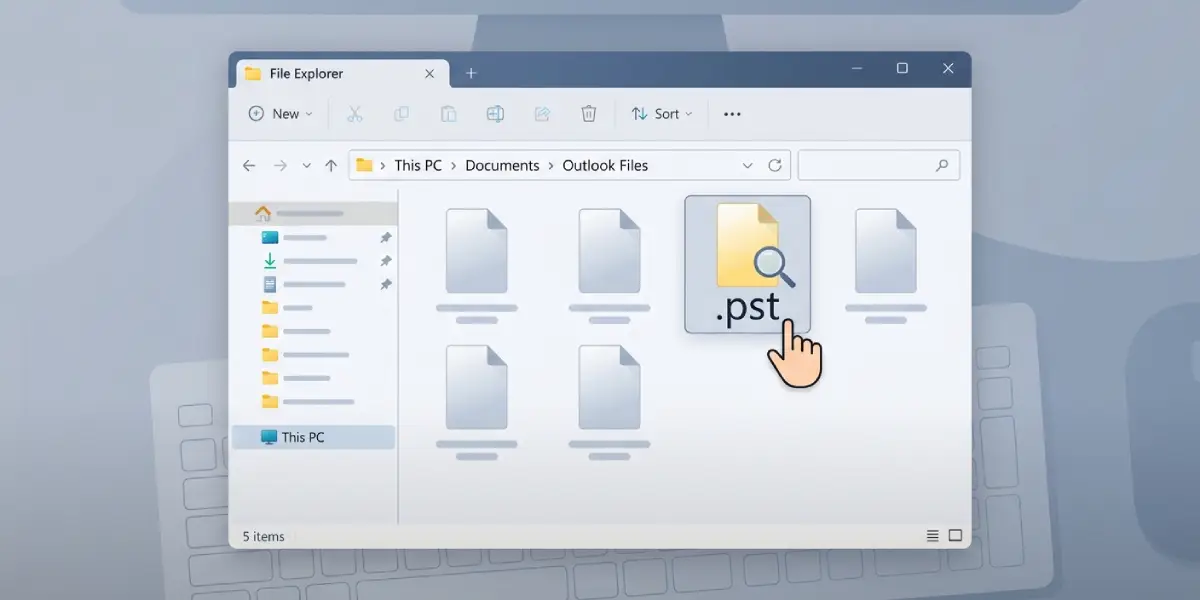
Tip: If Windows Search does not return results right away, index status can lag behind. Searching directly inside the Documents or Outlook Files folder is usually faster than waiting on a full system search.
Method 2: Run the Inbox Repair Tool (scanpst.exe)
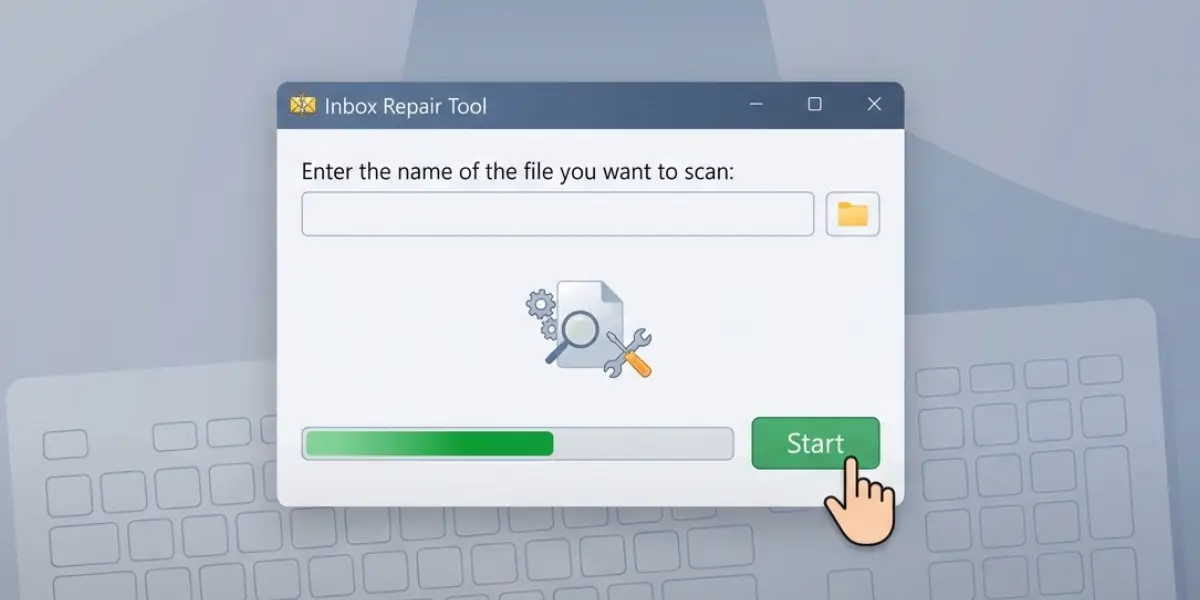
- Step 4: Locate scanpst.exe, typically found in C:\Program Files\Microsoft Office\root\Office16 (the exact folder number depends on the Office version installed).
- Step 5: Double-click scanpst.exe and browse to the copied PST file using the ‘Browse’ button.
- Step 6: Click ‘Start’ to begin the scan. This checks the file structure for errors that would prevent Outlook from reading it.
- Step 7: If the scan reports errors, select ‘Repair’ to fix them. Larger PST files can take several minutes, so this is a good point to step away and let it finish.
Method 3: Reattach the PST File in Outlook
- Step 8: Open Outlook and go to File, then Open & Export, then Open Outlook Data File.
- Step 9: Browse to the repaired PST file and select it, then click ‘OK’.
- Step 10: The file should now appear in the Outlook folder pane, usually near the bottom of the account list, labeled with its file name or ‘Outlook Data File’.
Tip: Rename the data file inside Outlook by right-clicking it and choosing ‘Data File Properties’. This makes it easier to tell recovered files apart from active mailboxes, especially when more than one PST gets reattached during the same session.
Method 4: Verify the Recovered Content
- Step 11: Expand the reattached PST folder and confirm that emails, contacts, and calendar items appear as expected.
- Step 12: Open a handful of older messages to confirm attachments and formatting survived the repair.
Common Problems and Fixes
- Outlook says the PST file is already in use. Another Outlook profile or a background sync process may still have it locked. Restart the computer and try reattaching again before Outlook fully loads other profiles.
- scanpst.exe cannot find or open the file. The file path may include special characters or an unusually long folder name. Move the copy to a short, simple path like C:\PST Recovery and try again.
- The repair tool finds errors it cannot fix. Run the scan a second time immediately after the first repair. Some PST damage needs two passes before every inconsistency clears.
- The PST reattaches but folders appear empty. This usually means the repair created a ‘Lost and Found’ folder. Check there first, since recovered items without a clear parent folder get placed inside it automatically.
- Outlook won’t accept the file because it exceeds the size limit. Older PST formats cap around 20GB in ANSI format. Splitting the file or converting it to Unicode format resolves this in most cases.
Frequently Asked Questions
What causes a PST file to become orphaned in the first place?
It usually happens when an Outlook profile is deleted or rebuilt, when an account is removed from Outlook without deleting the underlying file, or when a PST is moved to a new folder without updating Outlook’s file path.
Is it safe to reattach an orphaned PST file without running scanpst.exe first?
It can be done, but running the Inbox Repair Tool first catches structural errors that would otherwise cause Outlook to freeze or crash when opening the file.
Can an orphaned PST file be recovered if the original Outlook profile no longer exists?
Yes. The PST file itself does not depend on any specific profile, so it can be opened and reattached to a brand new profile without issue.
How long does the Inbox Repair Tool take to run?
Small files finish in under a minute. Files several gigabytes in size can take fifteen minutes or longer, depending on the amount of corruption found.
What is the ‘Lost and Found’ folder that sometimes appears after repair?
It is a folder scanpst.exe creates to hold recovered items whose original folder structure could not be restored. Items inside it are still usable and can be moved back into their proper folders manually.
Does recovering an orphaned PST file delete any of the original data?
No, as long as the work is done on a copy of the file. The repair process fixes structural errors but does not intentionally remove emails, contacts, or calendar items.
Can a PST file be recovered if it shows a file size of 0KB?
A 0KB PST file is typically unrecoverable through scanpst.exe, since there is no data structure left to repair. In that case, checking for a backup copy is the more reliable path forward.
Why does Outlook keep asking for a password when reattaching the PST file?
This happens if the PST file was originally password protected. The correct password must be entered once to unlock it, after which Outlook will remember it for the duration of that session.
Is there a limit to how many PST files can be reattached to one Outlook profile?
Outlook allows multiple PST files to be open at once, though performance can slow down if too many large files are attached simultaneously.
