
Learning how to split a large PST file is one of the fastest ways to fix a sluggish, overstuffed Outlook mailbox. When a PST file grows past a few gigabytes, Outlook tends to slow down, freeze during searches, or throw errors when trying to open the file. Breaking it into smaller, manageable pieces solves that problem without deleting a single email.
Key Takeaways
- A large PST file can be split by creating new PST files and moving folders or date ranges of email into them.
- Outlook does not have a single ‘split’ button, so the process relies on the Import/Export wizard and manual folder moves.
- Splitting by year or by folder (Inbox, Sent Items, Archive) keeps the new files organized and easy to search later.
- Always back up the original PST file before making any changes.
- Smaller PST files load faster, search faster, and are far less likely to become corrupted.
How to Split a Large PST File Step by Step
This method works in Outlook for Windows and applies to PST files used with POP or IMAP accounts, as well as archived data files.
Step 1: Back Up the Original PST File
- Close Outlook completely, then locate the PST file on the hard drive (the default path is usually C:\Users\[username]\Documents\Outlook Files). Copy the file to a separate backup folder or an external drive before doing anything else.
Step 2: Create a New, Empty PST File
- Open Outlook, go to the File tab, select Account Settings, then Account Settings again from the dropdown.
- Click the Data Files tab, then select Add. Name the new file something clear, like ‘Archive 2023’ or ‘Old Projects’, and save it.
Step 3: Move Older Emails Into the New File
- In the Outlook folder pane, find the new PST file that was just created. It appears as its own top-level entry, separate from the main mailbox.
- Open the folder that needs trimming down, such as the Inbox or Sent Items. Sort the messages by date so older emails are grouped together.
- Select the emails to move (use Shift+Click for a range, or Ctrl+A for everything in view), then drag them into the corresponding folder inside the new PST file. For large batches, right-click the selection and choose Move, then Copy to Folder or Move to Folder instead of dragging.
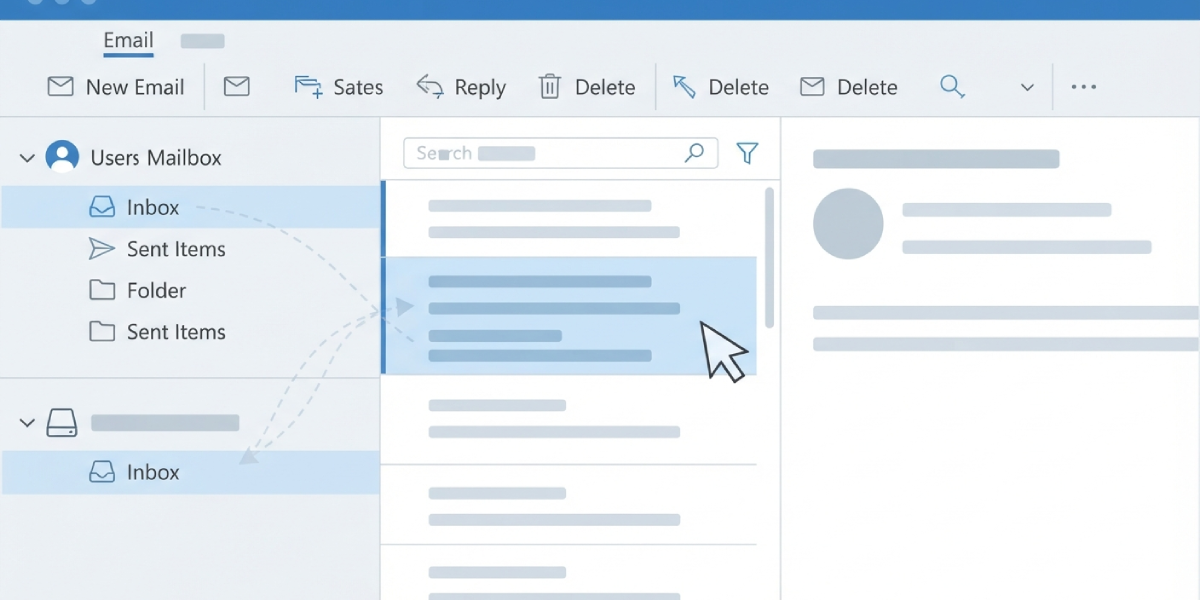
Tip: Splitting by calendar year (for example, moving everything from 2023 and earlier into its own PST) makes it much easier to find something later, since the file name itself tells the story of what’s inside.
Step 4: Repeat for Other Folders
- Repeat the move process for other bulky folders, such as Sent Items or a custom project folder. Most inboxes that balloon in size have two or three folders doing most of the damage, so start there.
Step 5: Confirm the File Sizes
- Close Outlook, then check the file size of both PST files in File Explorer. The original file should now be noticeably smaller, and the new file will reflect the moved content.
Tip: A healthy PST file generally stays under 2 GB for the best performance, even though Outlook technically supports much larger files.
Step 6: Compact the Original PST File
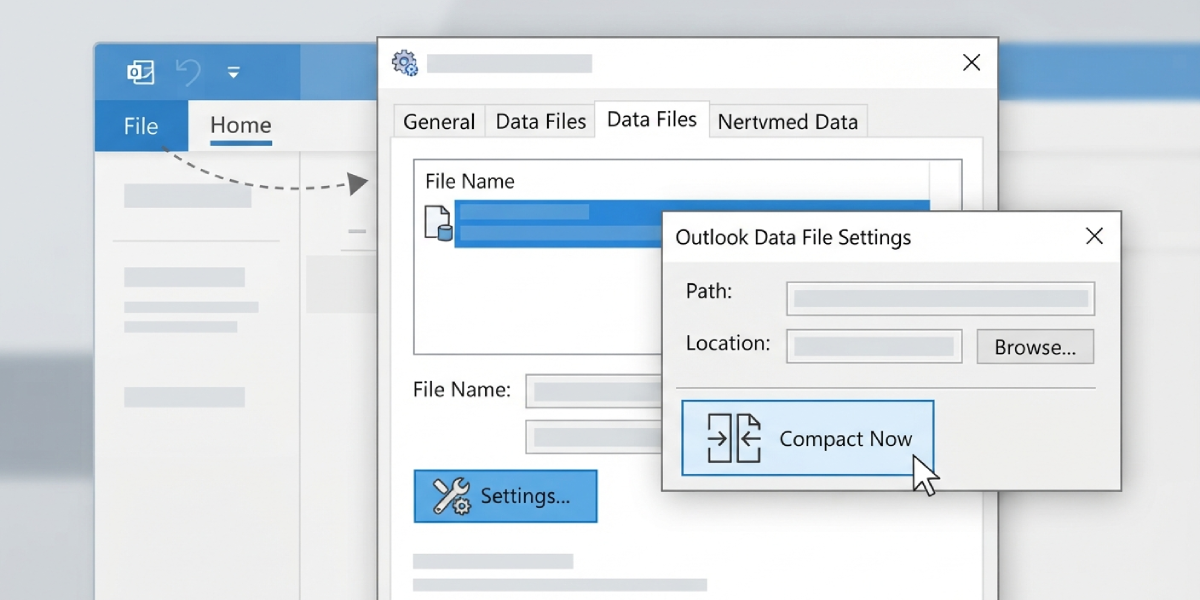
- Reopen Outlook, go to File, Account Settings, Account Settings, then Data Files. Select the original PST file and click Settings.
- Click Advanced, then Outlook Data File Settings, and select Compact Now. This removes the empty space left behind after moving items out, which shrinks the file further.
Common Problems and Fixes
- Dragging emails feels sluggish or Outlook freezes mid-move: Move smaller batches (a few hundred emails at a time) instead of selecting thousands at once. Large single moves put heavy strain on Outlook’s indexing process.
- The new PST file doesn’t show up in the folder pane: Reopen Account Settings and confirm the file was actually added under the Data Files tab. Restarting Outlook after adding a file also resolves most display issues.
- Compact Now is grayed out: This usually means Outlook is still indexing recent changes. Wait a few minutes, close and reopen Outlook, then try again.
- File size doesn’t shrink after moving emails: Compacting has to be run manually; simply moving emails out does not automatically reclaim disk space.
- Some emails appear duplicated after moving: This happens when Copy to Folder was used instead of Move to Folder. Delete the duplicates from the original folder once the copy is confirmed.
Frequently Asked Questions
What is the maximum size a PST file can reach before it needs splitting?
Modern versions of Outlook support PST files up to 50 GB, but performance issues, slow searches, and a higher risk of corruption typically start well before that limit, often once a file passes 5 to 10 GB.
Does Outlook have a built-in split tool?
No single button splits a PST file automatically. The process involves creating a new PST file and manually moving folders or date ranges of email into it.
Will splitting a PST file delete any emails?
No. Moving emails between PST files relocates them; it does not delete anything, as long as Move to Folder or a standard drag-and-drop is used rather than a delete action.
Can this be done while Outlook is set up with Exchange or Microsoft 365?
Yes, the same method applies. The new PST file simply sits alongside the Exchange or Microsoft 365 mailbox in the folder pane rather than replacing it.
How long does splitting a large PST file usually take?
It depends on file size and email count, but a typical multi-gigabyte file with tens of thousands of messages usually takes 20 to 60 minutes, including the final compacting step.
Is it necessary to compact the PST file after splitting it?
Compacting isn’t strictly required, but skipping it means the original file won’t shrink on disk even though items were moved out, so it’s worth the extra couple of minutes.
What is the safest way to move a large number of emails at once?
Right-click the selected emails and choose Move to Folder rather than dragging them, especially for large batches. This reduces the chance of a dropped or interrupted move.
Can a PST file be split by date instead of by folder?
Yes. Sorting a folder by date before selecting emails makes it easy to move an entire year or date range into a new PST file, which is one of the most common ways to organize the split.
What happens if Outlook crashes in the middle of moving emails?
Reopen Outlook and check both the original and new PST files. Most moves that get interrupted leave the emails in their original location, so nothing is typically lost, though it’s worth verifying before repeating the move.
