
Need to stop sharing a OneDrive file or folder? It takes less than a minute once you know where the Manage access panel lives. Whether a project has wrapped up or a link went to the wrong person, the process is the same: open the sharing details, then remove the links or people who no longer need access.
Key Takeaways
- Every shared OneDrive item has a Manage access panel that lists all links and people with access.
- Delete a link to cut off everyone who uses it, or remove a person to cut off just that individual.
- The same steps work on OneDrive for the web, File Explorer on Windows, and the mobile app.
- Stopping access does not delete the file. The original stays safely in your OneDrive.
- Only the owner, or someone with permission to manage sharing, can remove access.
How to Stop Sharing a OneDrive File or Folder: Step-by-Step Guide
On OneDrive for the Web
- Step 1: Go to onedrive.com and sign in with the Microsoft account (personal, work, or school) that owns the file or folder.
- Step 2: Find the item you shared. Hover over it and select the circle that appears on its left to tick it.
- Step 3: Right-click the selected item and choose Manage access. Another route is to select the Details icon (the letter i in a circle) at the top right, then select Manage access in the pane that opens.
- Step 4: Under Links giving access, select the X or Delete link option next to the link you want to disable. Confirm by choosing Delete link. Anyone who relied on that link loses access straight away.
- Step 5: Under Direct access, select the drop-down arrow next to a person’s name and choose Stop sharing. Repeat for each person who should no longer have access.
- Step 6: Close the panel and reopen Manage access to confirm that only the people you want are still listed.
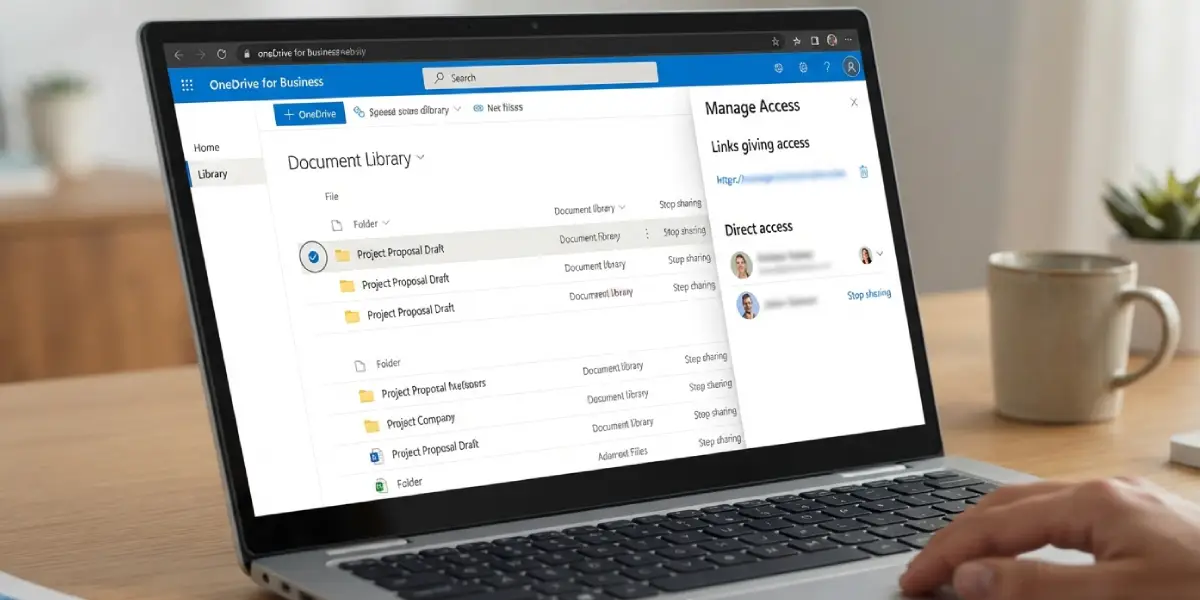
Think of a shared link like a spare house key. Deleting the link changes the lock for everyone holding that key, while removing a person under Direct access takes back one specific key.
Tip: To find everything you have shared in one place, open Shared in the left menu and switch to the Shared by you view. Items listed there are the ones with active sharing, which makes cleanup much faster.
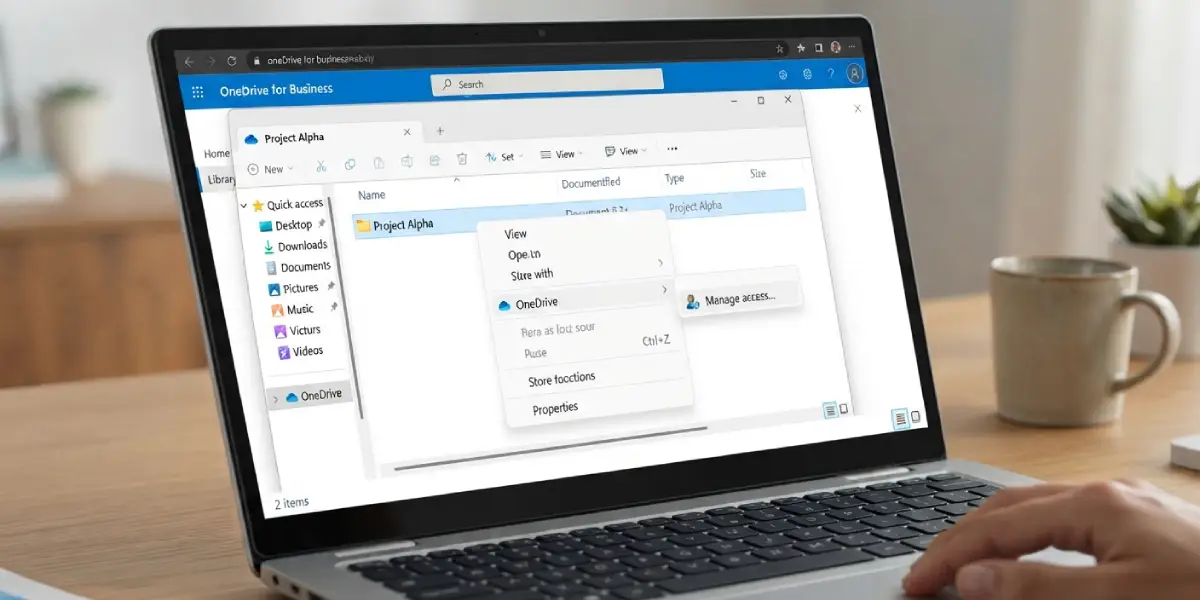
From File Explorer on Windows
- Step 1: Open File Explorer and go to the OneDrive folder in the left pane.
- Step 2: Right-click the shared file or folder and choose OneDrive, then Manage access.
- Step 3: Delete the link or remove the person using the same options described above.
In the OneDrive Mobile App
- Step 1: Open the OneDrive app and locate the shared file or folder.
- Step 2: Tap the three dots next to the item, then tap Manage access.
- Step 3: Tap the link or the person’s name, then choose the option to delete the link or stop sharing.
Tip: When working with a folder, remember that everything inside it inherits the folder’s sharing. Stopping access at the folder level covers all of its contents, unless an individual file inside was also shared on its own. Check those files separately.
Common Problems and Fixes
Manage access Is Missing or Greyed Out
This usually means the item belongs to someone else. People who only received a file or folder cannot control who else has access. The owner has to remove access, or the item can be removed from your own Shared list instead.
Someone Still Has Access After Removing Their Name
Access can come from more than one place. The person might still be using a separate link, or they may belong to a group listed in Manage access. Review both Links giving access and Direct access, and remove every entry that applies.
A Folder Was Unshared but a File Inside Is Still Accessible
Files can carry their own sharing settings. Open the folder, select the file, and run through Manage access on it directly.
The Recipient Still Has a Copy
Removing access blocks future opening of the original, but it cannot erase a copy the person already downloaded. For sensitive material, replace the file with a new version stored in a fresh location and share it only with the right people.
The Item Still Shows as Shared After Changes
Refresh the page or wait a minute or two for OneDrive to sync. If the shared icon stays, reopen Manage access to check that no links or people remain in the list.
Frequently Asked Questions
Does stopping sharing delete the file or folder?
No. Removing access only changes who can open the item. The original file or folder remains in your OneDrive exactly where it was.
Will people be notified when I stop sharing with them?
OneDrive does not send a notification when access is removed. The next time the person tries to open the item or link, they will see a message that they do not have permission.
How can I see everything I have shared in OneDrive?
Open Shared in the left menu on OneDrive for the web and select Shared by you. This view lists the files and folders that currently have sharing in place.
Can I stop sharing multiple files at once?
Manage access works on one item at a time. To save effort, move the files into one folder, share that folder, and remove access once at the folder level.
What is the difference between deleting a link and removing a person?
Deleting a link disables it for everyone who uses it. Removing a person under Direct access only ends that individual’s access, while other links and people stay in place.
Can I stop sharing a file that someone shared with me?
Not as a recipient. Only the owner, or someone with permission to manage sharing, can change who has access. You can remove the item from your own Shared view if you no longer need it.
If I stop sharing a folder, what happens to the files inside it?
Files inside lose the access that came from the folder. Any file that was also shared separately keeps its own links and permissions until those are removed too.
Can someone still open the file after I delete the link?
No, the deleted link stops working immediately. The only exception is a copy the person already downloaded, which stays on their device.
