
Troubleshooting OneDrive stuck on Sync Pending usually comes down to one stubborn file or folder that never finishes uploading. The status icon keeps showing the pending arrows, nothing moves, and the folder looks fine otherwise. The steps below start with the quickest fixes and work toward a full reset, so most people never need to go past the first few.
Key Takeaways
- Pausing and resuming sync clears many short-lived Sync pending states.
- Hidden files and TMP files are the most common reason a folder stays pending.
- Copying the contents into a fresh folder is a reliable workaround when no culprit file is visible.
- Resetting or unlinking OneDrive is the last resort and does not remove files.
Step-by-Step Guide to Troubleshooting OneDrive Stuck on Sync Pending
These steps are written for the OneDrive sync app on Windows. Work through them in order and check the status icon after each one.
Restart the Sync Process
- Step 1: Select the OneDrive cloud icon in the notification area at the right end of the taskbar. If it is missing, select the Show hidden icons arrow first.
- Step 2: Select the Help and Settings icon, then choose Pause sync and pick a duration.
- Step 3: Wait about a minute, open the same menu again, and choose Resume sync.

Tip: Close any Office apps or other programs that have files open from the pending folder before resuming. A file that is still in use can keep the status stuck.
Find the File Causing the Problem
- Step 4: Open File Explorer and go to the folder showing Sync pending.
- Step 5: On the ribbon, select View, then Show, then Hidden items (on Windows 10, tick the Hidden items box on the View tab).
- Step 6: Look for files with the Sync pending icon. Leftover temporary files whose names start with a tilde and a dollar sign are a frequent offender, along with files ending in .tmp.
Deal with TMP Files Safely
- Step 7: For a pending TMP file, pick one of these options: upload it manually at onedrive.com, rename it with a different extension such as Temp, move it to a folder outside OneDrive, or delete it.
- Step 8: If the file refuses to be renamed, it is still in use. Restart the computer and try again.
Tip: Only delete a TMP file when it is certain that no program is using it. Removing one that is still needed can cost unsaved work.
Move the Contents into a New Folder
- Step 9: If no hidden or TMP file turns up, create a new folder next to the pending one.
- Step 10: Copy all the files from the Sync pending folder into the new folder.
- Step 11: Delete the original Sync pending folder once the copy is complete and the new folder syncs normally.
Reset the OneDrive Sync App
- Step 12: Press the Windows key plus R to open the Run box.
- Step 13: Enter %localappdata%\Microsoft\OneDrive\onedrive.exe /reset and select OK. The OneDrive icon disappears from the notification area for a moment and then returns.
- Step 14: If the icon does not come back after a couple of minutes, open the Run box again, enter %localappdata%\Microsoft\OneDrive\onedrive.exe, and select OK.
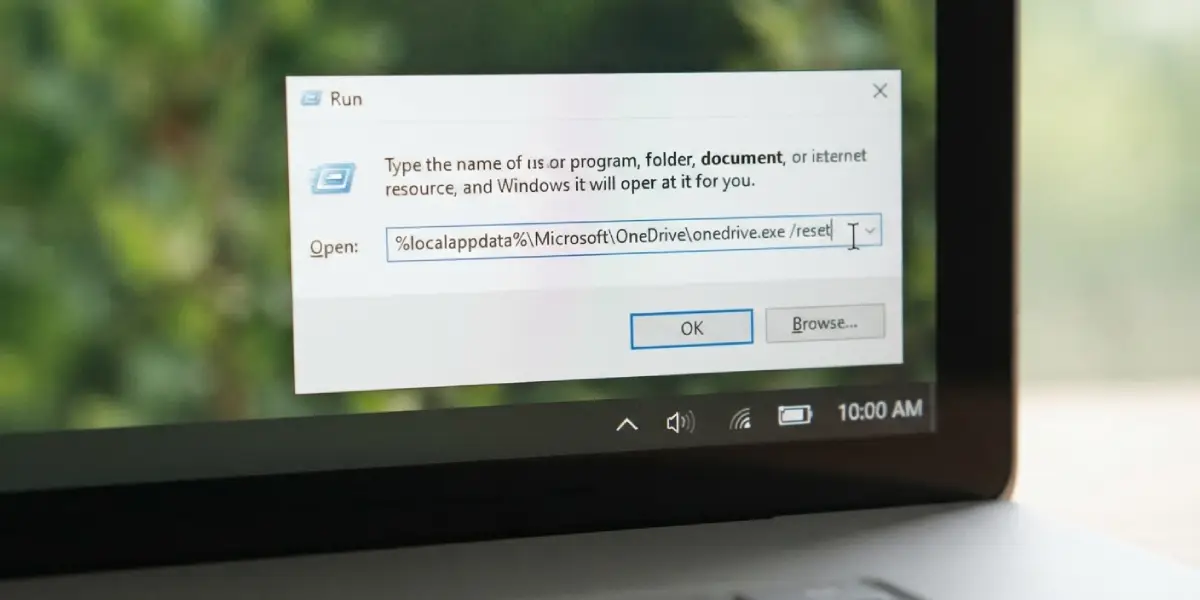
Resetting makes OneDrive re-check every file, so a large library may take a while to settle. Files are not deleted by the reset.
Unlink and Relink the Account
- Step 15: Select the OneDrive cloud icon, then the Help and Settings icon, then Settings.
- Step 16: Open the Account tab, select Unlink this PC, and confirm with Unlink account.
- Step 17: Press the Windows key, type OneDrive, open the app, and sign in again.
- Step 18: When OneDrive reports that a folder already exists, select Use this folder so the existing files are reused instead of downloaded again.
Common Problems and Fixes
An Empty Folder Still Shows Sync Pending
Empty folders can show Sync pending until a file is placed inside them. Add a file to the folder, or delete the folder if it is not needed.
A TMP File Cannot Be Renamed or Moved
That means a program is still holding it open. Close the related apps, restart the computer, and repeat the rename or move.
The Icon Stays Pending After Every Fix
Check available storage next. When a Microsoft account is over its storage limit, new files cannot upload, edit, or sync, so the pending status never clears. Free up space or upgrade the plan, then resume sync.
OneDrive Does Not Restart After the Reset
Run the OneDrive executable directly from the Run box, as shown in the reset step. The icon should return within a few seconds.
Frequently Asked Questions
What does Sync pending mean in OneDrive?
It means OneDrive has detected a file or folder that has not finished syncing. Short waits are normal, but a status that never changes points to a problem file or a stalled sync.
How long should Sync pending last before it counts as stuck?
A few minutes is normal for small changes, and large batches of files take longer. If the status has not changed after pausing and resuming sync, treat it as stuck and continue with the troubleshooting steps.
Why does a folder show Sync pending when no file is visible?
A hidden file inside the folder is the usual cause. Turn on Hidden items in the File Explorer View menu to reveal it.
Is it safe to delete TMP files that show Sync pending?
Only when it is certain that no program is using them. Otherwise, upload the file manually, rename it, or move it out of the OneDrive folder instead.
Why does an empty folder show Sync pending?
Empty folders can display the pending status until a file is added to them. Placing any file inside typically resolves it.
Can a full OneDrive storage cause Sync pending?
Yes. Once a Microsoft account exceeds its storage limit, new files cannot upload, edit, or sync, so items can remain pending until space is freed.
Does resetting OneDrive delete my files?
No. The reset only restarts the sync app and makes it re-check the files. Expect extra sync activity for a while afterward.
Does unlinking this PC delete files from OneDrive?
No. Unlinking disconnects the computer from the account, and the files remain in the OneDrive folder on the PC and in the cloud. After signing in again, choose Use this folder to keep them.
