
An automatic repair loop in Windows happens when the operating system detects a boot problem, tries to fix it, restarts, and then fails again, sending the machine right back into the same repair screen. It is one of the more frustrating boot issues a PC owner can run into, mostly because the built-in repair tool rarely explains what it actually found wrong. The good news is that most cases trace back to a small handful of causes, and each one has a reliable fix.
Key Takeaways
- The automatic repair loop is almost always caused by corrupted system files, a damaged boot configuration, a failing drive, or a recent update or driver conflict.
- Accessing the Windows Recovery Environment (WinRE) is the starting point for every fix on this list.
- Command line tools like bootrec, chkdsk, sfc, and DISM resolve the majority of loops without needing a full reinstall.
- A failing or loose storage drive is a common hardware-related cause that software fixes alone will not solve.
- A clean install or full reset should only be treated as a last resort, after the other steps have been ruled out.
Common Causes
Before diving into fixes, it helps to understand what typically triggers this loop in the first place. Most cases fall into one of these categories.
Corrupted or Missing System Files
Windows relies on a set of core files to boot correctly. If any of these become damaged, whether from a sudden power loss, a bad shutdown, or malware, the system flags the problem and tries to repair itself, sometimes without success.
Damaged Boot Configuration Data (BCD)
The BCD tells Windows where to find its boot files and how to load them. A corrupted BCD store is one of the single most common reasons Automatic Repair fails repeatedly.
A Recent Windows Update or Driver Install
Anyone who has seen a laptop refuse to boot right after an update rollout knows this pattern well. A partially installed update or an incompatible driver can leave the boot process in a broken state.
Failing or Disconnected Storage Drive
This is the one people overlook the most. A hard drive with bad sectors, or an SSD with a failing connection, can cause the exact same symptoms as a software issue, and no amount of repair tools will fix a drive that is physically dying.
Third-Party Antivirus or Disk Encryption Conflicts
Some security software and full-disk encryption tools interfere with the boot loader, especially after an update changes how the drive is accessed early in the boot process.
Before You Start
Most of the fixes below only require the keyboard and the recovery menu, but a couple of steps involve checking the storage drive itself, which may mean opening the laptop case or desktop side panel. Keep this prep in mind for those parts:
- Shut the PC down completely and unplug it from power. For a laptop, remove the battery if it is user-removable.
- Let the machine cool down for a few minutes if it was just running, especially before touching the drive or its connector.
- Discharge static electricity by touching a bare metal part of the case before handling any internal component.
- Have a small Phillips screwdriver and, ideally, an anti-static wrist strap on hand.
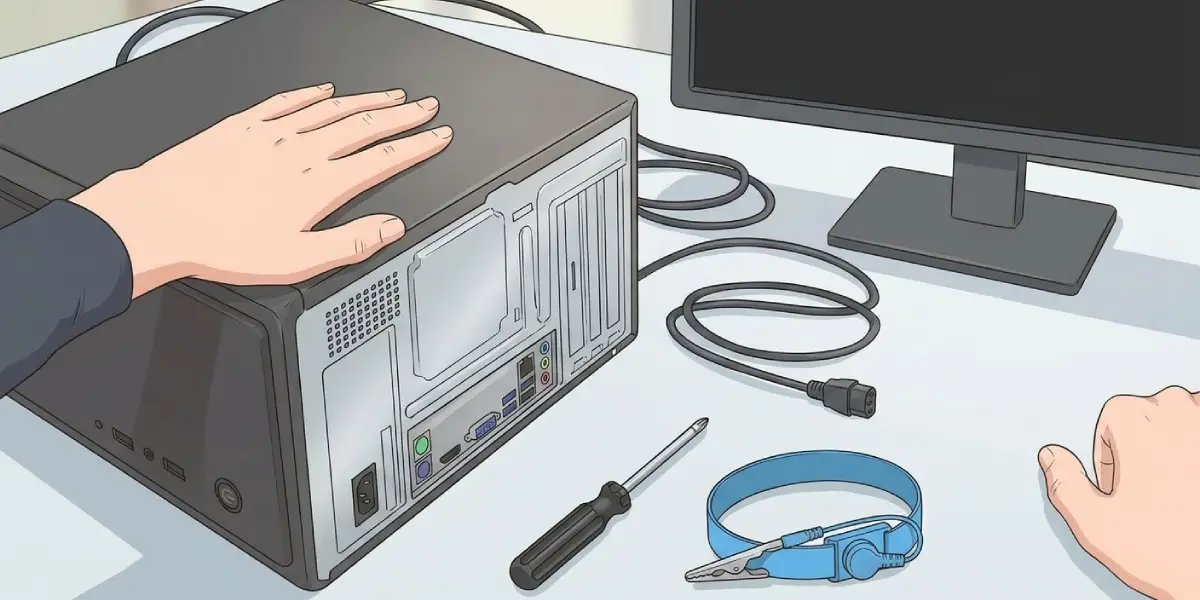
Opening the case may affect the manufacturer’s warranty on some devices, so check that before removing any panels. If the drive shows physical damage, unusual noises, or repeated failure across multiple tools, that is the point to stop and hand the machine to a professional data recovery or repair service rather than pushing further.
How to Fix the Automatic Repair Loop in Windows
Work through these steps in order. Each one addresses a different possible cause, starting with the least invasive.
- Step 1: Force the PC to boot into the Windows Recovery Environment. If Automatic Repair keeps looping on its own, interrupt the process by holding the power button for ten seconds to shut it down, then power it back on. Repeat this three times in a row, and Windows should automatically load the recovery menu instead of trying to boot normally.
- Step 2: From the recovery menu, go to Troubleshoot, then Advanced Options, then Startup Repair, and let Windows attempt its automated fix one more time now that it is running in the proper environment rather than mid-boot.
- Step 3: If Startup Repair still fails, open Command Prompt from the Advanced Options menu and rebuild the boot configuration by running bootrec /fixmbr, followed by bootrec /fixboot, then bootrec /scanos, and finally bootrec /rebuildbcd. This rebuilds the boot files from scratch and fixes the majority of BCD-related loops.
- Step 4: Still in Command Prompt, run chkdsk /f /r on the system drive to scan for and attempt to repair bad sectors or file system errors. This step can take a while on larger or older drives, so let it run to completion.
- Step 5: Run sfc /scannow to check for corrupted system files. Since the system is not booted normally, this needs to point at the offline installation using the /offbootdir and /offwindir switches, which the recovery environment’s command prompt window will accept.
- Step 6: Run DISM with the /Image, /Cleanup-Image, and /RestoreHealth flags pointed at the offline Windows installation to repair the underlying system image that sfc relies on.
- Step 7: If the loop started right after an update or new driver installation, choose Uninstall Updates from the Advanced Options menu, or use System Restore to roll back to a point before the problem began.
- Step 8: Check the physical drive connection. On a desktop, reseat the SATA and power cables. On a laptop with an accessible M.2 or SATA drive, power down fully, disconnect the battery if possible, and reseat the drive in its slot, making sure it clicks in fully.
- Step 9: Test the drive’s health using the manufacturer’s diagnostic tool or a general SMART-reading utility from another working PC if the drive can be connected externally. Repeated read or write errors point to a failing drive that software repairs cannot fix.
- Step 10: As a last resort, use the Reset This PC option from Advanced Options, choosing to keep personal files if possible, or perform a clean installation from bootable media if the system still will not stabilize.
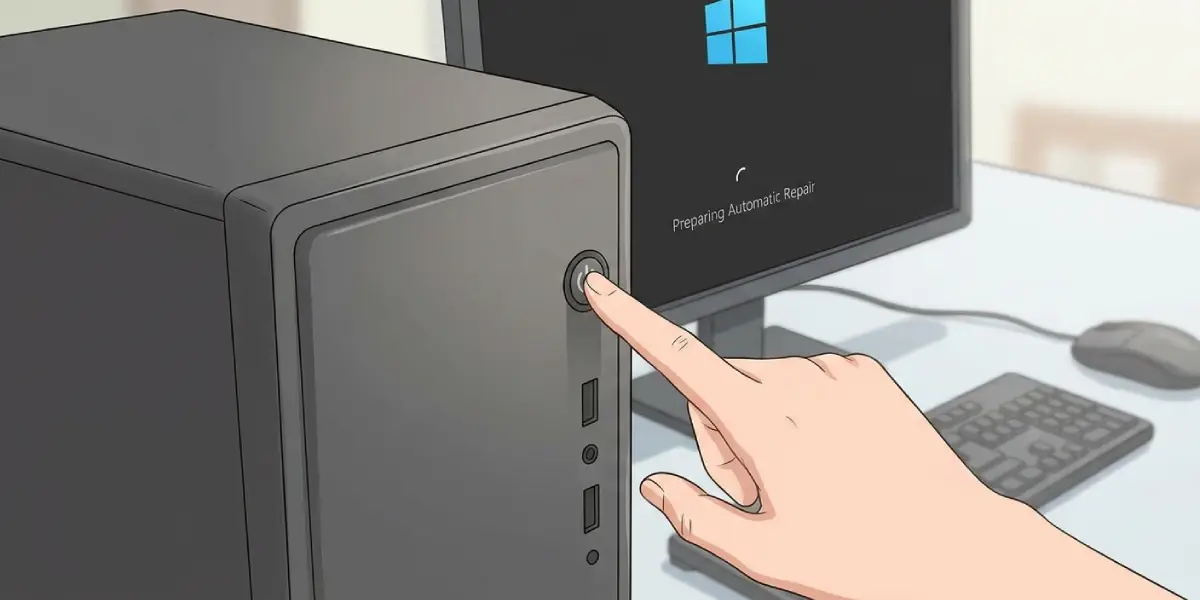
Tip: Run the chkdsk and DISM steps even if Startup Repair appears to succeed on its own. A drive with early-stage bad sectors can pass one repair attempt and still loop again days later.
Common Problems and Fixes
The Recovery Menu Never Appears
If forcing three hard shutdowns does not trigger the recovery environment, boot from a Windows installation USB instead and select Repair Your Computer from the setup screen, which leads to the same Advanced Options menu.
Bootrec Reports ‘Element Not Found’ or Similar Errors
This usually means the BCD store is more severely damaged than a rebuild can fix. Back up the existing store with bcdedit /export, then delete the Boot folder on the system partition with attrib and del commands, and run bootrec /rebuildbcd again to recreate it fresh.
Chkdsk Keeps Restarting Without Finishing
This pattern often points to a drive with significant physical damage rather than a simple file system error. Back up any accessible data immediately and treat the drive as failing.
The Loop Continues Even After a Reset
When Reset This PC also fails or loops, the storage drive itself is the most likely culprit. At this point, testing the drive in another machine or replacing it outright is usually the fastest path forward.
Startup Repair Fixes It, But the Loop Returns Days Later
A recurring loop after a successful repair almost always signals an unstable drive, inconsistent power delivery on a desktop, or a battery issue on a laptop that is causing improper shutdowns. Run a full drive health check before assuming the software fix has held.
Frequently Asked Questions
What causes the automatic repair loop in Windows?
It is most often caused by corrupted system files, damaged boot configuration data, a failing storage drive, or a recent update or driver that left the boot process in a broken state.
Can a failing hard drive or SSD cause this loop?
Yes. Bad sectors or a failing connection on the storage drive produce the same symptoms as a software fault, and no repair tool will resolve it permanently if the drive itself is the problem.
How long should Startup Repair take before it is considered stuck?
Startup Repair typically finishes within several minutes on a healthy drive. If it runs well beyond that with no progress or repeatedly loops back to the same screen, it has effectively failed and it is time to move to manual fixes.
Is it safe to run bootrec commands without a Windows installation disc?
The bootrec commands are run from the built-in Windows Recovery Environment, which does not require a separate installation disc as long as the recovery partition on the drive is still intact.
Will resetting the PC delete personal files?
Reset This PC offers an option to keep personal files while removing apps and settings. It is worth trying that option before a full clean install, though a backup beforehand is always the safer choice.
Does a recent Windows update commonly cause this issue?
It can. An update that does not finish installing correctly, or one that conflicts with an existing driver, is a frequent trigger, which is why uninstalling recent updates is one of the earlier steps worth trying.
Can antivirus software cause an automatic repair loop?
Certain third-party antivirus tools and full-disk encryption software can interfere with the boot loader, particularly after an update. Booting into Safe Mode with Networking to uninstall the software is a reasonable step if this is suspected.
Should the drive be reseated even if there is no reason to suspect a hardware fault?
Reseating the drive connection is a low-risk step and worth doing if the earlier command-line fixes do not resolve the loop, since a loose connection can produce boot errors that look identical to a software problem.
What should happen if none of these fixes work?
If the loop persists after a rebuild of the boot files, a drive health check, and a full reset attempt, the drive is likely failing at a hardware level and either needs replacement or should be handed to a professional for further diagnosis.
Does opening a laptop to check the drive void the warranty?
It depends on the manufacturer and whether the drive bay is designed to be user-accessible. Checking the warranty terms before removing any panels is worth the extra few minutes.
