
Outlook error 0x85050041 usually shows up when the app fails to sync an account, often right after adding a new mailbox or updating Windows. It can stall sending and receiving mail until the underlying sync or profile issue gets cleared up.
Key Takeaways
- Error 0x85050041 typically points to a broken account sync or a corrupted Outlook profile.
- Repairing the account connection in Windows Mail Settings solves most cases.
- Creating a new Outlook profile fixes the error when repair alone does not work.
- Clearing cached credentials often resolves sync failures tied to this code.
- Keeping Outlook and Windows fully updated prevents the error from returning.
How to Fix Outlook Error 0x85050041
Step-by-Step Solution
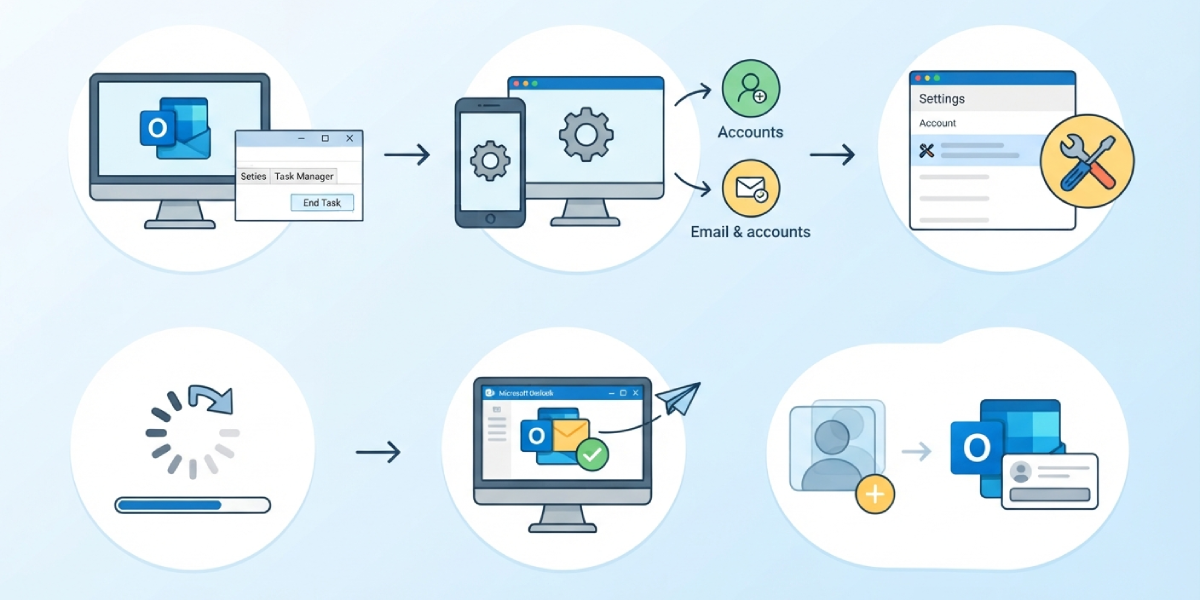
- Step 1: Close Outlook completely. Right-click the taskbar, open Task Manager, and confirm no Outlook process is still running in the background before continuing.
- Step 2: Open Windows Settings and go to Accounts, then Email & accounts. This is where the account tied to Outlook actually lives, separate from the app itself.
- Step 3: Select the affected email account and choose Manage. Look for a Repair or Fix account problems option; not every account type shows this button, so if it is missing, move to the next step.
- Step 4: If a repair option appears, run it and wait for the process to finish. This re-establishes the sync connection that error 0x85050041 disrupts.
- Step 5: Reopen Outlook and check whether the account syncs normally. Send a short test email to confirm the fix actually took.
- Step 6: If the error persists, close Outlook again and open Control Panel, then search for Mail (Microsoft Outlook). Click Show Profiles.
- Step 7: Select Add to create a new profile, give it a distinct name, and follow the prompts to re-add the same email account from scratch.
- Step 8: Set the new profile to prompt for a profile to be used, or set it as the default, then launch Outlook using that new profile.
Tip: Before repairing anything, jot down the exact account settings shown under Manage, since a fresh profile setup goes faster when those details are already on hand.
Clearing Cached Credentials for Outlook Error 0x85050041
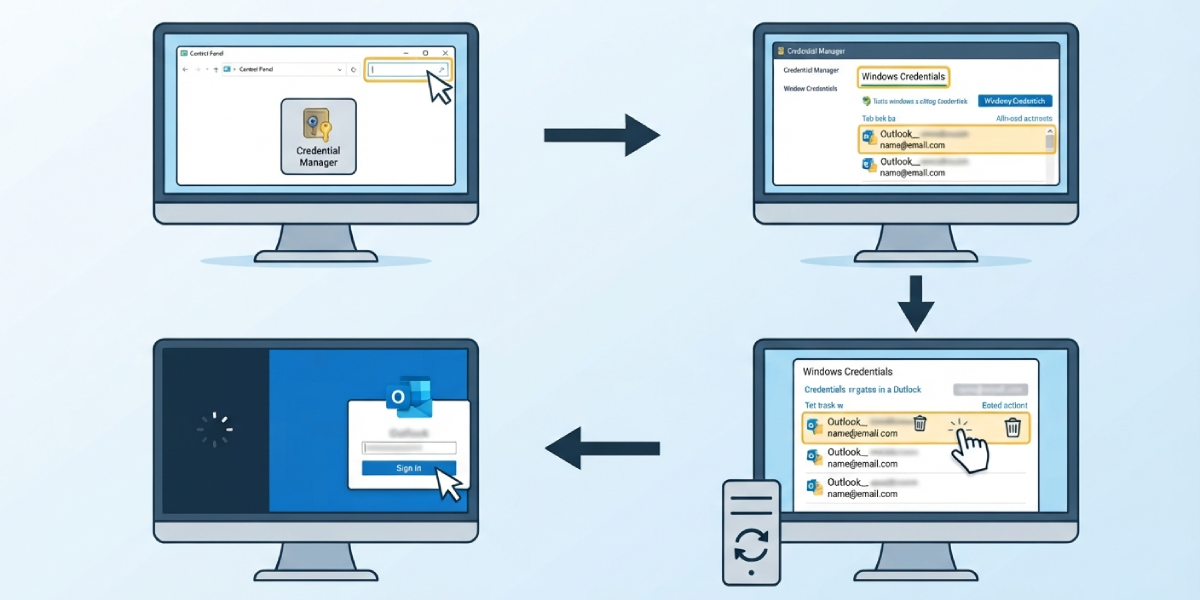
- Step 1: Open Control Panel and search for Credential Manager.
- Step 2: Select Windows Credentials, then look for any entries referencing Outlook or the affected email address.
- Step 3: Remove those entries one at a time, then restart the computer.
- Step 4: Reopen Outlook and sign back in when prompted. This forces a clean authentication handshake, which often clears the sync block behind this error.
Tip: A stuck credential is a common culprit after a recent password change, so this step is worth doing first if the account password was updated recently.
Common Problems and Fixes
- Repair option is grayed out or missing: This usually happens with certain account types. Skip straight to creating a new profile instead of waiting on a repair button that will not appear.
- Error returns right after profile recreation: Double check that only one instance of the account exists in Credential Manager; a leftover duplicate entry can reintroduce the same sync conflict.
- Outlook freezes during the repair process: Give it a few extra minutes before force-closing, since larger mailboxes take longer to re-sync. If it truly hangs, restart the computer and try the repair again.
- New profile will not send or receive mail: Recheck the account password entered during setup; a typo here is the most frequent cause of a profile that looks configured but never syncs.
Frequently Asked Questions
What causes Outlook error 0x85050041?
It generally comes from a broken sync connection between Outlook and the mail server, often triggered by a corrupted profile, an outdated app version, or stale cached credentials.
Does this error mean lost emails?
No. Existing mail stored on the server or already downloaded locally stays intact; the error only blocks new sync activity until it is resolved.
Is a full Outlook reinstall necessary to fix this error?
Rarely. Repairing the account or creating a new profile solves the vast majority of cases without needing to reinstall the entire application.
Will creating a new profile delete existing emails?
No, as long as the account is IMAP or Exchange-based, since mail is stored on the server and simply re-downloads into the new profile.
How long does the repair process usually take?
Most repairs finish within a couple of minutes, though accounts with large mailboxes can take longer to fully resync.
Can outdated Windows updates trigger this error?
Yes. Missing updates sometimes interfere with how Outlook authenticates accounts, so checking Windows Update after a fix is a smart follow-up step.
What if the error only happens with one specific account?
That points to an issue isolated to that account’s credentials or sync settings, so focus the repair and credential steps on that account rather than the entire Outlook installation.
Should antivirus software be checked as part of this fix?
If the steps above do not resolve the error, it is worth confirming that security software is not blocking Outlook’s connection to the mail server.
Does this fix work the same way on Outlook for Microsoft 365?
Yes, the same repair and profile recreation steps apply, since the underlying account sync architecture is shared across current Outlook versions.
