
Setting up an Exchange account in Outlook for Mac takes just a few minutes once the right settings are in place. This guide walks through the fastest, most reliable way to add an Exchange account in Outlook for Mac without running into sync errors or login loops.
Key Takeaways
- Outlook for Mac uses modern authentication, so most Exchange accounts connect with just an email address and password.
- Autodiscover handles server settings automatically in the majority of cases, meaning no manual server entry is needed.
- A stable internet connection and an up-to-date version of Outlook prevent most setup errors.
- Manual server setup is only needed for older on-premises Exchange environments.
- Two-factor authentication prompts are normal and confirm the security handshake is working correctly.
How to Add an Exchange Account in Outlook for Mac
The process below covers the standard setup flow that works for Microsoft 365 accounts and most modern Exchange servers.
- Step 1: Open Outlook for Mac and click the ‘Outlook’ menu in the top menu bar, then select ‘Settings’ (or ‘Preferences’ on older builds).
- Step 2: Click ‘Accounts’, then click the small plus (+) icon in the bottom-left corner of the Accounts window and choose ‘New Account’.
- Step 3: Type the full Exchange email address into the box that appears, then click ‘Continue’.
- Step 4: Outlook will detect the account type automatically. When prompted, enter the account password and click ‘Sign In’.
- Step 5: If the organization uses multi-factor authentication, approve the login through the Microsoft Authenticator app, a text code, or another configured method.
- Step 6: Once verification is complete, Outlook confirms the account was added successfully. Click ‘Done’ to close the setup window.
- Step 7: Allow a few minutes for Outlook to sync mail, calendar, and contacts. A progress indicator at the bottom of the inbox shows sync status.

Tip: Keep Outlook connected to Wi-Fi or a strong network signal during the sign-in step. A dropped connection mid-authentication is one of the most common reasons the setup window seems to freeze.
Adding a Second Exchange Account
The same steps work for adding a second or third Exchange account to the same Outlook profile. Just repeat Step 2 through Step 7 for each additional address. Outlook lists every connected account in the left-hand sidebar, so switching between a work inbox and a secondary Exchange account only takes a click.

Manual Setup for Older Exchange Servers
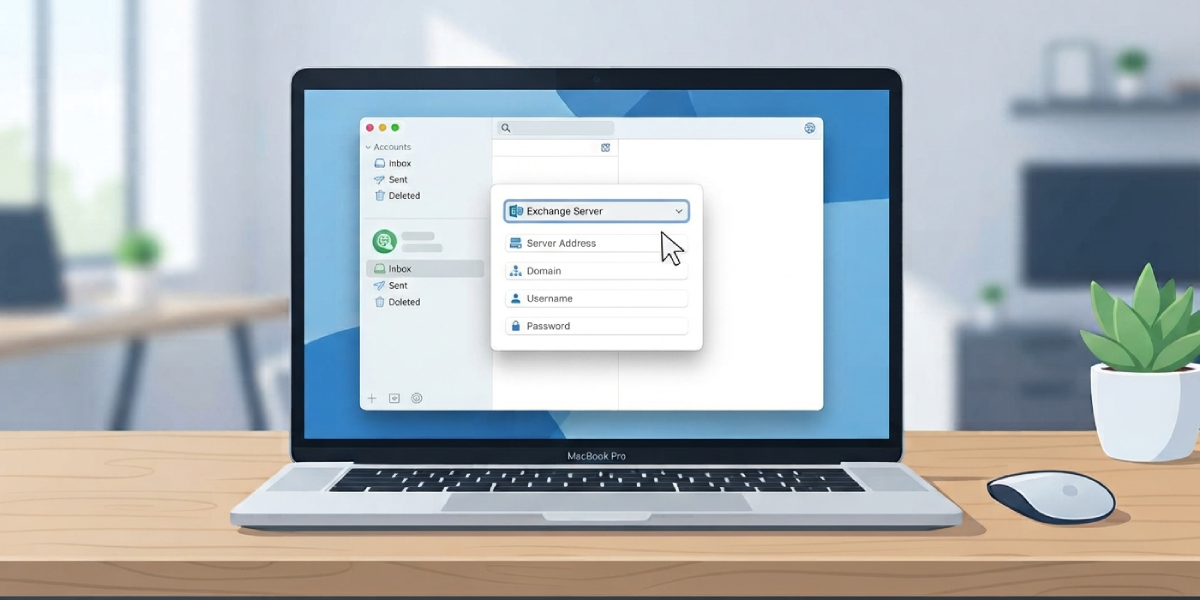
Some organizations still run on-premises Exchange servers that do not support automatic discovery. If Outlook cannot detect the account type after Step 4, choose ‘Exchange’ manually from the account type list and enter the server address provided by the IT department. This detail usually comes from an internal IT support page, since it varies by organization.
Common Problems and Fixes
- Outlook keeps asking for the password repeatedly: This usually points to a saved credential conflict in the Mac Keychain Access app. Search for ‘Outlook’ in Keychain Access, delete the old entries tied to that email address, then restart Outlook and sign in again.
- The account gets stuck on ‘Looking for settings’: This typically means autodiscover cannot reach the Exchange server. Confirm the internet connection is stable, or switch to manual server entry using the details from the IT department.
- Sign-in window does not appear after clicking ‘New Account’: Quit Outlook completely and reopen it. This clears a background process that occasionally blocks the sign-in prompt from loading.
- Two-factor prompt never arrives: Check that the phone number or authenticator app tied to the account is current. IT admins can resend or reset the verification method if needed.
- Outlook shows the account as added but no mail appears: Give the initial sync more time, especially with a large mailbox. Click the sync icon in the bottom-left corner to check progress before assuming something is wrong.
Frequently Asked Questions
Does adding an Exchange account in Outlook for Mac require a Microsoft 365 subscription?
Not necessarily. Any active Exchange mailbox, whether hosted through Microsoft 365 or an on-premises server, can be added as long as the account credentials are valid.
Can Outlook for Mac connect to an Exchange account without a work or school login?
Yes, as long as the Exchange server allows external client connections and the correct email address and password are entered during setup.
Why does Outlook ask for permission through a browser window instead of the app?
Modern authentication sometimes routes the sign-in through a secure browser window for added security. This is expected behavior and completes the same login process.
Is it necessary to restart the Mac after adding the account?
No restart is required. Restarting Outlook itself is usually enough if the account does not sync right away.
How long does the first sync take after adding the account?
This depends on mailbox size. Smaller mailboxes often sync within a few minutes, while larger ones with years of mail history can take longer to fully download.
What should be done if the Exchange server address is unknown?
Contact the organization’s IT support team. They maintain the correct server address for accounts that require manual setup.
Can the same Exchange account be added to Outlook for Mac and Outlook on iPhone at the same time?
Yes. Exchange accounts support multiple simultaneous device connections without conflict.
Does removing and re-adding the account fix most sync issues?
In many cases, yes. Removing the account from the Accounts window and adding it again often resolves persistent sync or authentication errors.
