
A blue screen caused by faulty RAM usually shows up as random crashes, memory-related stop codes, or a system that won’t stay stable no matter what software gets reinstalled. This guide walks through why it happens and exactly how to fix it, from free diagnostic tools to physical troubleshooting steps that actually resolve the problem.
Key Takeaways
- Faulty RAM often produces stop codes like MEMORY_MANAGEMENT, IRQL_NOT_LESS_OR_EQUAL, or PAGE_FAULT_IN_NONPAGED_AREA.
- Windows Memory Diagnostic and MemTest86 are the two most reliable ways to confirm a RAM problem.
- Reseating the memory modules resolves a surprising number of cases caused by a loose connection rather than a dead stick.
- Testing sticks one at a time isolates which module is actually failing.
- Mismatched or unstable RAM settings in the BIOS can mimic a hardware failure even when the sticks are fine.
Common Causes of Blue Screens Linked to Faulty RAM
Random access memory holds active data for everything the processor is working on, so even a small error in one module can corrupt data and force Windows into a blue screen as a protective measure. A few things typically trigger this on a PC or laptop.
Physical Degradation or Manufacturing Defects
Memory modules can develop faults over time from heat cycling, static damage, or a defect that was present from the factory but only shows up under heavy use.
Loose or Dirty Contacts
A stick that isn’t fully seated in its slot, or one with dust and oxidation on the gold contacts, can cause intermittent errors that look exactly like a failing module.
Overclocking or Aggressive XMP Profiles
Running memory faster than the modules or motherboard reliably support introduces instability that often gets misdiagnosed as a dying stick.
Incompatible or Mismatched Modules
Mixing RAM with different speeds, timings, or voltages sometimes leads to conflicts the memory controller cannot resolve cleanly, which triggers crashes under load.
How to Fix a Blue Screen Caused by Faulty RAM
Before You Start
Power the computer off completely and unplug it from the wall. On a laptop, remove the battery if it is a removable type, or hold the power button for several seconds after unplugging to drain residual power. Ground hands by touching a bare metal part of the case, or use an anti-static wrist strap before touching any internal components. If the device is under warranty, opening the case may void it, so check the manufacturer’s policy first. If crashes continue after every step below, or if the motherboard shows physical damage, this is the point to hand the repair to a professional.
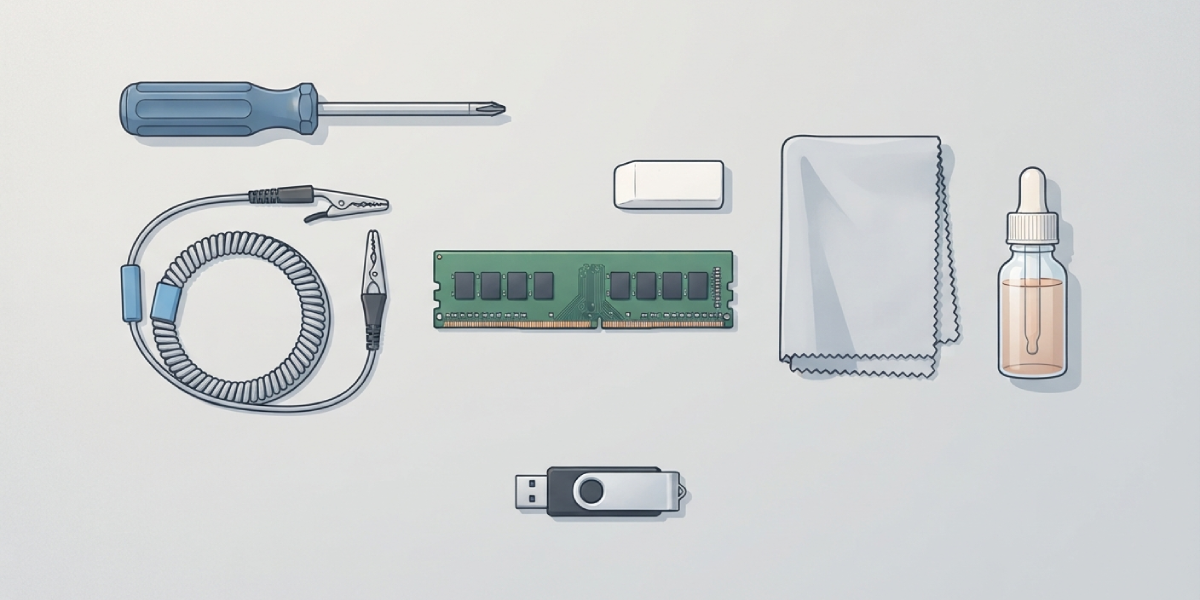
Tools and materials needed:
- Phillips screwdriver appropriate for the case or laptop
- Anti-static wrist strap, or access to a bare metal grounding point
- Soft eraser or lint-free cloth for cleaning contacts
- 90 percent or higher isopropyl alcohol, only if contacts appear visibly dirty
- A USB flash drive for bootable diagnostic tools
Step-by-Step Fix
- Step 1: Run Windows Memory Diagnostic first. Type ‘Windows Memory Diagnostic’ into the Start menu, choose to restart and check for problems, and let the test run through its passes. Any reported errors confirm a RAM issue.
- Step 2: Follow up with MemTest86 for a deeper check. Download it from the official site, create a bootable USB drive, and let it run at least two full passes. This tool catches errors that the built-in Windows tool sometimes misses.
- Step 3: Power down, unplug, and ground hands before opening the case or the laptop’s memory compartment.
- Step 4: Reseat each memory module. Release the side clips, remove the stick fully, and press it back in firmly until the clips lock into place. This alone fixes a meaningful share of intermittent blue screens.
- Step 5: If reseating doesn’t help, clean the gold contacts. Wipe them gently with a soft eraser or a lint-free cloth lightly dampened with isopropyl alcohol, let them dry completely, then reinsert.
- Step 6: Test one module at a time. With multiple sticks installed, remove all but one and run MemTest86 again. Rotate through each stick and each slot individually to identify exactly which module or slot is causing the fault.
- Step 7: Check BIOS memory settings. Enter the BIOS or UEFI setup, disable any aggressive XMP or DOCP overclock profile, and let the memory run at its rated default speed to rule out an instability issue rather than a true hardware fault.
- Step 8: Replace any module that fails testing on its own. Once a specific stick is confirmed faulty, swap it for a compatible replacement matching the speed and capacity of the remaining module.
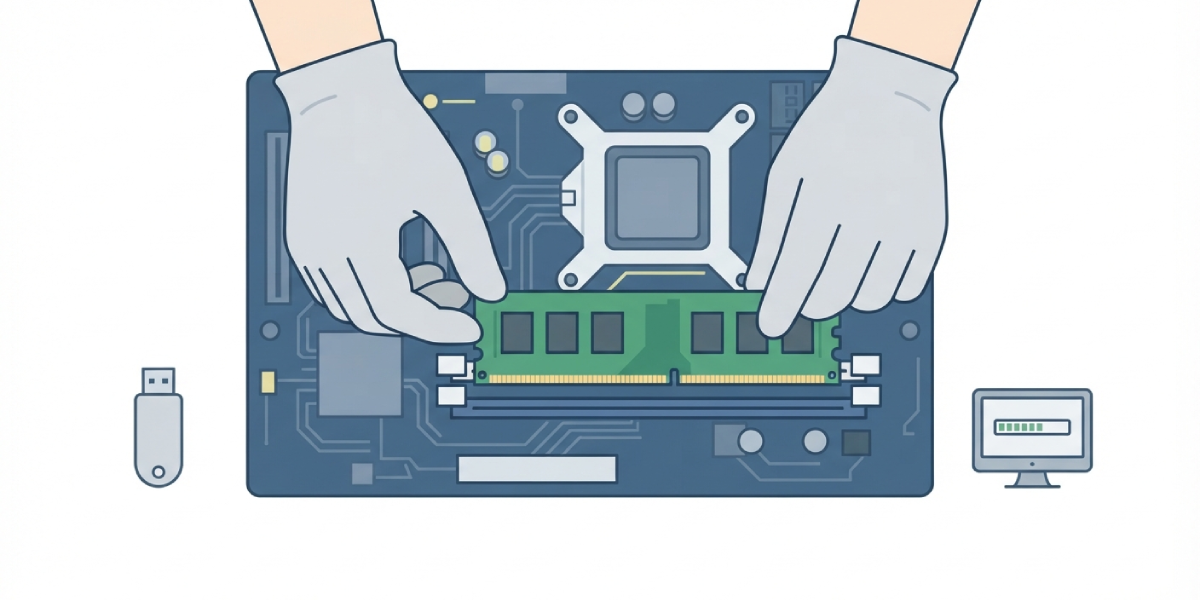
Tip: Always test one stick at a time in the same slot rather than swapping both variables at once. This is the only way to know for certain whether the problem is the module or the slot itself.
Common Problems and Fixes
Blue Screens Continue After Reseating the RAM
This usually means the fault is inside the module itself rather than the connection. Move on to single-stick testing with MemTest86 to confirm which one is bad.
MemTest86 Shows Errors on Every Slot
When every slot reports errors regardless of which stick is installed, the issue may point to the motherboard’s memory controller rather than the RAM. This is a case worth having a professional confirm before buying replacement memory.
System Won’t Boot After Reinstalling RAM
Double-check that each module is fully seated with both clips engaged. A stick that looks inserted but isn’t fully locked in often prevents the system from posting at all.
New Replacement RAM Still Causes Crashes
Confirm the new module’s speed and timings are actually supported by the motherboard and matches the existing stick if running in dual channel. Running two mismatched modules together frequently reintroduces the same instability.
Crashes Only Happen Under Heavy Load
This pattern often points to an overly aggressive XMP profile rather than a dead module. Resetting memory speed to its default JEDEC setting in BIOS is worth trying before assuming a hardware failure.
Frequently Asked Questions
What stop codes usually indicate a blue screen caused by faulty RAM?
MEMORY_MANAGEMENT, IRQL_NOT_LESS_OR_EQUAL, PAGE_FAULT_IN_NONPAGED_AREA, and KERNEL_DATA_INPAGE_ERROR are among the most common stop codes linked to memory problems.
How long does a full MemTest86 run take?
A single pass can take anywhere from twenty minutes to a couple of hours depending on the amount of installed memory, and running at least two passes gives a more reliable result.
Can faulty RAM cause data loss?
Yes, a failing module can corrupt files being actively written or read at the moment of a crash, so backing up important data as soon as blue screens start appearing is a smart precaution.
Is it safe to run mismatched RAM sticks together?
Mismatched speeds or capacities can sometimes work but often lead to instability, so matching speed, timings, and ideally the same kit is the more reliable approach.
Does reseating RAM really fix blue screens?
It does in a meaningful number of cases, since dust, oxidation, or a stick that shifted slightly out of its slot can produce the same symptoms as a genuinely defective module.
How can one RAM stick be tested at a time on a laptop with soldered memory?
On laptops with soldered memory, physical isolation isn’t possible, so the process relies entirely on MemTest86 results and, if errors persist, professional evaluation of the board itself.
Should the entire RAM kit be replaced if only one stick is bad?
Replacing the full kit is often recommended for dual or quad channel setups, since mixing an old stick with a new one can reintroduce timing mismatches even when both are technically functional.
Can a faulty power supply cause the same blue screen symptoms as bad RAM?
Yes, unstable power delivery can produce similar crash patterns, so ruling out RAM first with MemTest86 helps narrow down whether the power supply needs separate testing.
Is overclocked RAM more likely to trigger these blue screens?
Yes, running memory above its rated speed through XMP or DOCP profiles increases the chance of instability-related crashes, and reverting to default speed is a quick way to test this.
When should a professional be called in for this issue?
If MemTest86 shows errors across every slot regardless of which stick is installed, or if the motherboard shows signs of physical damage, a professional technician should evaluate the board before any more parts are purchased.
