
Recognizing the signs your RAM is failing early can save a computer from random crashes, corrupted files, and hours of frustrating troubleshooting. Random access memory rarely fails all at once – it usually sends warning signals first, and knowing what to look for makes diagnosis much faster.
Key Takeaways
- Frequent blue screens, random restarts, and freezing during normal tasks are classic warning signs of failing RAM.
- File corruption, especially in files that were not being edited at the time, often points to a memory problem rather than a hard drive issue.
- Built-in tools like Windows Memory Diagnostic and third-party tools like MemTest86 can confirm a RAM fault with a reasonably high degree of certainty.
- Physical issues such as dust buildup or a loose module in the slot can mimic true RAM failure and are worth ruling out first.
- Persistent errors after reseating and testing usually mean the module needs to be replaced.
Common Signs of Failing RAM
Faulty memory tends to show up in ways that feel inconsistent and hard to pin down at first. That inconsistency is actually one of the biggest clues, since a failing module often only causes problems when certain memory addresses are accessed.
Random Blue Screens or Crashes
Blue screens that reference memory management, page faults, or IRQL errors are a strong indicator. These crashes often happen during normal activity rather than heavy workloads, which sets them apart from overheating-related shutdowns.
Frequent Freezing or Lockups
A system that freezes randomly, especially while multitasking or opening several applications at once, may be struggling to reliably store and retrieve data from memory.
Corrupted or Disappearing Files
Files that become unreadable or show garbled content, particularly ones that were not open or being saved at the time, often point to memory errors writing bad data before it reaches storage.
Startup Problems
A computer that fails to boot, boots into a repair screen, or beeps in a repeating pattern during startup may be signaling a memory fault, since RAM is one of the first components tested during the power-on process.
Distorted Graphics or Visual Glitches
Screen tearing, strange colors, or garbled text that is not tied to a graphics driver update can sometimes trace back to memory issues rather than the graphics card itself.
Performance That Doesn’t Match the Hardware
Programs that take unusually long to open, or a system that feels sluggish despite having capable hardware, can indicate that the operating system is compensating for unreliable memory.
Tip: Keep a mental note of when problems occur. Crashes that happen only under heavy load point more toward heat or power issues, while crashes during light, everyday tasks point more toward memory.
Before You Start
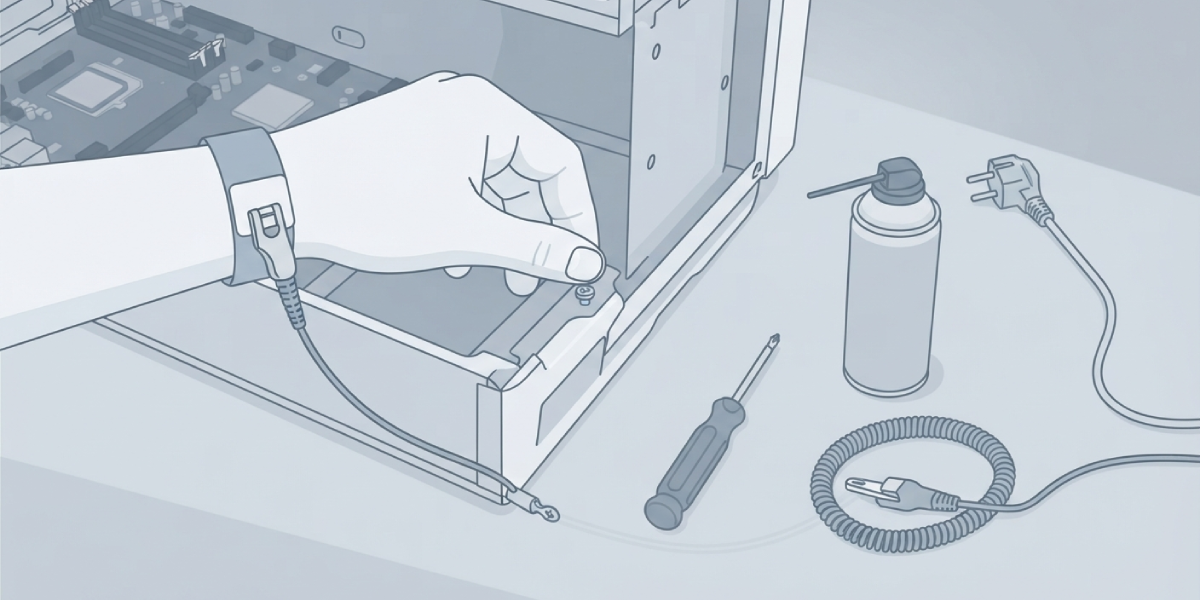
Testing and reseating memory involves opening the case, so a few basic precautions matter. Power the system down completely and unplug it from the wall. On a laptop, remove the battery if it is user-replaceable. Touch a bare metal part of the case or use an anti-static wrist strap before handling any components to avoid static discharge, and let the system sit for a few minutes if it was just running so internal parts are not warm.
Tools needed are minimal: a small Phillips screwdriver, a can of compressed air, and an anti-static strap if one is available. Opening a laptop case may affect the manufacturer’s warranty, so check the warranty terms first if the machine is still covered.
How to Diagnose and Confirm RAM Failure
- Step 1: Run the built-in memory diagnostic. On Windows, search for ‘Windows Memory Diagnostic’ in the Start menu, choose to restart and check for problems, and let it complete its full pass.
- Step 2: For a more thorough check, download MemTest86 and create a bootable USB drive following the tool’s instructions, then boot from that drive and let it run at least one full pass, which can take a couple of hours depending on how much memory is installed.
- Step 3: Watch for any reported errors during the test. Even a single error typically confirms a faulty module rather than a coincidence.
- Step 4: Power down, unplug the system, and open the case or laptop memory panel following the safety steps above.
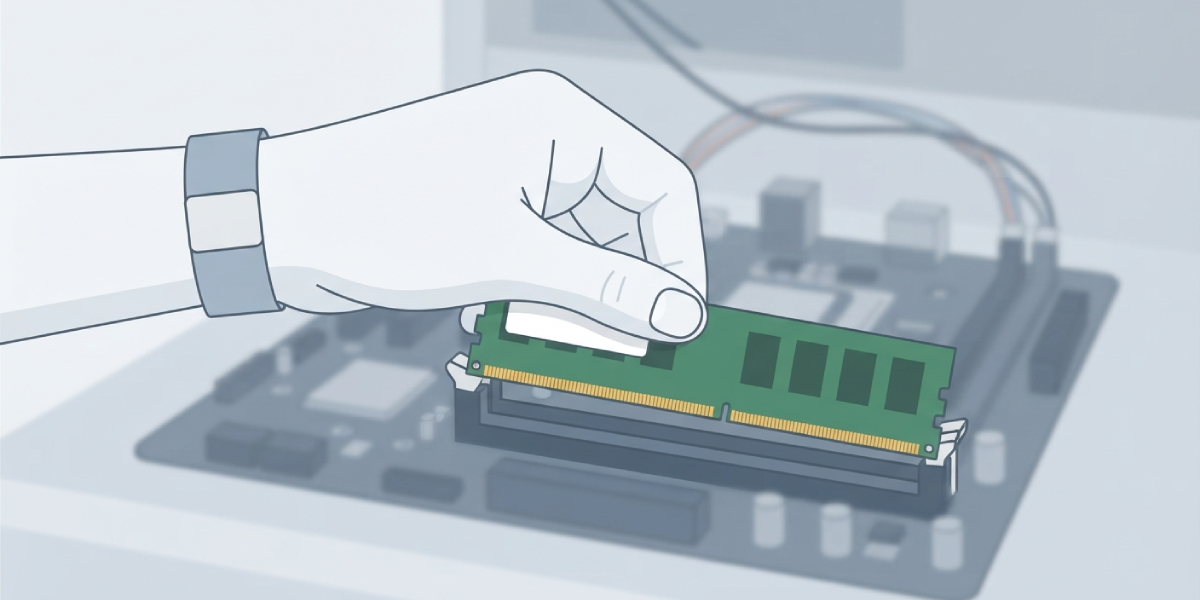
- Step 5: Remove each memory module by releasing the side clips, then use compressed air to clear dust from the slot and gently wipe the gold contacts on the module with a dry, lint-free cloth.
- Step 6: Reseat each module firmly until the clips click into place, making sure it sits flush and level in the slot.
- Step 7: If more than one module is installed, test them one at a time by running the system with a single stick installed, then swapping to the next, to isolate which module is causing errors.
- Step 8: Re-run the memory diagnostic after reseating to confirm whether the issue is resolved or persists.
Tip: If errors only appear with one specific module installed and disappear when it is removed, that module is almost certainly the source of the problem and should be replaced.
Common Problems and Fixes
Errors Continue After Reseating the Modules
This usually confirms actual module failure rather than a connection issue. Replace the faulty stick with a new module matching the same speed, capacity, and type as the remaining memory for stability.
System Won’t Boot at All With RAM Installed
Try each module individually in the first slot, since a single failed stick can prevent the whole system from powering on even if the other modules are healthy.
Diagnostic Tool Reports No Errors But Problems Persist
A clean result does not always rule out memory entirely, especially with intermittent faults. Running a longer test with multiple passes, or checking whether the memory’s speed and timings match the motherboard’s supported specifications, often uncovers the issue.
New Replacement Module Causes the Same Symptoms
This can point to a problem with the memory slot itself, the motherboard, or a compatibility mismatch between the new module and existing ones. Testing the new module alone in a different slot helps narrow down the cause.
Frequently Asked Questions
What are the most common signs your RAM is failing?
The most common signs include random blue screens, unexpected freezes, file corruption, boot failures, and graphical glitches that appear without a clear cause.
Can failing RAM cause a computer to not turn on?
Yes. Since memory is tested early in the boot process, a badly failed module can prevent the system from powering on or completing startup at all.
How long does a RAM test take?
A single full pass with a tool like MemTest86 typically takes one to a few hours depending on how much memory is installed, and running multiple passes gives more confidence in the result.
Does failing RAM slow down a computer?
It can. The operating system may retry failed reads and writes or work around unreliable memory addresses, which shows up as sluggish performance even on otherwise capable hardware.
Is it safe to keep using a computer with failing RAM?
It is not recommended, since faulty memory can silently corrupt files being saved or edited, leading to data loss over time.
Can dust cause symptoms that look like RAM failure?
Yes. A module that is not seated properly or has dust interfering with the contacts can produce the same kinds of crashes and errors as an actual hardware fault, which is why reseating and cleaning come before replacement.
How can one module be identified as the faulty one in a multi-stick setup?
Testing modules one at a time in the same slot isolates the problem, since errors that appear only when a specific stick is installed point directly to that module.
Does a computer manufacturer’s diagnostic tool work as well as third-party software?
Built-in tools like Windows Memory Diagnostic are a solid first check, but dedicated tools like MemTest86 generally run more thorough patterns and are considered more reliable for confirming a fault.
Can a BIOS or firmware update fix RAM-related crashes?
In some cases, yes, particularly when the crashes stem from a compatibility issue between the memory and motherboard rather than an actual hardware defect. Checking for the latest BIOS update is worth doing before replacing a module.
When should a professional be called in to look at possible RAM failure?
If reseating and testing does not resolve the issue, or if the affected device is a laptop with memory soldered to the motherboard, a qualified technician is the safer route rather than attempting further disassembly.
